HR role guides — what each role can do, step by step
Step-by-step guides for every HR role — the manager who approves, the specialist who keeps the records, the line manager who sees their own team, and the employee who serves themselves. 31 steps across 5 roles, every one of them carried out in the product before it was published here.
Nothing matches that. Try a shorter word, or pick All roles to search every guide.
Go deeper
HR Manager
Own the workforce record — and be able to prove it on any day.
Owns the workforce record end to end — hiring decisions through to the last day, the compliance the business is measured on, and the approvals nobody else can give.
What you will be able to do
- Find anyone, and see their whole record on one page
- Decide the requests that are waiting on you
- See who is joining, who is leaving, and what is outstanding
- Know which documents expire before somebody's permit does
What this role can and cannot do
| Can | Cannot |
|---|---|
|
|
10 steps, each one carried out in the product on .
Check what your sign-in can do #
Where Your name, top right » Profile
- Open your company's address in the browser — it looks like yourcompany.tarleaks.com.
- Type the e-mail address your administrator set up for you, then your password.
- You land on the app launcher: a grid of the apps your company uses.
- Click your name, top right.
- Choose Profile.
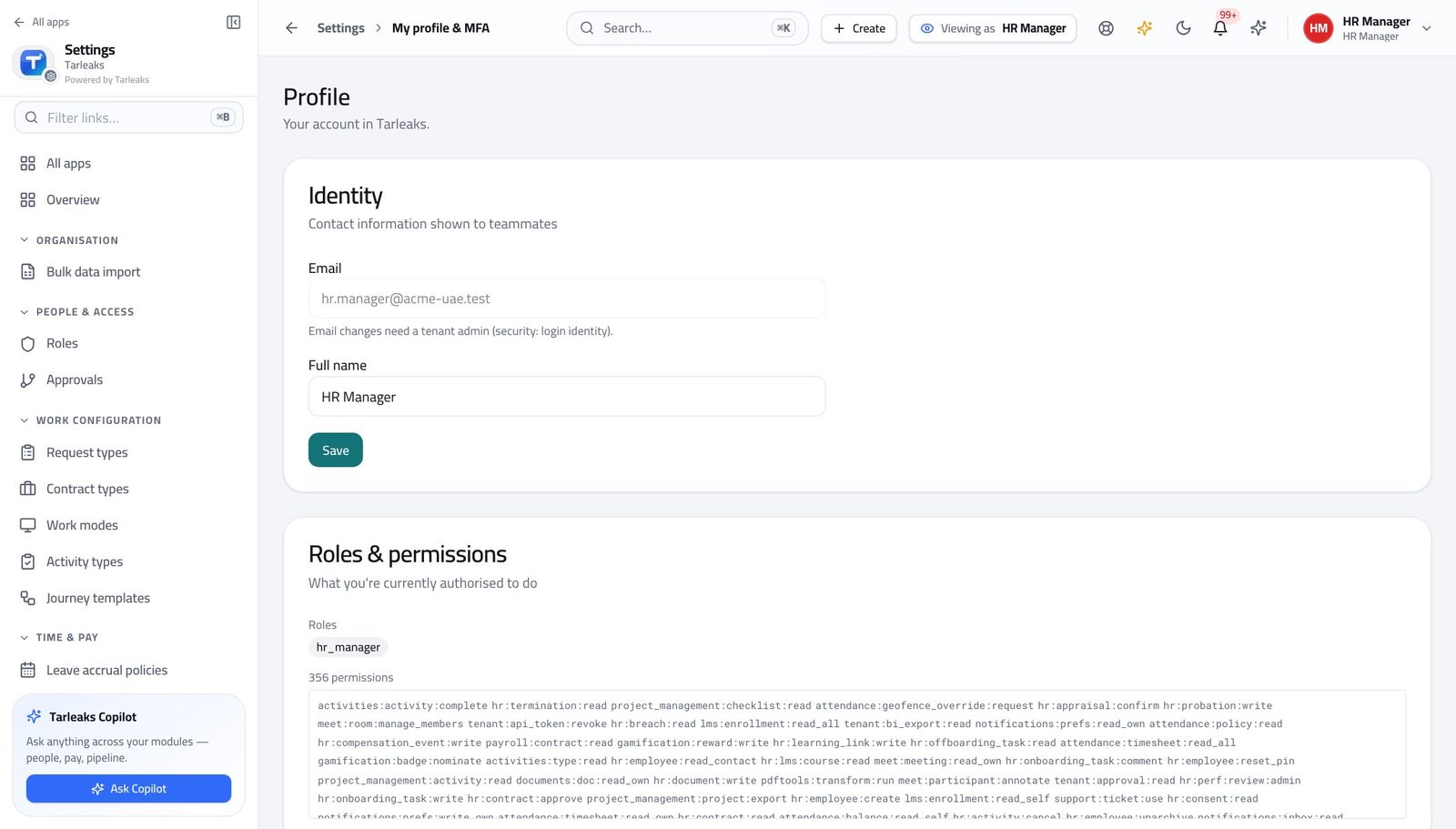
You should see It says HR Manager. Approvals, compliance and the destructive actions sit with you.
Open the people directory #
Where HR » People
- From the launcher, click the HR tile.
- Click People in the left menu.
- Type part of a name into the search box, or use the filters for department and status.
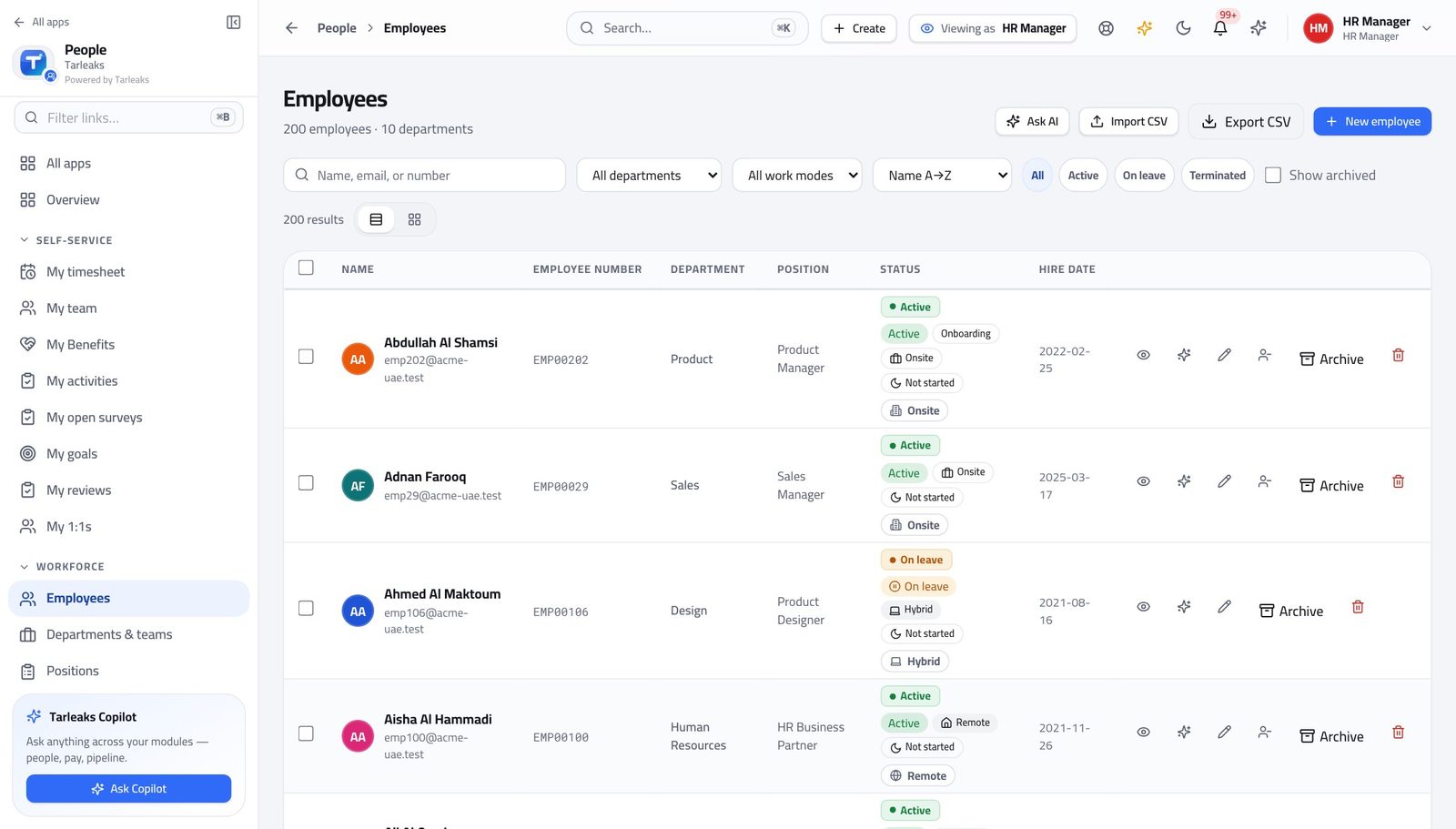
You should see Everyone in the business is here, with their department, position and status.
Watch out An employee with no linked login will not appear in a manager's My team — the link is what the system recognises people by.
Worth knowing The status chip is live: it reflects whether the person is working today, on leave, or not yet started.
Open one person's whole record #
Where HR » People » a person
- Click any row in the directory.
- Move across the tabs on the record.
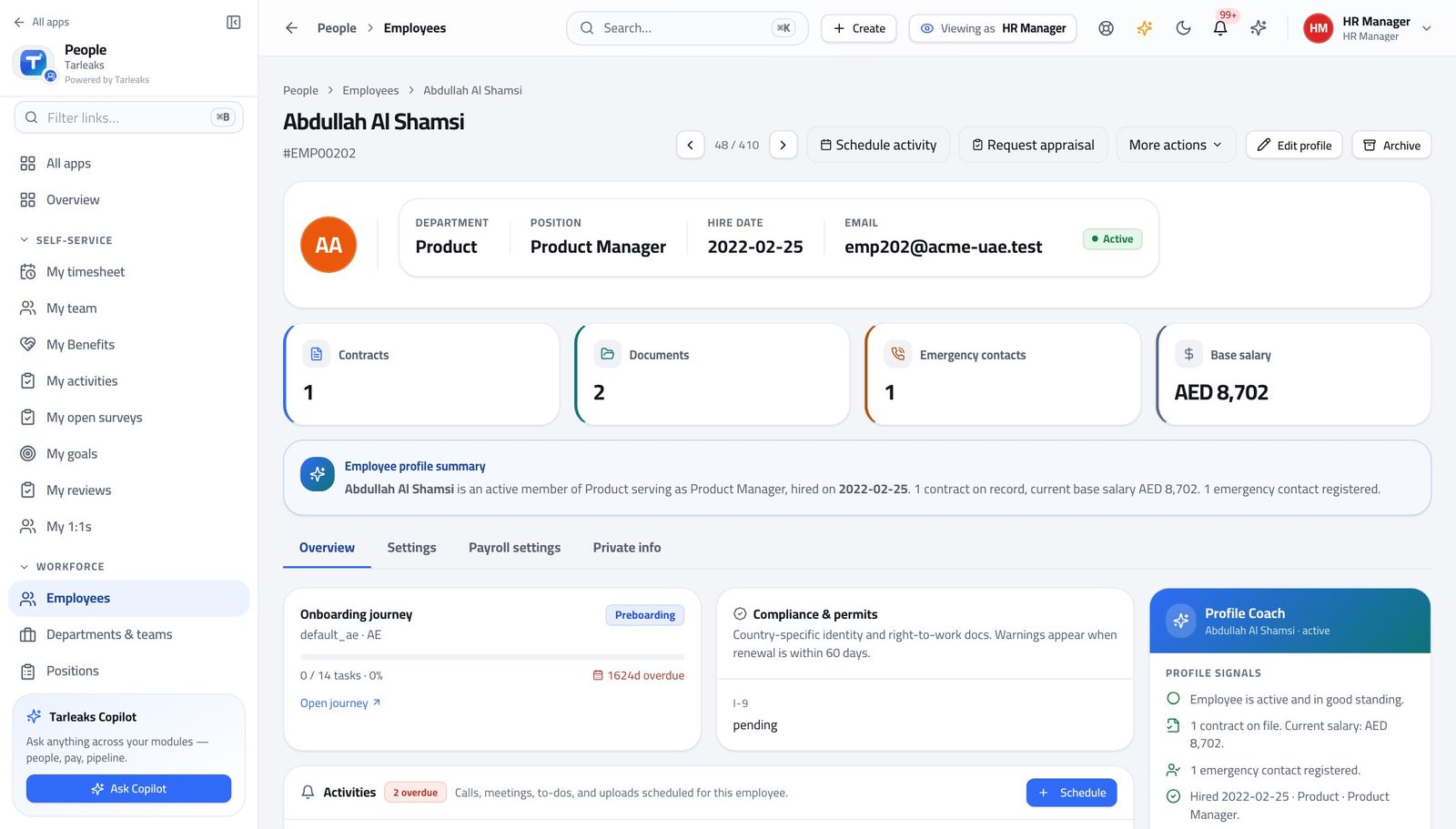
You should see One page holds the whole employment story rather than five systems.
See the shape of the business #
Where HR » Departments
- Open Departments in the left menu.
- Read the manager and the headcount on each row.
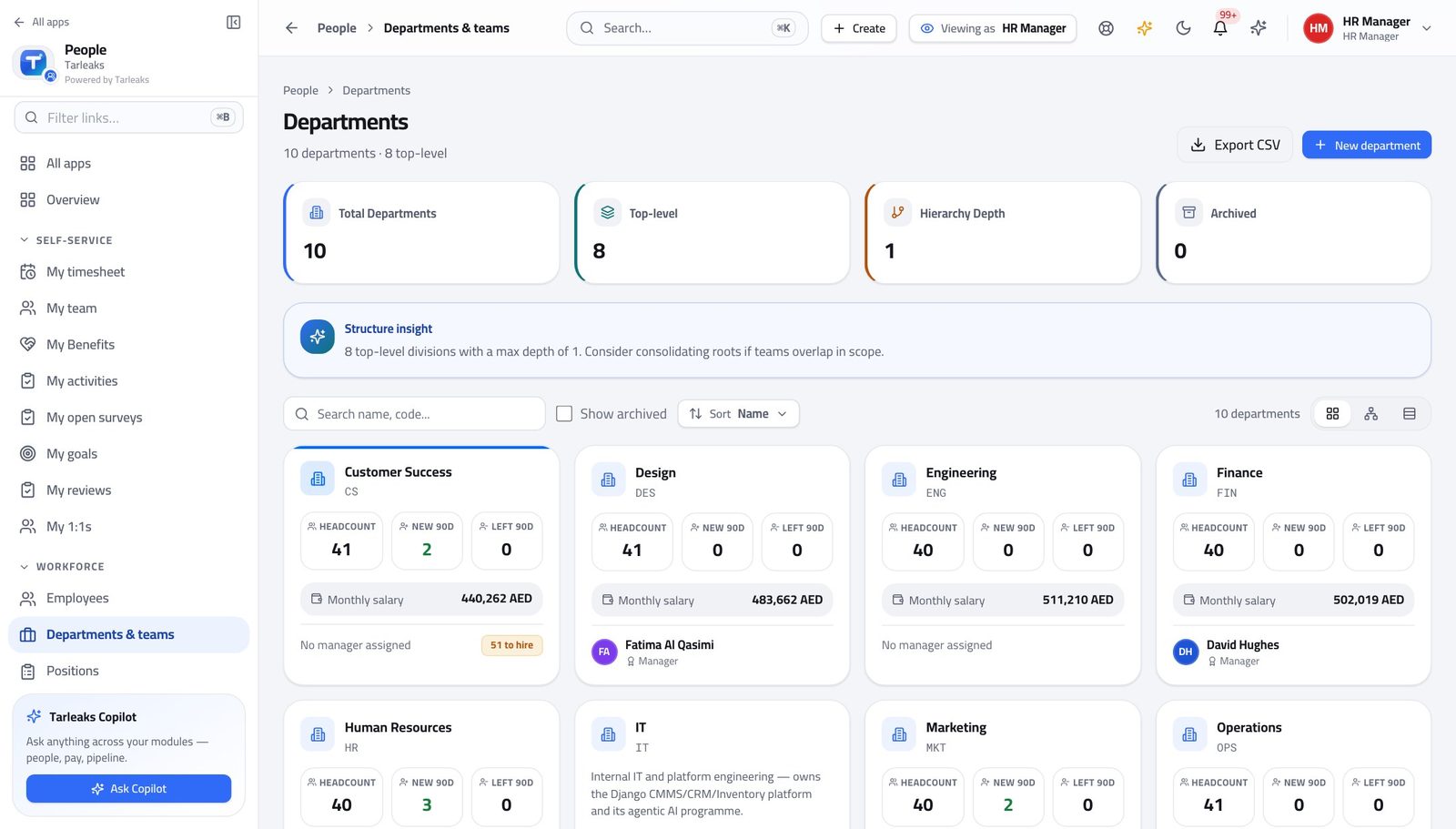
You should see Departments are what drives a line manager's scope, so the structure here decides who can see whom.
Decide what is waiting on you #
Where HR » Requests
- Open Requests.
- Filter to what is waiting on you.
- Open one, read the chain, then decide with a reason.
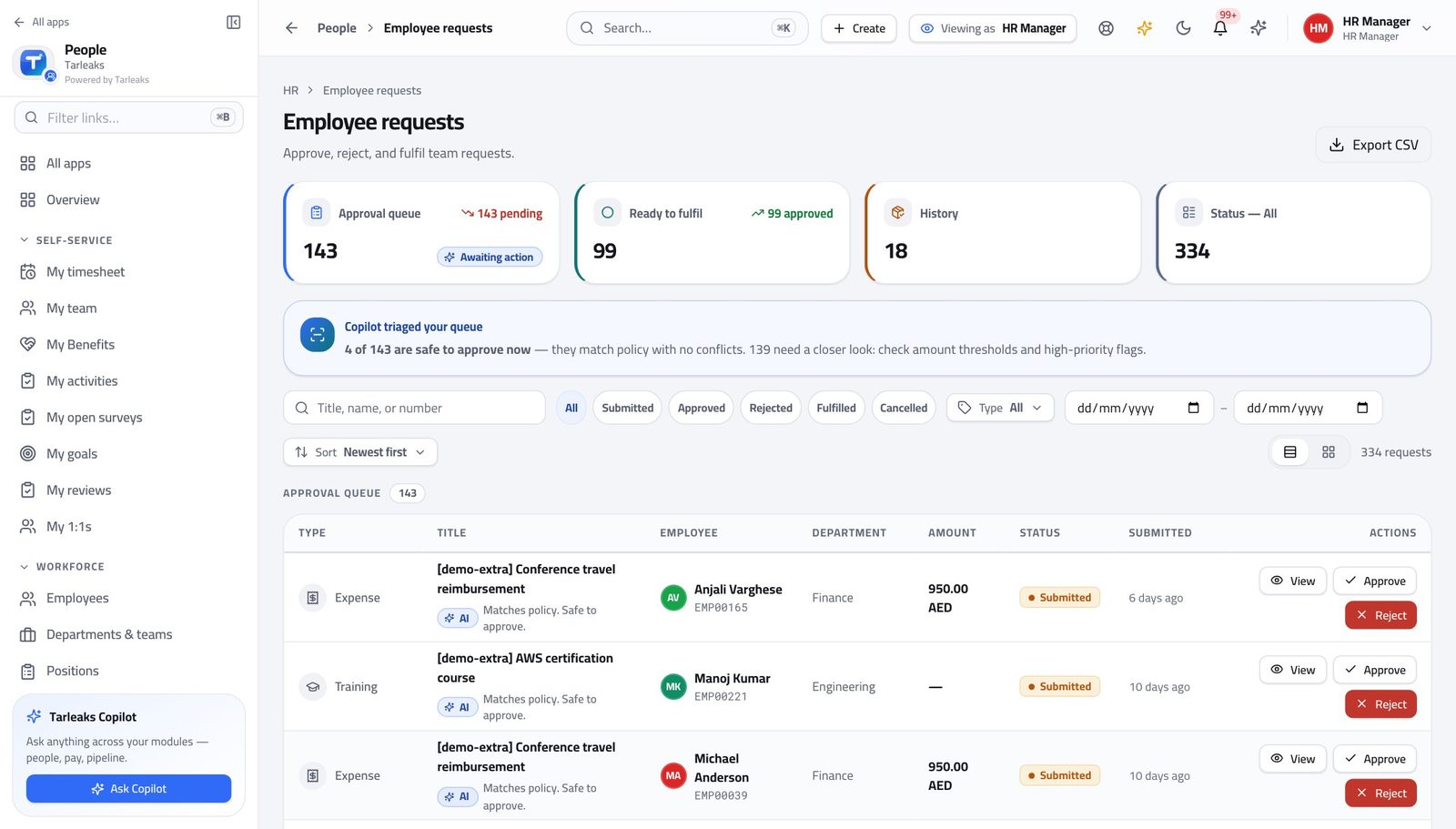
You should see Leave, letters and record changes all arrive in the same queue, with their approval chain visible.
Watch out Refusing without a reason is the most common cause of the same request arriving again next week.
See who is joining, and what is outstanding #
Where HR » Onboarding
- Open Onboarding.
- Open a journey to see its task list.
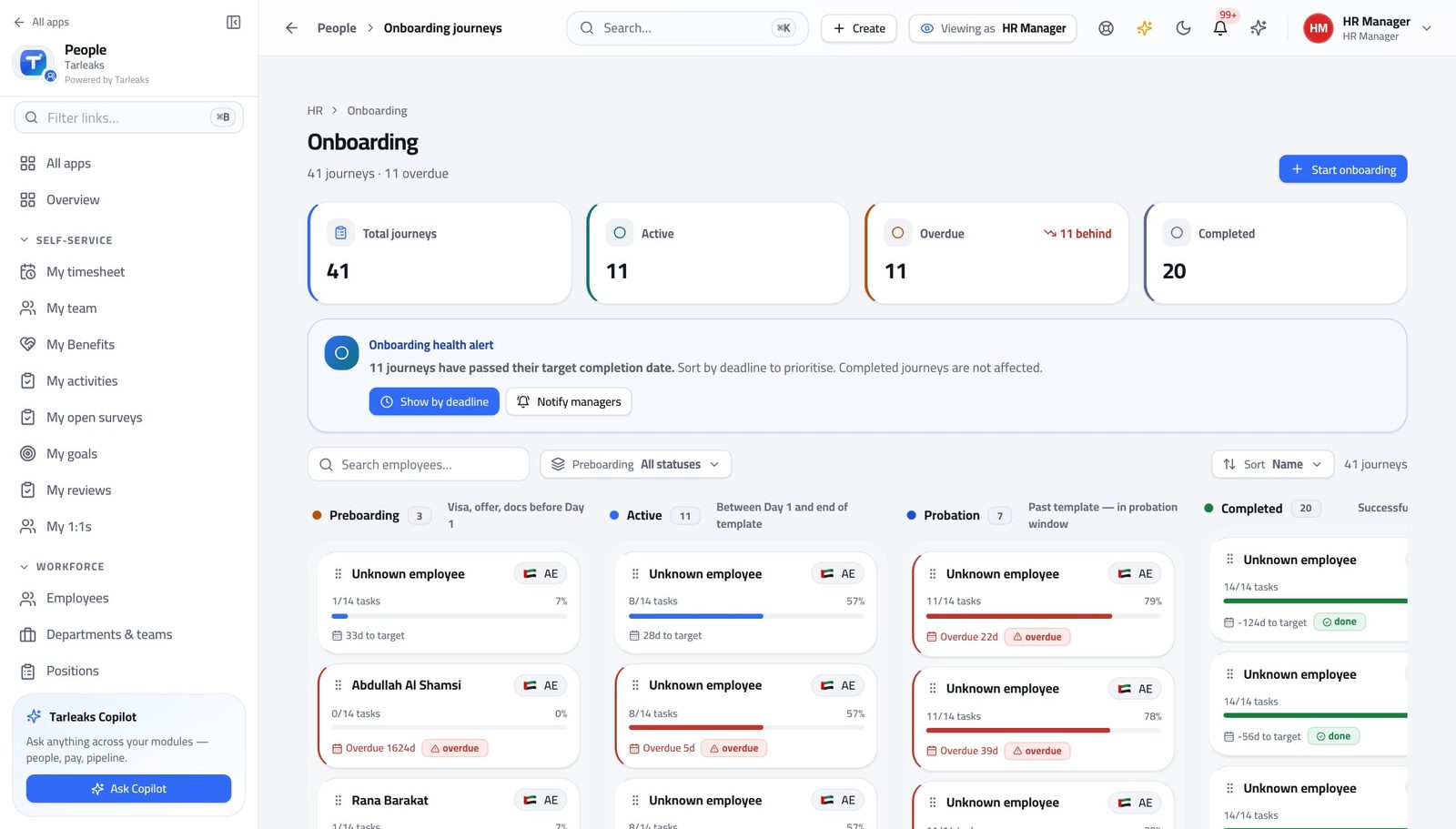
You should see A journey is cloned from a template when it starts, so editing the template never disturbs somebody already halfway through.
See who is leaving, and what must come back #
Where HR » Offboarding
- Open Offboarding.
- Open an in-flight journey.
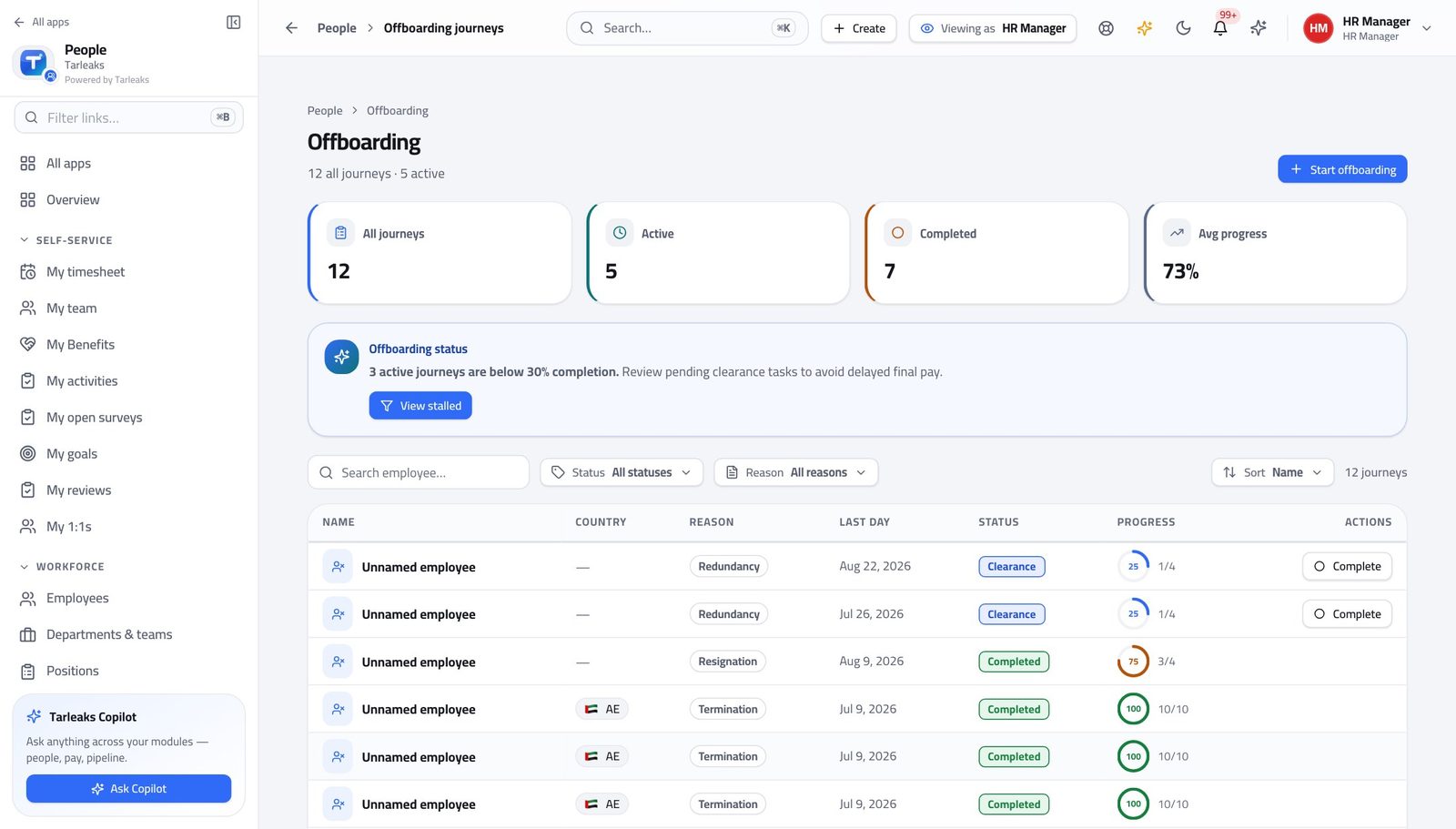
You should see The last day is a process, not a conversation — and this is the evidence it was followed.
Catch an expiring permit before it expires #
Where HR » Visa tracker
- Open the visa tracker.
- Sort by expiry date.
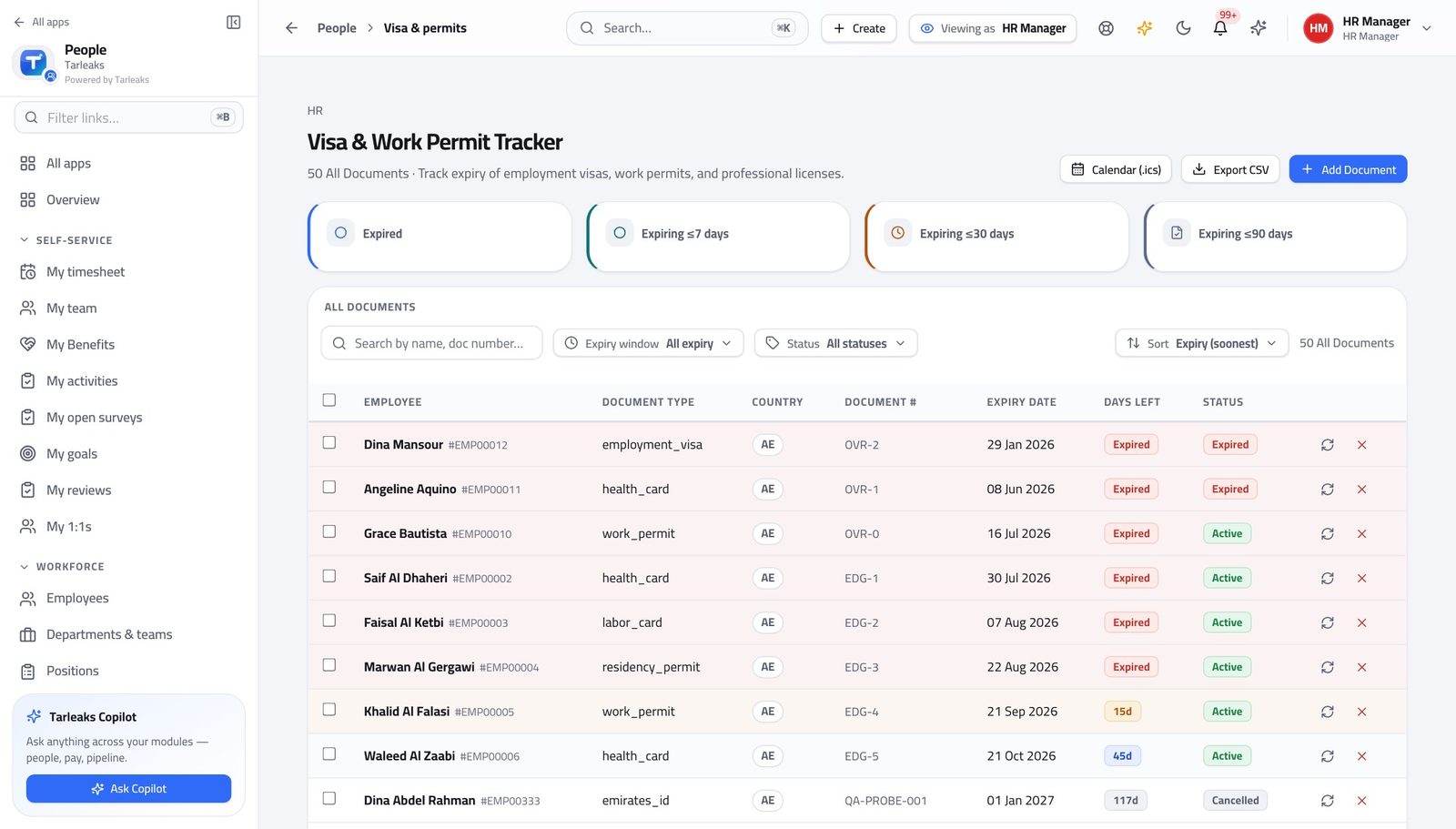
You should see Passports, visas, Emirates IDs and professional licences are tracked with staged reminders rather than a spreadsheet.
Watch out Renewals take weeks. The ninety-day reminder is the one to act on, not the seven-day one.
Worth knowing An expired permit is a fine and a person who cannot work. The reminders start ninety days out for exactly that reason.
Read the workforce numbers #
Where HR » Analytics
- Open Analytics.
- Choose the period.
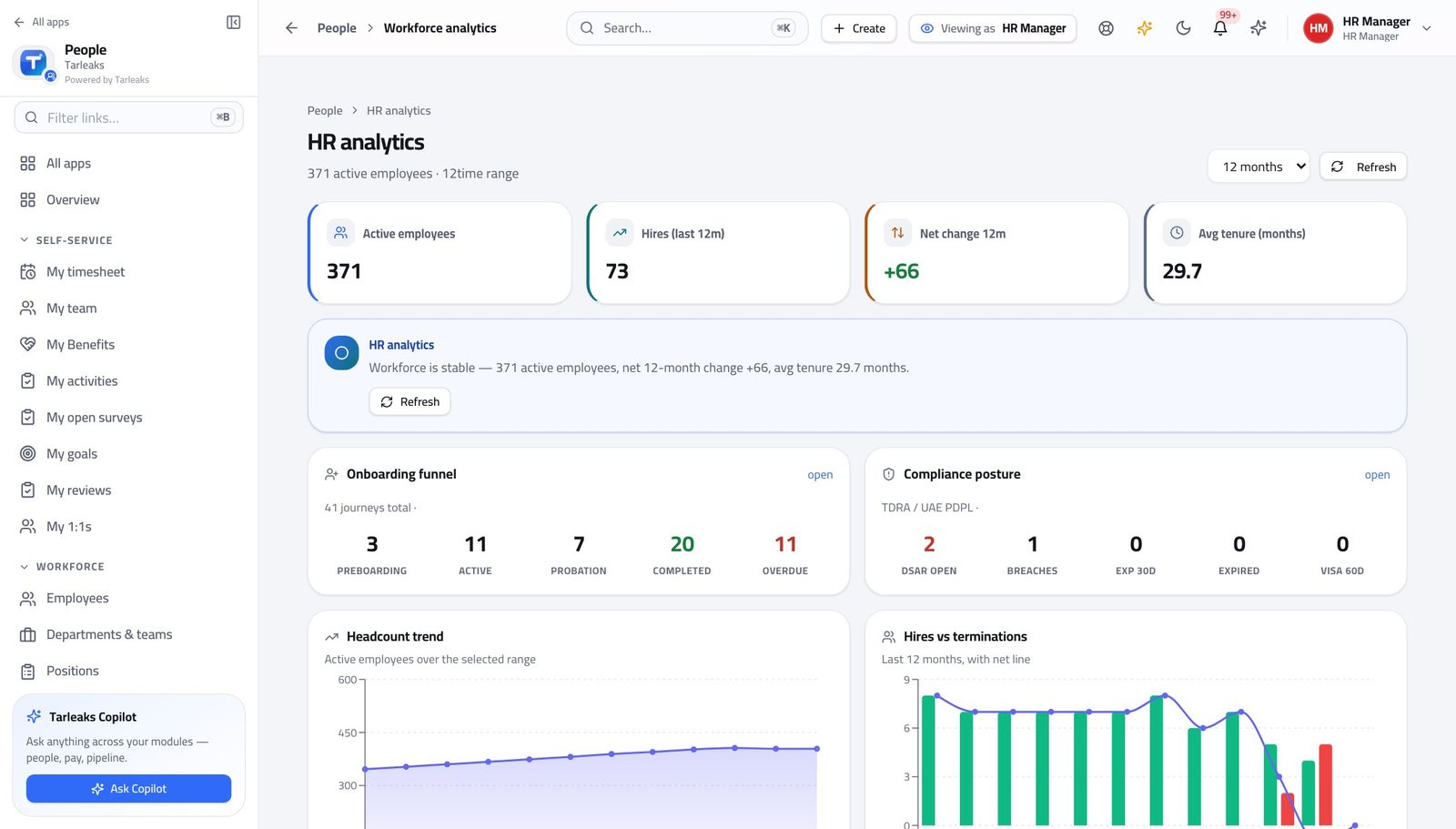
You should see The numbers come from the records themselves, so they agree with the directory rather than with last month's export.
Run the performance cycle #
Where HR » Performance
- Open Performance.
- Move through goals, reviews and one-to-ones.
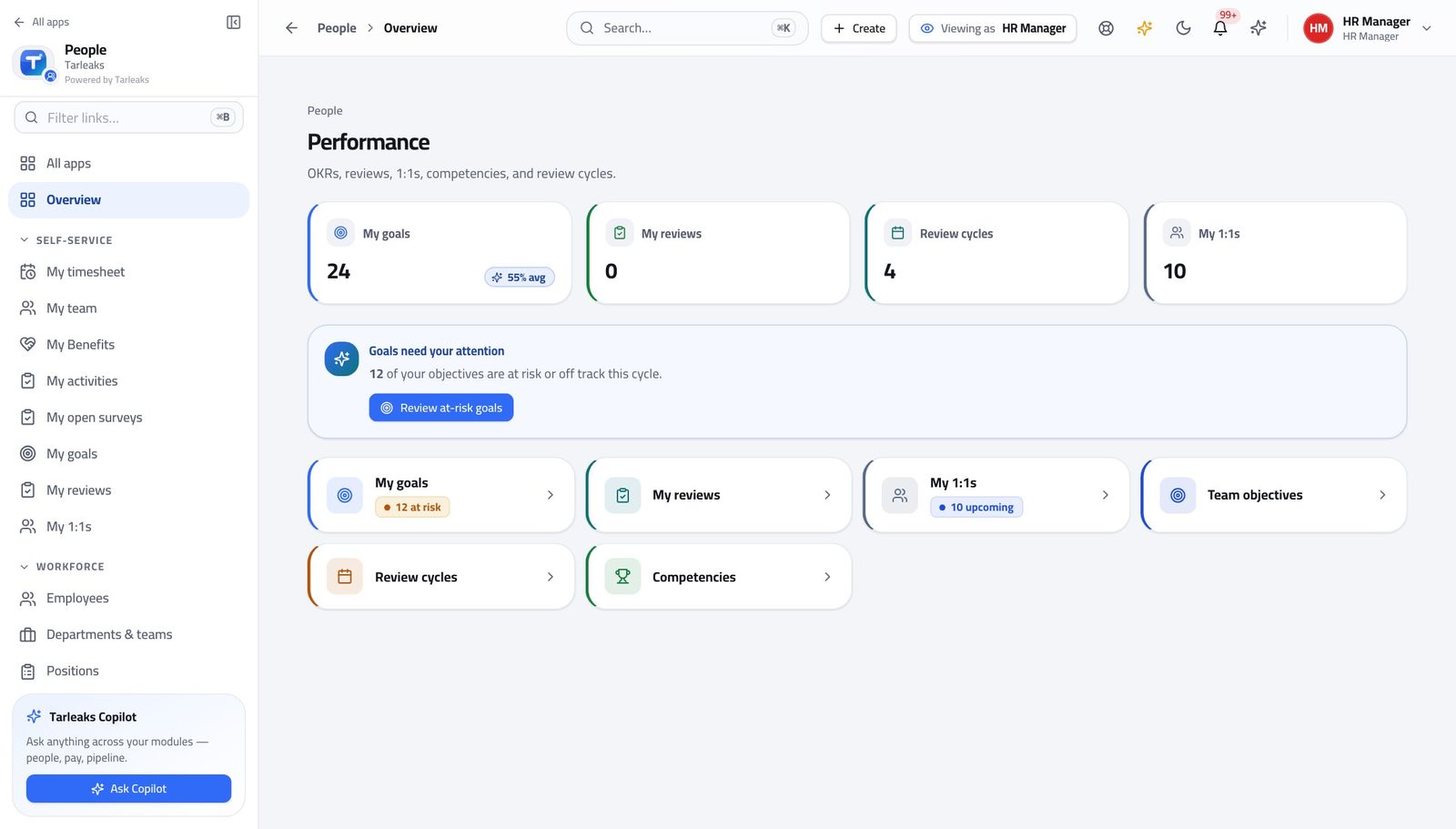
You should see A review cycle is opened once and everybody works inside it, so the chasing is visible rather than personal.
Use cases — the work, step by step
Each one is a sequence somebody actually performs, with the screen behind every step. Every screen here was opened in the product as this role before it was published.
dailyThe morning pass: approvals, joiners, leavers #
Three screens answer 'what needs me today' better than any inbox.
Open Requests and decide what is waiting on you. A refusal with a reason is a decision; without one it comes back next week.
HR » Requests — verified: the page says “Request” Open Onboarding and look for a journey that has stalled on one task — that is usually somebody waiting on somebody else.
HR » Onboarding — verified: the page says “Onboarding” Open Offboarding and check the leavers due this week have their assets and access on the list.
HR » Offboarding — verified: the page says “Offboarding”
weeklyNobody's permit expires on your watch #
An expired visa is a fine and a person who legally cannot work. Renewals take weeks, so the ninety-day reminder is the one to act on.
Open the visa tracker and sort by expiry date.
HR » Visa tracker — verified: the page says “expir” Open the person behind any document expiring inside ninety days and check their record has what a renewal needs.
HR » People » a person — verified: the page says “Overview”
monthlyAnswer a headcount question in two minutes #
The numbers come from the records themselves, so the answer you give matches the directory somebody else will check.
Open Analytics and read headcount, joiners and leavers for the period.
HR » Analytics — verified: the page says “Headcount” Open Departments to see where the movement actually happened.
HR » Departments — verified: the page says “Department” Drill into the people themselves when a number looks wrong — the directory is the same source the report used.
HR » People — verified: 25 row(s) listed
The destructive actions — termination, legal hold, subject-access requests — sit with you and nobody else. That is deliberate: they are the ones a company gets asked about later.
HR Specialist
Keep the records straight so everyone else's month works.
Runs HR's day: new joiners, documents, requests and the records everyone else relies on being right.
What you will be able to do
- Add a new joiner and start their onboarding
- File documents where retention is applied automatically
- Work the request queue without guessing who approves what
- Keep the directory clean enough to trust
What this role can and cannot do
| Can | Cannot |
|---|---|
|
|
6 steps, each one carried out in the product on .
Check what your sign-in can do #
Where Your name, top right » Profile
- Open your company's address in the browser — it looks like yourcompany.tarleaks.com.
- Type the e-mail address your administrator set up for you, then your password.
- You land on the app launcher: a grid of the apps your company uses.
- Click your name, top right.
- Choose Profile.
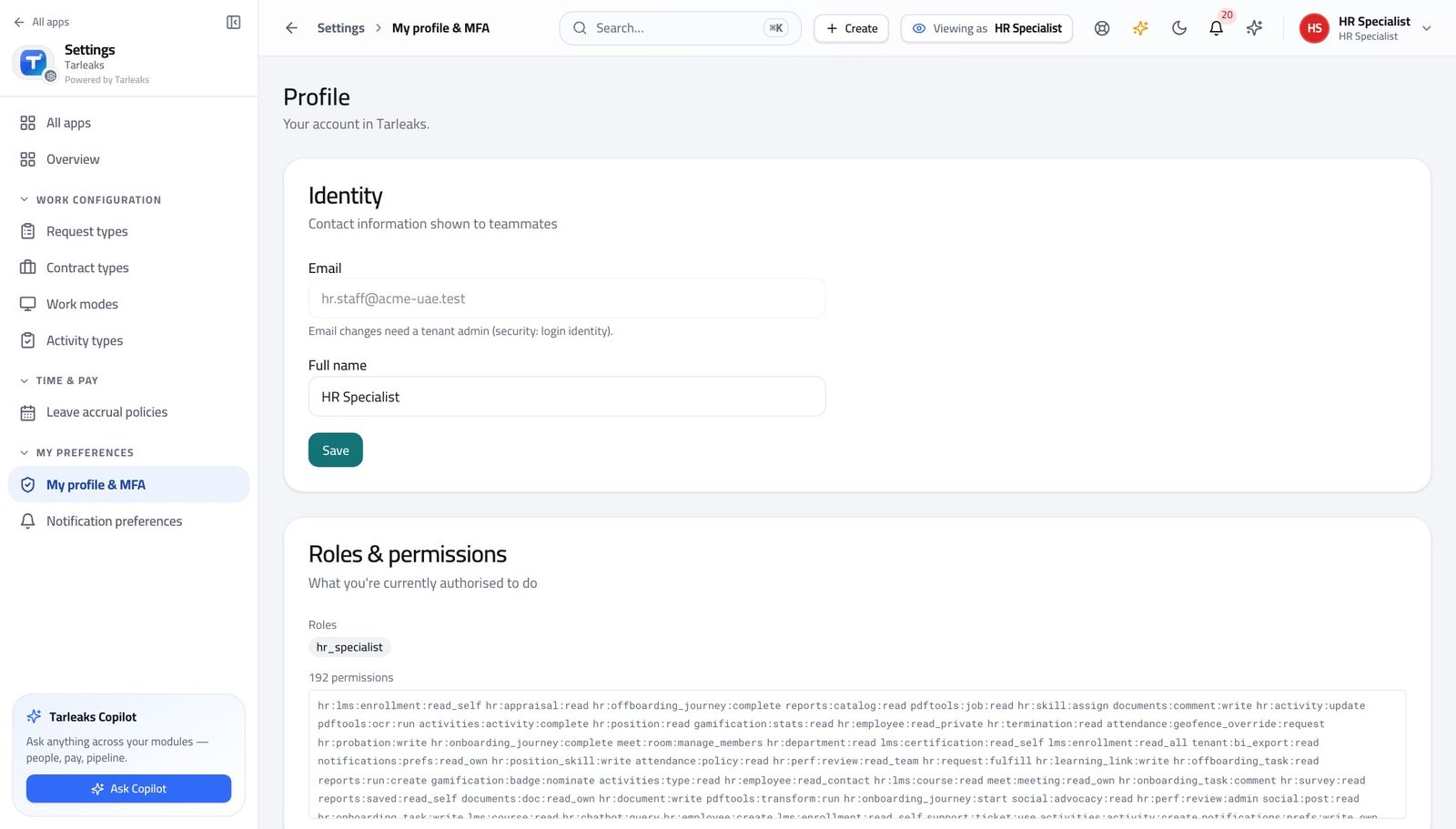
You should see It says HR Specialist. You create and maintain records; terminations and legal holds belong to the HR manager.
Find anybody in seconds #
Where HR » People
- Open People.
- Search by name, number or position.
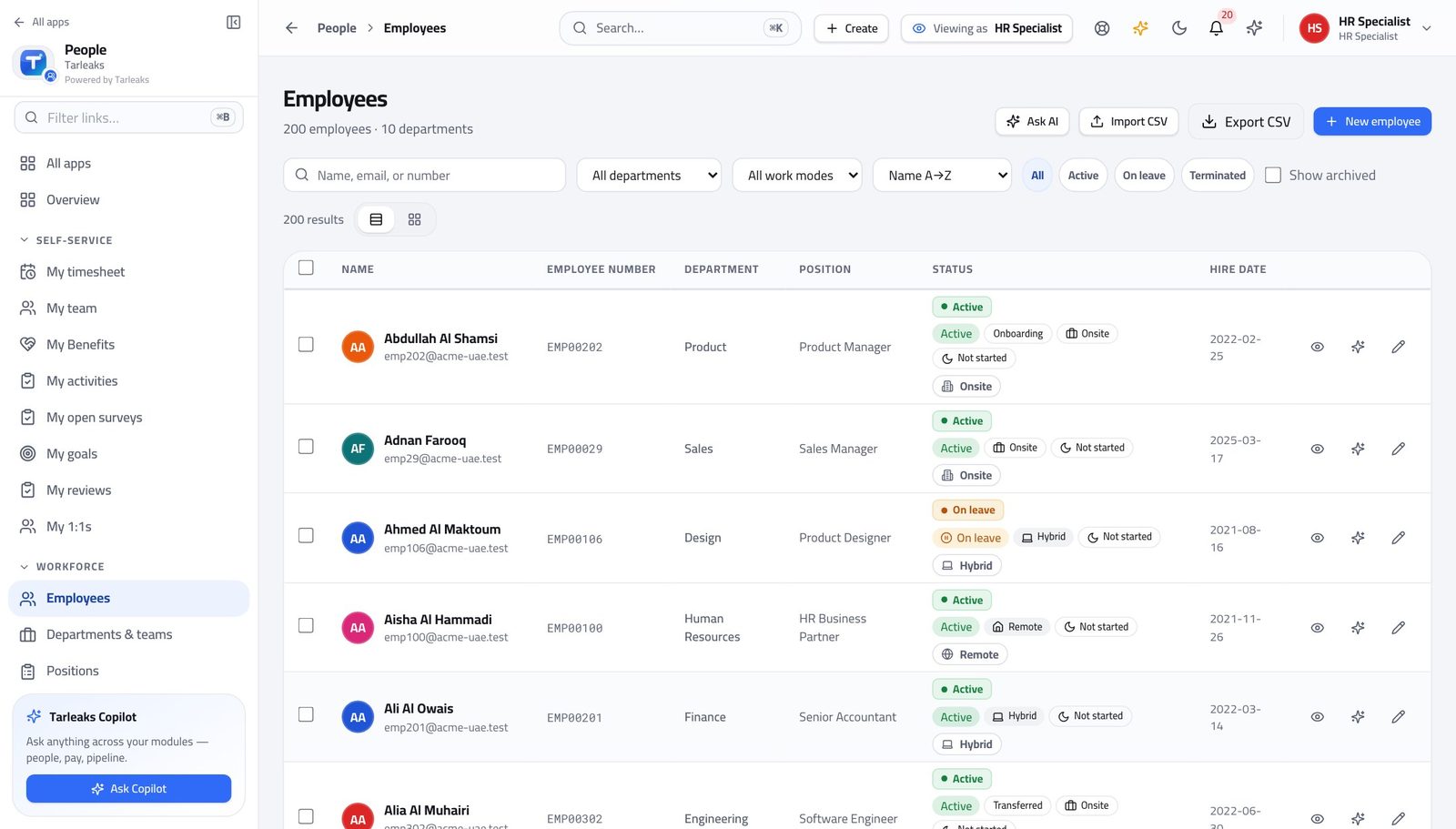
You should see The directory is the spine of everything else — payroll, attendance and access all read from it.
Add a new joiner #
Where HR » People » New employee
- On People, click New employee.
- Fill the identity and the job.
- Set the reporting line and the department.
- Save.
| Field | What to put in it |
|---|---|
| Full name | As it appears on their passport or ID — this is what prints on letters and contracts. |
| Employee number | Your own reference. Leave it blank and one is generated. |
| Department | Drives who can see this person: a line manager sees the departments they manage. |
| Position | The job title, from the position list rather than free text, so reporting stays comparable. |
| Manager | Who they report to. This is what builds My team and the org chart. |
| Start date | The first working day. Onboarding tasks are scheduled from it. |
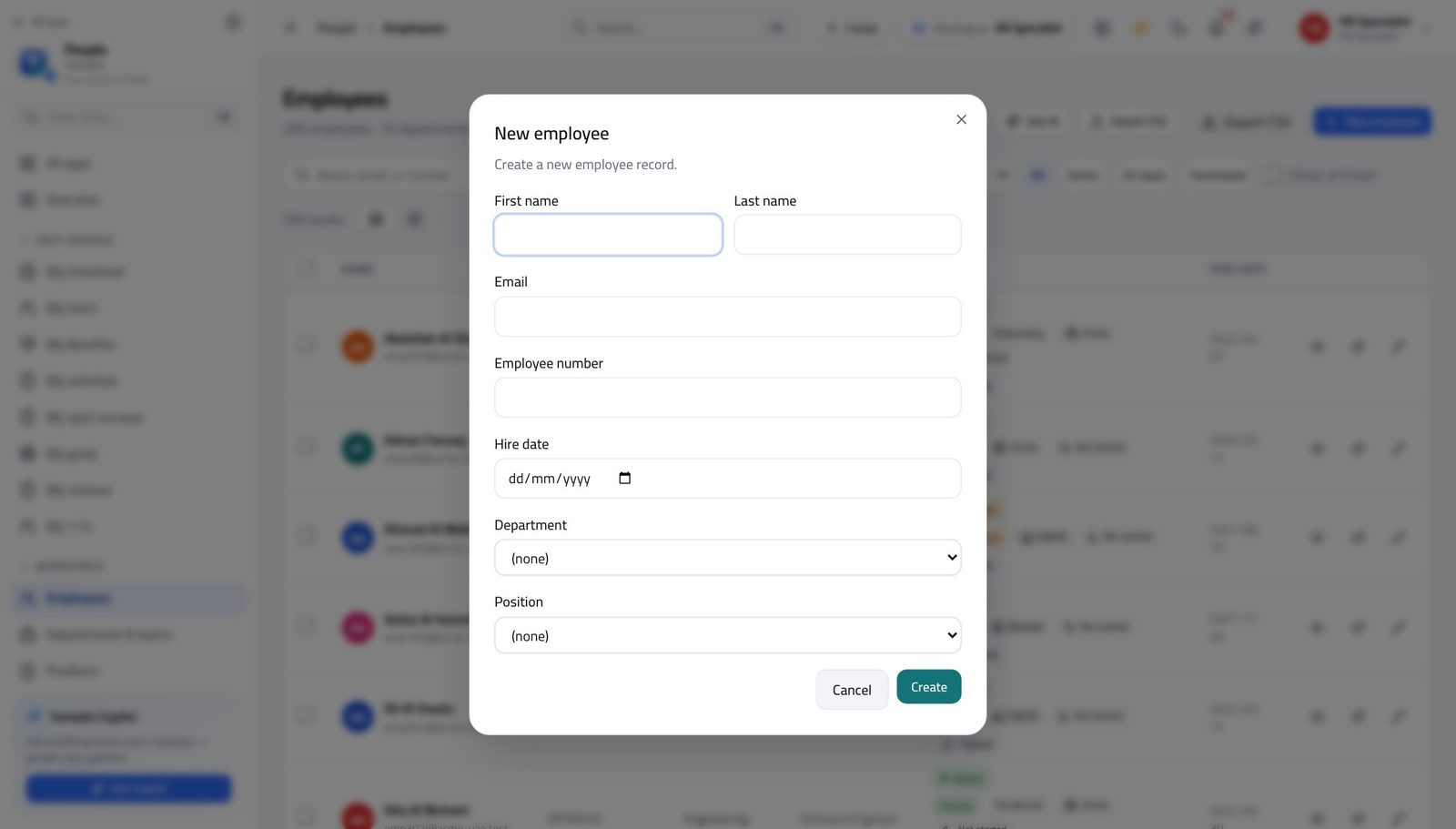
You should see The person exists once, and every other module reads that one record.
Watch out Link the person to their login as soon as they have one, or self-service and My team will not recognise them.
Worth knowing Link them to a login as soon as they have one. Without it, self-service and My team cannot recognise them.
File a document where retention applies itself #
Where HR » Documents
- Open Documents.
- Choose the document type BEFORE uploading.
- Upload the file against the person.
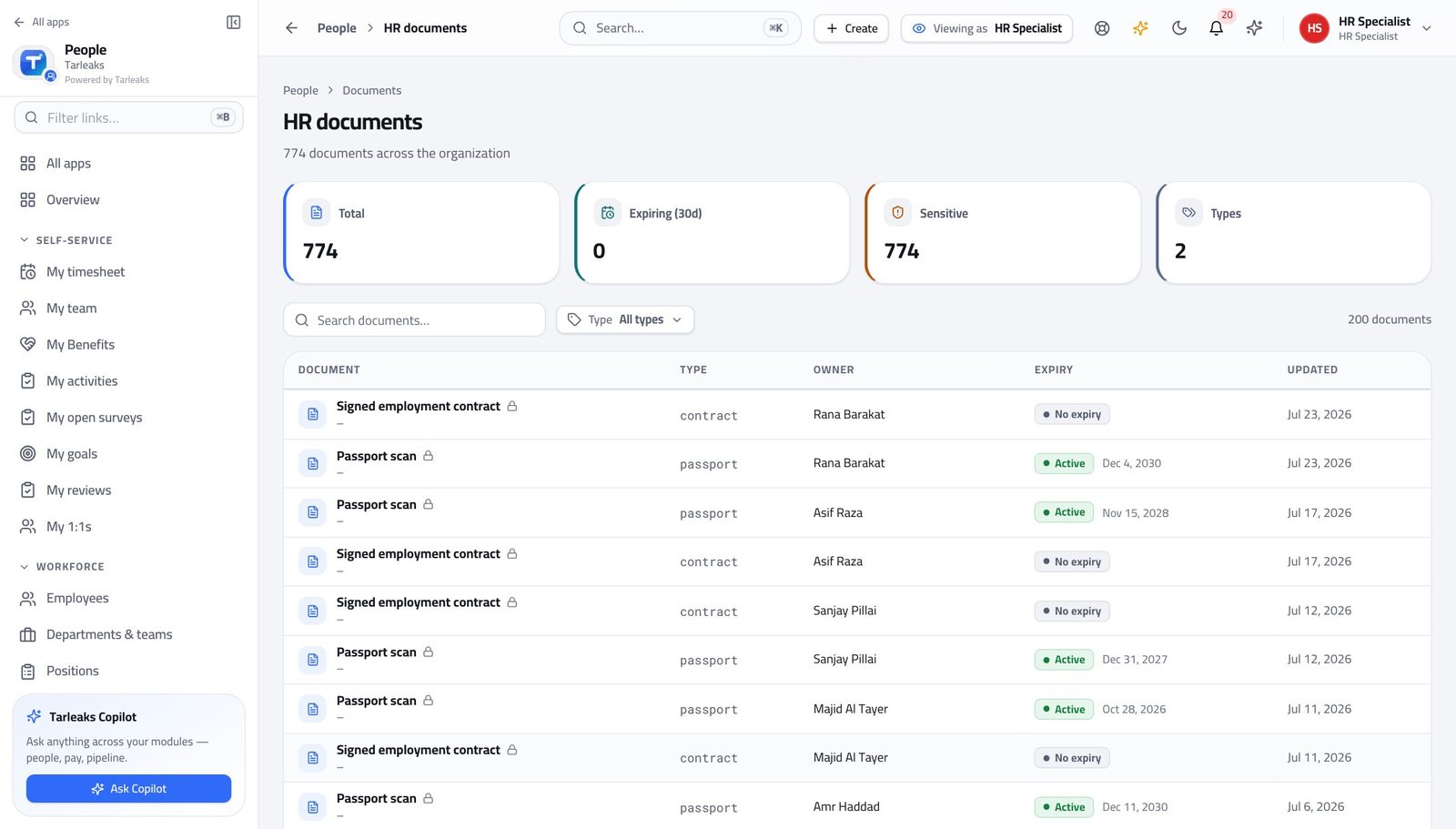
You should see The type is not a label: it drives how long the file is kept and what happens at the end of that period.
Watch out Uploading under the wrong type sets the wrong retention clock, and the clock is what an auditor asks about.
Work the request queue #
Where HR » Requests
- Open Requests.
- Filter to waiting.
- Open the oldest.
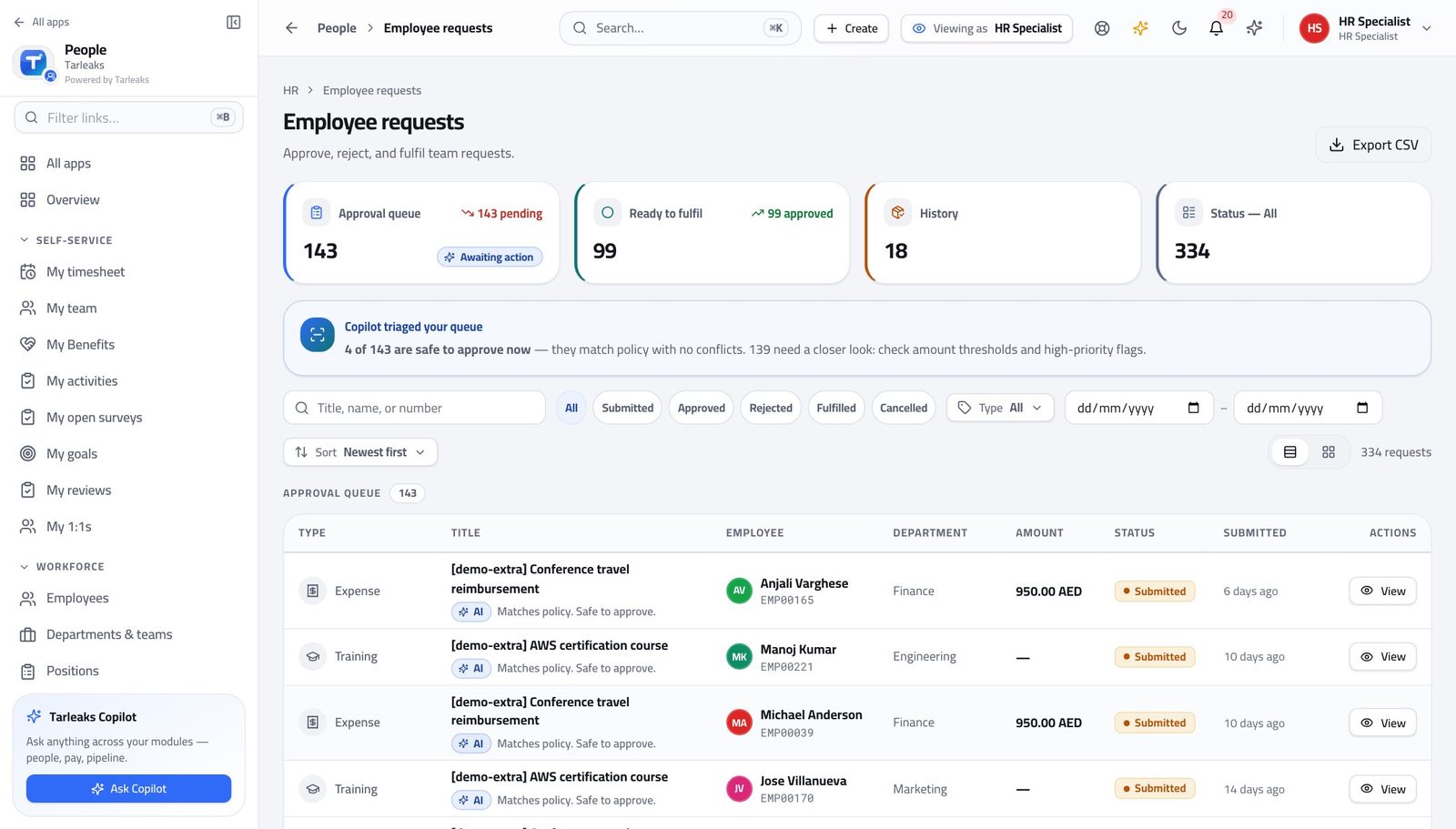
You should see Every request carries its own approval chain, so you never have to ask who signs this one.
Start somebody's onboarding #
Where HR » Onboarding
- Open Onboarding.
- Start a journey for the joiner.
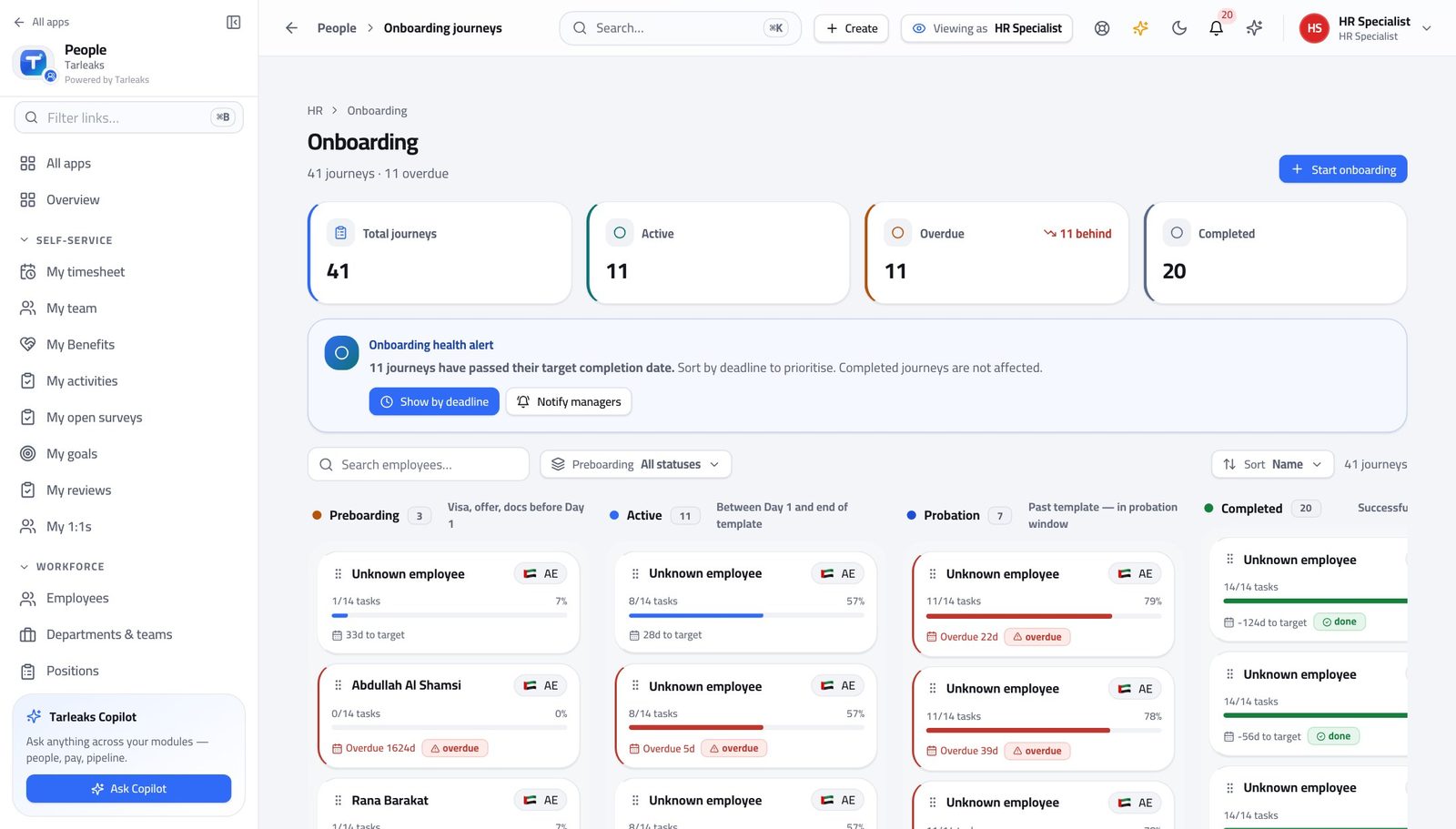
You should see Tasks are copied from the template at the moment you start, so later template edits cannot rewrite somebody's first week.
Use cases — the work, step by step
Each one is a sequence somebody actually performs, with the screen behind every step. Every screen here was opened in the product as this role before it was published.
weeklyA new joiner, from record to first week #
Everything downstream — payroll, access, attendance, their manager's team list — reads the one record you create here.
Open People and check they are not already there: rehires and transfers are the usual cause of a duplicate person.
HR » People — verified: 25 row(s) listed Create the record: identity, job, department, manager and start date. Department and manager are what give their line manager sight of them.
HR » People » New employee — verified: the control is offered Start their onboarding from the template that matches their country and role — the tasks are copied at that moment, so a later template edit cannot rewrite their first week.
HR » Onboarding — verified: the page says “Onboarding” File the documents you already have against the right document type, so retention starts on the correct clock.
HR » Documents — verified: the page says “Document”
dailyWork the request queue without guessing #
Every request carries its own approval chain, so the question is never who signs this one — only whether it is complete.
Open Requests and filter to what is waiting.
HR » Requests — verified: the page says “Request” Open the oldest, read what was asked for, and check the chain shows who has already signed.
HR » Requests — verified: the page says “Request” If it needs a document, file it against the person first — then the approver has everything in one place.
HR » Documents — verified: the page says “Document”
Termination, legal holds and data-subject requests belong to the HR manager. You prepare everything up to that line.
Line Manager
See your own team clearly, and decide what they are waiting on.
Sees their own departments only — approves what their people ask for, and answers for their team's numbers.
What you will be able to do
- See every person who reports to you, and their status today
- Approve or refuse leave without leaving the page
- Read the org chart around your team
- Follow your team's goals and reviews
What this role can and cannot do
| Can | Cannot |
|---|---|
|
|
5 steps, each one carried out in the product on .
Check what your sign-in can do #
Where Your name, top right » Profile
- Open your company's address in the browser — it looks like yourcompany.tarleaks.com.
- Type the e-mail address your administrator set up for you, then your password.
- You land on the app launcher: a grid of the apps your company uses.
- Click your name, top right.
- Choose Profile.
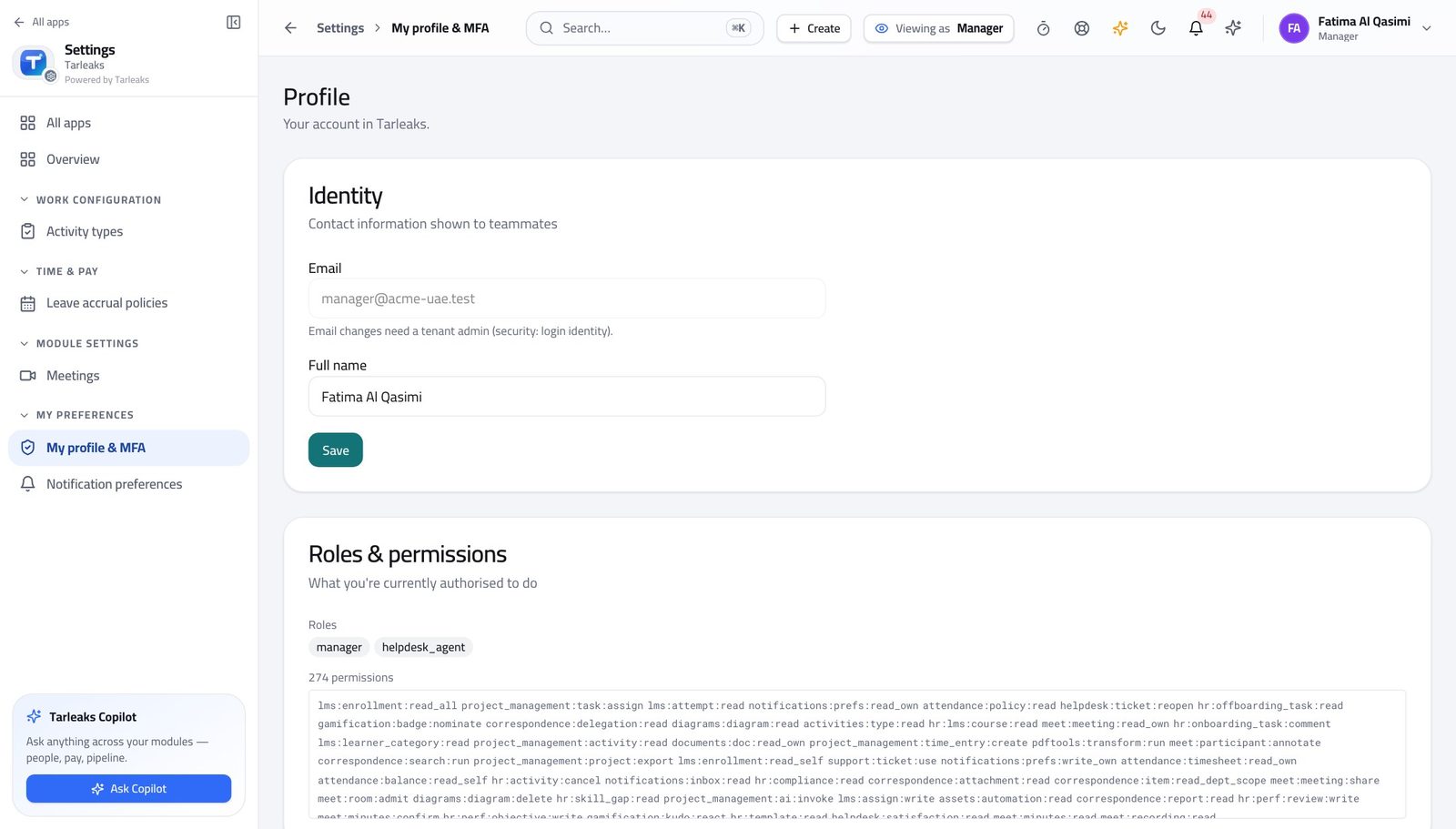
You should see It says Manager. You see the departments you manage — not the company.
See your team #
Where HR » My team
- Open My team.
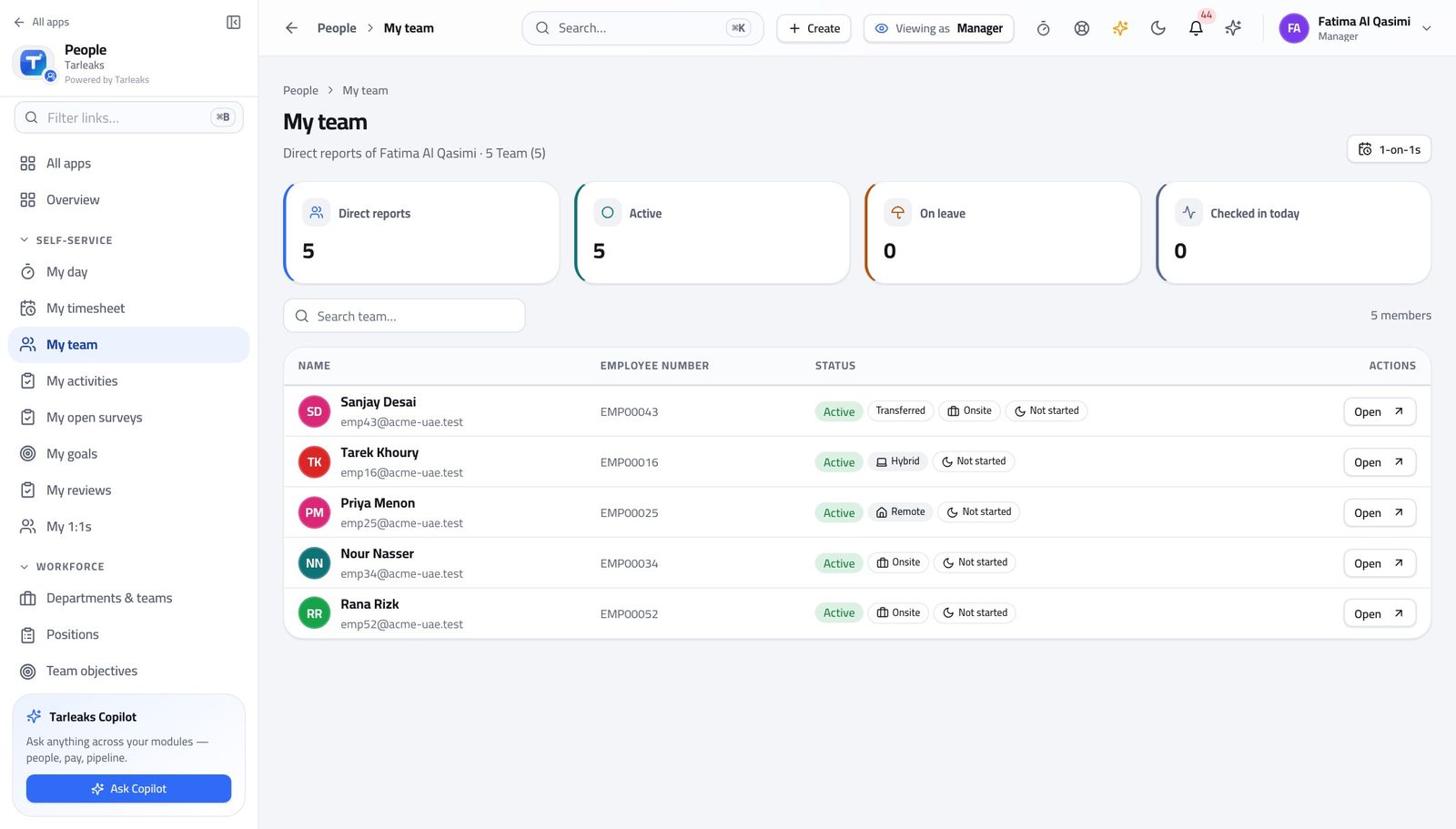
You should see This is the list the system builds from the reporting lines, not one you maintain.
Watch out Somebody missing here almost always means their record is not linked to a login yet.
Worth knowing If somebody is missing, their record is not linked to a login yet — ask HR to link it rather than re-creating the person.
Decide your team's requests #
Where HR » Requests
- Open Requests.
- Open one.
- Approve or refuse with a reason.
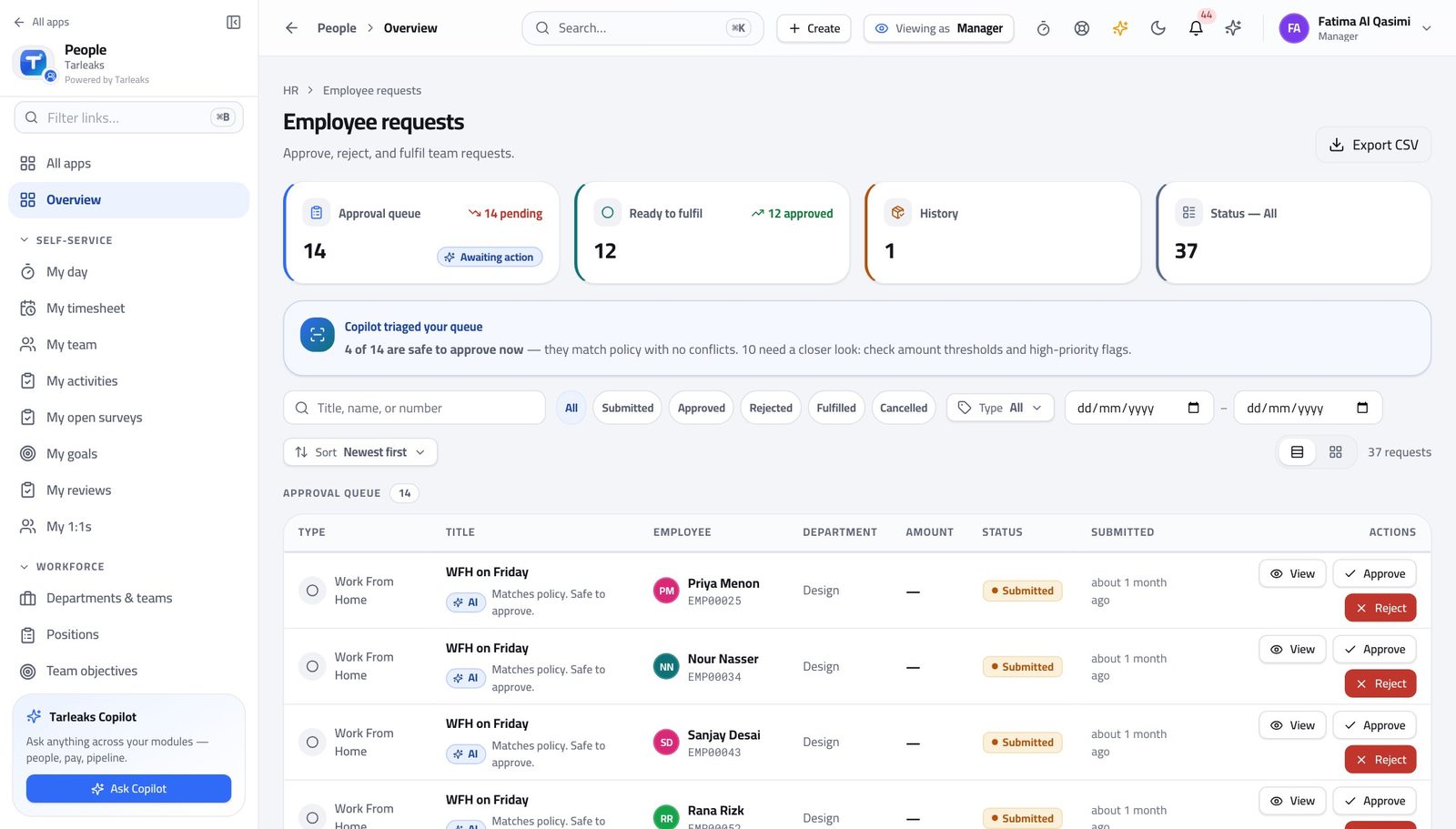
You should see A refusal with a reason is a decision. A refusal without one is a conversation you will have twice.
See where your team sits #
Where HR » Org chart
- Open the org chart.
- Find your own name and follow the line.
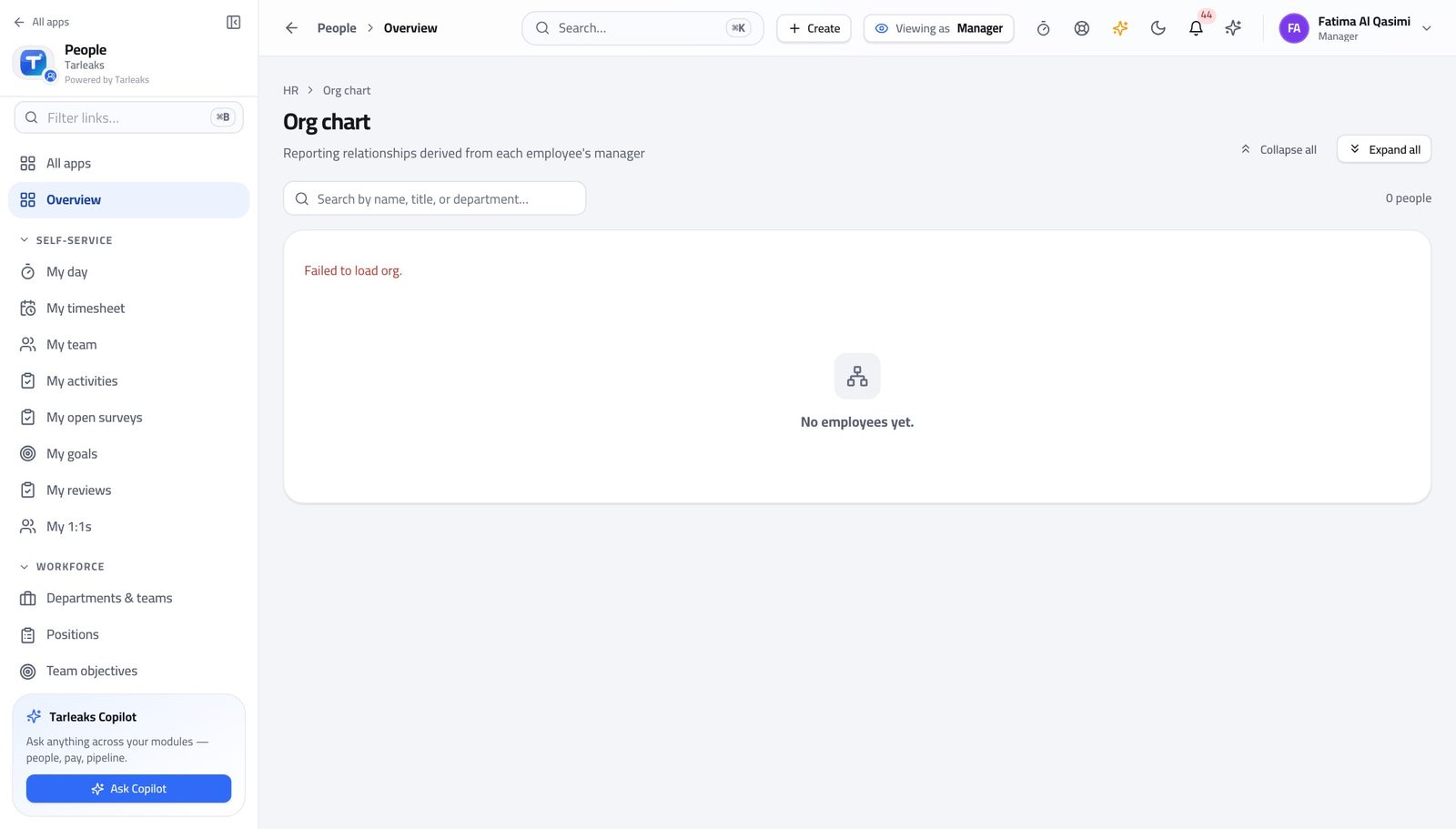
You should see Reporting lines are drawn from the records, so the chart cannot drift from who actually reports to whom.
Follow your team's goals and reviews #
Where HR » Performance
- Open Performance.
- Read your team's goals and reviews.
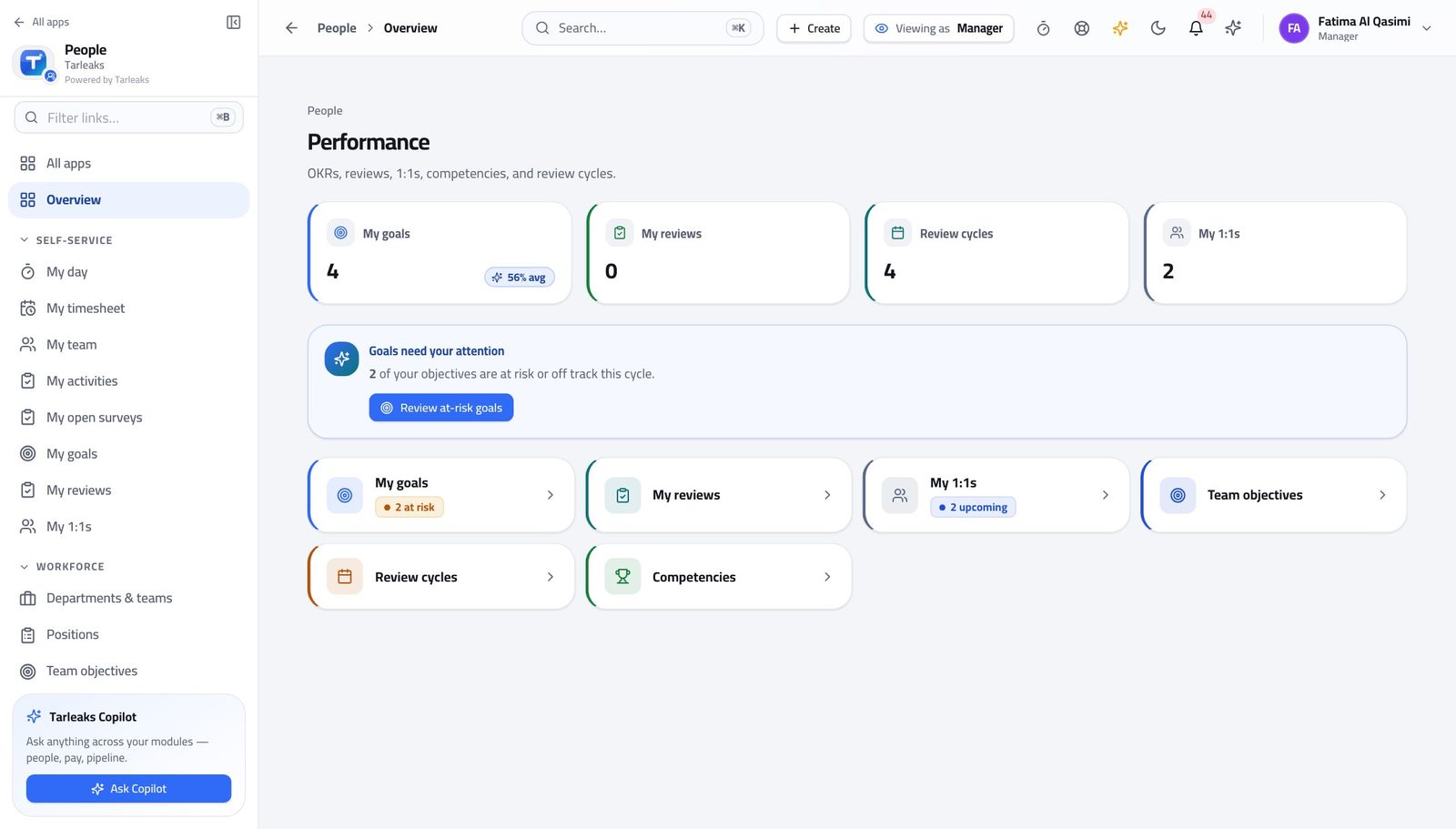
You should see You can see the work your people signed up to without asking them for a status update.
Use cases — the work, step by step
Each one is a sequence somebody actually performs, with the screen behind every step. Every screen here was opened in the product as this role before it was published.
dailyDecide your team's leave without leaving the page #
Your people are waiting on you, and their balance is checked before the request ever reaches you.
Open My team to see who is in, who is out and what is pending.
HR » My team — verified: the page says “team” Open Requests, read what was asked, and approve or refuse with a reason.
HR » Requests — verified: the page says “Requests”
weeklyPrepare for a one-to-one in five minutes #
Everything you need is already recorded — you are reading, not collecting.
Open Performance and read the person's goals and where the review cycle has got to.
HR » Performance — verified: the page says “Performance” Open the org chart if the conversation is about scope or a move.
HR » Org chart — verified: the page says “chart”
You see your departments, not the company. That is the scope the system gives a line manager — and it is why you can be given access at all.
Employee
Everything about you, in one place, without asking anyone.
Everything about you, in one place: your details, your requests, your documents and your goals.
What you will be able to do
- Read and correct your own details
- Ask for leave, a letter or a change, and track it
- See what is on today across the whole system
- Know exactly what the company holds about you
What this role can and cannot do
| Can | Cannot |
|---|---|
|
|
5 steps, each one carried out in the product on .
Check what your sign-in can do #
Where Your name, top right » Profile
- Open your company's address in the browser — it looks like yourcompany.tarleaks.com.
- Type the e-mail address your administrator set up for you, then your password.
- You land on the app launcher: a grid of the apps your company uses.
- Click your name, top right.
- Choose Profile.
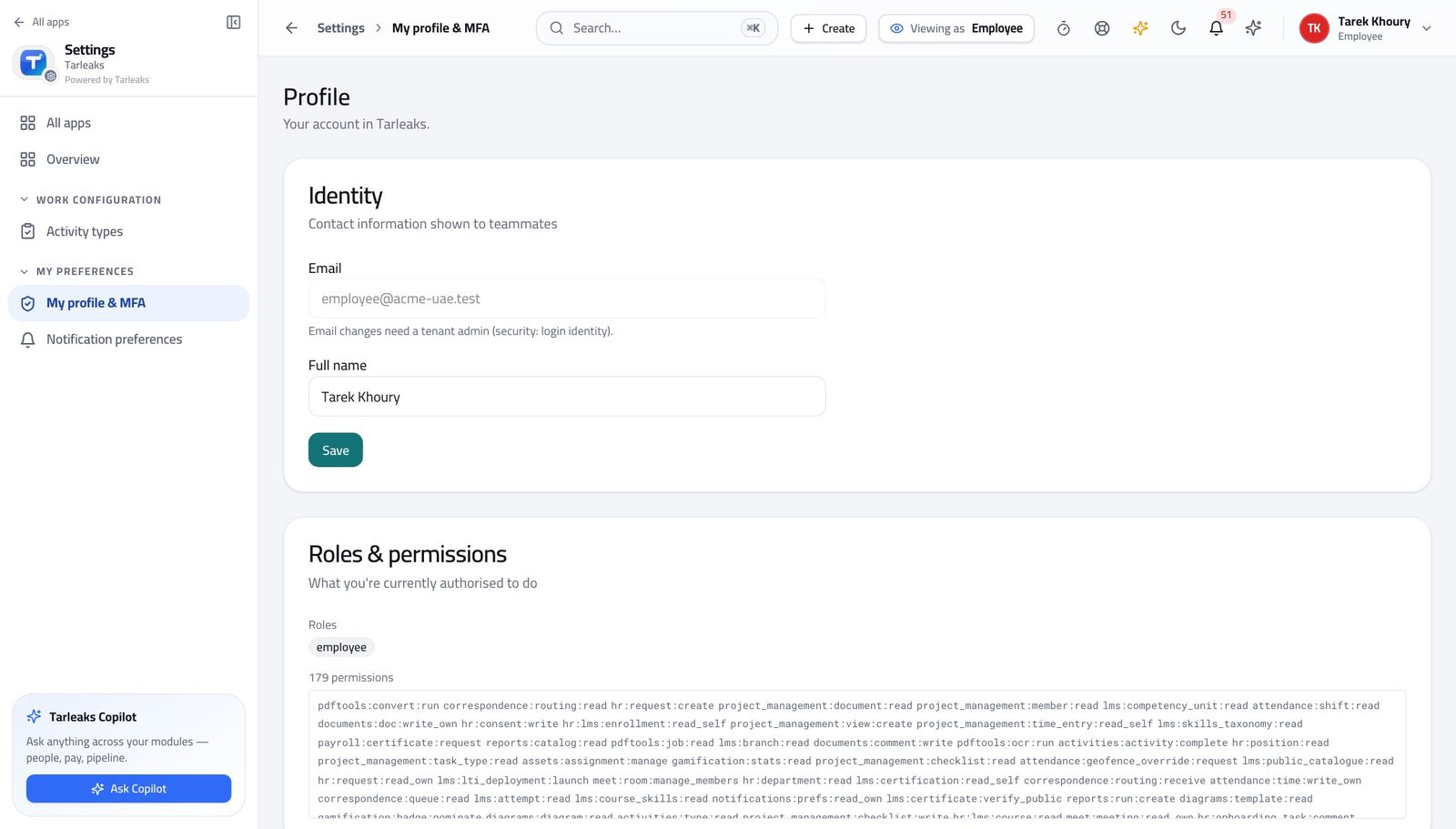
You should see It says Employee. You can see your own record and nobody else's.
See what the company holds about you #
Where HR » My profile
- Open your own record.
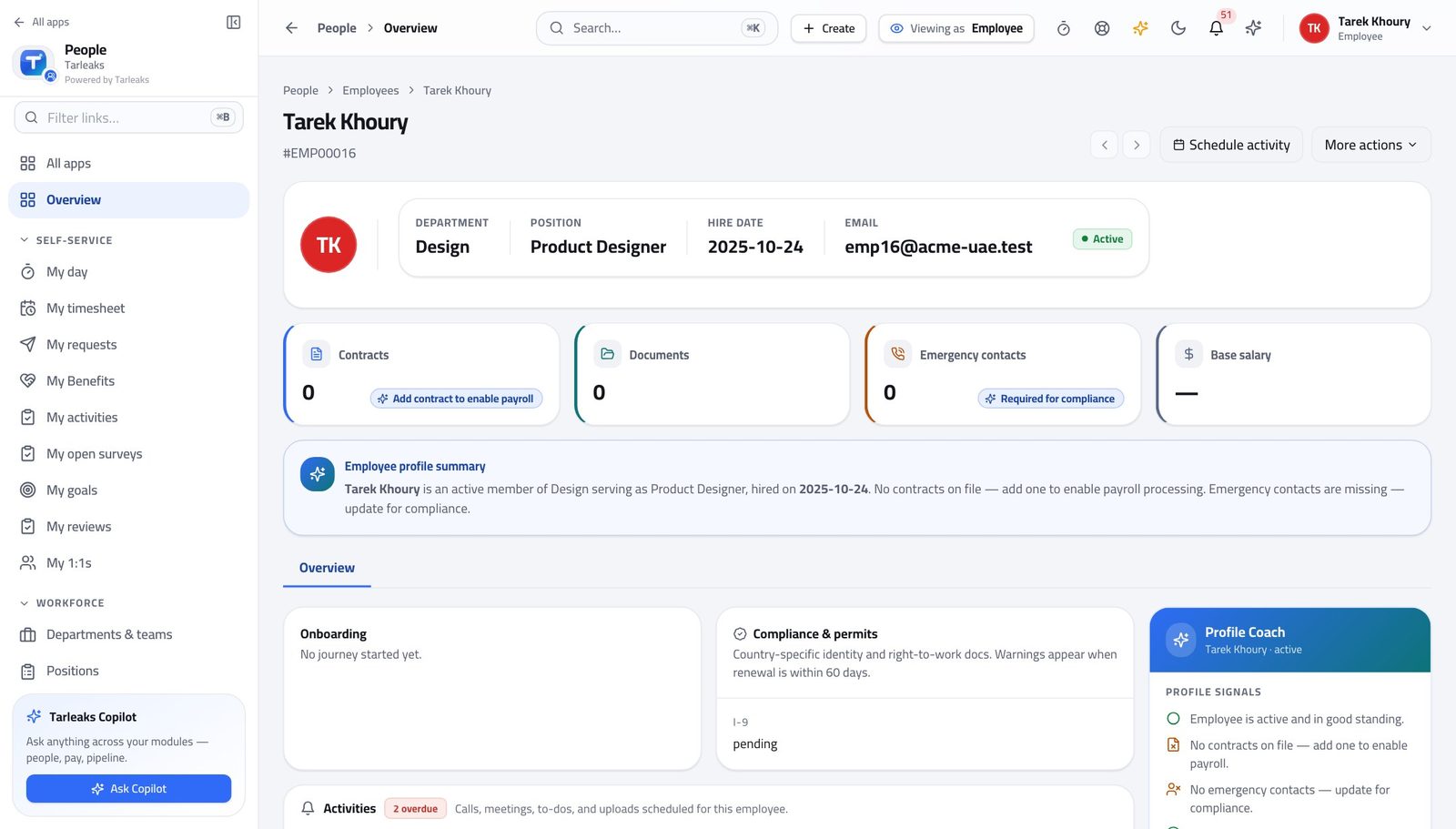
You should see Nothing about you is hidden from you — which is also what makes a correction request straightforward.
Ask for leave, a letter or a change #
Where HR » My requests
- Open My requests.
- Start a new request.
- Choose the type and describe what you need.
- Submit.
| Field | What to put in it |
|---|---|
| Type | Leave, a letter, a data change — the type decides who approves it. |
| Dates | For leave, the first and last day away. The balance is checked as you type. |
| Reason | One line your manager can act on without calling you. |
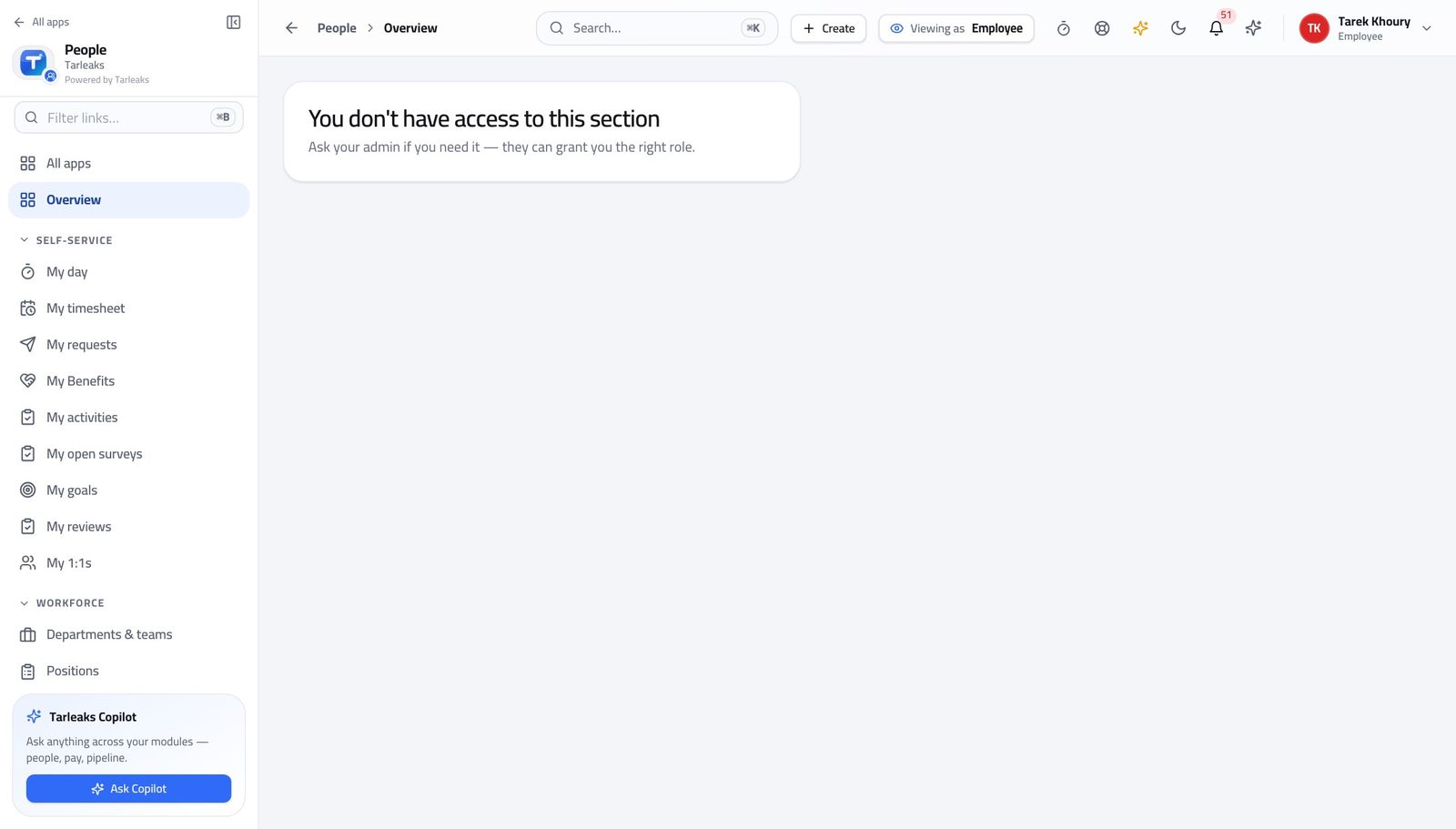
You should see You can see who it is with at any moment, so chasing is a click rather than an e-mail.
See what is on today #
Where My » Day
- Open My day.
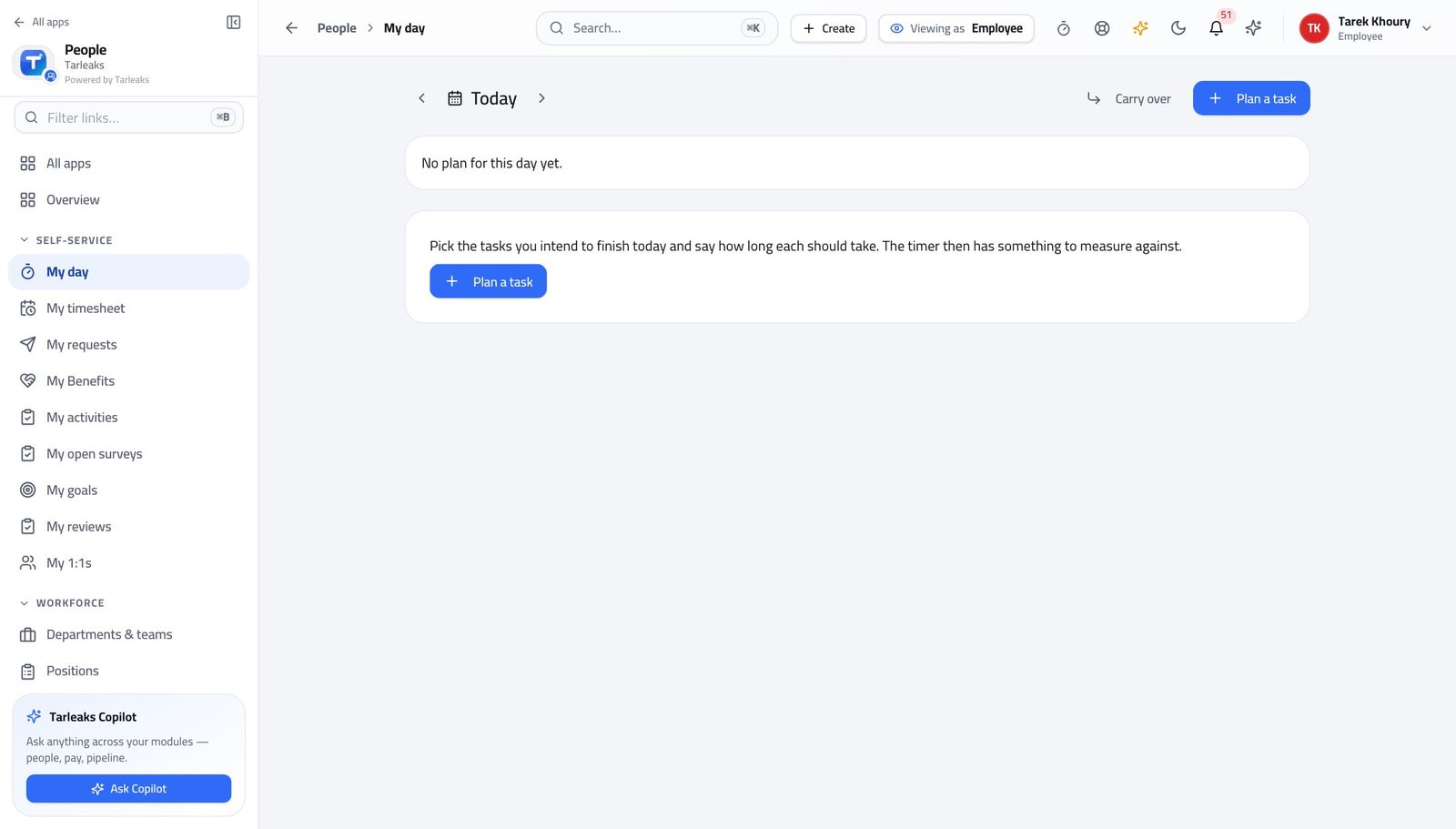
You should see One screen instead of five, and it is built from your own records.
The full directory is not yours to browse #
Where HR » People
- Look at the left menu under HR.
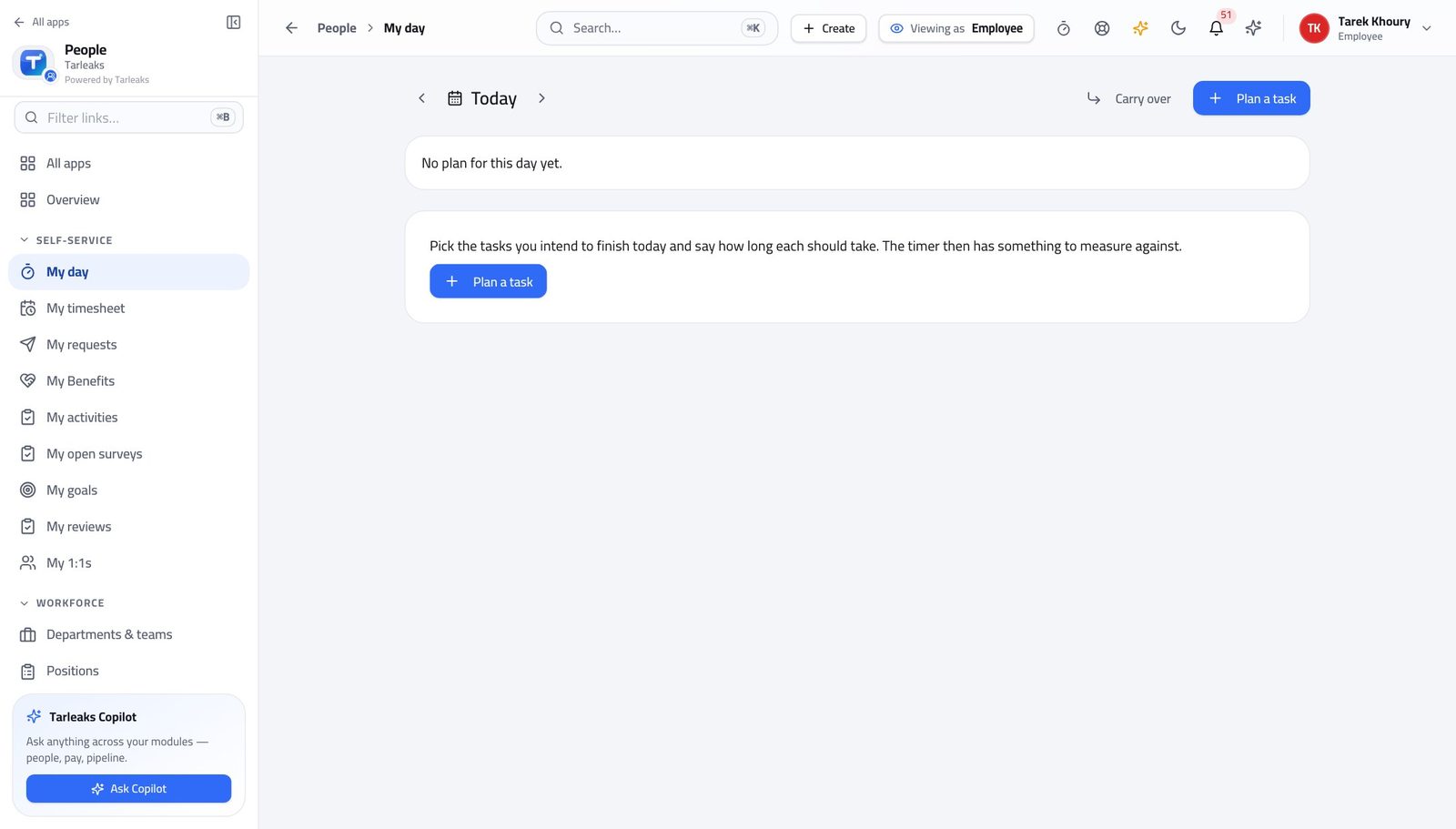
You should see Self-service means your own record. The same rule protects your colleagues from you.
Use cases — the work, step by step
Each one is a sequence somebody actually performs, with the screen behind every step. Every screen here was opened in the product as this role before it was published.
dailyAsk for leave and follow it #
You can see who it is with at any moment, so chasing is a click rather than an e-mail.
Open My requests and start a new one — the type decides who approves it.
HR » My requests — verified: the page says “Request” Watch its state as it moves. My day shows what is outstanding without you going looking.
My » Day — verified: the page says “day”
monthlyCheck what the company holds about you #
Nothing about you is hidden from you, which is what makes a correction a request rather than an argument.
Open your own record and read your details, contract and documents.
HR » My profile — verified: the page says “Profile” If something is wrong, raise a change request rather than e-mailing — the change then carries its own approval and trail.
HR » My requests — verified: the page says “Request”
You can see your own record and nobody else's. The same rule protects your colleagues from you, and you from them.
Tenant Administrator
Set HR up once so nobody has to work around it.
Configures HR for everyone else — the structure, the templates, the policies and who may do what.
What you will be able to do
- Shape departments and positions
- Own the onboarding and offboarding templates
- Set document types and the retention that follows them
- Decide who approves which kind of request
What this role can and cannot do
| Can | Cannot |
|---|---|
|
|
5 steps, each one carried out in the product on .
Check what your sign-in can do #
Where Your name, top right » Profile
- Open your company's address in the browser — it looks like yourcompany.tarleaks.com.
- Type the e-mail address your administrator set up for you, then your password.
- You land on the app launcher: a grid of the apps your company uses.
- Click your name, top right.
- Choose Profile.
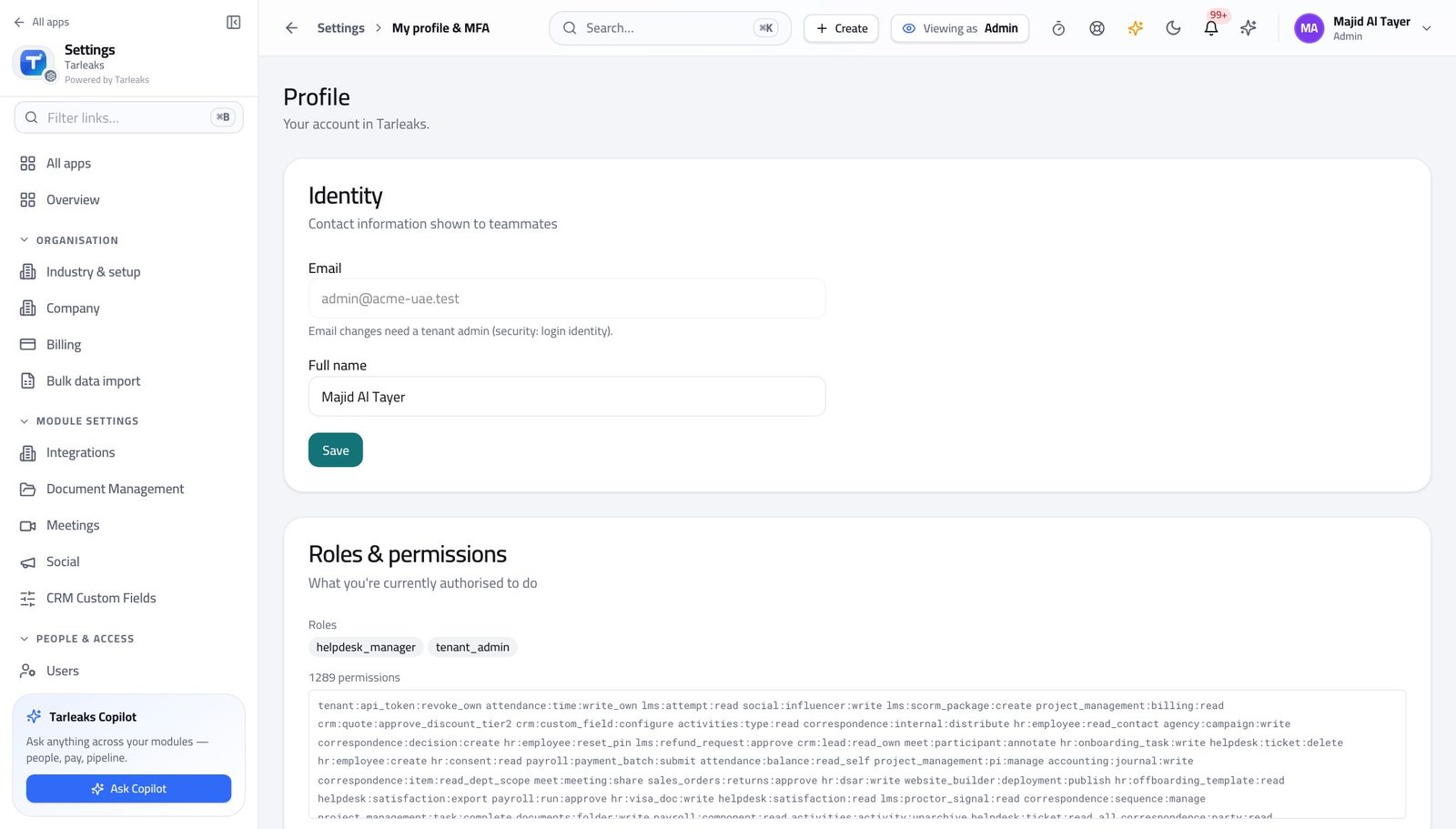
You should see It says Tenant Admin. The structure and the policies are yours.
Shape departments and positions #
Where HR » Departments
- Open Departments.
- Set the manager on each.
- Open Positions and keep the titles tidy.
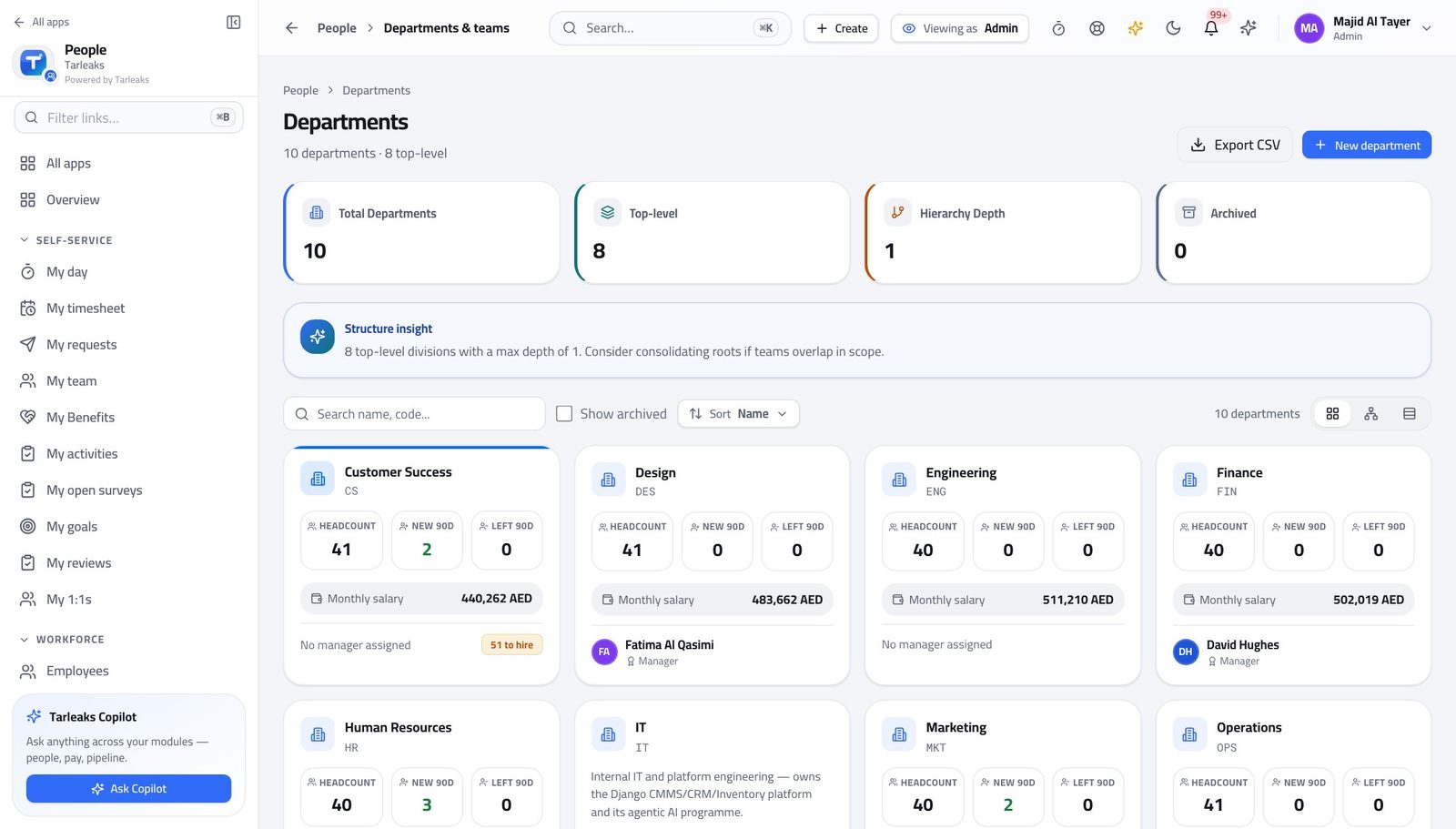
You should see Scope follows structure: a manager sees the departments they manage, so the structure is an access decision as much as an org one.
Watch out Changing a department's manager changes who can see those people, immediately.
Own the onboarding templates #
Where HR » Templates
- Open the templates.
- Open one and read its tasks.
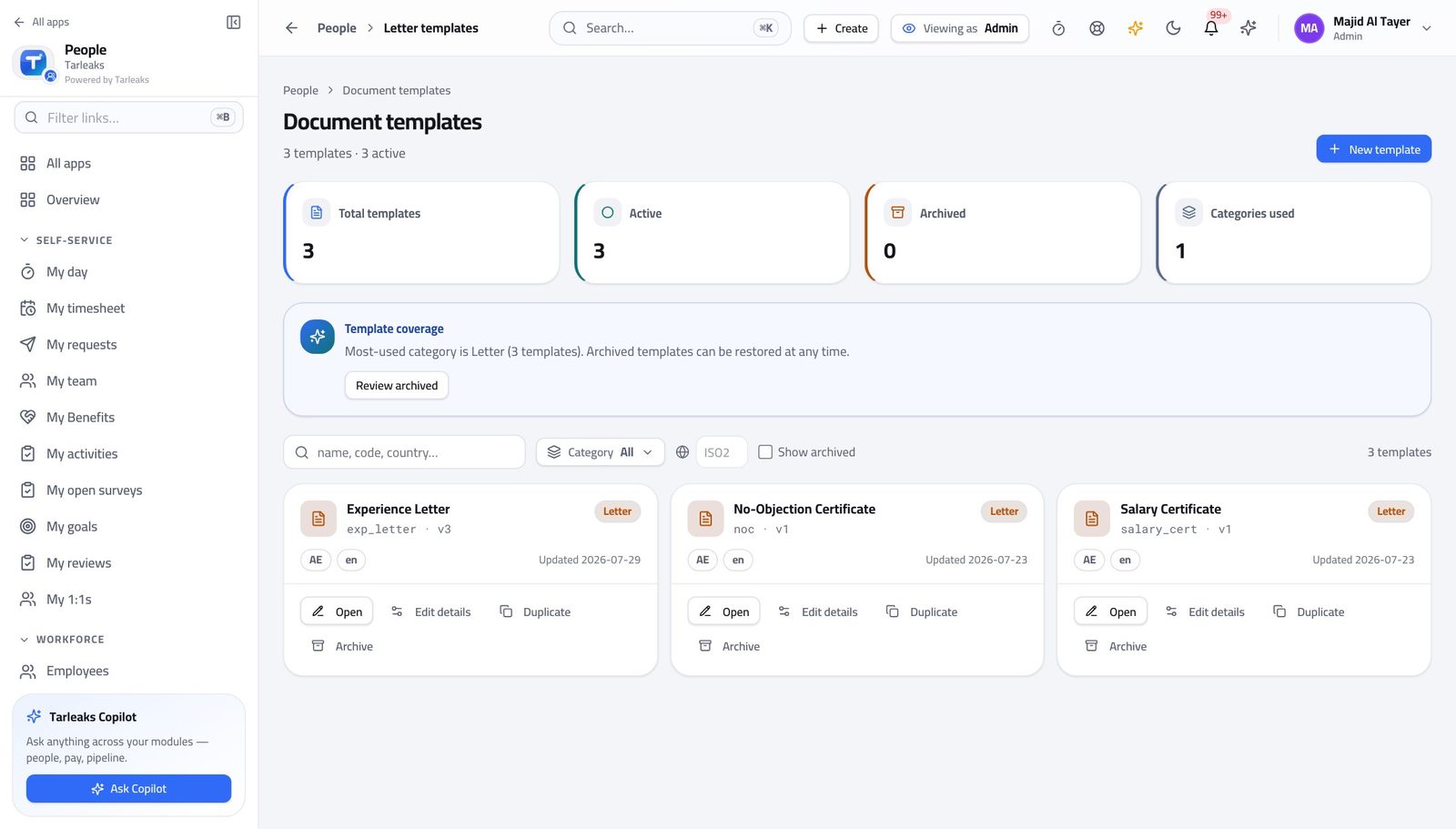
You should see A journey copies the template when it starts, so your edits never disturb somebody already in flight.
Watch out Editing a template does NOT change journeys already running. That is deliberate — auditors expect a journey to be stable once started.
Set document types and their retention #
Where Settings » Document types
- Open the HR settings.
- Read the document types and their retention.
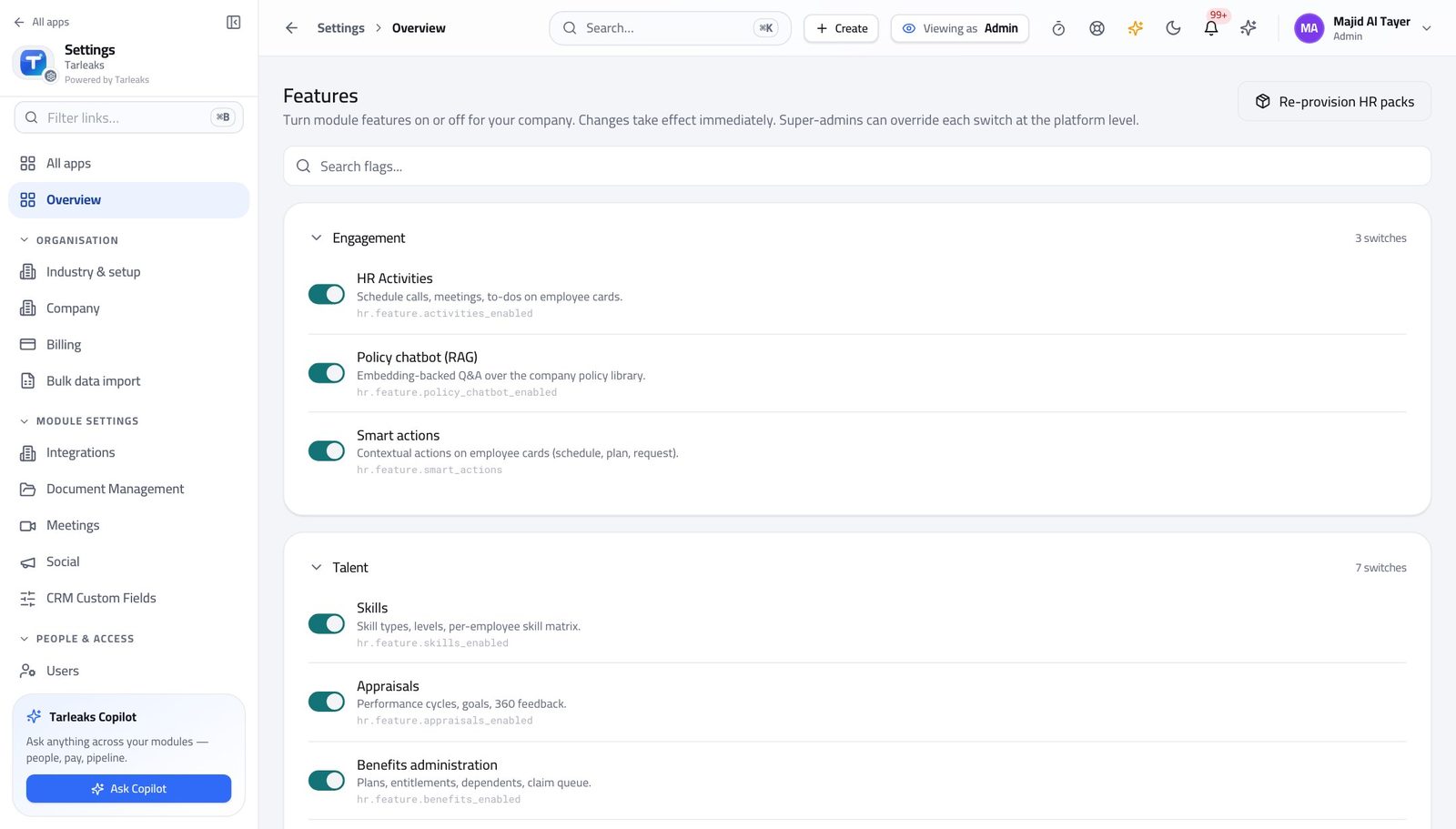
You should see Retention is applied by the type, so nobody has to remember the rule at upload time.
Decide who approves which request #
Where Settings » Requests
- Open the request types.
- Set the approvers per type.
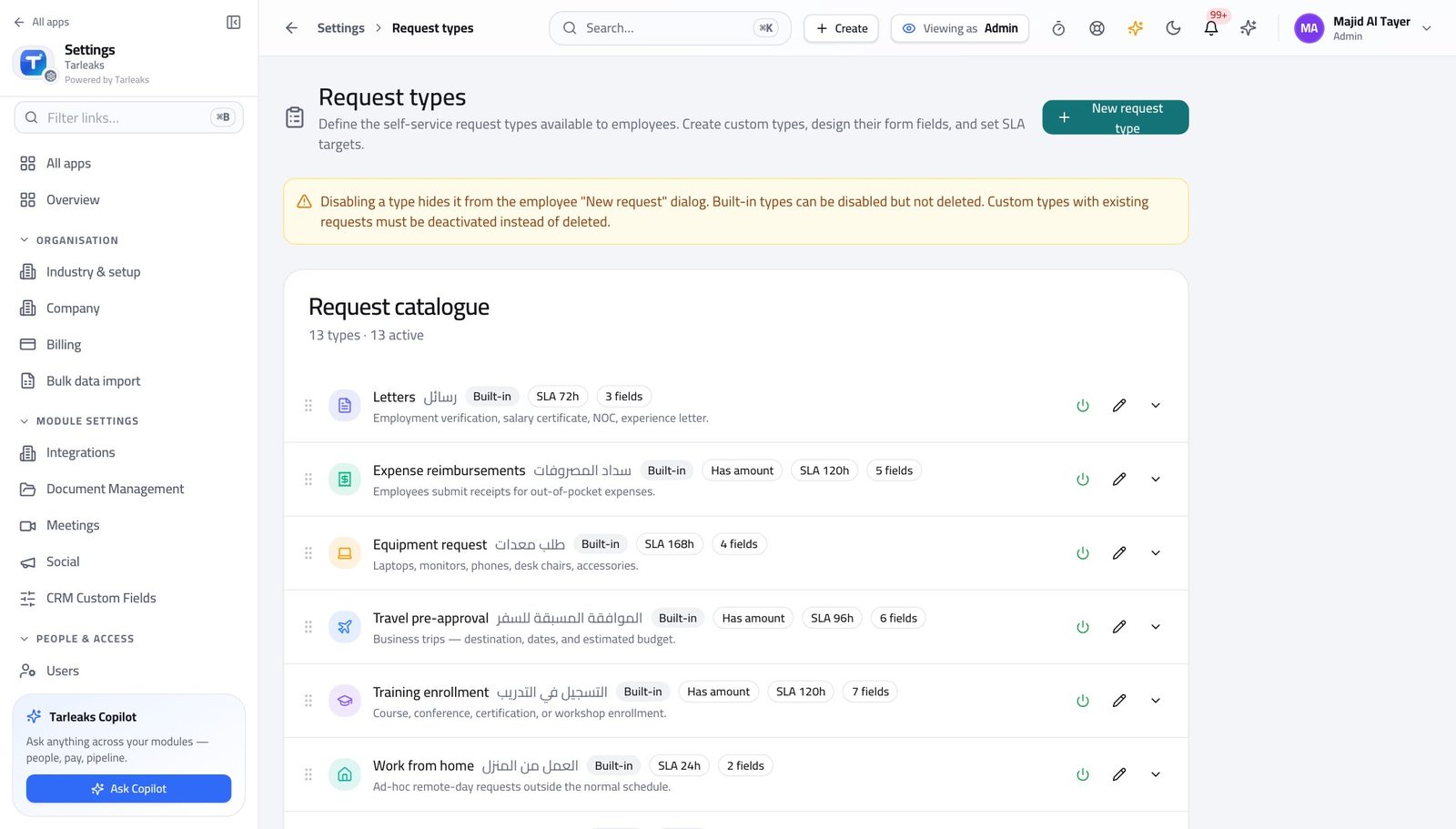
You should see The approval chain is configuration, so a change of process is a setting rather than a development request.
Use cases — the work, step by step
Each one is a sequence somebody actually performs, with the screen behind every step. Every screen here was opened in the product as this role before it was published.
yearlySet up HR for a new department #
Structure is an access decision: a line manager sees the departments they manage, so the department is what gives them sight of anybody.
Create the department and set its manager.
HR » Departments — verified: the page says “Department” Check the onboarding template that new joiners there will get.
HR » Templates — verified: the page says “Template” Confirm the request types they will use have the right approvers.
Settings » Requests — verified: the page says “Request”
You build the rails. Day-to-day people work belongs to HR — and a template you edit never disturbs a journey already in flight.