Buyer — Inventory guide
Raise the order in a minute, from names — and let the reorder queue raise the routine ones.
Raises purchase orders by picking a supplier and items, sends them, and drafts them straight from the reorder queue. Reads stock and suppliers; never receives, approves or posts landed costs.
What you will be able to do
- Create a purchase order by picking the supplier and the items
- Send it, and follow it to received, billed and paid
- Read who changed an order, and what the freight added
- Draft the routine orders from the reorder queue
What this role can and cannot do
| Can | Cannot |
|---|---|
|
|
6 steps, each one carried out in the product on .
Open the purchase orders #
Where Inventory » Purchase orders
- Open Inventory, then Purchase orders.
- Read the tiles: open, awaiting goods, received not billed, drafts. Click one — it filters the list and the filter stays in the address bar.
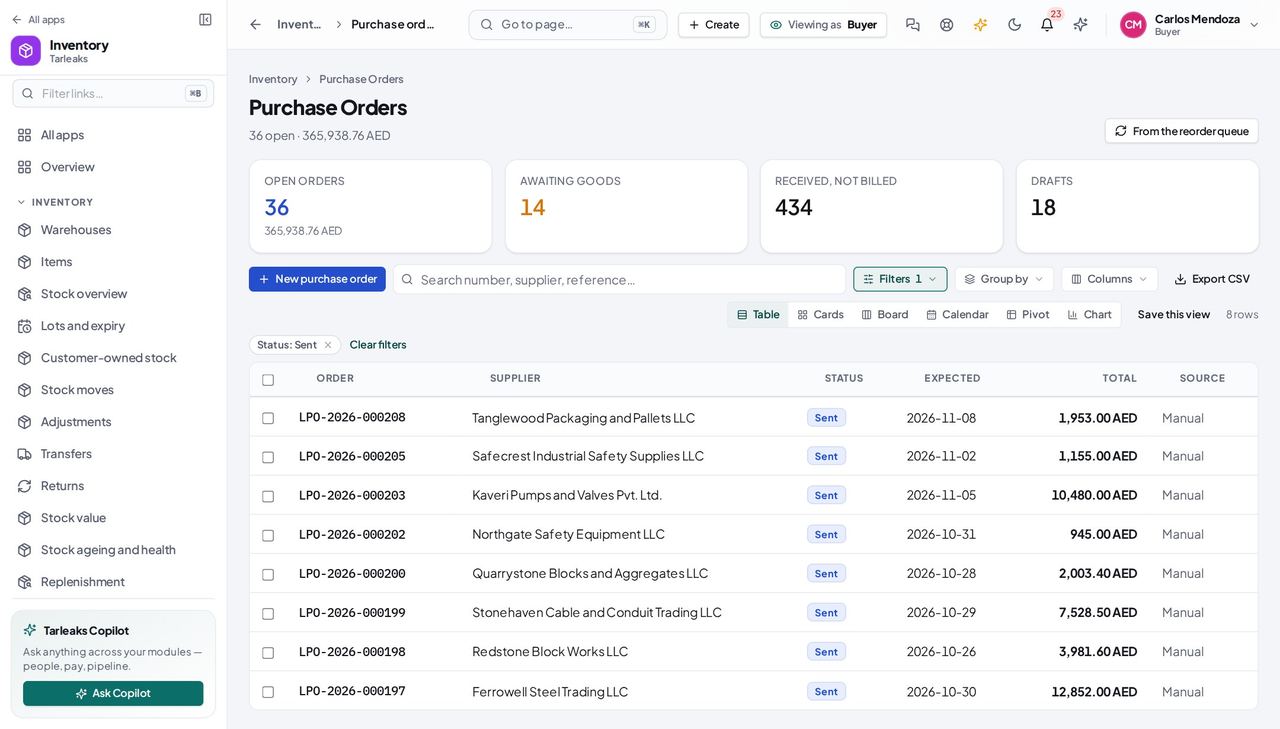
You should see The orders with their supplier, status and total (here the Awaiting goods filter).
No Receive goods for the buyer #
Where Inventory » Purchase orders » an order
- Open a sent order.
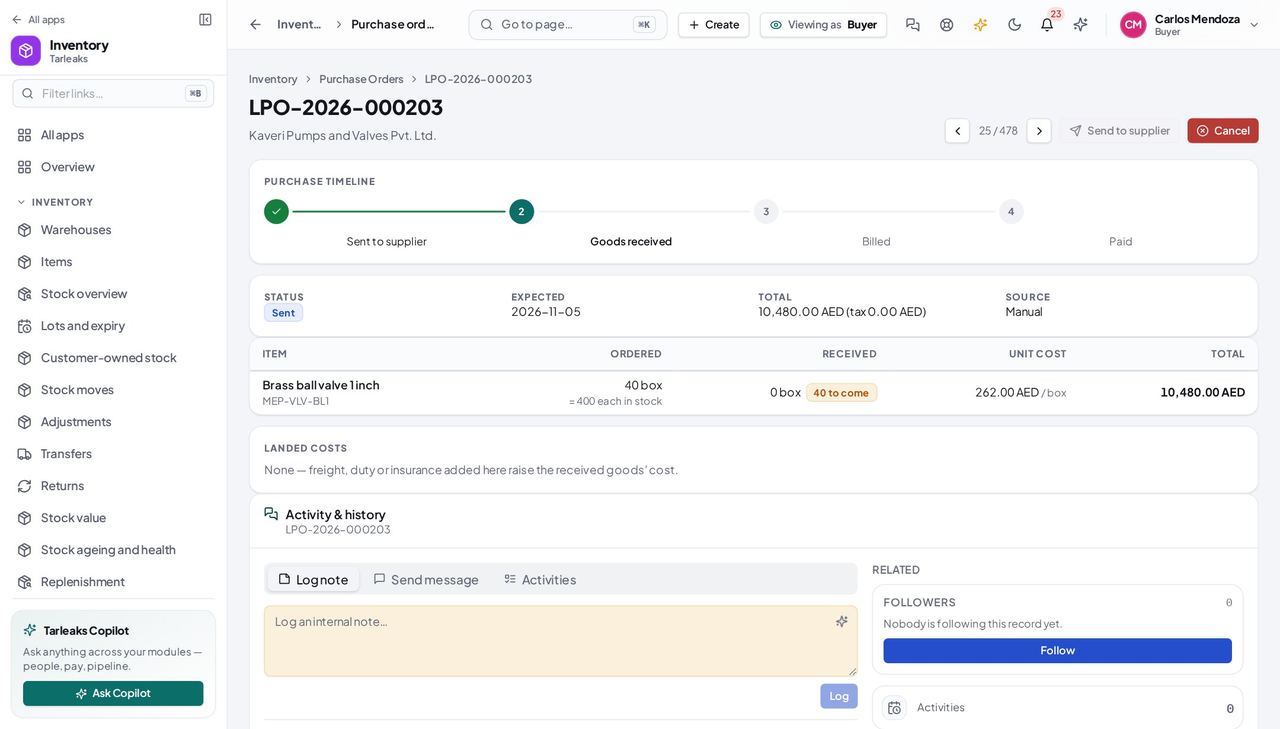
You should see The actions row has Send and Cancel — not Receive goods.
Raise and send an order #
Where Inventory » Purchase orders » New purchase order
- Open your company's address in the browser — it looks like yourcompany.tarleaks.com.
- Type the e-mail address your administrator set up for you, then your password.
- You land on the app launcher. Click the Inventory tile.
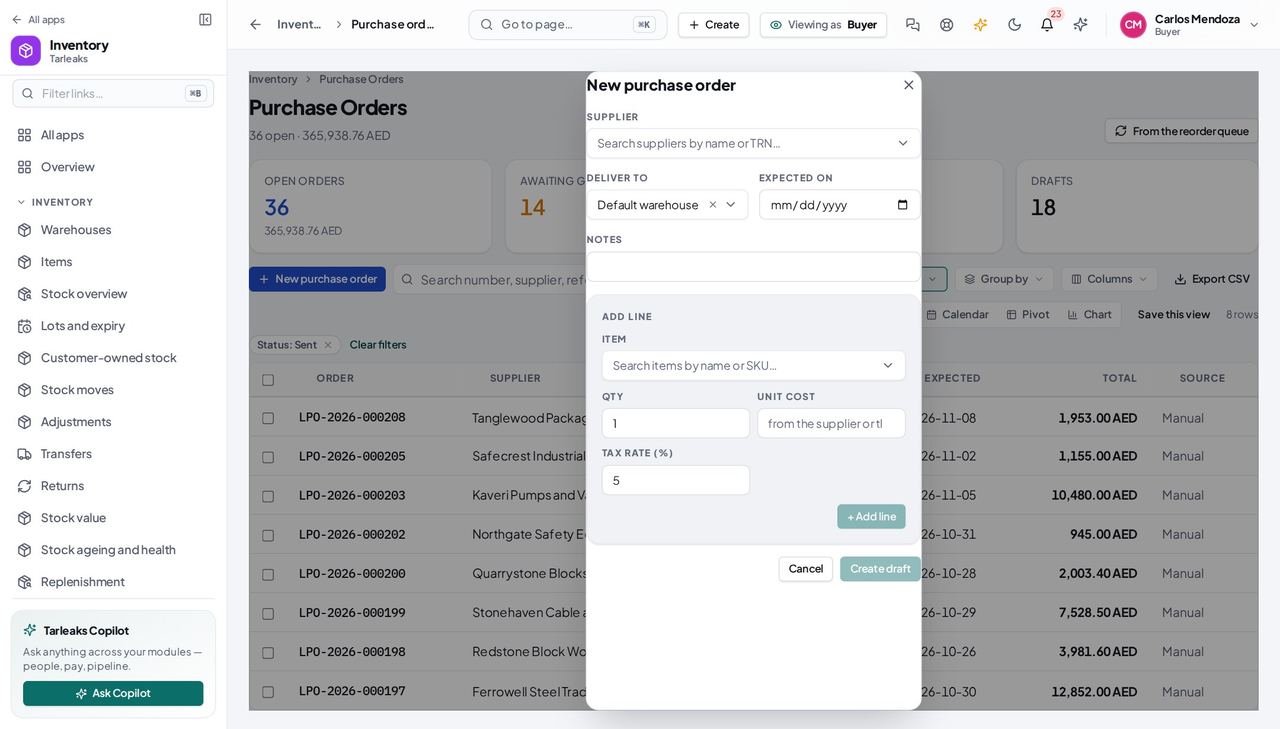
- Purchase orders, New purchase order.
- Supplier, items, Create draft, Send to supplier.
| Field | What to put in it |
|---|---|
| Supplier | the supplier's name or TRN — never an id |
| Deliver to | the warehouse the goods go to |
| Item | the catalogue name or SKU |
| Qty | how many, in the item's unit |
| Unit cost | filled from the item; type the supplier's quote over it |
You should see The timeline's Sent step fills in; the order reads Sent.
Watch out Above the company's approval threshold, Send is refused until the manager approves.
Read what changed on an order, and who did it #
Where Inventory » Purchase orders » an order » Activity & history
- Open your company's address in the browser — it looks like yourcompany.tarleaks.com.
- Type the e-mail address your administrator set up for you, then your password.
- You land on the app launcher. Click the Inventory tile.
- Purchase orders, an order.
- Scroll to Activity & history and press Logged changes.
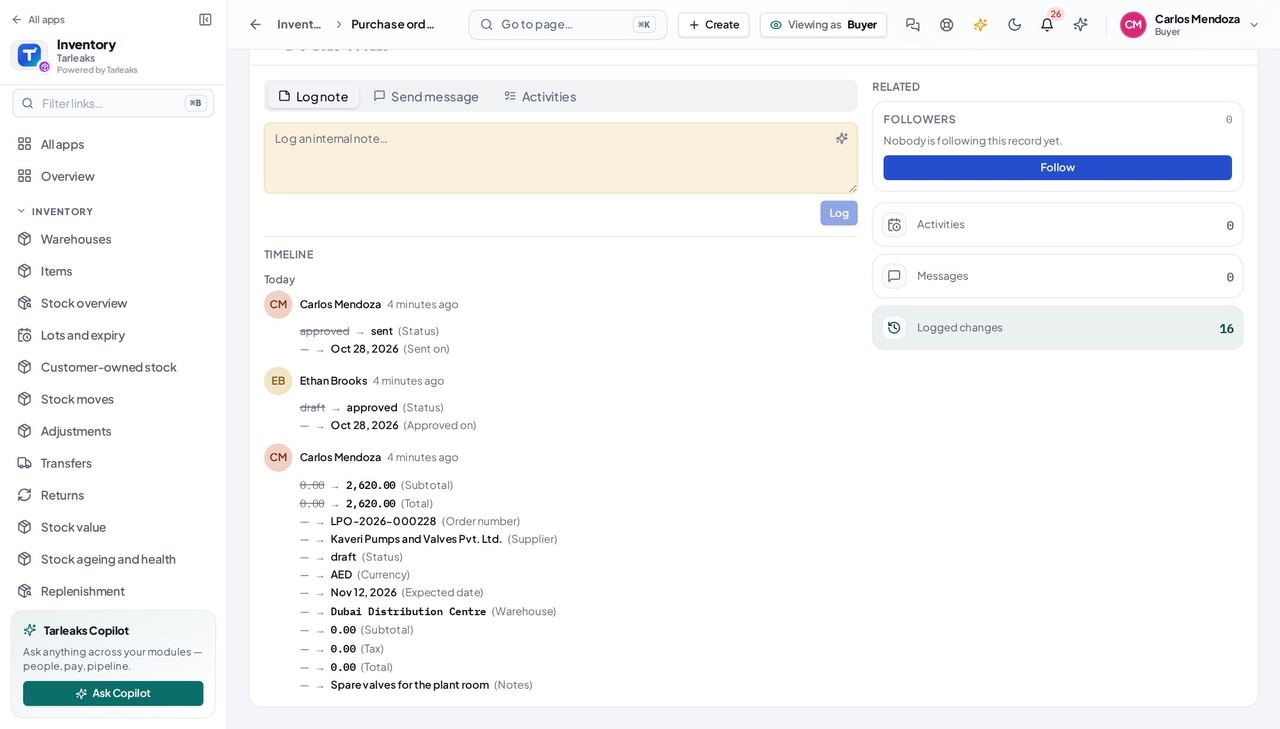
You should see Lines such as Status: approved → sent, each under the person who made the change.
Watch out The history is the same whoever opens the order; a buyer reads it, only people who may edit the order add notes.
Worth knowing You read the history; posting a note is for people who may edit the order.
See the landed costs on a received order #
Where Inventory » Purchase orders » a received order » Landed costs
- Open a received order and read the Landed costs panel under the lines.
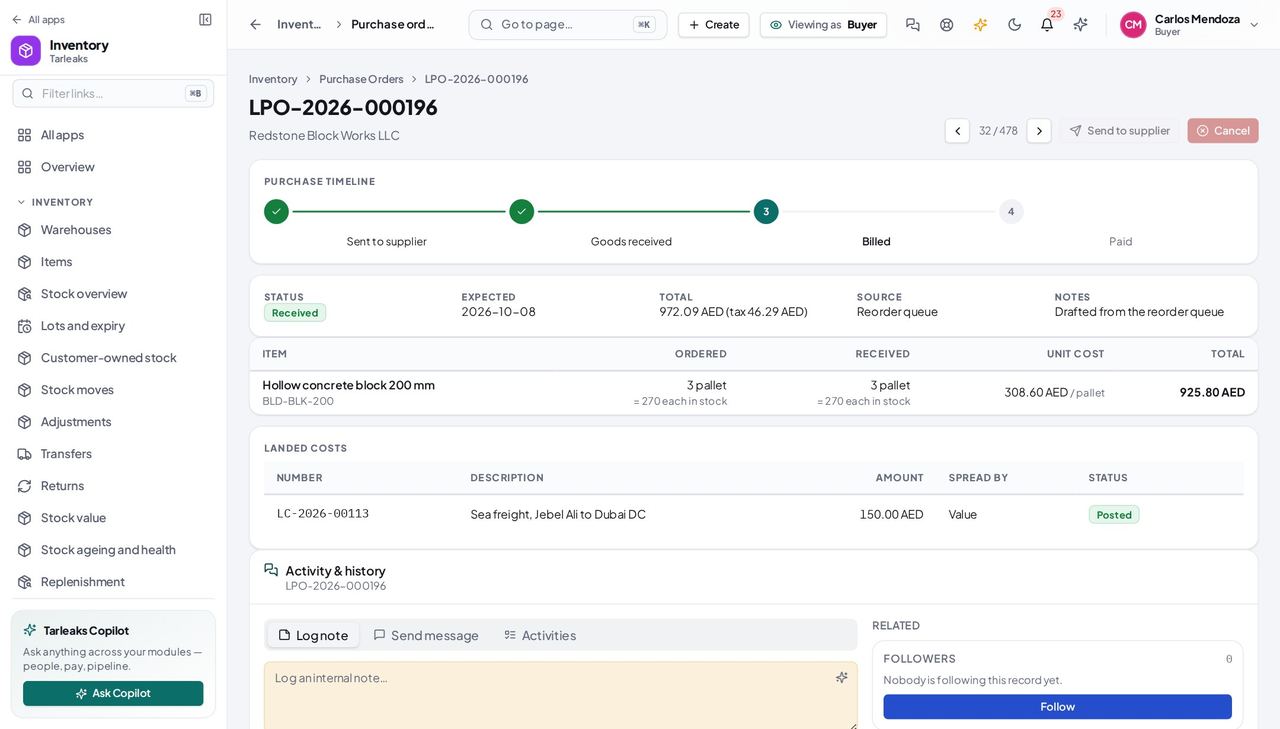
You should see Each landed cost with its number, what it was for, the amount, how it was spread and whether it is posted. There is no Landed cost button: the inventory manager adds those.
Name the budget account on an order line #
Where Inventory » Purchase orders » New purchase order
- Press New purchase order and pick the supplier.
- Pick the item; under it, type the Expense account code — left empty, the item's default account is used.
- Type another code if this purchase belongs to a different budget, then Add line.
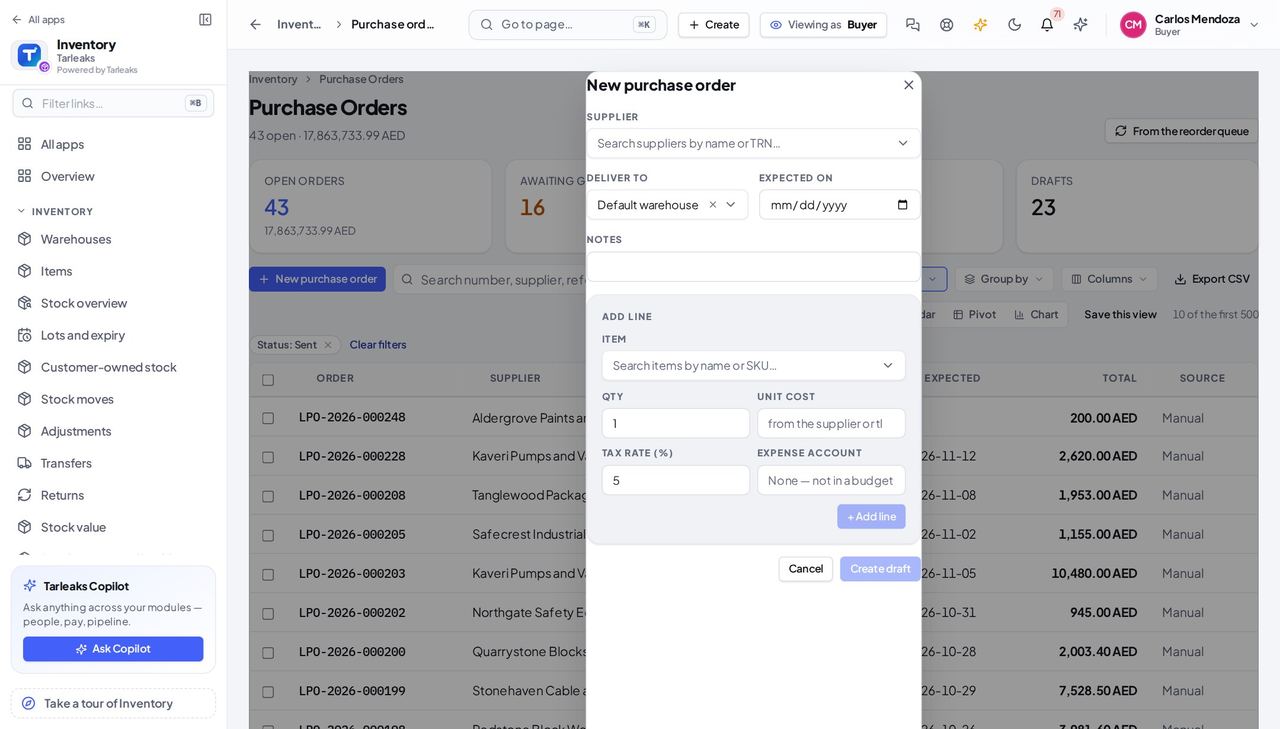
You should see The draft's lines show an Account column; the order page shows it too (None when no account is set).
Worth knowing The budget counts the order from the moment it exists, draft included, until its supplier bill posts.
Use cases — the work, step by step
Each one is a sequence somebody actually performs, with the screen behind every step. Every screen here was opened in the product as this role before it was published.
weeklyMonday: the reorder queue #
The queue drafts the routine orders; you review, adjust, send.
Open Replenishment and press Draft purchase orders.
Inventory » Purchase orders — verified: the page says “Purchase Orders”; 8 row(s) listed; no “verify” anywhere on the page; no “Network error” anywhere on the page Open each draft: check the supplier and the quantities, fix the cost where the supplier quoted differently.
Inventory » Purchase orders » New purchase order — verified: the control is offered; the control is offered; no “verify” anywhere on the page; no “Network error” anywhere on the page Send to supplier. The order reads Sent; the warehouse sees it on its list.
Inventory » Purchase orders » New purchase order — verified: the control is offered; the control is offered; no “verify” anywhere on the page; no “Network error” anywhere on the page
urgentA confirmed sale we cannot cover #
The shortfall drafted an order by itself — your job is the supplier and the date.
Open Purchase orders, Drafts: the order named Backorder · SO-… holds the shortfall.
Inventory » Purchase orders — verified: the page says “Purchase Orders”; 8 row(s) listed; no “verify” anywhere on the page; no “Network error” anywhere on the page Pick the supplier if none, set the expected date, send.
Inventory » Purchase orders » New purchase order — verified: the control is offered; the control is offered; no “verify” anywhere on the page; no “Network error” anywhere on the page
when a total or a date looks wrongWho changed this order? #
The order's history answers it without asking around: field, old value, new value, person, time.
Open the order and scroll to Activity & history.
Inventory » Purchase orders » an order » Activity & history — verified: the page says “Logged changes”; the page says “(Status)”; the page says “(Order number)”; no “partially_received” anywhere on the page; no “verify” anywhere on the page; no “Network error” anywhere on the page Press Logged changes and read down: the status moves, and who approved and who sent.
Inventory » Purchase orders » an order » Activity & history — verified: the page says “Logged changes”; the page says “(Status)”; the page says “(Order number)”; no “partially_received” anywhere on the page; no “verify” anywhere on the page; no “Network error” anywhere on the page Check the Landed costs panel for freight added after receipt.
Inventory » Purchase orders » a received order » Landed costs — verified: the page says “Landed costs”; the page says “Posted”; the action is not offered to this role; no “verify” anywhere on the page; no “Network error” anywhere on the page
Receiving, approving and landed costs are other people's — the buttons are simply not there for you.