Warehouse User — Inventory guide
See what is coming, receive it against the order, and the stock is valued right.
Receives goods against a sent purchase order, line by line, and sees the stock arrive at the order's cost. Never raises or sends an order.
What you will be able to do
- Read the sent orders
- Receive goods line by line, never more than is outstanding
- Count a shelf, or a blind count that shows only what you counted
- Write damaged stock off from its lot
- Send goods back to the supplier
What this role can and cannot do
| Can | Cannot |
|---|---|
|
|
11 steps, each one carried out in the product on .
Open the orders awaiting goods #
Where Inventory » Purchase orders » Awaiting goods
- Open Purchase orders and click the Awaiting goods tile.
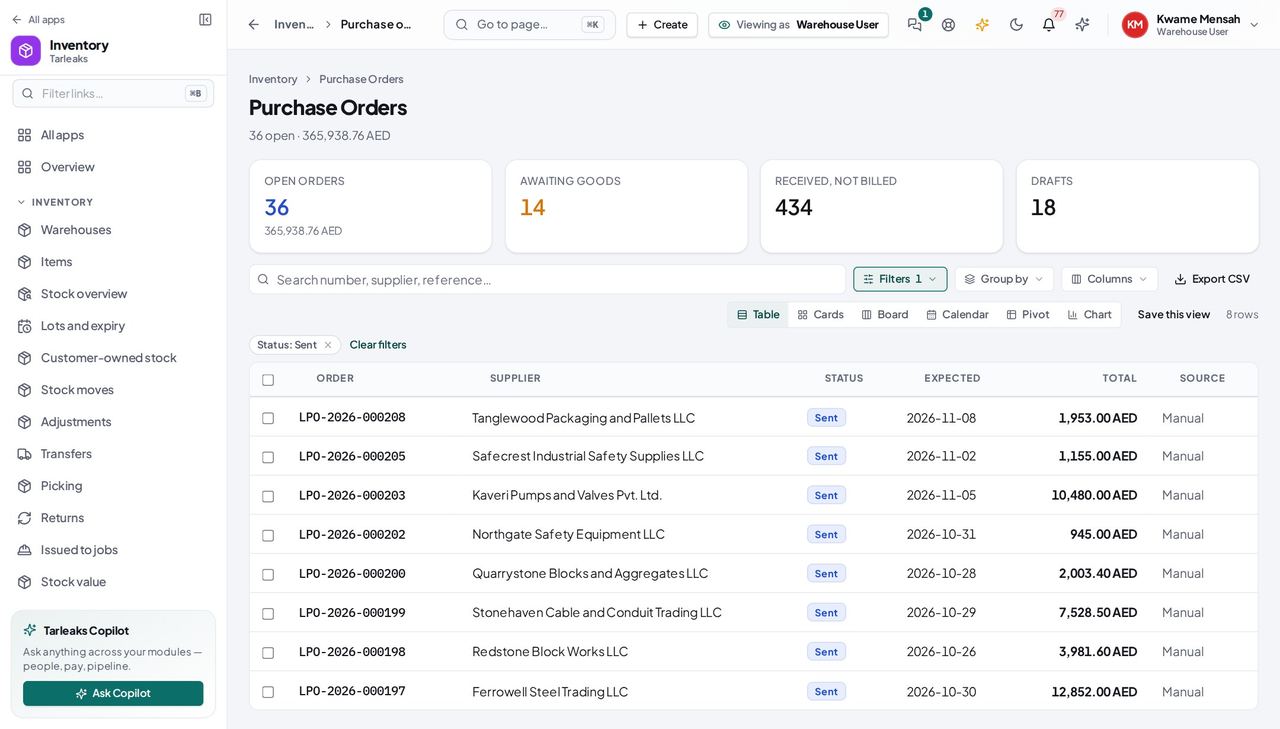
You should see The sent orders — your receiving list.
Receive against an order #
Where Inventory » Purchase orders » the order » Receive goods
- Open your company's address in the browser — it looks like yourcompany.tarleaks.com.
- Type the e-mail address your administrator set up for you, then your password.
- You land on the app launcher. Click the Inventory tile.
- Purchase orders, the sent order, Receive goods.
- Quantities, delivery note, Post receipt.
| Field | What to put in it |
|---|---|
| Delivery note | the number on the supplier's note |
| Arrived on | today, or the earlier day the truck came (the supplier is judged on it) |
| Into location | the shelf, or Warehouse default |
| Receiving now | what arrived, in the unit you pick next to it |
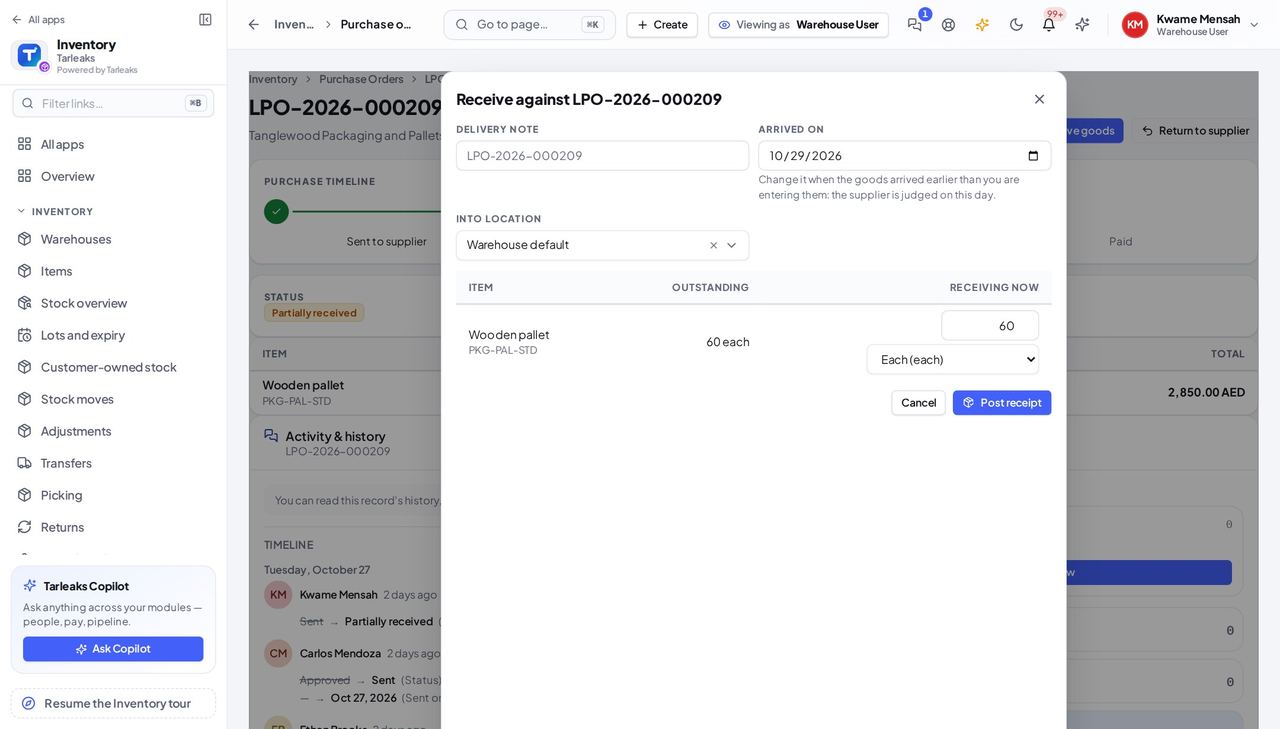
You should see The order reads Partially received or Received; the stock is in at the order's cost.
Watch out The last receipt turns the order Received; accounting matches the supplier's bill against it.
A receipt cannot be bigger than the order #
Where Inventory » Purchase orders » the order » Receive goods
- In Receive goods type more than is outstanding.
- A red message says how many lines are above the outstanding quantity, and Post receipt stays off. Type the outstanding amount, or ask the buyer to edit the order.
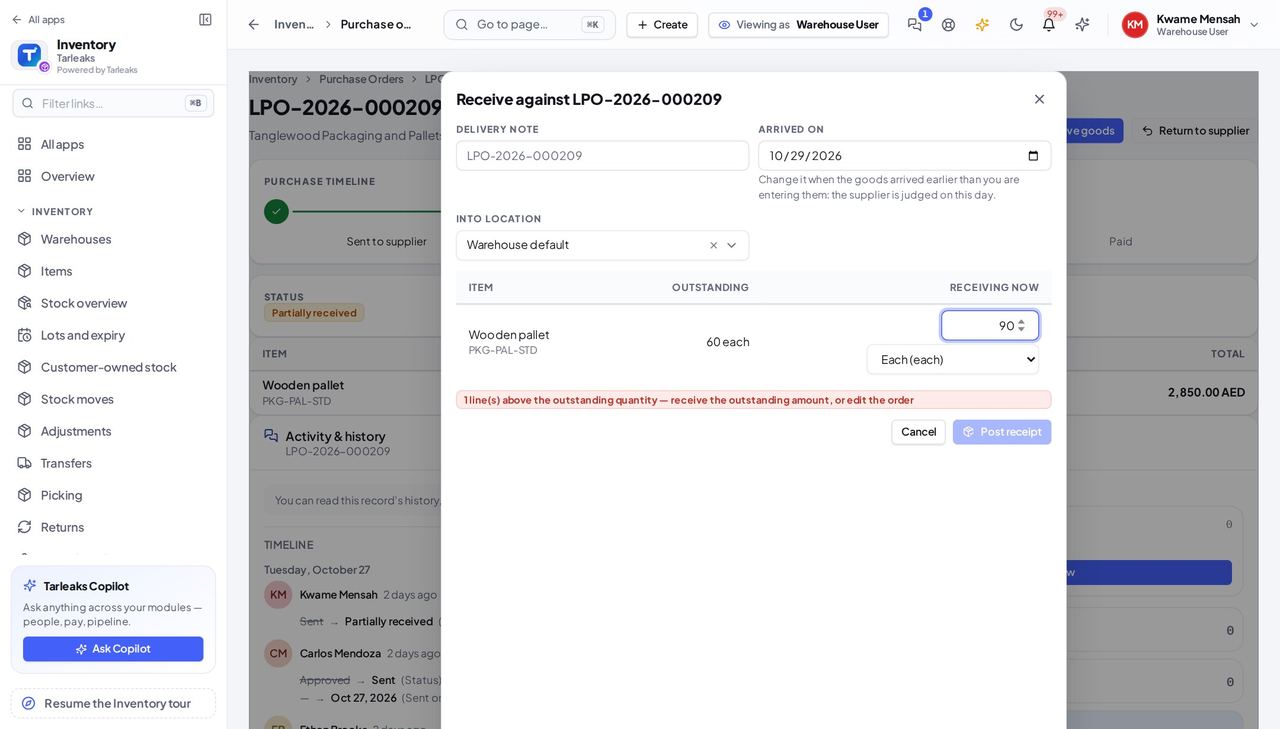
You should see The red message, and a Post receipt button that does not respond.
Worth knowing Two people receiving the same order at the same moment cannot take it past what was ordered either: the second is refused in the same words.
Count a shelf #
Where Inventory » Adjustments » a count » Open the count sheet
- Open Adjustments, click the count, and press Open the count sheet.
- Type what is on the shelf against each line (Enter goes to the next line), or scan a barcode into the scan box.
- The difference and its value show before anything is posted.
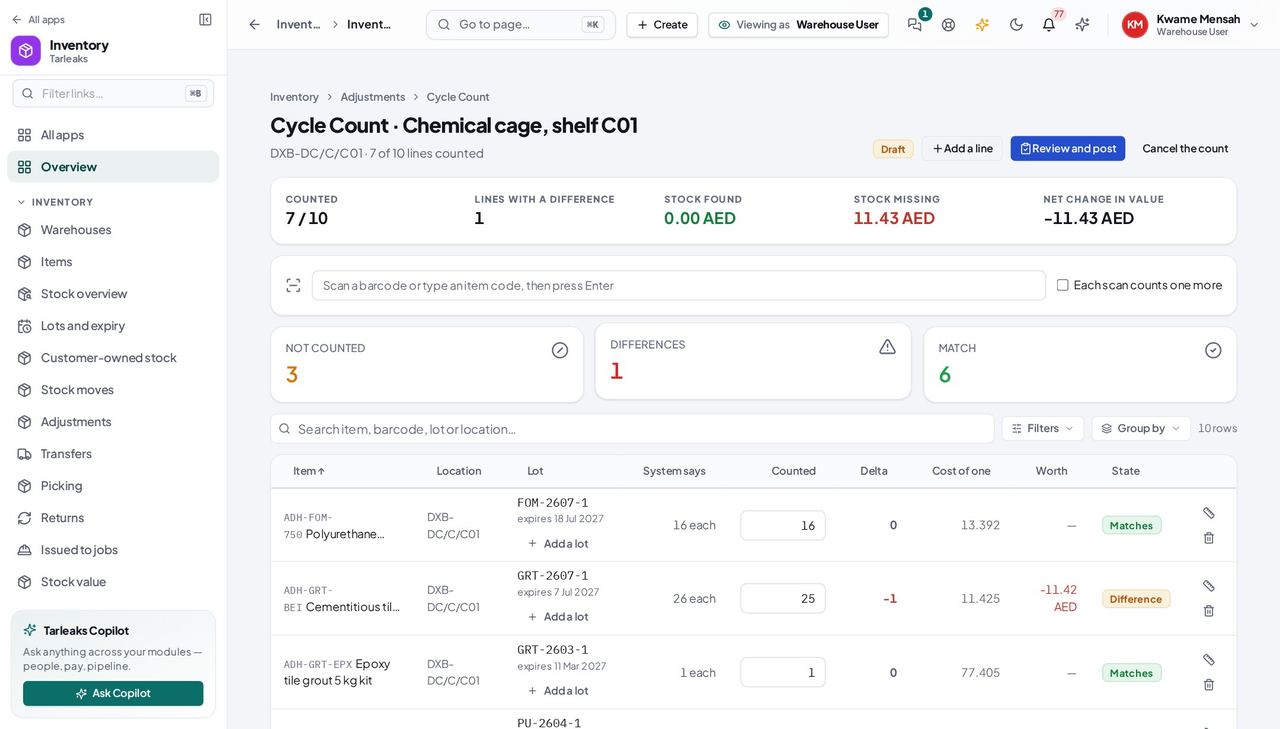
You should see Lines with a difference are marked; lines nobody counted are left alone.
A blind count shows you only what you counted #
Where Inventory » Adjustments » a blind count » Open the count sheet
- Open a count your supervisor started blind.
- The sheet has Item, Location, Lot and Counted — no system quantity, no difference, no value and no Review and post. Count what you see.
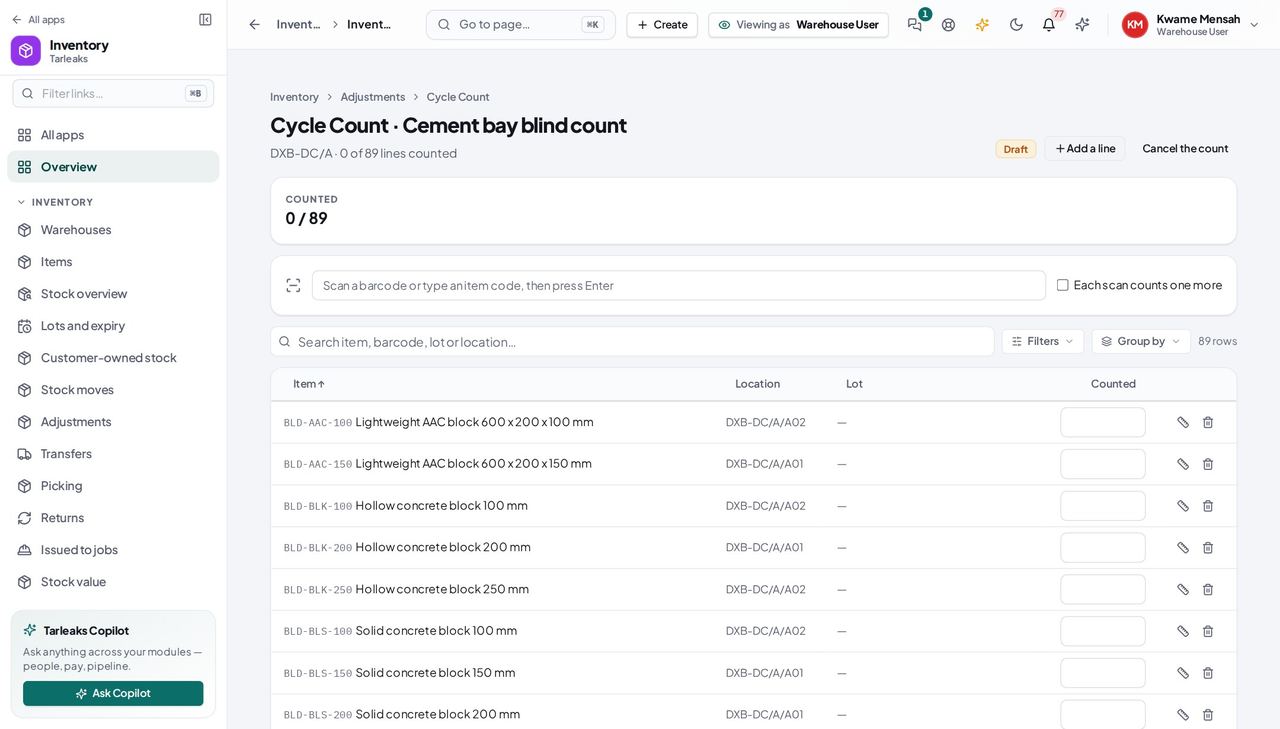
You should see A sheet with nothing to compare your count against, on purpose.
Worth knowing A count is started blind from the mobile app; the web shows it as the counter sees it.
Write off damaged stock from its lot #
Where Inventory » Adjustments » New count » Write-off
- Open your company's address in the browser — it looks like yourcompany.tarleaks.com.
- Type the e-mail address your administrator set up for you, then your password.
- You land on the app launcher. Click the Inventory tile.
- Adjustments, New count.
- What is this for: Write-off. Start the count.
- Click it in the list; Add a line.
| Field | What to put in it |
|---|---|
| Item | the catalogue name or SKU |
| Location | the shelf the damaged stock is on |
| Lot | the batch it came from (for items tracked by lot) |
| Left on the shelf | what is left AFTER the write-off, not the amount written off |
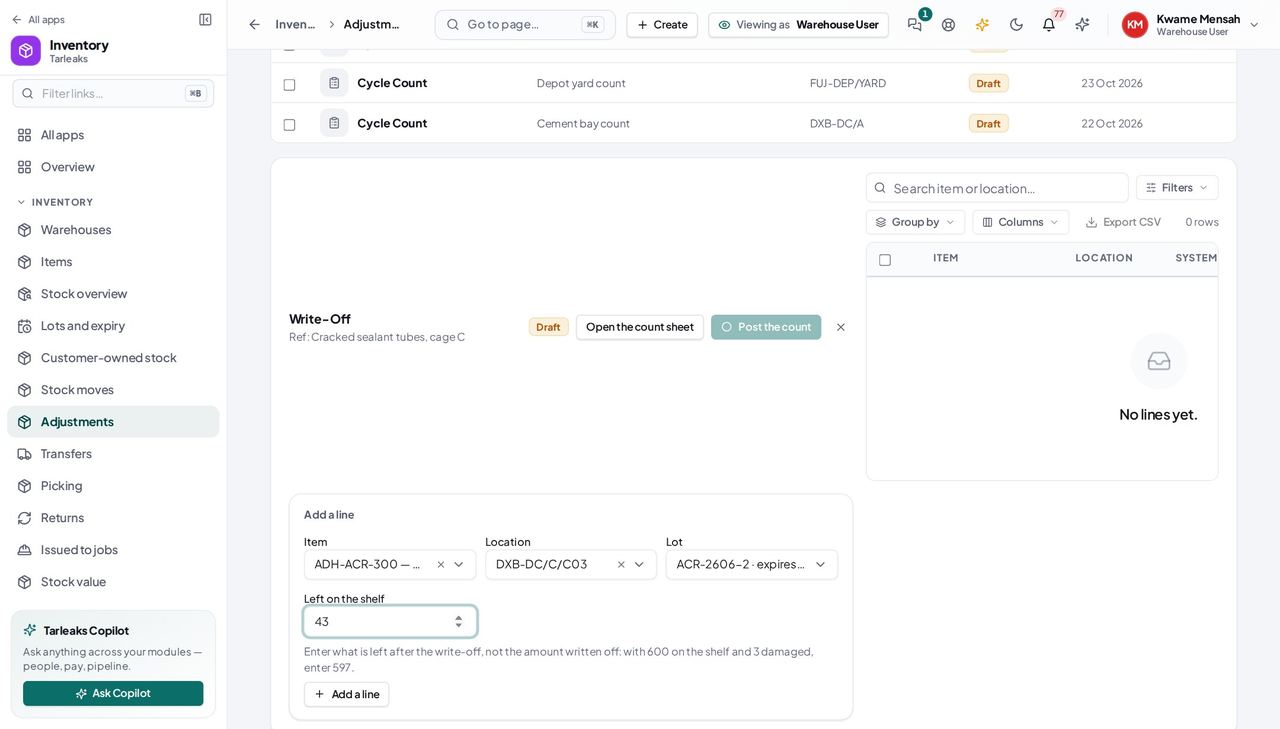
You should see The line shows the quantity leaving that lot; Post the count books it.
Watch out Posting the count books the loss to accounting and takes the quantity out of that lot.
A write-off can never add stock #
Where Inventory » Adjustments » a write-off » Add a line
- On a write-off line, type a quantity larger than the lot holds.
- The line is refused and the message gives the figure to stay under. To add stock, start a Found stock count instead.
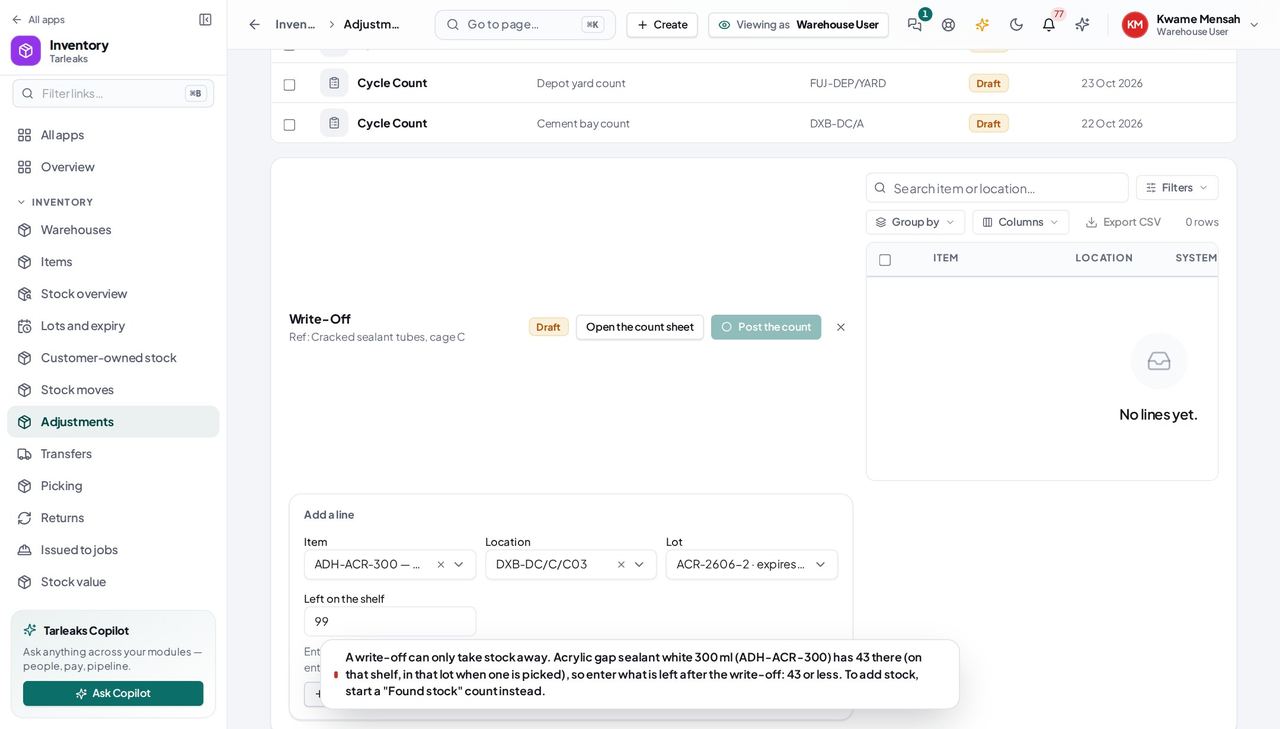
You should see The message ends with the highest quantity you may type.
Send goods back to the supplier #
Where Inventory » Purchase orders » the order » Return to supplier
- Open an order that has received goods and press Return to supplier.
- Give the reason the supplier needs, then type the quantity going back against each receipt line; Record the return.
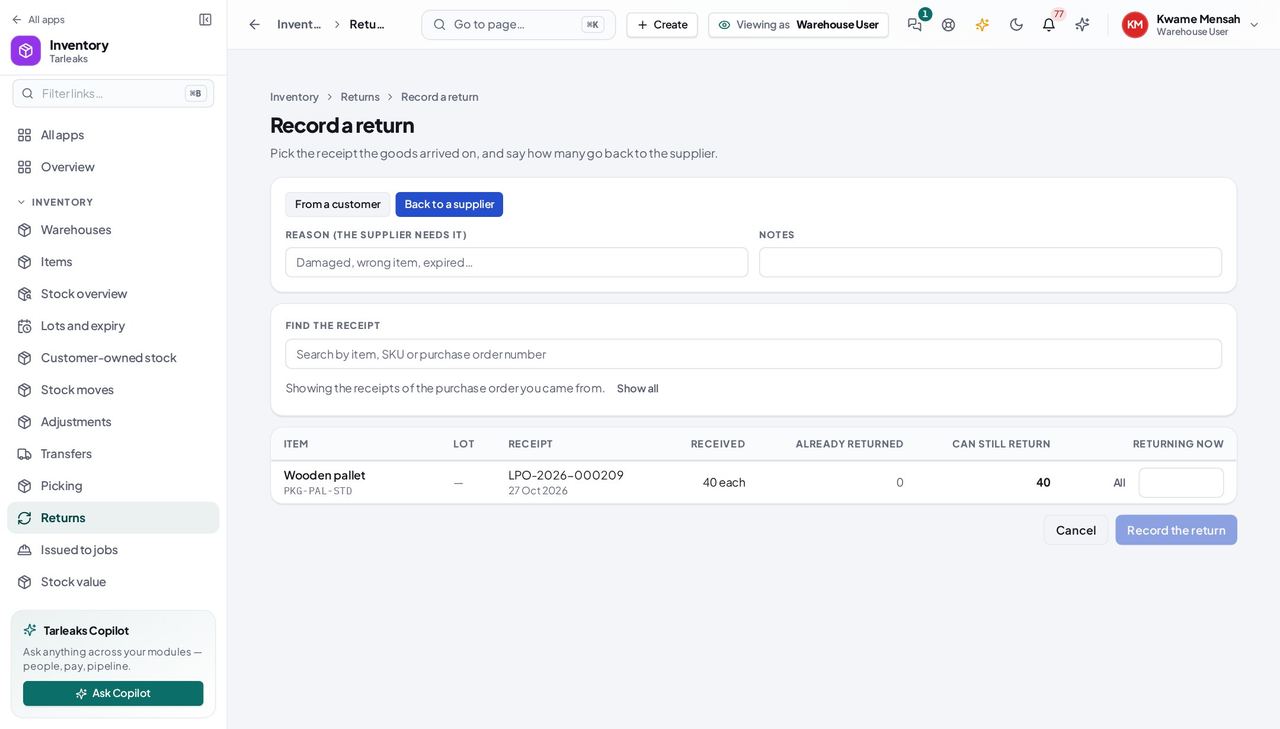
You should see The page lists the order's own receipts with what can still go back.
See the goods on the road #
Where Inventory » Valuation » By warehouse
- Open Valuation and choose By warehouse.
- Under the warehouses, the On the road line gives the units and value sent and not yet received.
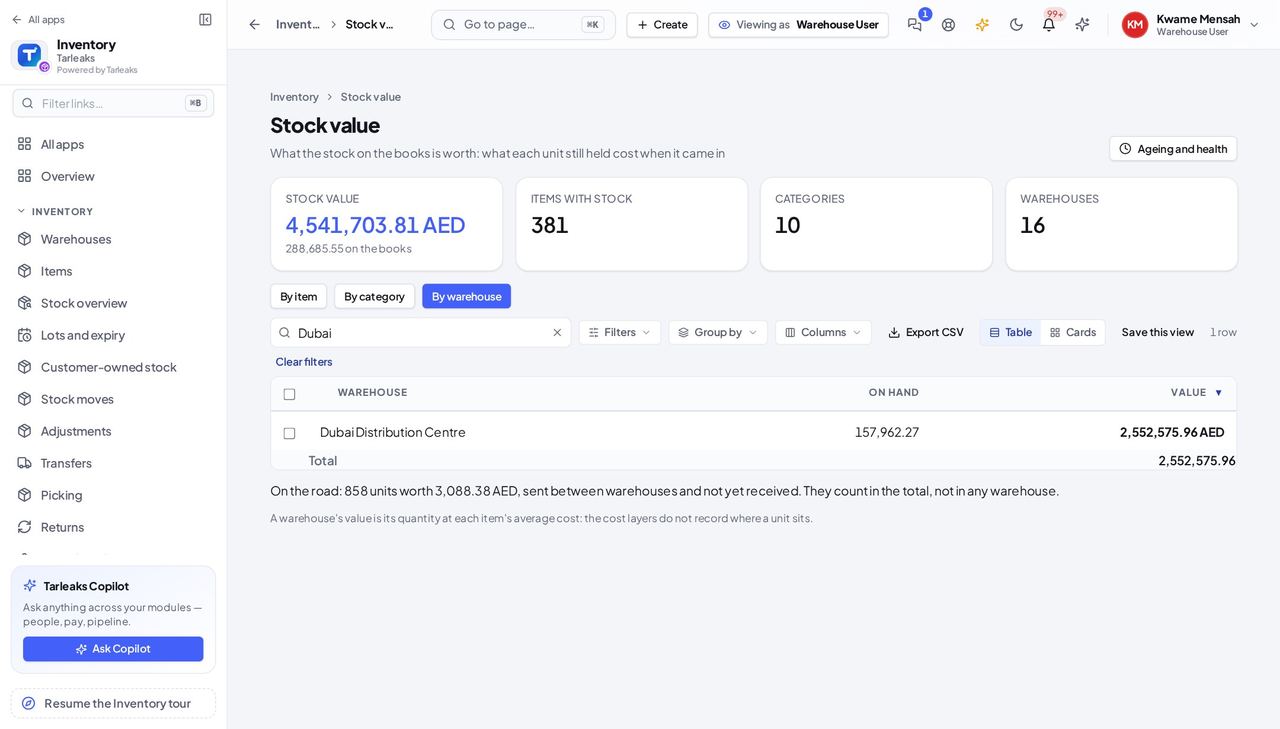
You should see Goods in transit count in the total stock value but in no warehouse, so nothing is counted twice.
Worth knowing Click the line to open those transfers.
Read the count rules #
Where Inventory » Adjustments » Count rules
- Open Adjustments and press Count rules.
- Read the tolerances and the reasons for a stock difference your company uses.
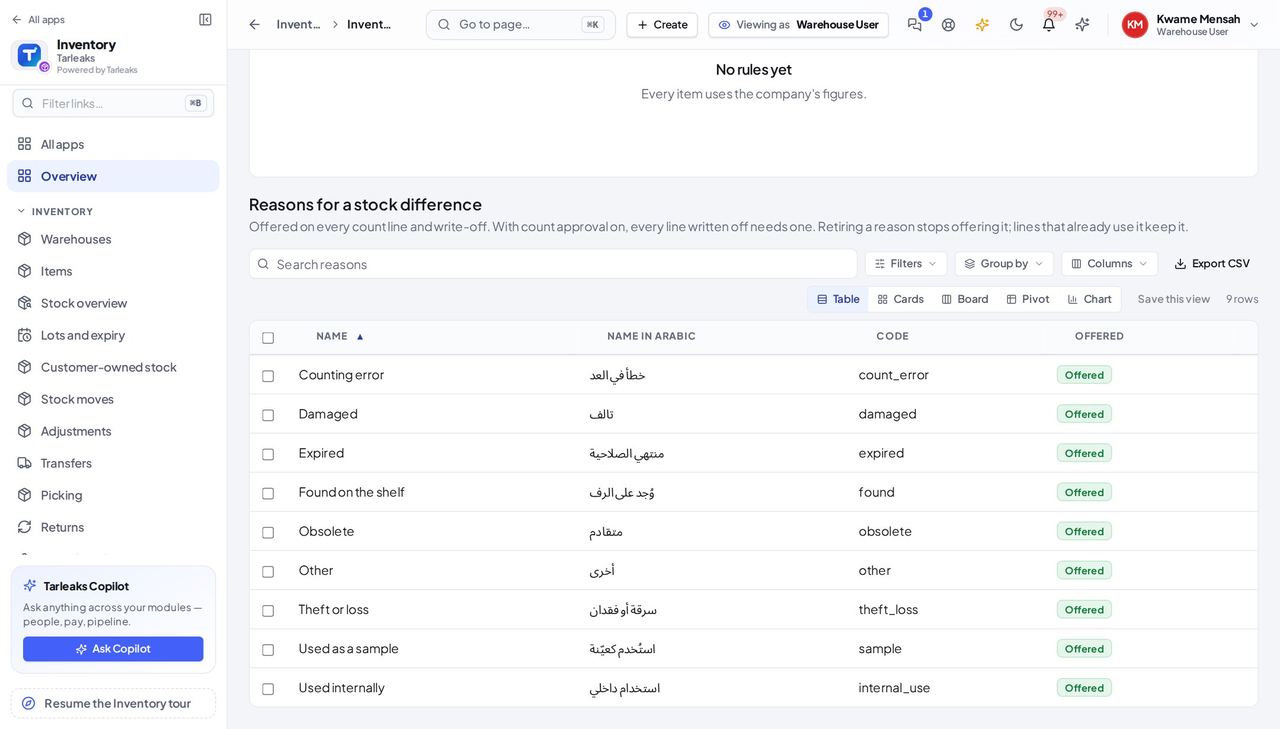
You should see The rules are there to read; New rule and New reason are the manager's.
Give a difference a reason #
Where Inventory » Adjustments » a count » Open the count sheet
- Open the count sheet as for any count.
- In the Reason column, pick why the shelf differs: Damaged, Expired, Theft or loss, Counting error…
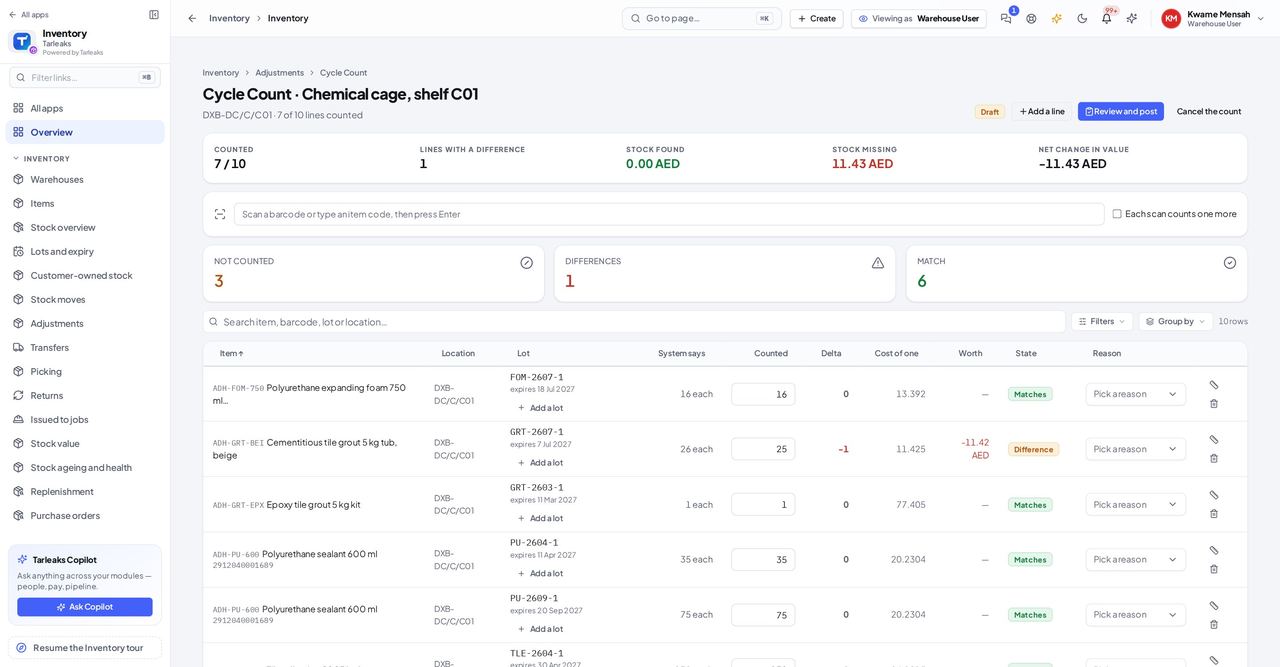
You should see The reasons come from your company's list. Once Count approval is on, a write-off cannot post without them.
Use cases — the work, step by step
Each one is a sequence somebody actually performs, with the screen behind every step. Every screen here was opened in the product as this role before it was published.
dailyA truck arrives #
Receiving against the order is what values the stock and what lets accounts pay.
Open Purchase orders, Awaiting goods; find the order on the delivery note.
Inventory » Purchase orders » Awaiting goods — verified: the page says “Purchase Orders”; 8 row(s) listed; no “verify” anywhere on the page; no “Network error” anywhere on the page Receive goods: keep the outstanding quantities unless the box says otherwise; enter the note number; Post receipt.
Inventory » Purchase orders » the order » Receive goods — verified: the page says “Post receipt”; the page says “Arrived on”; the control is offered; no “partially_received” anywhere on the page; the control is offered; no “verify” anywhere on the page; no “Network error” anywhere on the page More boxes than the order? Do not type them: the red message stops you, and the buyer edits the order.
Inventory » Purchase orders » the order » Receive goods — verified: the page says “above the outstanding quantity”; the control is offered; no “partially_received” anywhere on the page; the control is offered; no “verify” anywhere on the page; no “Network error” anywhere on the page
monthly, or when a supervisor asksCount a shelf #
A count compares the shelf with the system and books only the differences you confirm.
Open Adjustments, click the count, and Open the count sheet.
Inventory » Adjustments » a count » Open the count sheet — verified: the control is offered; the page says “Chemical cage, shelf C01”; the page says “System says”; no “verify” anywhere on the page; no “Network error” anywhere on the page A blind count is the same sheet without the system figures: count what you see and leave the rest to the supervisor.
Inventory » Adjustments » a blind count » Open the count sheet — verified: the page says “Cement bay blind count”; the control is offered; the action is not offered to this role; the action is not offered to this role; no “verify” anywhere on the page; no “Network error” anywhere on the page
as they are foundDamaged goods #
A write-off takes the quantity out of the lot it came from, and cannot be used to add stock.
Start a Write-off, add the line with the item, shelf and lot, and type what is left.
Inventory » Adjustments » New count » Write-off — verified: the page says “Left on the shelf”; the page says “ACR-2606-2”; the page says “with 600 on the shelf and 3 damaged”; no “verify” anywhere on the page; no “Network error” anywhere on the page If the message says a write-off can only take stock away, the number is above what the lot holds: re-check the lot and what is left.
Inventory » Adjustments » a write-off » Add a line — verified: the page says “A write-off can only take stock away”; no “verify” anywhere on the page; no “Network error” anywhere on the page Goods that arrived damaged and are still on an order go back instead: Return to supplier.
Inventory » Purchase orders » the order » Return to supplier — verified: the page says “Record a return”; the page says “Back to a supplier”; the page says “LPO-2026-000209”; no “verify” anywhere on the page; no “Network error” anywhere on the page
You never raise or send an order, and you never see a blind count's figures.