Inventory Manager — Inventory guide
Approve what is big, close what is done, and land the freight on the goods.
Approves an order above the threshold, closes it, posts the landed cost that raises the received goods' value — and can do everything the buyer and the warehouse do.
What you will be able to do
- Approve an order above the threshold
- Close an order
- Add and post a landed cost
- Read a blind count's difference and post it
- Draft orders from the reorder queue
What this role can and cannot do
| Can | Cannot |
|---|---|
|
|
7 steps, each one carried out in the product on .
Approve an order above the threshold #
Where Inventory » Purchase orders » a draft » Approve
- Open a draft; if its total is above the company's threshold, Send is refused until you press Approve.
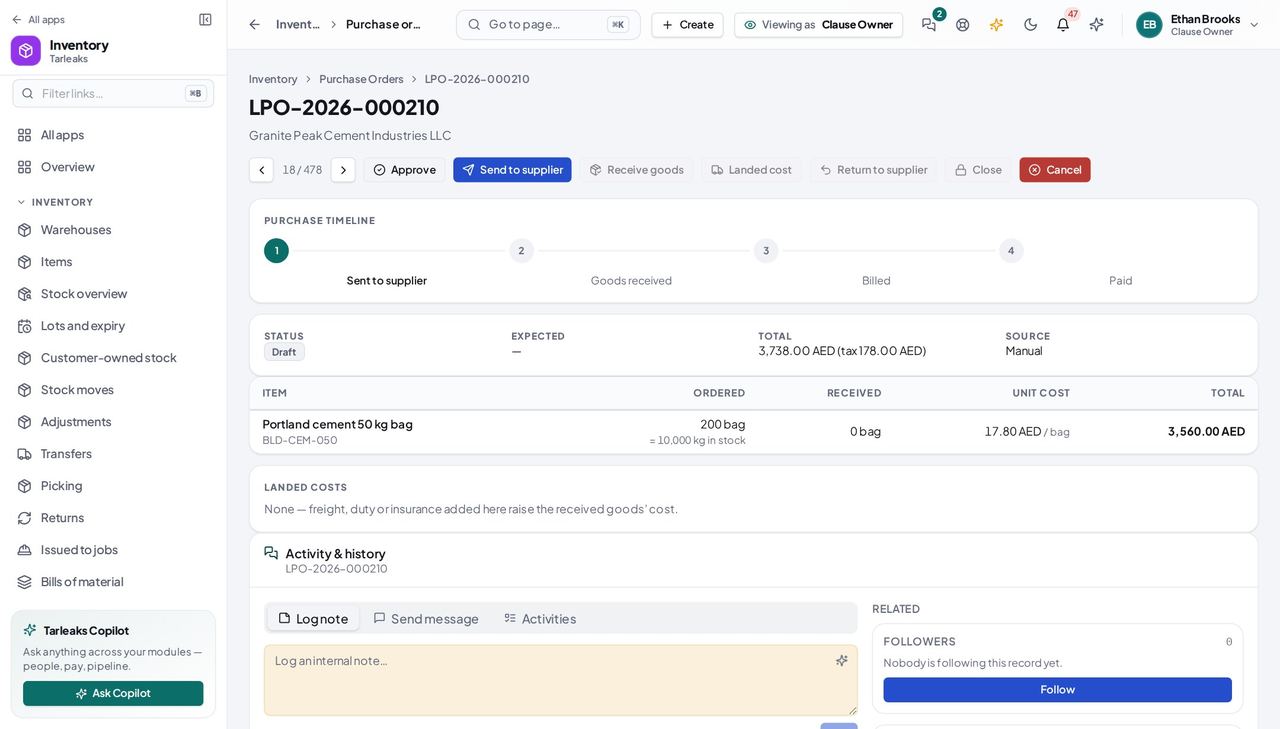
You should see The order reads Approved and the buyer can send it.
Add the freight to what the goods cost #
Where Inventory » Purchase orders » a received order » Landed cost
- Open your company's address in the browser — it looks like yourcompany.tarleaks.com.
- Type the e-mail address your administrator set up for you, then your password.
- You land on the app launcher. Click the Inventory tile.
- Purchase orders, a received order, Landed cost.
| Field | What to put in it |
|---|---|
| Amount | in the order's currency |
| Description | what it is (sea freight, customs duty…) |
| Spread by | value, quantity or weight; the company default otherwise |
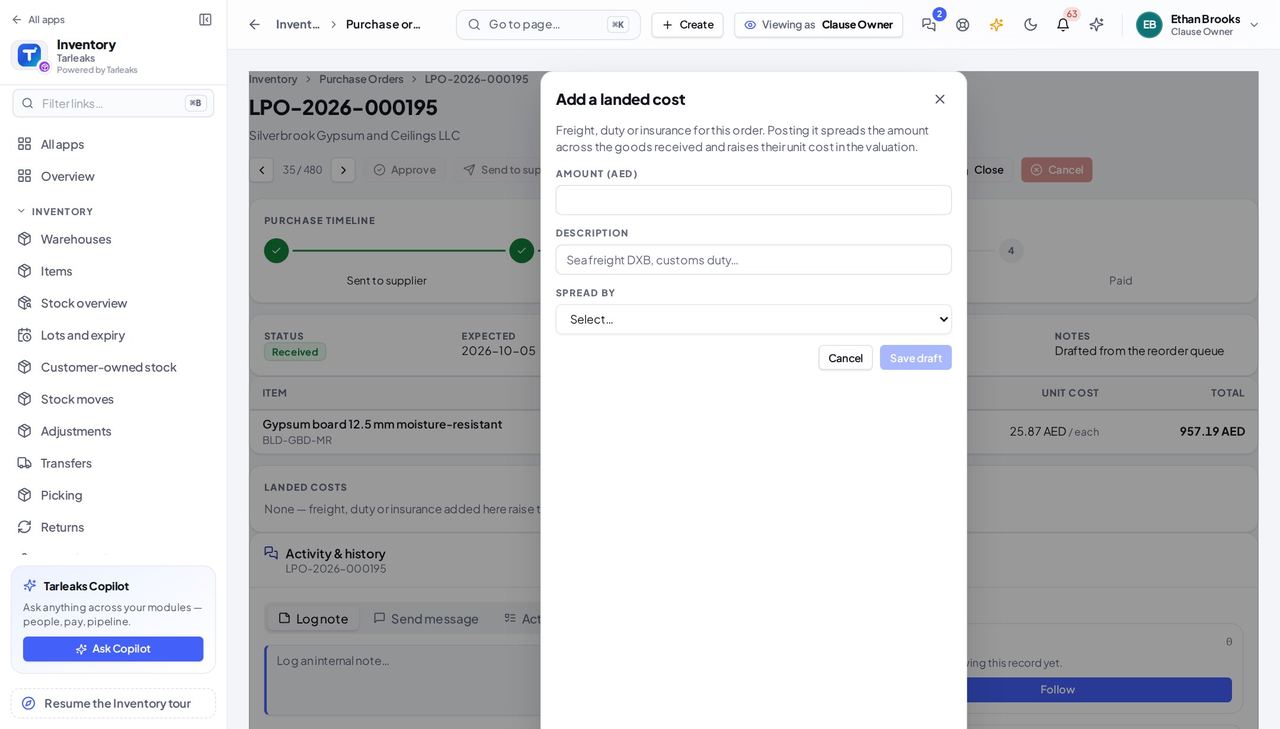
You should see The draft appears under Landed costs with a Post button.
Watch out A landed cost in another currency than the company's is converted at the rate of the day it is posted.
Post it, and the order shows it as posted #
Where Inventory » Purchase orders » a received order » Landed costs
- Press Post on the draft landed cost.
- The row reads Posted. The amount is spread over the goods received and their unit cost rises by their share.
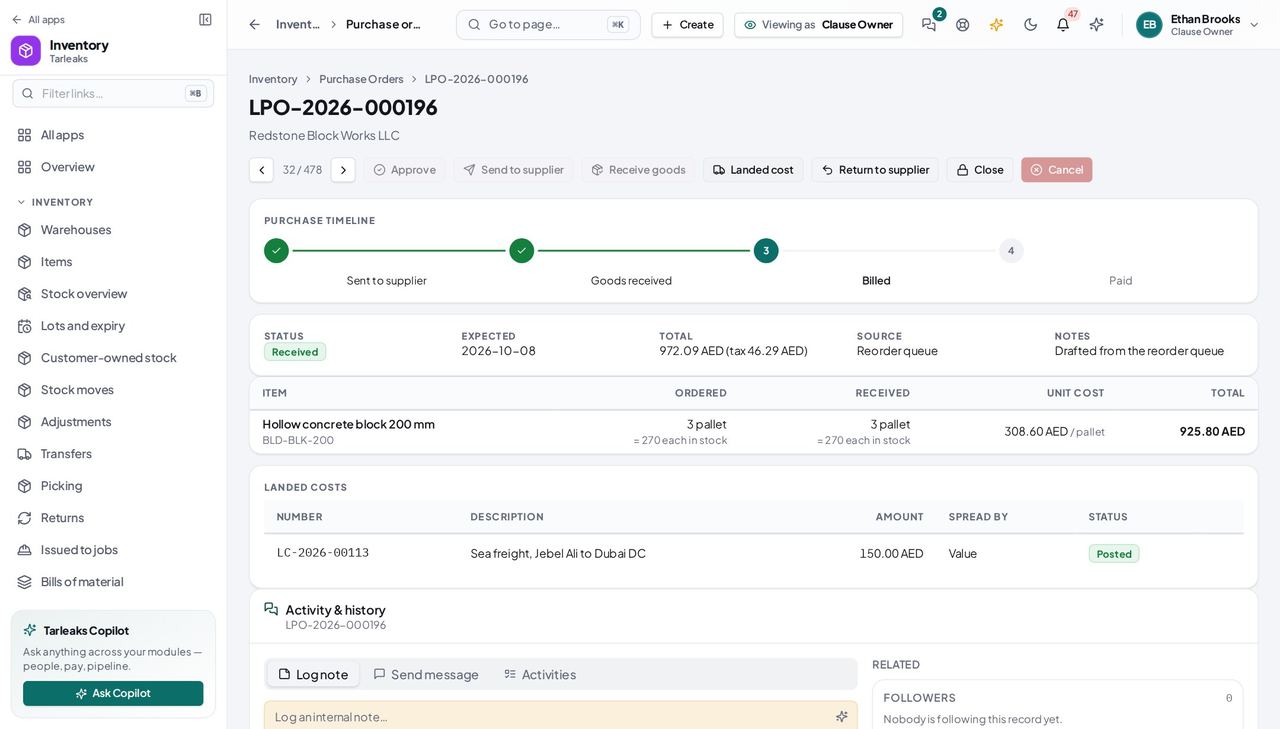
You should see The landed cost with its number, amount and the word Posted.
A blind count: you see the difference and you post it #
Where Inventory » Adjustments » a blind count » Open the count sheet
- Open the blind count the counter is working on.
- You see System says, Delta, Cost of one and Worth, and Review and post — the counter sees none of them.
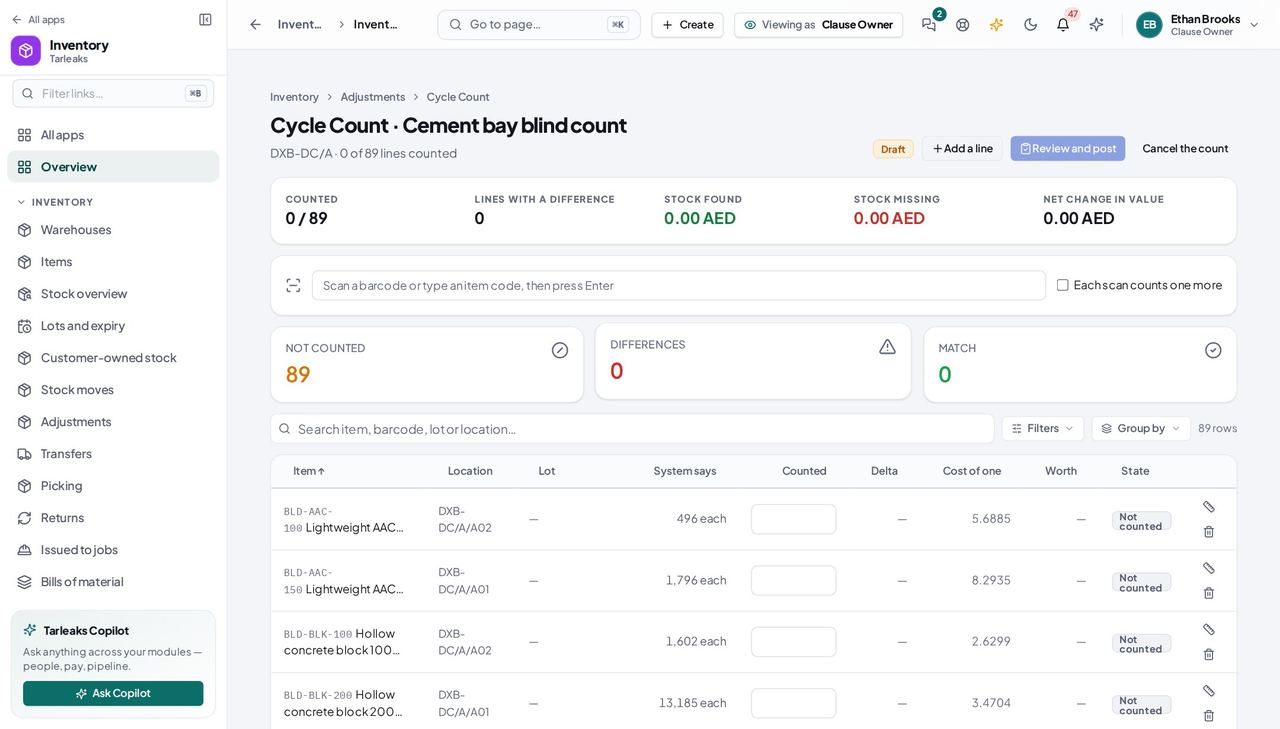
You should see The columns the counter does not have.
See what is on the road between warehouses #
Where Inventory » Valuation » By warehouse
- Open Valuation and choose By warehouse.
- Read the On the road line under the warehouses.
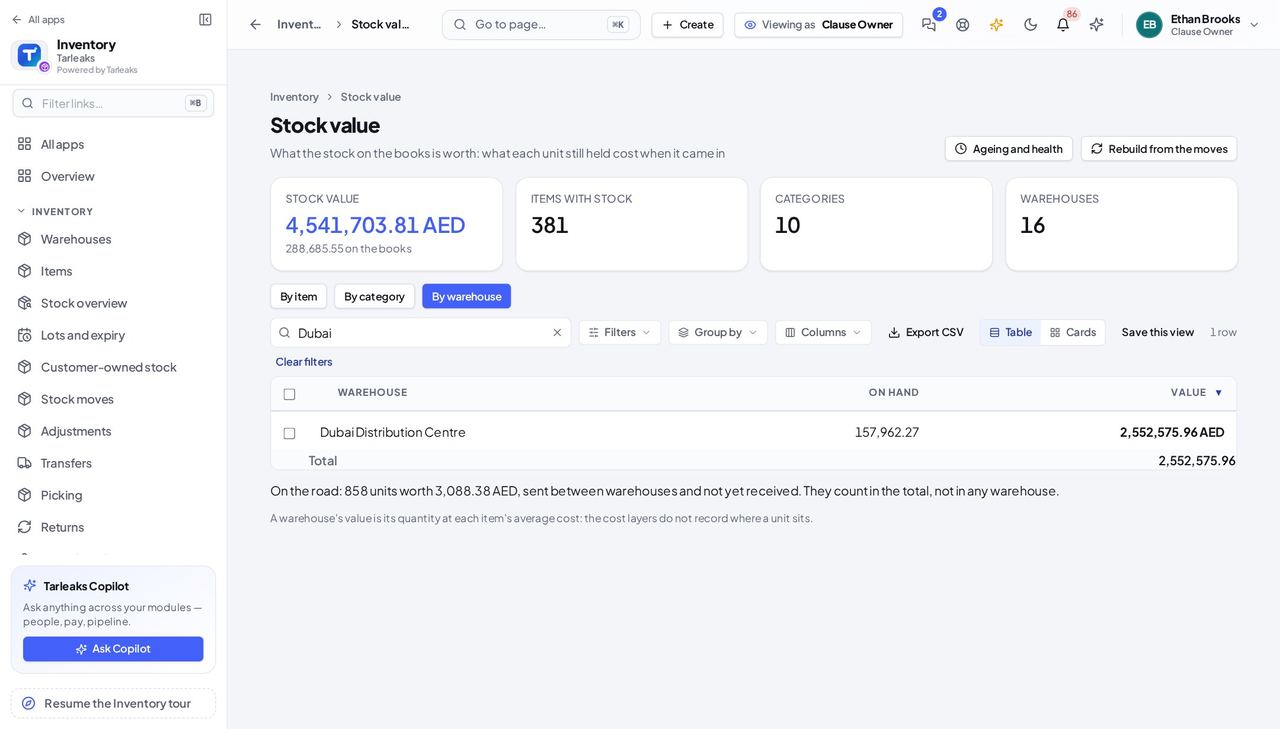
You should see The units and value sent between warehouses and not yet received; they count in the total, not in any warehouse.
Worth knowing Click the line to open the shipped and partly received transfers.
Give an item its default expense account #
Where Inventory » Items » New item
- Open Items and press New item (or edit an item).
- Type the Default expense account code the item is usually bought for.
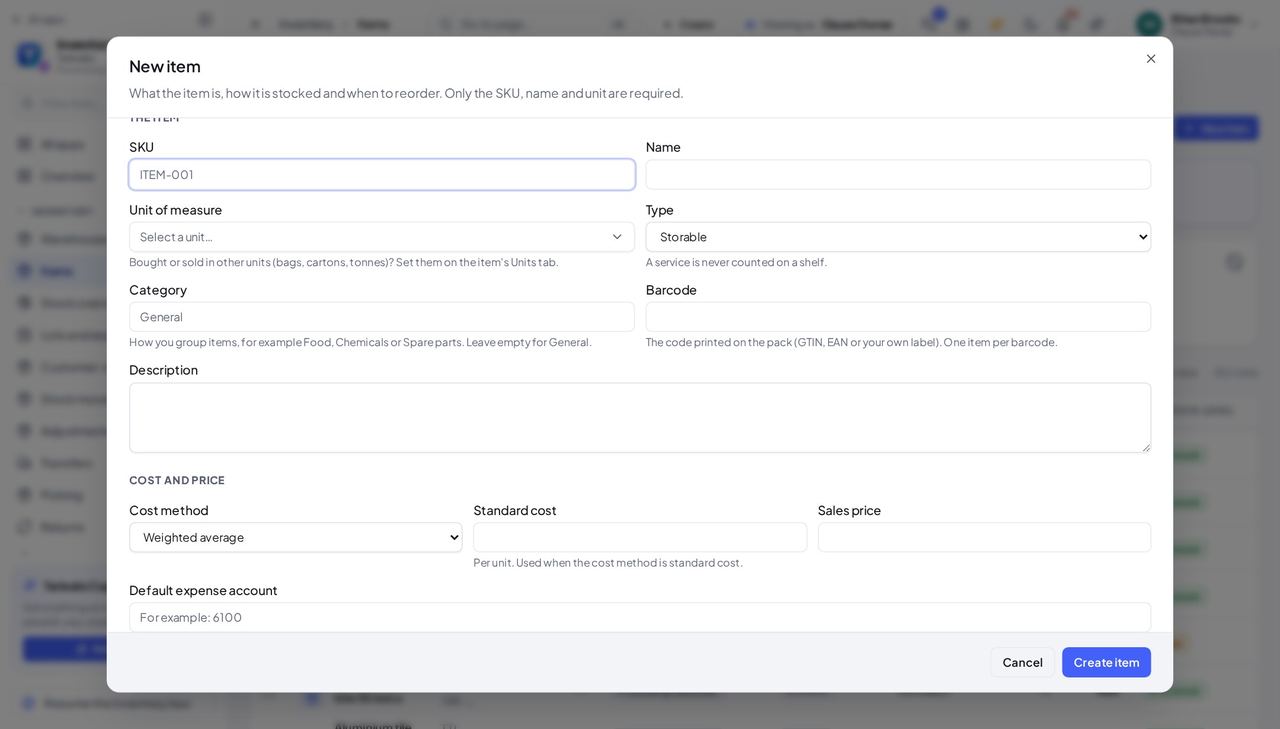
You should see An order line for the item that names no account uses this one; the buyer can still type another on a line.
Decide when a count needs a second person #
Where Inventory » Adjustments » Count rules » New rule
- Open Adjustments, press Count rules, then New rule.
- Choose an item or a category and set the tolerance: a quantity percentage, a line value, or both.
| Field | What to put in it |
|---|---|
| One item / A category | The rule applies to one item, or to every item of a category |
| Most a line may differ (% of what the system holds) | Beyond it, the count waits for a second person |
| Most a line's difference may be worth | The same limit in money |
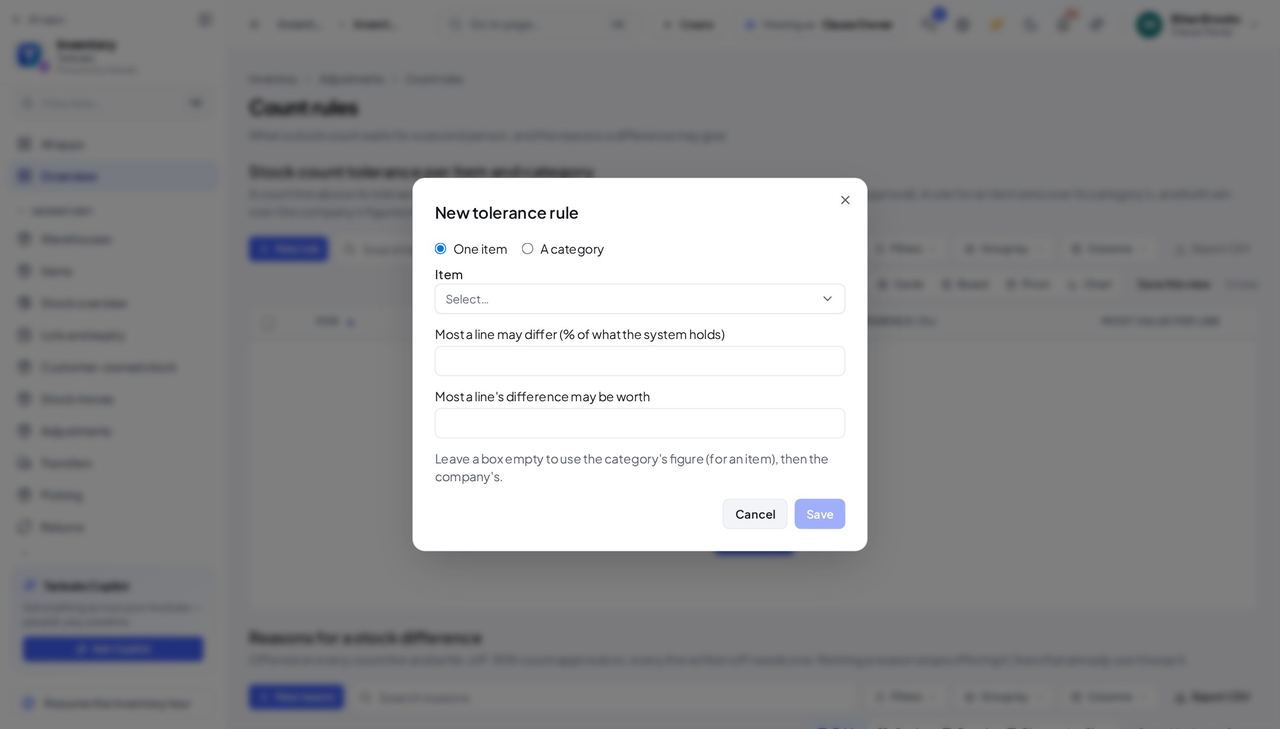
You should see Once your company turns Count approval on, a count beyond its tolerance waits for an approver who did not take part in it; they approve and post it, send it back for a recount, or reject it.
Watch out While the company keeps its two-person rule for counts (on by default), the approver must be someone who did not take part in the count.
Worth knowing Count approval is switched on by an administrator in Settings, under the inventory features.
Use cases — the work, step by step
Each one is a sequence somebody actually performs, with the screen behind every step. Every screen here was opened in the product as this role before it was published.
monthlyFreight to land on last week's receipt #
The forwarder's bill arrives after the goods; the landed cost puts it on them.
Open the received order; Landed cost; amount, description, Save draft.
Inventory » Purchase orders » a received order » Landed cost — verified: the page says “Add a landed cost”; the page says “Spread by”; the control is offered; no “verify” anywhere on the page; no “Network error” anywhere on the page Post it: the receipt layers' unit cost rises by the share; the order shows it as Posted.
Inventory » Purchase orders » a received order » Landed costs — verified: the page says “Landed costs”; the page says “Posted”; the control is offered; no “verify” anywhere on the page; no “Network error” anywhere on the page
after the counter finishesPost a blind count #
The counter saw no system figures; the difference is yours to judge before it is booked.
Open the count sheet: System says, Delta and Worth are there for you.
Inventory » Adjustments » a blind count » Open the count sheet — verified: the page says “Cement bay blind count”; the control is offered; the control is offered; no “verify” anywhere on the page; no “Network error” anywhere on the page Review and post books the differences; a count nobody confirms books nothing.
Inventory » Adjustments » a blind count » Open the count sheet — verified: the page says “Cement bay blind count”; the control is offered; the control is offered; no “verify” anywhere on the page; no “Network error” anywhere on the page
You can also do everything the buyer and the warehouse do. The audit trail is not yours: it needs the company-wide audit key.