Team Member — Projects guide
Your work and your hours, and nothing you do not need.
A deliberately small workspace: the tasks that are yours, the hours you logged against them, and the reports that show your work. The plan itself — projects, sprints, dependencies, budgets and everyone else's hours — is not yours to change.
What you will be able to do
- See only the tasks that are actually yours, sorted by when they land
- Move a task forward in one click, or run a timer while you work it
- Log the week's hours in a grid rather than an e-mail
- Keep the checklist, the questions and the files on the task itself
- Read the same delivery reports your project manager reads
What this role can and cannot do
| Can | Cannot |
|---|---|
|
|
14 steps, each one carried out in the product on .
Check what your sign-in can do #
Where Your name, top right » Profile
- Open your company's address in the browser — it looks like yourcompany.tarleaks.com.
- Type the e-mail address your administrator set up for you, then your password.
- You land on the app launcher: a grid of the apps your company uses.
- Click your name, top right.
- Choose Profile.
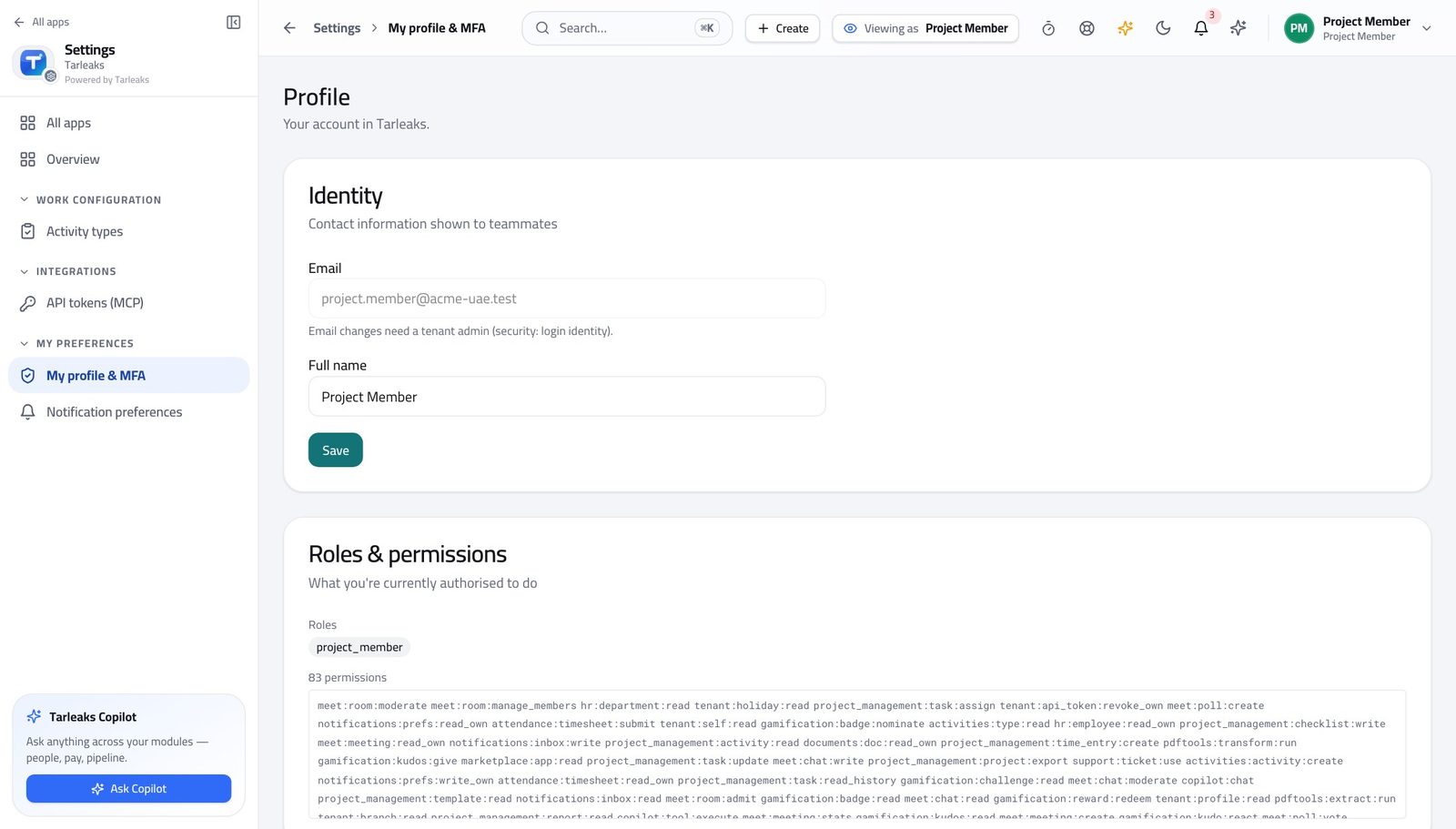
You should see It lists the team-member role. You can pick work up, move it, log hours against it and read the reports. The plan itself belongs to your project manager.
See only the work that is yours #
Where Projects » My tasks
- Open My tasks.
- Read the lanes: Overdue, Today, This week, Later.
- Click a tile at the top to jump to open, in-progress or overdue work.
- Filter by priority when the list gets long.
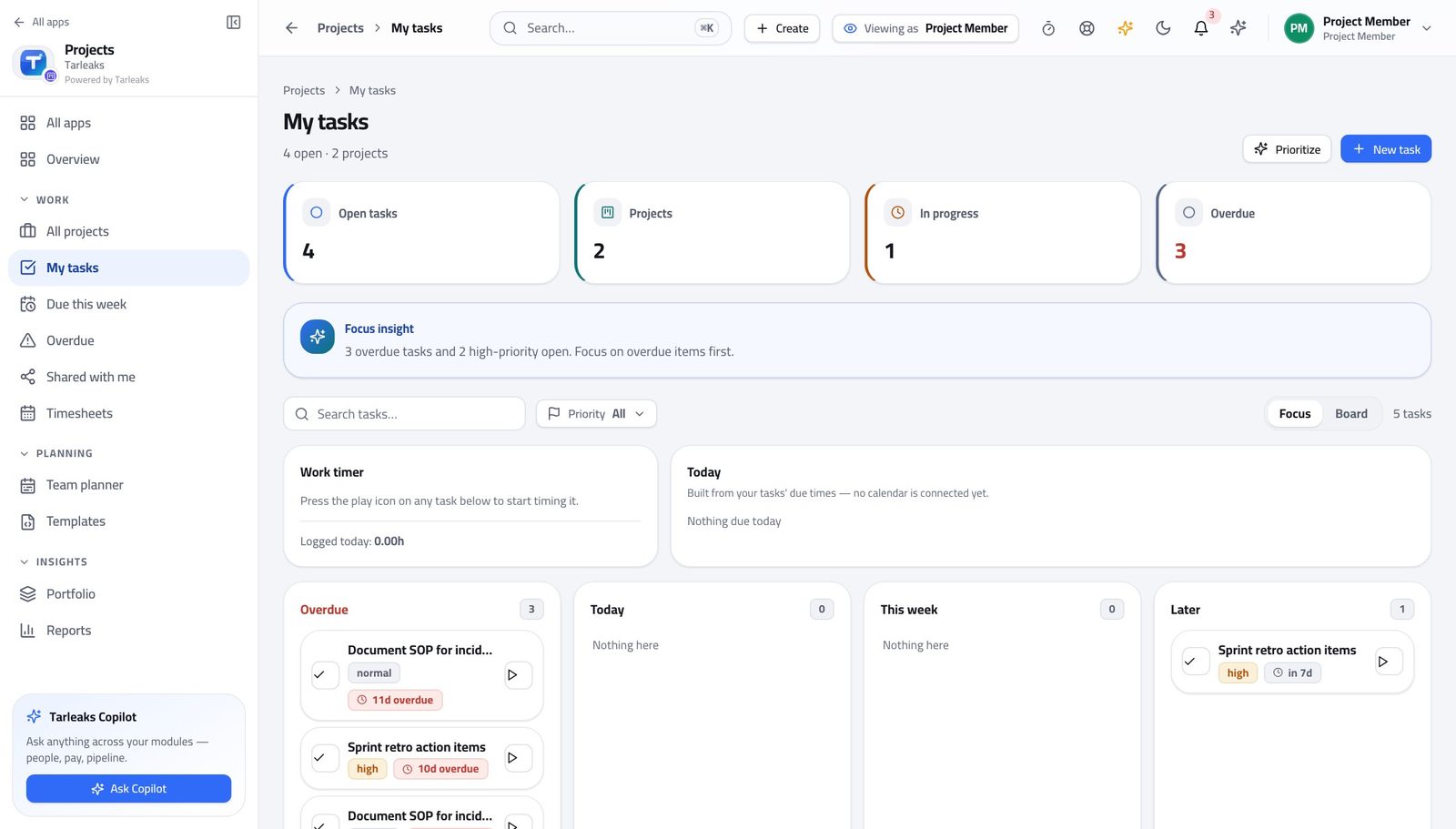
You should see Nobody else's work is on this screen, which is what makes it usable first thing in the morning.
Watch out A task you cannot start belongs in review or back with your project manager. Leaving it in To do hides the blockage from everybody.
Worth knowing Start here rather than on a project. The project list answers 'how is it going'; this answers 'what do I do next'.
Everything about a task, on the task #
Where Projects » Overdue » a task title
- Click a task's title in any list.
- It opens in place — your list and your position are kept.
- Tick the checklist as you go.
- Put questions in the comments.
- Drag a file onto the task rather than sending it.
- Open History when you need to know what changed.
| Field | What to put in it |
|---|---|
| Checklist | The steps inside the task. Tick them as you go, not at the end. |
| Comments | Questions and answers, kept where the next person will look. |
| Attachments | The file itself, on the task, rather than in a message thread. |
| Due date | Only change it if you have told whoever was relying on it. |
| Labels | How the task is grouped in reports. Use the ones your team already uses. |
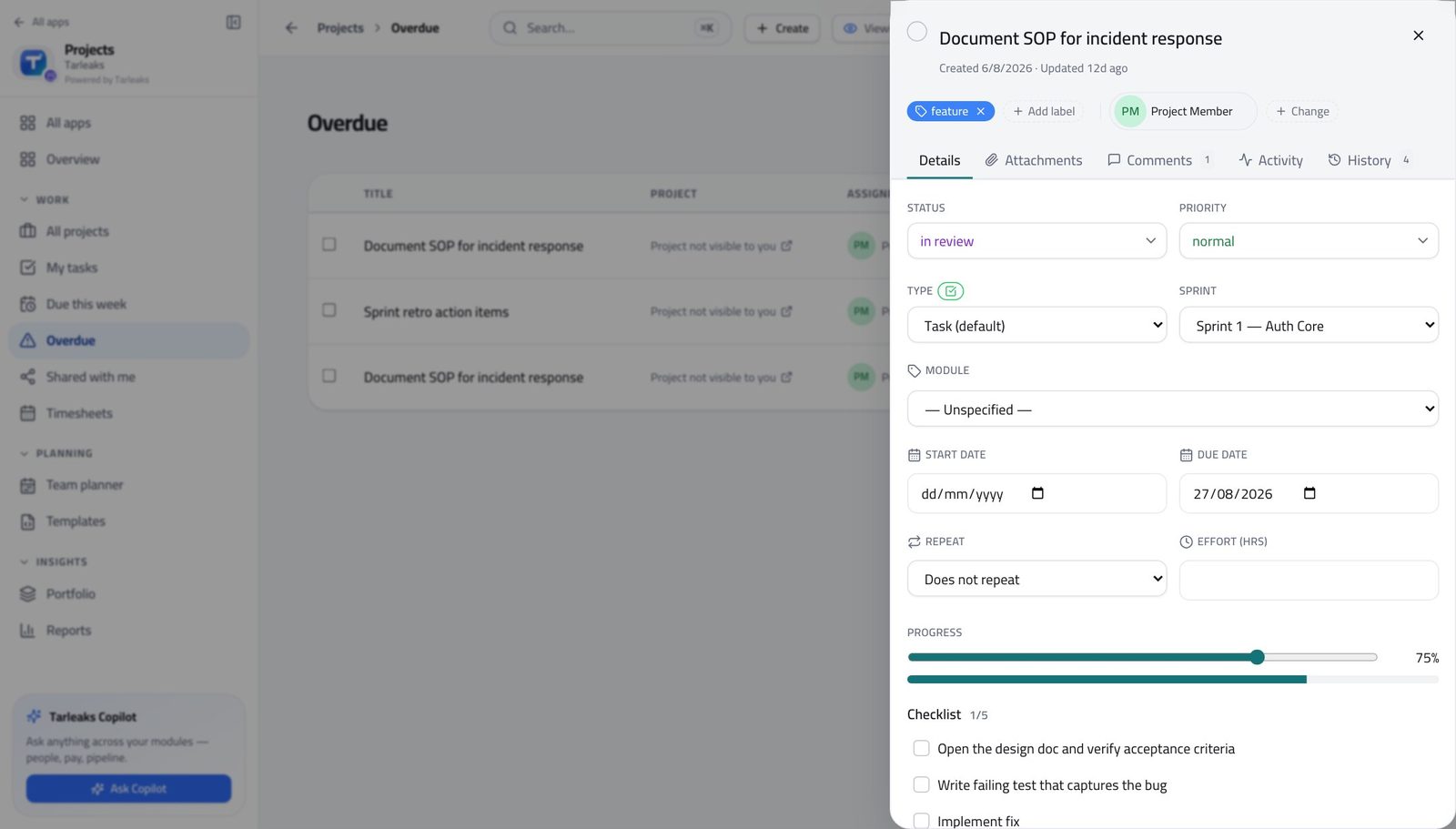
You should see The next person to pick it up reads the task, not your inbox.
Watch out An answer given in chat is lost to whoever picks the task up next.
Worth knowing An answer given in chat is lost to whoever picks the task up next. One sentence in the comments is worth ten minutes later.
The same work, as a board #
Where Projects » My tasks » Board
- Open My tasks.
- Switch from Focus to Board.
- Drag a card to the next column, or press Mark done on it.
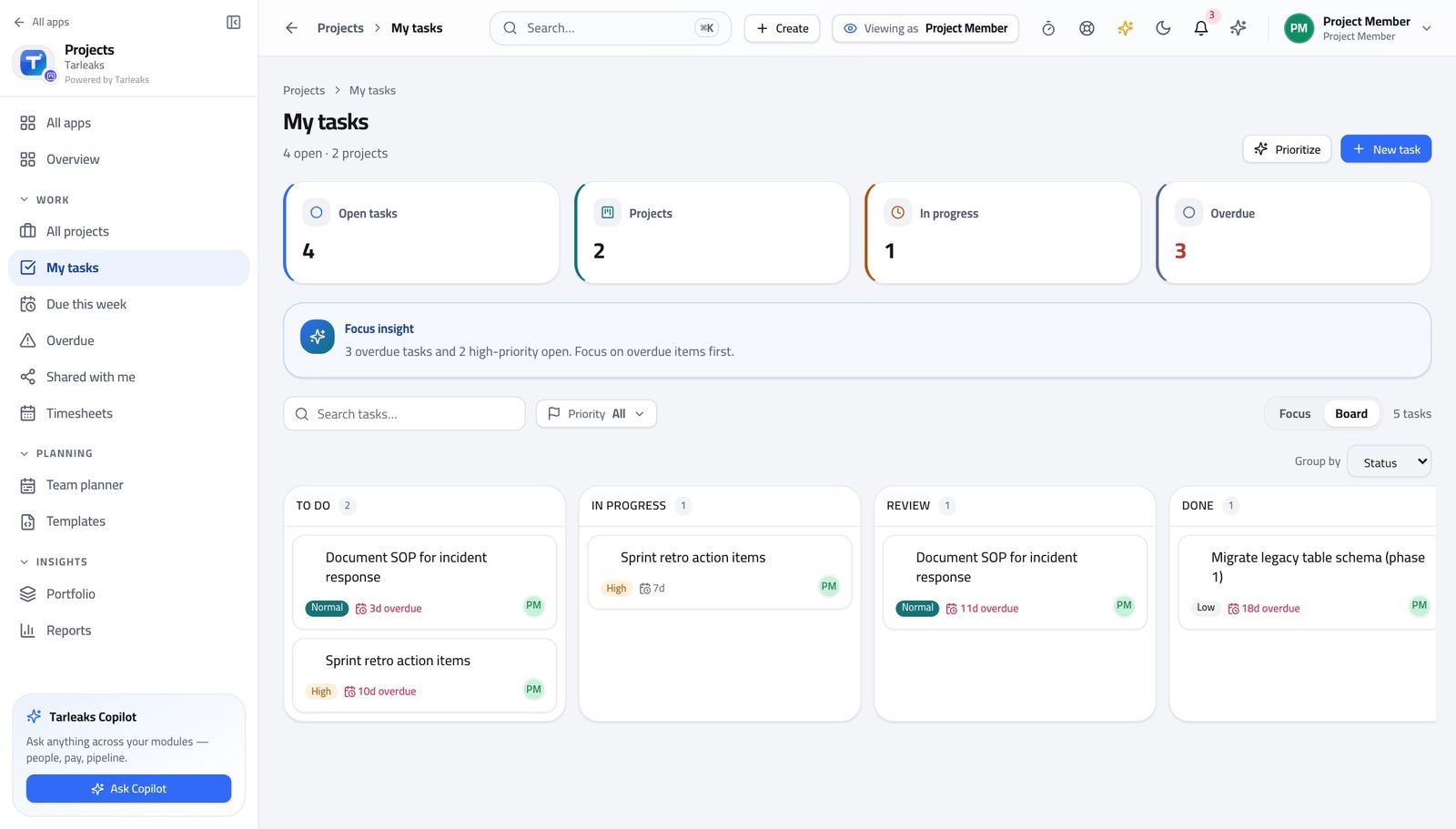
You should see Moving the card is the update. There is no separate status to write, and your project manager sees it immediately.
Worth knowing A task you cannot start belongs in review or back with your project manager. Leaving it in To do hides the blockage.
Log the week's hours in one grid #
Where Projects » Timesheets
- Open Timesheets.
- Click a cell where the project row meets the day column.
- Type the hours and press Enter.
- Set billable or non-billable on the row.
- Press Submit when the week is complete.
- Use Prev week and Next week to move between weeks.
| Field | What to put in it |
|---|---|
| Project | The project the hours belong to. The row is the project; the cell is the day. |
| Hours | What you actually spent, to the nearest half hour. |
| Billable | Whether the customer sees these hours. If you are not sure, ask before you submit rather than after. |
| Day | The day it happened, not the day you are filling the sheet in. |
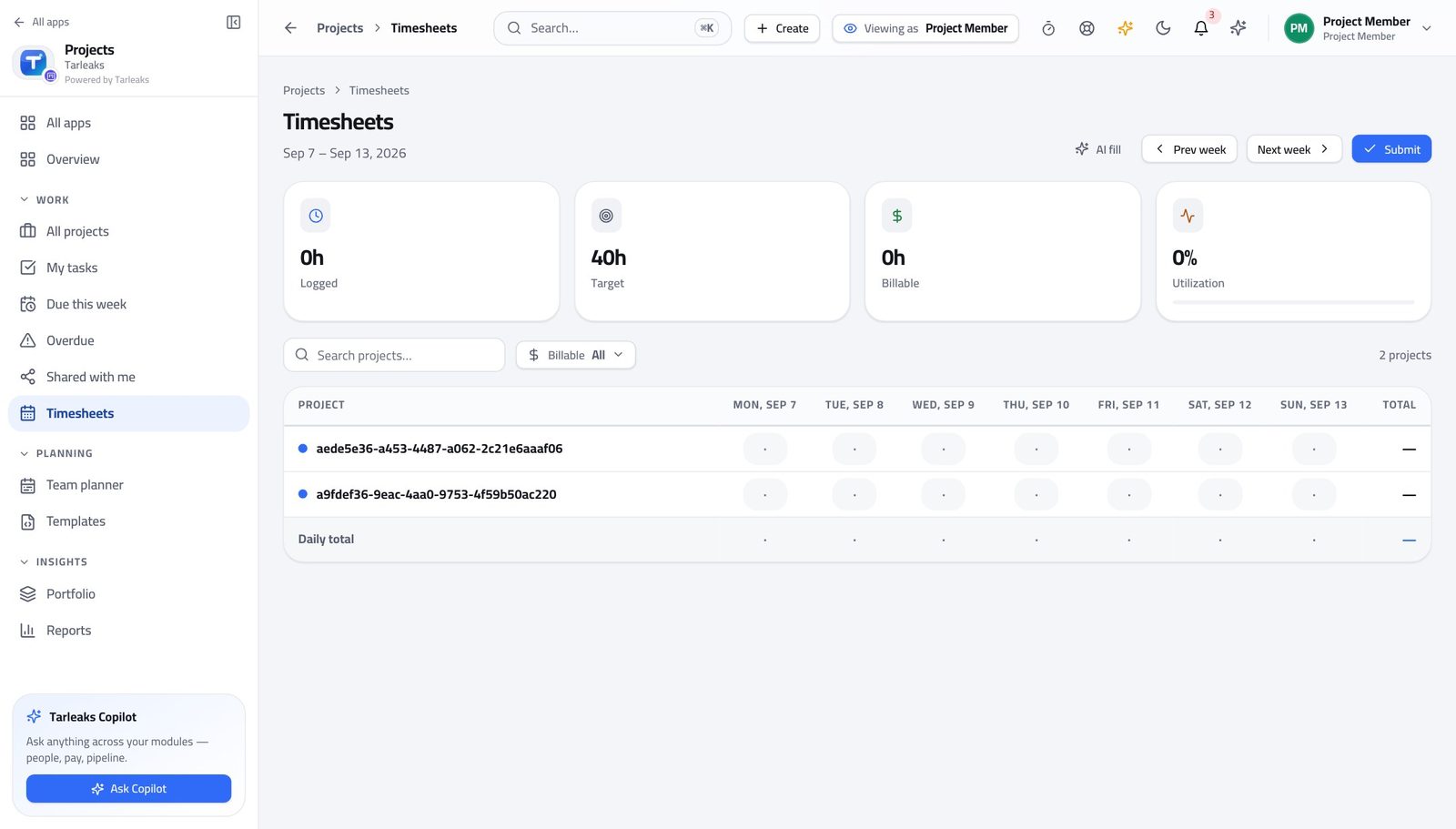
You should see Hours belong to a task, not to a description — which is what makes project cost real rather than an estimate of an estimate.
Watch out Filling the sheet on Friday from memory is how project cost becomes fiction. Two minutes a day is the whole trick.
Worth knowing Filling the sheet on Friday from memory is how project cost becomes fiction. Two minutes a day is the whole trick.
Let a timer do the remembering #
Where Projects » My tasks » Work timer
- Open My tasks.
- Press Start on the task you are on.
- Press Stop when you move to something else.
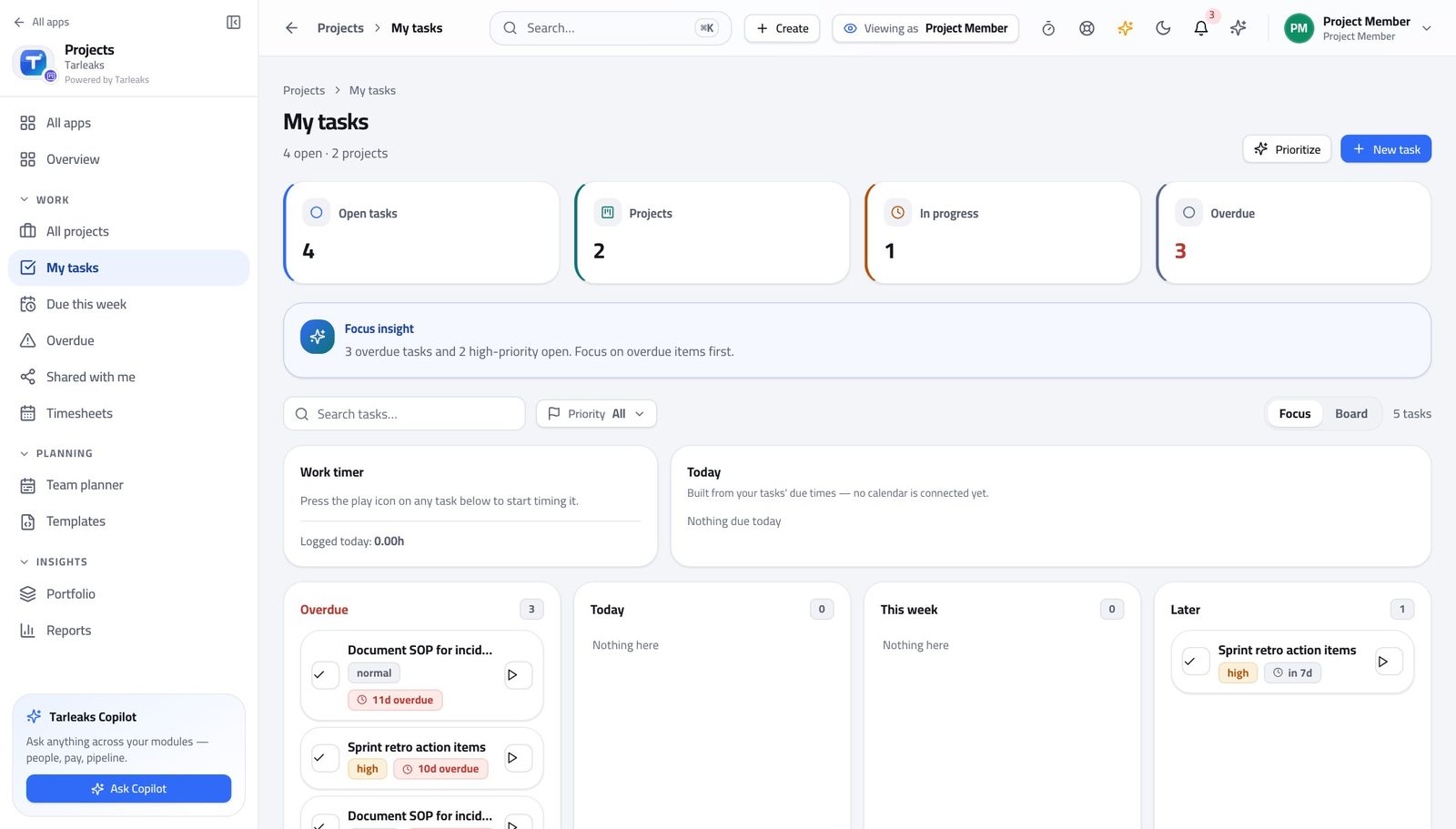
You should see Time captured while it happens beats time reconstructed afterwards, every single week.
Watch out A timer left running overnight is a bigger correction than a timer never started. Stop it when you stand up.
See what of yours is late #
Where Projects » Overdue
- Open Overdue.
- It opens on your own work.
- Sort by days overdue and start at the top.
- Press Everyone if you need the team's context.
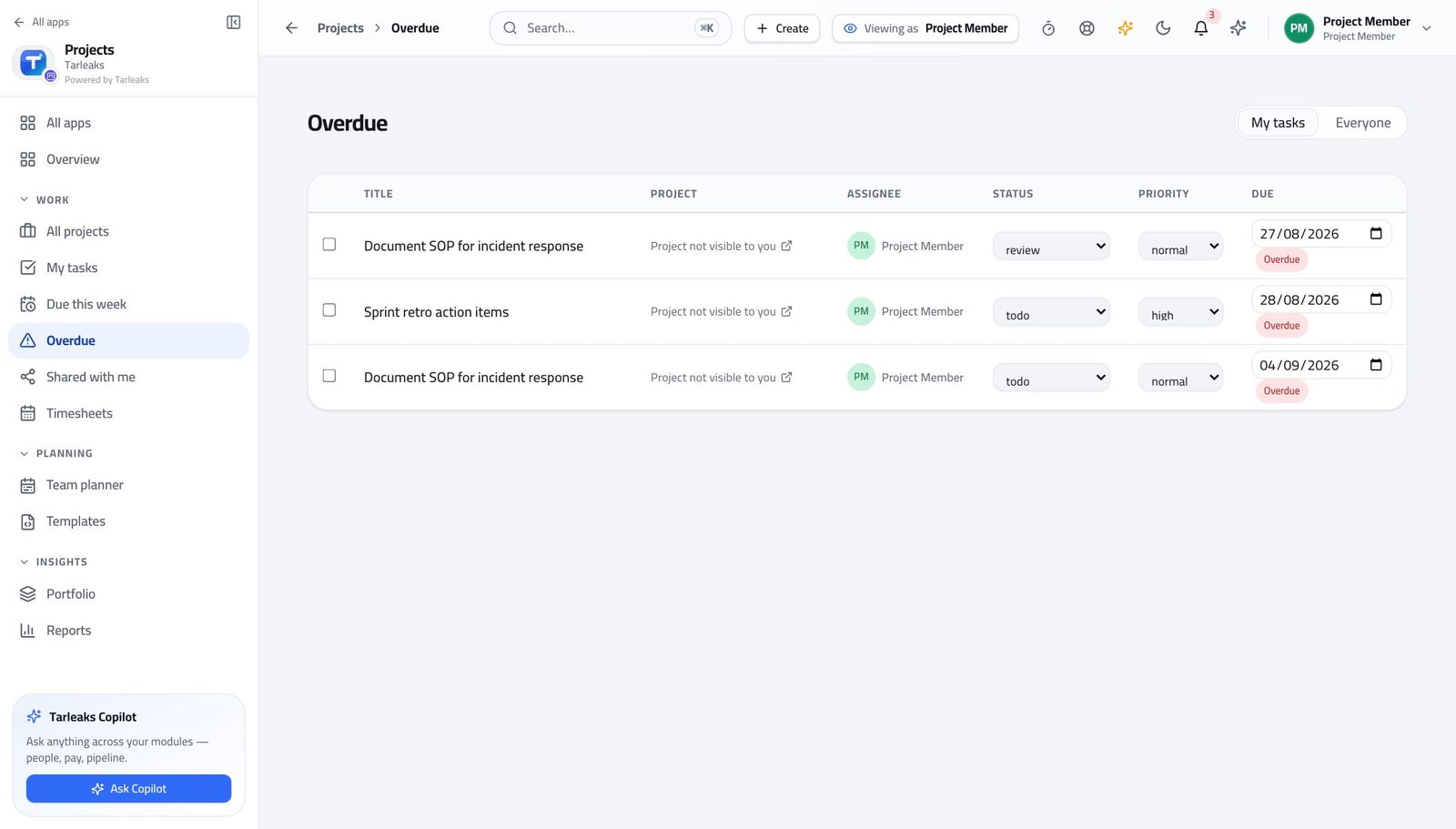
You should see Three late items you can act on this morning beats fifty you cannot.
Worth knowing Everyone widens this to the whole team when you need context — the choice is remembered on this browser.
See what you finished #
Where Projects » My tasks
- Open My tasks.
- Read what you have completed and when.
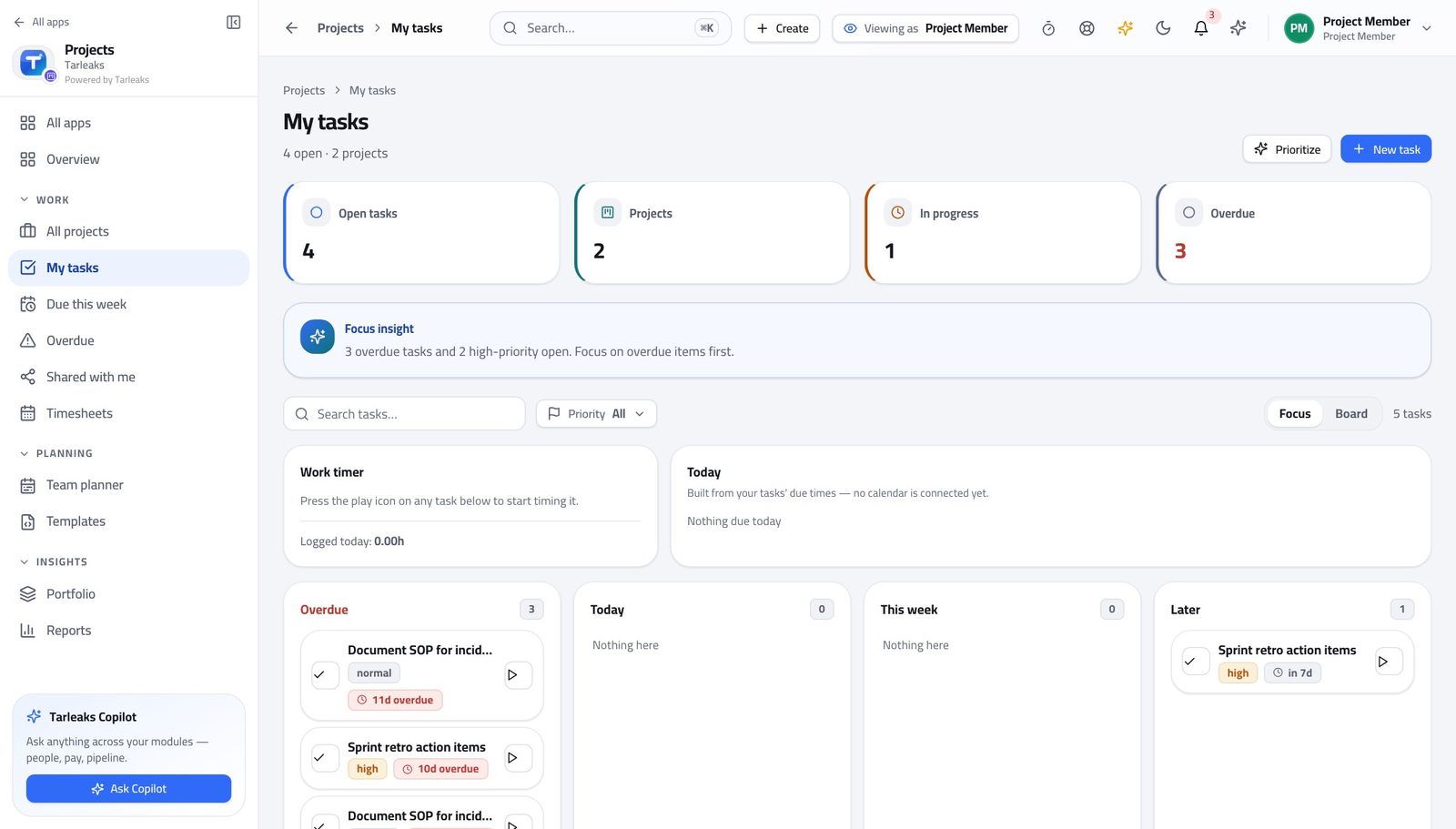
You should see Your own throughput is visible without asking anybody to pull it for you — useful the week before a review.
The delivery reports are open to you too #
Where Projects » Reports
- Open Reports.
- Read throughput by week and cycle time.
- Change the period at the top.
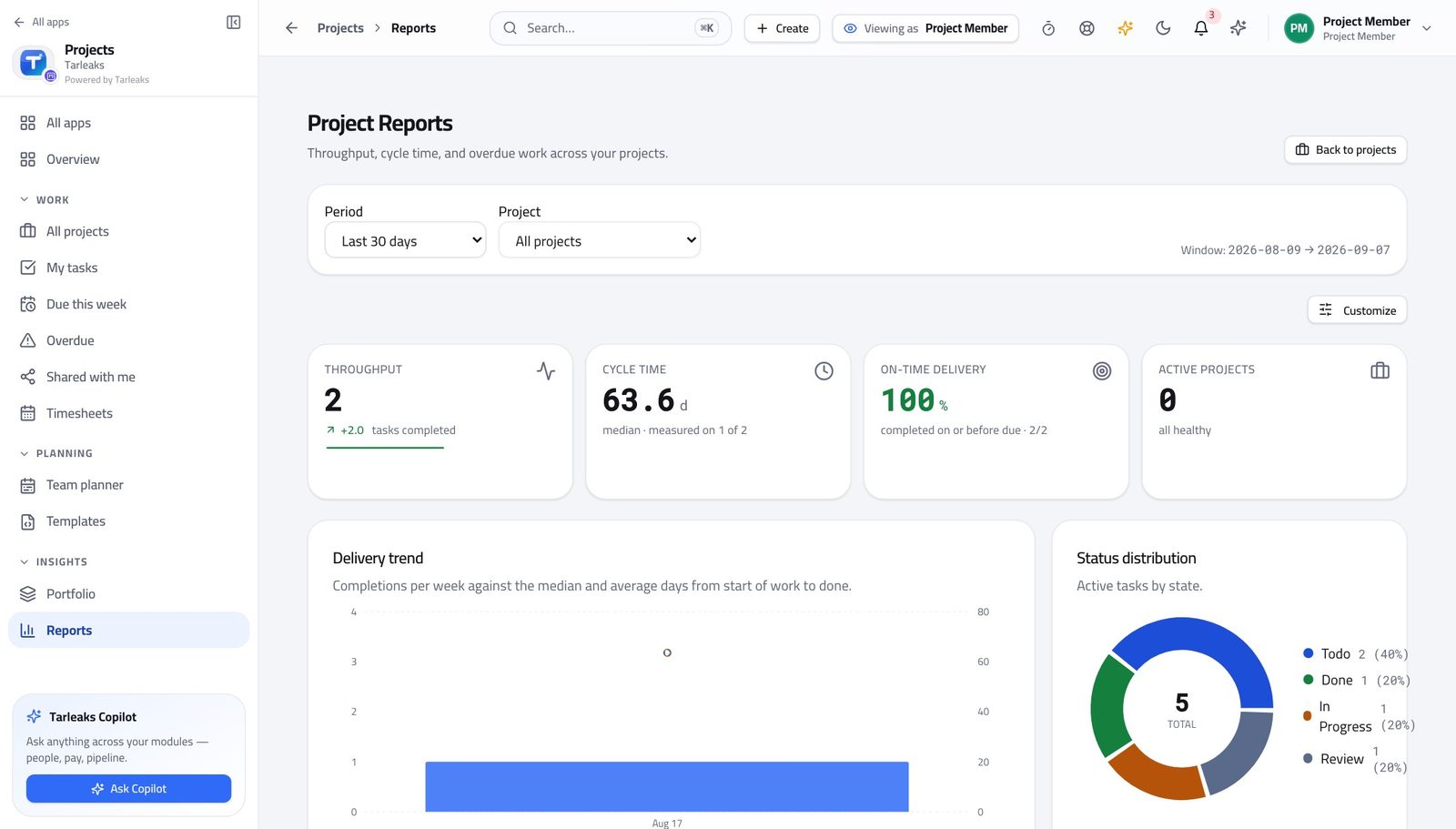
You should see You can see how the work is actually flowing instead of being told at a stand-up.
Read the blueprint a project starts from #
Where Projects » Templates
- Open Templates.
- Open one and read its stages and sample tasks.
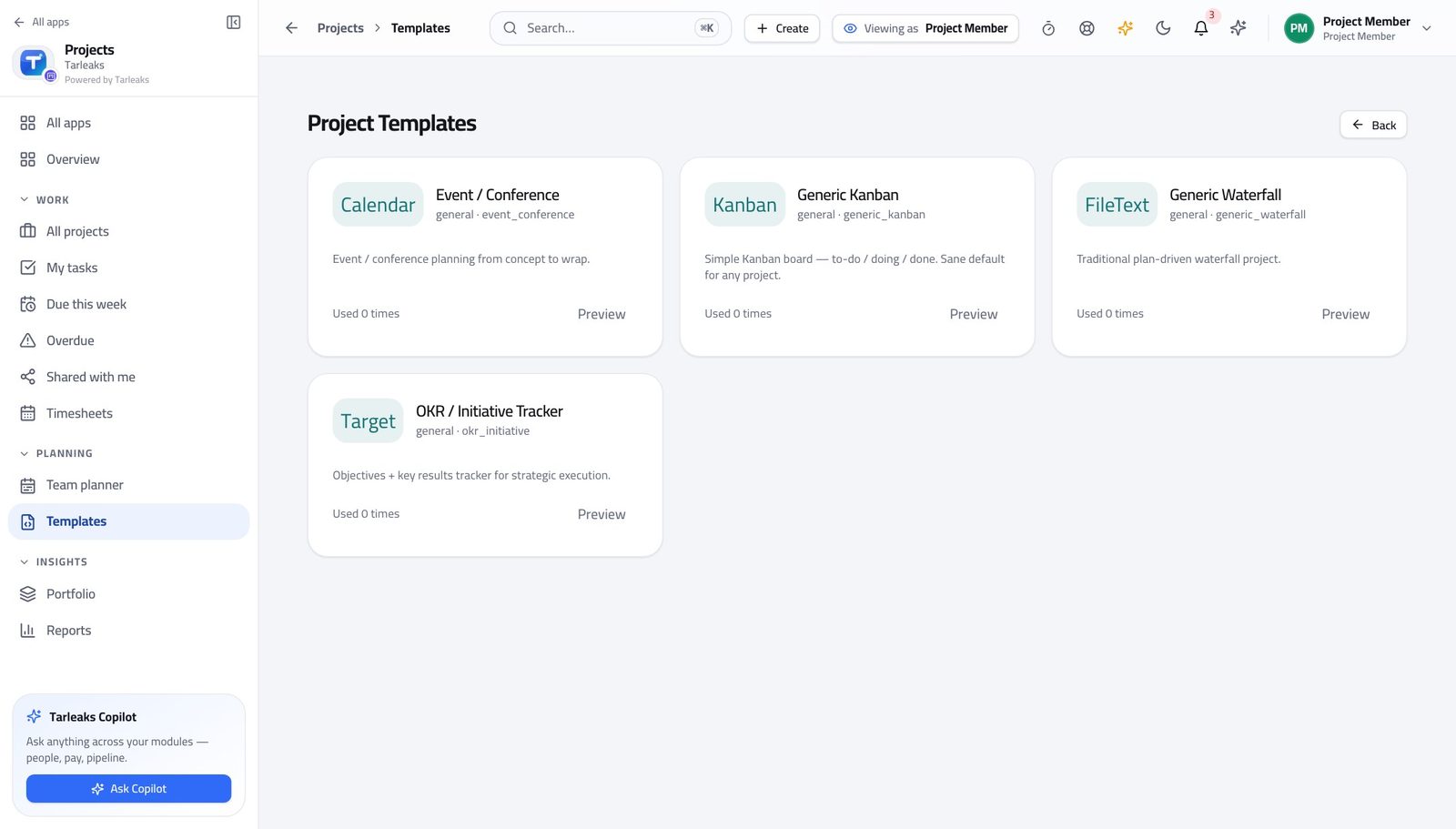
You should see You can see the shape a project of that kind takes before you join it, without being able to change the shape for everyone else.
Watch out If a template is wrong for the way your team actually works, say so — changing it is a five-minute job for whoever owns it, and it affects every project started afterwards.
Starting a project is refused #
Where Projects » New project
- Ask for a new project.
- Read the message.
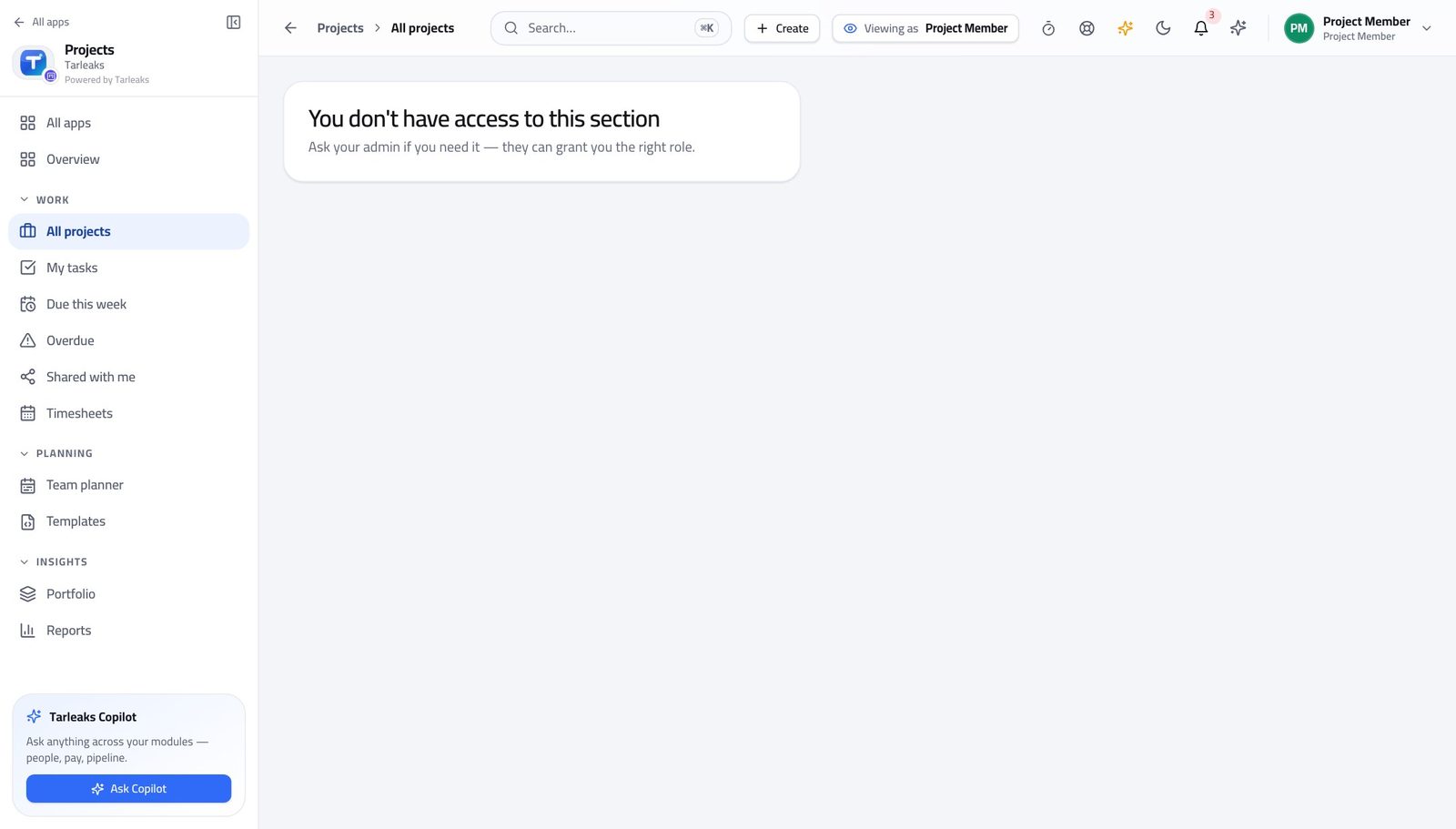
You should see Deciding that a piece of work becomes a project — with a budget, an owner and a place in the portfolio — is your project manager's call. That is what keeps a portfolio a portfolio rather than a pile.
Watch out This is not a gap to work around by creating a giant task instead. If the work is a project, ask for a project.
Automations and agents are refused #
Where Projects » Automations
- Ask for Automations.
- Read the message.
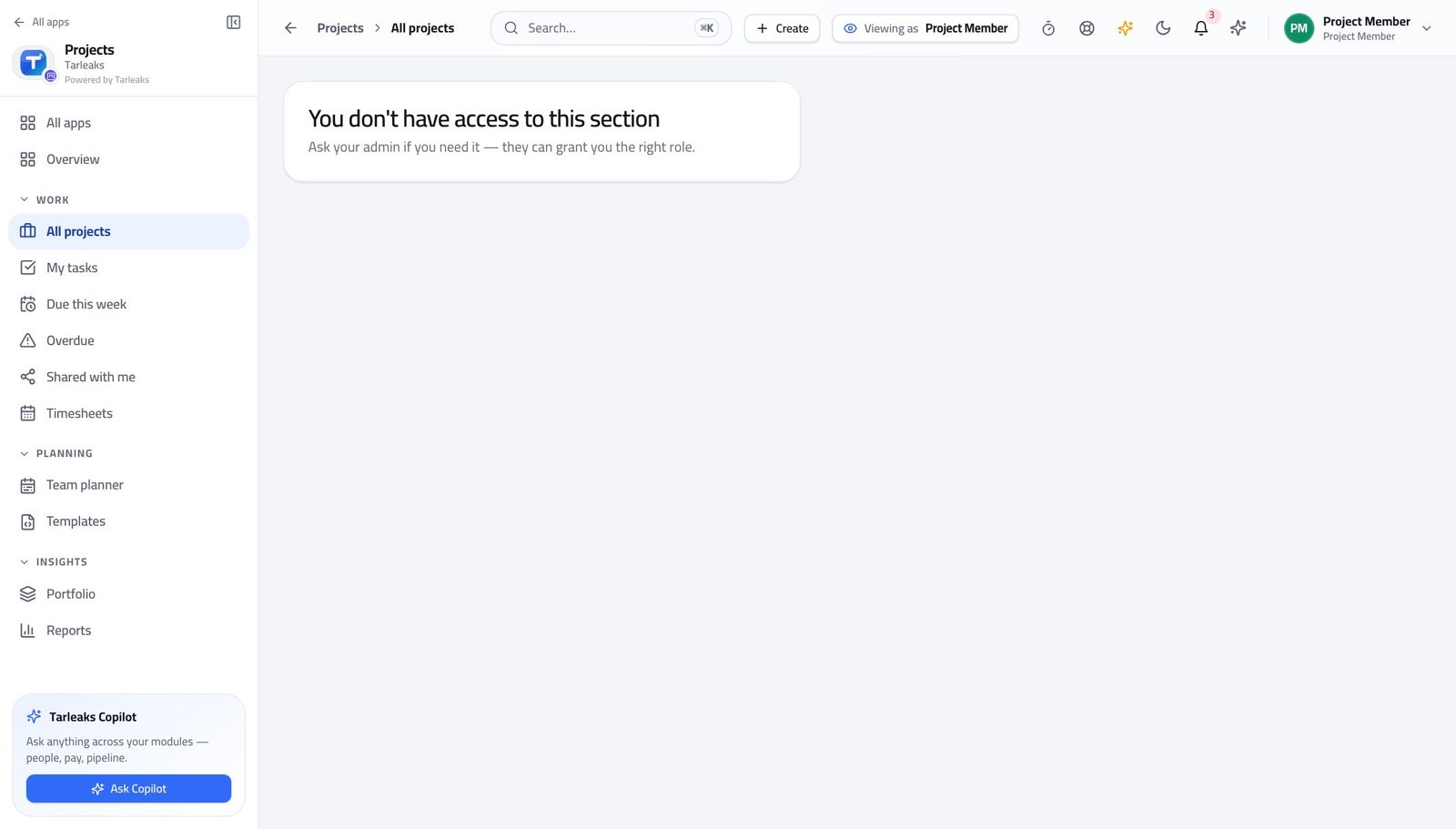
You should see A rule that moves other people's work, or an agent that writes on their behalf, is configuration rather than day work. It is set up once, by somebody accountable for it.
Approving hours is refused — including your own #
Where Projects » Timesheets
- Open Timesheets.
- Read the strip that counts your submitted entries.
- Look for an Approve button. There is not one.
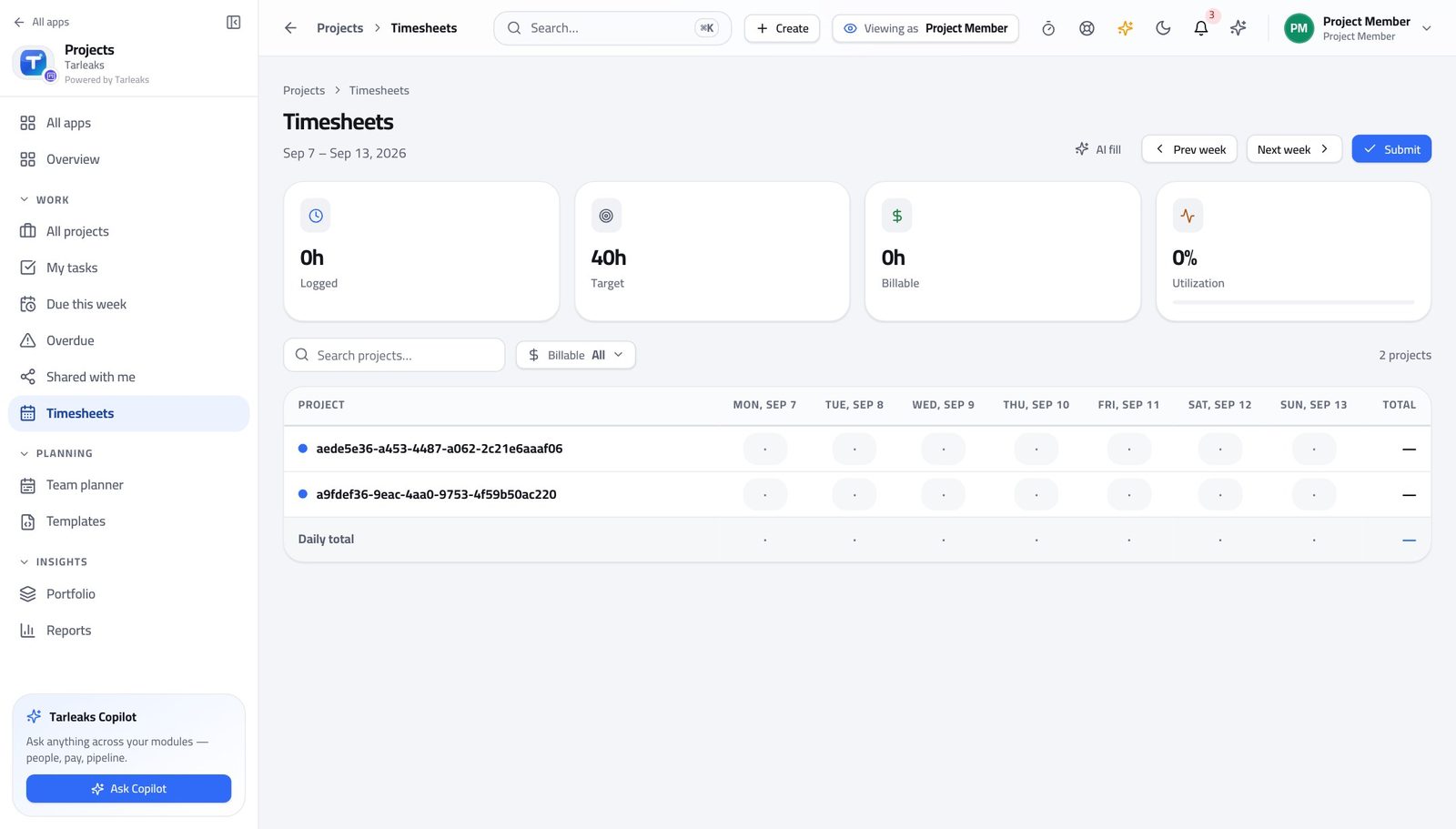
You should see You record what you worked; somebody else agrees it. That separation is exactly why an approved hour can be put on an invoice.
Watch out This is the reason an approved hour can go on an invoice. If your hours are sitting unapproved, chase your project manager rather than resubmitting them.
What the project bills and costs is refused #
Where Projects » Reports
- Open Reports.
- Read throughput, cycle time and the status distribution.
- Look for a budget or a cost figure. There is not one.
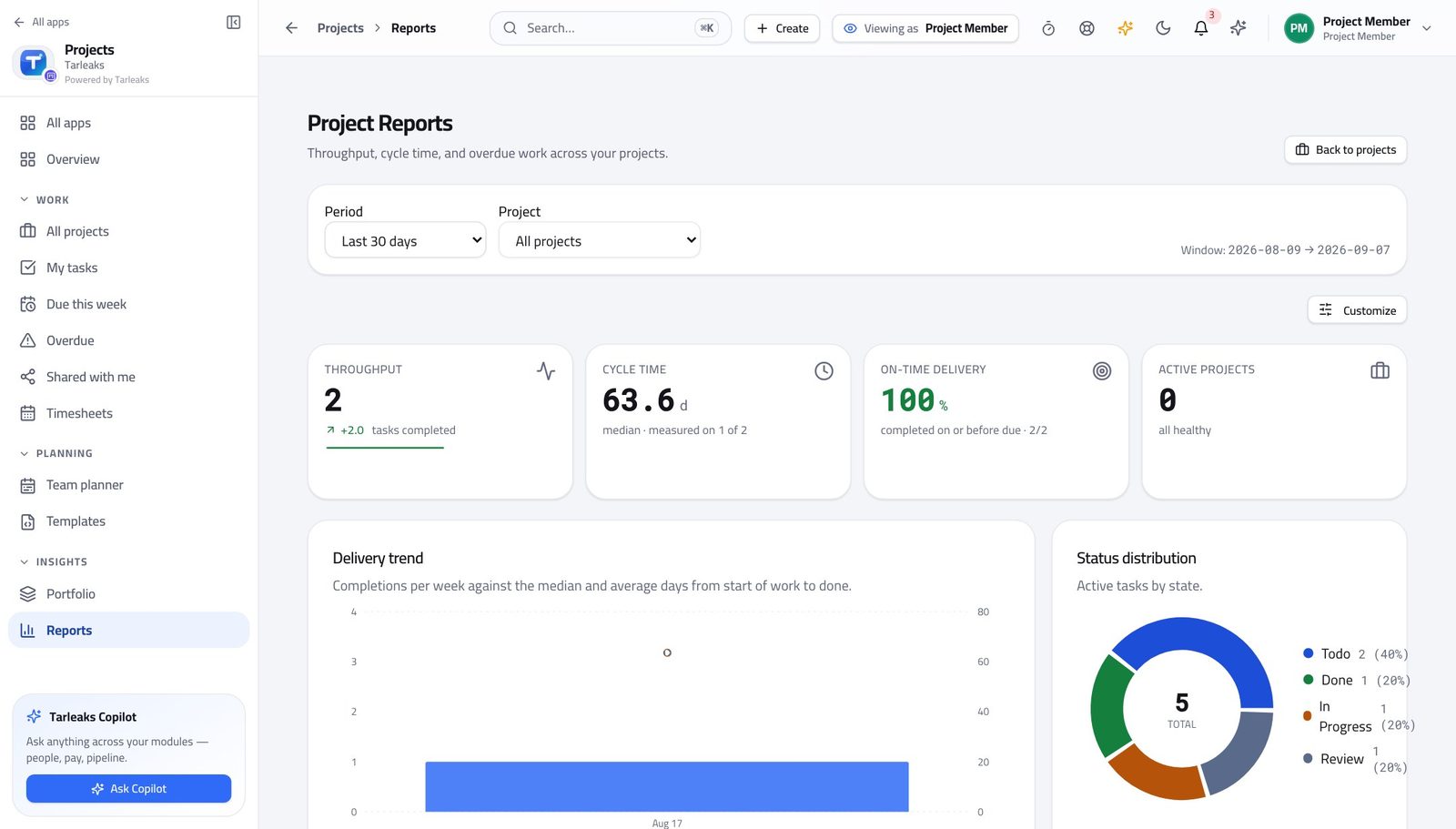
You should see You can see how the work is flowing. What the project charges and what it costs sits with the project manager — which is also why nobody can quietly change what your hours are worth.
Watch out If somebody asks you what the project is costing, send them to the project manager rather than working it out from your own hours — your hours are one person's, and unapproved hours are counted nowhere.
Use cases — the work, step by step
Each one is a sequence somebody actually performs, with the screen behind every step. Every screen here was opened in the product as this role before it was published.
dailyYour day: pick up, move on, write down #
Everything about a task lives on the task, so the next person does not have to find you to continue it.
Open My tasks and read the lanes: Overdue, Today, This week, Later. Pick the next thing from the top.
Projects » My tasks — verified: the page says “My tasks”; no “No open tasks” anywhere on the page Open it by clicking its title. Tick the checklist as you go, and put questions in the comments rather than in chat — chat is lost to whoever picks it up next.
Projects » Overdue » a task title — verified: the page says “Checklist”; the page says “Comments” Press Start on the work timer so the hours are captured while they happen, and Stop when you move to something else.
Projects » My tasks » Work timer — verified: the page says “Work timer” Move the card when the state actually changes. That is the whole status update — nobody needs an e-mail as well.
Projects » My tasks » Board — verified: the page says “Board”
weeklyClose the week: hours in, timesheet submitted #
Approved hours are what the project's cost and any invoice are built from. Hours nobody submitted are counted nowhere.
Open Timesheets and fill the grid: click the cell where the project row meets the day column and type the hours.
Projects » Timesheets — verified: the page says “Timesheets”; the page says “Submit” Check billable against non-billable before you submit. If you are not sure which a piece of work is, ask now rather than after it has been invoiced.
Projects » Timesheets — verified: the page says “Timesheets”; the page says “Submit” Press Submit. There is no Approve button on your screen — that is deliberate, and it is the reason an approved hour can go on an invoice at all.
Projects » Timesheets — verified: the page says “Timesheets”; no “Approve” anywhere on the page Read your own completed work for the week. It is a two-line answer the next time somebody asks what you have been doing.
Projects » My tasks — verified: the page says “My tasks”
urgentYou are handed somebody else's task #
If the task was worked properly you should not need a handover meeting. If you do need one, that is the finding.
Open the task from any list — the title opens it in place, so you keep your list and your position.
Projects » Overdue » a task title — verified: the page says “Checklist”; the page says “Comments” Read the history before the comments: it shows every change and who made it, which is usually faster than asking.
Projects » Overdue » a task title — verified: the page says “Checklist”; the page says “Comments” If the project is new to you, read the blueprint it started from — the stages and the sample tasks tell you the shape of the work.
Projects » Templates — verified: the page says “Templates”; no “Create template” anywhere on the page Check what else of yours is late before you commit to the new one. Taking work you cannot start is how two things slip instead of one.
Projects » Overdue — verified: the page says “Overdue”; 3 row(s) listed
Creating projects, moving sprints, changing the blueprint and approving anybody's hours — including your own — belong to the project manager. Your screen is smaller on purpose, and the buttons you do not have are the reason your hours can be trusted.