Projects role guides — what each role can do, step by step
Step-by-step guides for delivery — the project manager who owns scope and schedule, the team member whose screen is only their own work, and the administrator who sets the rails. 44 steps across 3 roles, every one of them carried out in the product before it was published here.
Nothing matches that. Try a shorter word, or pick All roles to search every guide.
Go deeper
Project Manager
Know where every project stands, and be able to prove it.
Owns scope, schedule, staffing and money on every project — the board, the sprint, the plan, the hours and the report somebody else reads. The only thing closed to this role is the company's own settings and the tenant-wide audit trail.
What you will be able to do
- See every project, its health and what is slipping, on one screen
- Run a sprint or a stage-gated plan without changing tools
- Read burndown, cycle time, earned value and a completion forecast computed from the tasks themselves
- Approve the team's hours, so project cost means something
- Hand somebody a status report you did not have to write
What this role can and cannot do
| Can | Cannot |
|---|---|
|
|
18 steps, each one carried out in the product on .
Check what your sign-in can do #
Where Your name, top right » Profile
- Open your company's address in the browser — it looks like yourcompany.tarleaks.com.
- Type the e-mail address your administrator set up for you, then your password.
- You land on the app launcher: a grid of the apps your company uses.
- Click your name, top right.
- Choose Profile.
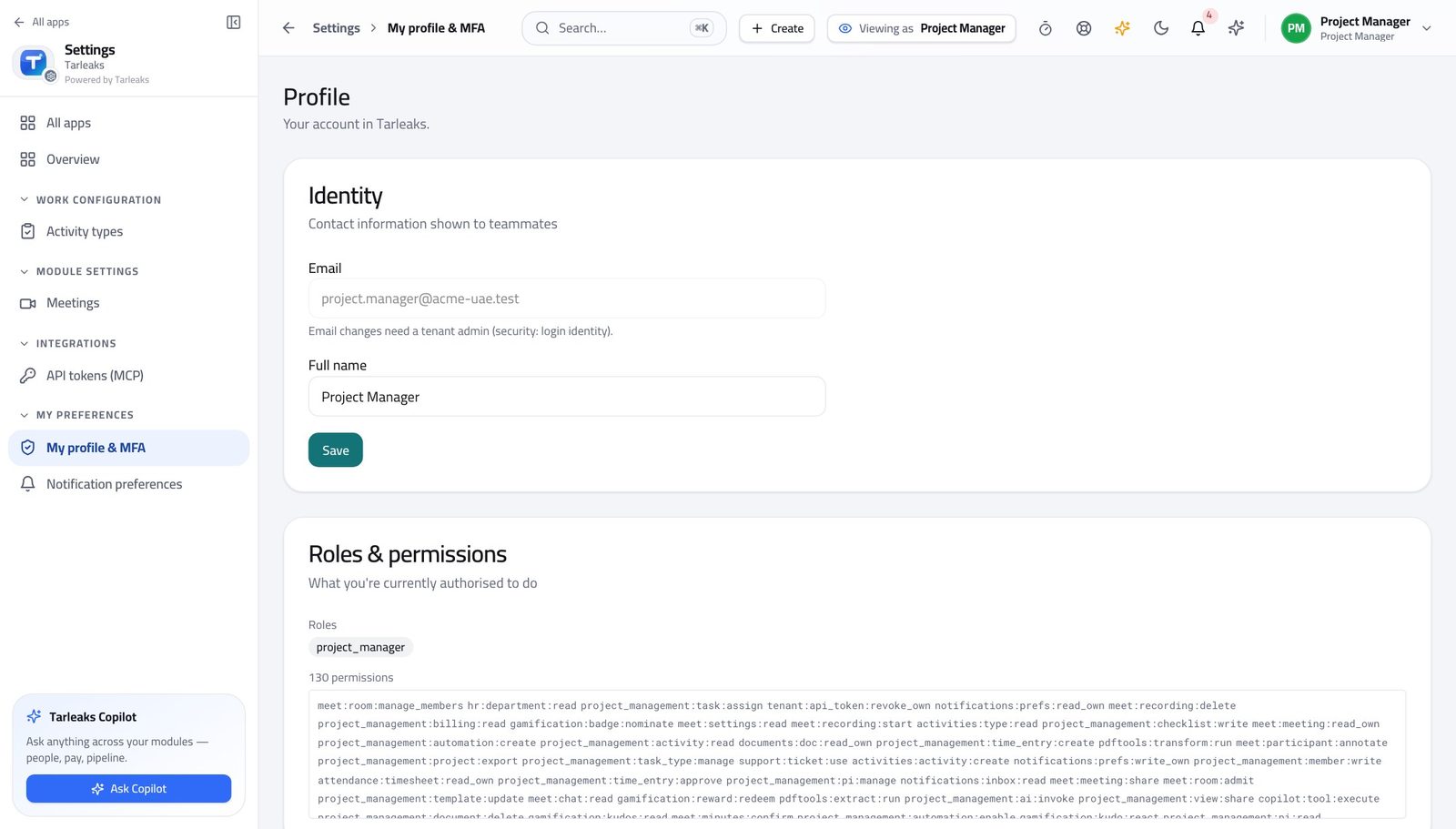
You should see It lists the project-manager role. Projects, sprints, dependencies, staffing, hours and the money on a project are yours. The company's settings and the audit trail are not.
Watch out If the project-manager role is not listed, nothing below will match what you see. Ask your administrator before you start planning.
Worth knowing If the role here is not what you expected, stop and ask your administrator before you start planning anything.
See every project on one screen #
Where Projects » All projects
- From the launcher, click the Projects tile.
- Read state, health, progress and due date on each card.
- Type part of a name in the search box to narrow the list.
- Use the status filter for Active, Planning, On hold, Completed or Cancelled.
- Copy the web address to send somebody the exact list you are looking at.
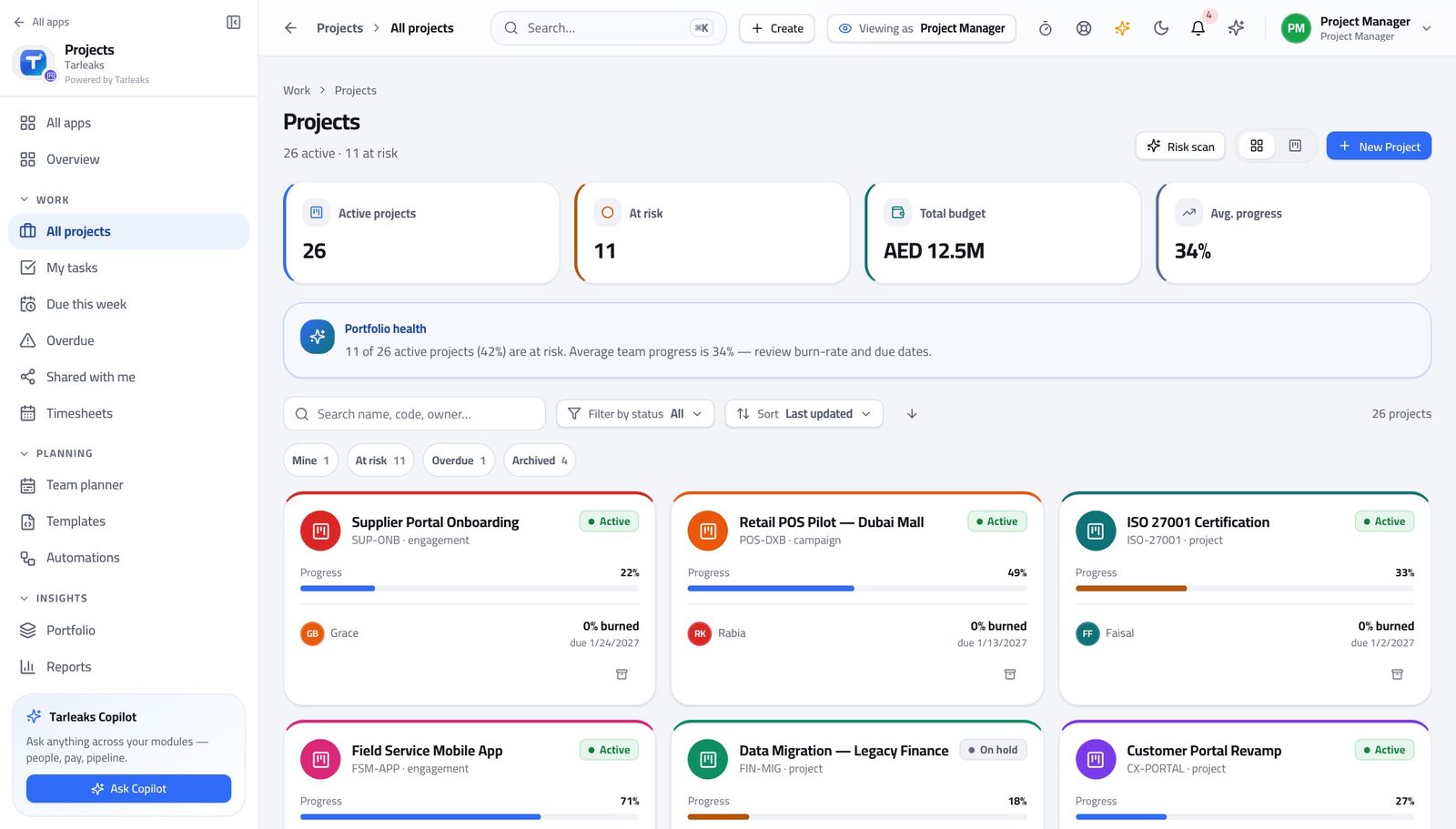
You should see One list, with the four things that decide what you open first: how far along it is, whether it is on track, when it is due, and who owns it.
Watch out A project sitting at the same progress for three weeks usually has work that was never broken into items, not a team that stopped.
Worth knowing Sorting defaults to what moved most recently rather than alphabetically — the project that changed today is almost always the one you wanted.
Start a project from a way of working #
Where Projects » All projects » New project
- Click New project.
- Choose the way of working — each one says what it is for.
- Start from a template, or choose a blank project.
- Press Continue, then name it and choose the work-item types.
- Read the You'll get panel, then Create project.
| Field | What to put in it |
|---|---|
| Name | What people will call it in conversation — not a code. |
| Way of working | Simple, Kanban, Scrum, Waterfall or SAFe. This decides which tabs the project has. |
| Work item types | The ladder the project uses: epic, feature, story, task — or your own words. |
| Template | Optional. A blueprint that creates the stages and the first tasks for you. |
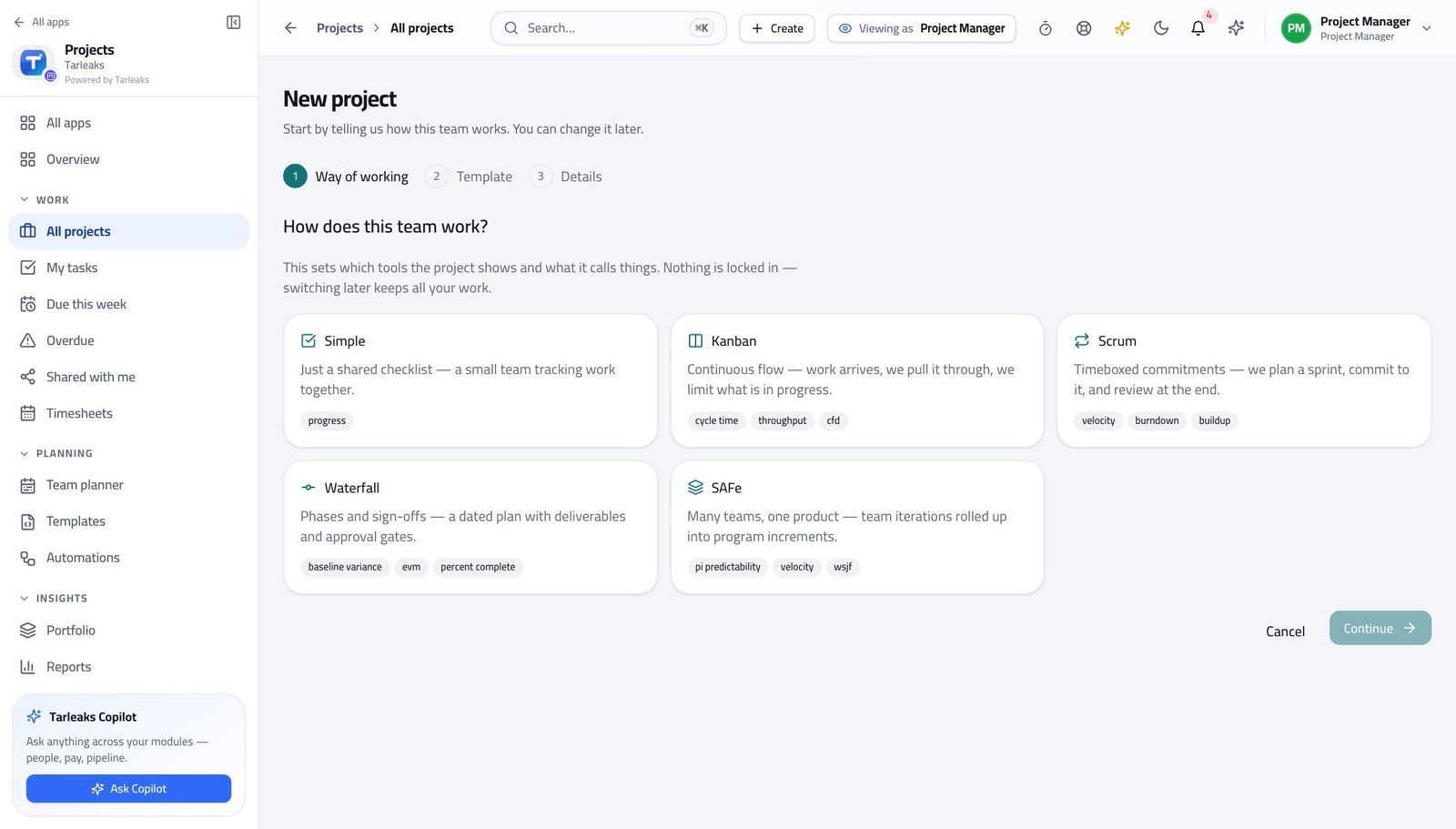
You should see The method is not decoration: it decides which tabs the project has. Scrum gives you sprints and a backlog; Waterfall gives you a timeline, baselines, approvals and a budget.
Watch out Choosing Scrum for a project with no sprints gives you an empty backlog and a burndown of nothing. Pick the method the team actually works to.
Worth knowing Pick Simple if you are not sure. Changing the method later is one setting, and nothing you have already created is lost.
Work a project on its board #
Where Projects » a project » Board
- Open a project from the list.
- The board opens on its stages.
- Drag a card to the next column, or open it and change it there.
- Use Group by to arrange the same cards by assignee, priority or epic.
- Add stage adds a column; Add task adds a card to one.
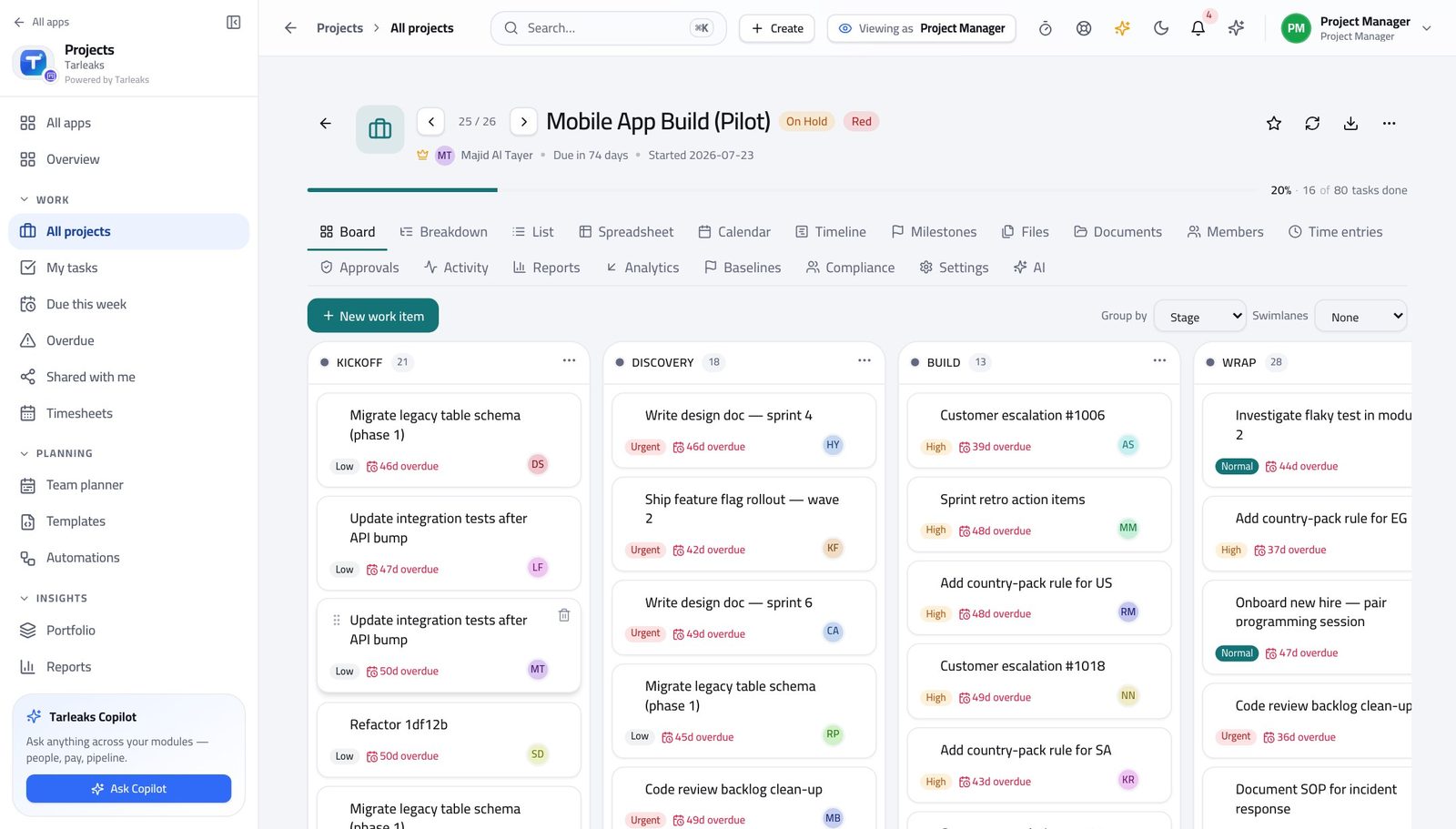
You should see The board is the plan. Moving a card IS the status update, which is why there is nothing to write up afterwards.
Watch out If a column is full and the next is empty, that is a bottleneck rather than a busy team — and it is the one thing the board tells you that a report will not.
Worth knowing A column filling up while the next one stays empty is a bottleneck, not a busy team. That is the single most useful thing on this screen.
Read the whole portfolio at once #
Where Projects » Portfolio
- Open Portfolio.
- Read projects in view, total budget, open and overdue work.
- Pick a programme to chart its roadmap.
- Turn on Include standalone projects to see the ones outside any programme.
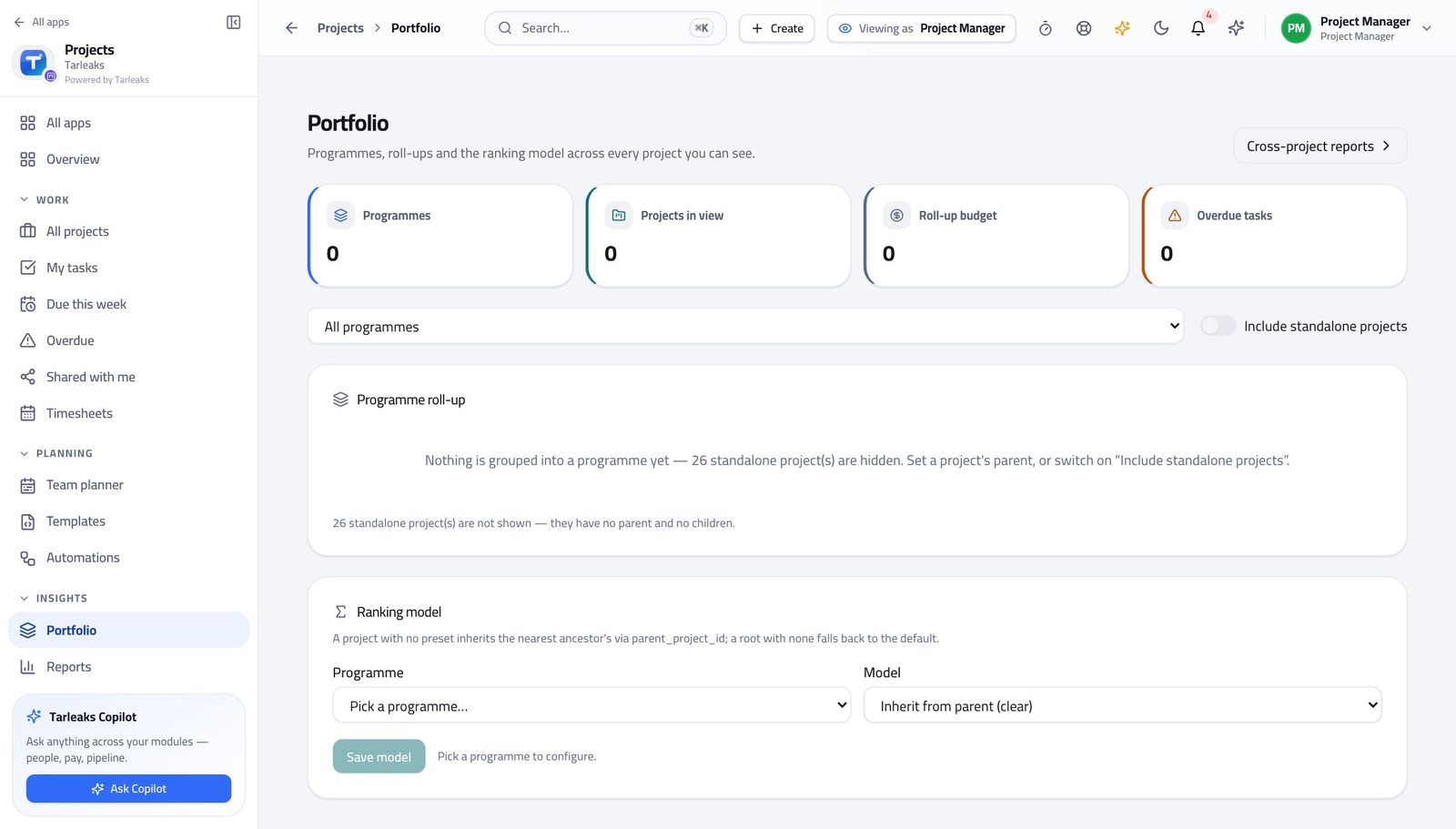
You should see You can answer 'how are we doing' without opening six projects and adding them up yourself.
Watch out A green programme made of amber projects is arithmetic, not comfort. Open the ones that are amber.
Get the numbers without building them #
Where Projects » Reports
- Open Reports.
- Choose the period: last 7, 30 or 90 days, or a custom range.
- Scope it to one project, or leave it across all of them.
- Read delivery trend, status distribution and throughput by week.
- Use Customize to hide the sections you never read.
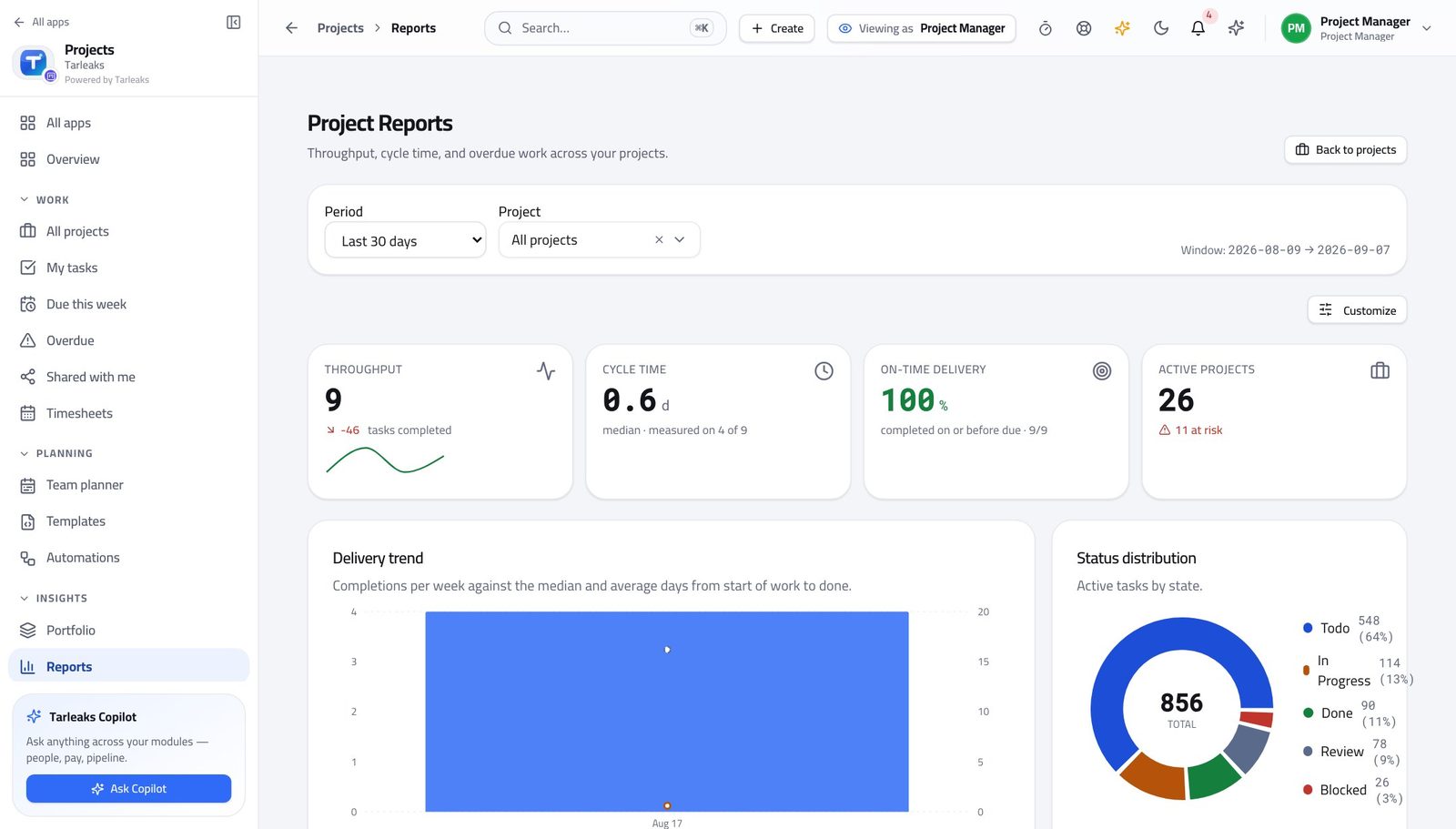
You should see Every figure is computed from the tasks, so the report cannot disagree with the board your team is looking at.
Watch out A throughput spike is usually a batch of items closed at once rather than work finished at once. Check the dates before you celebrate.
Worth knowing Cycle time answers 'how long does work take once we start it', which is a far better planning number than how many tasks are open.
Approve the team's hours #
Where Projects » a project » Time entries
- Open the project, then its Time entries tab.
- Read the date, the task, the hours, billable and the rate.
- Press Approve on a submitted row, or Reject and say why.
| Field | What to put in it |
|---|---|
| Hours | What was actually worked, against one task, on one day. |
| Task | Which piece of work the hours belong to — this is what makes project cost real. |
| Billable | Whether the customer sees these hours. Getting this wrong is an invoice conversation later. |
| Rate | What the hour is charged at. Blank means the project's default. |
| Description | Only when something needs explaining; the task carries the rest. |
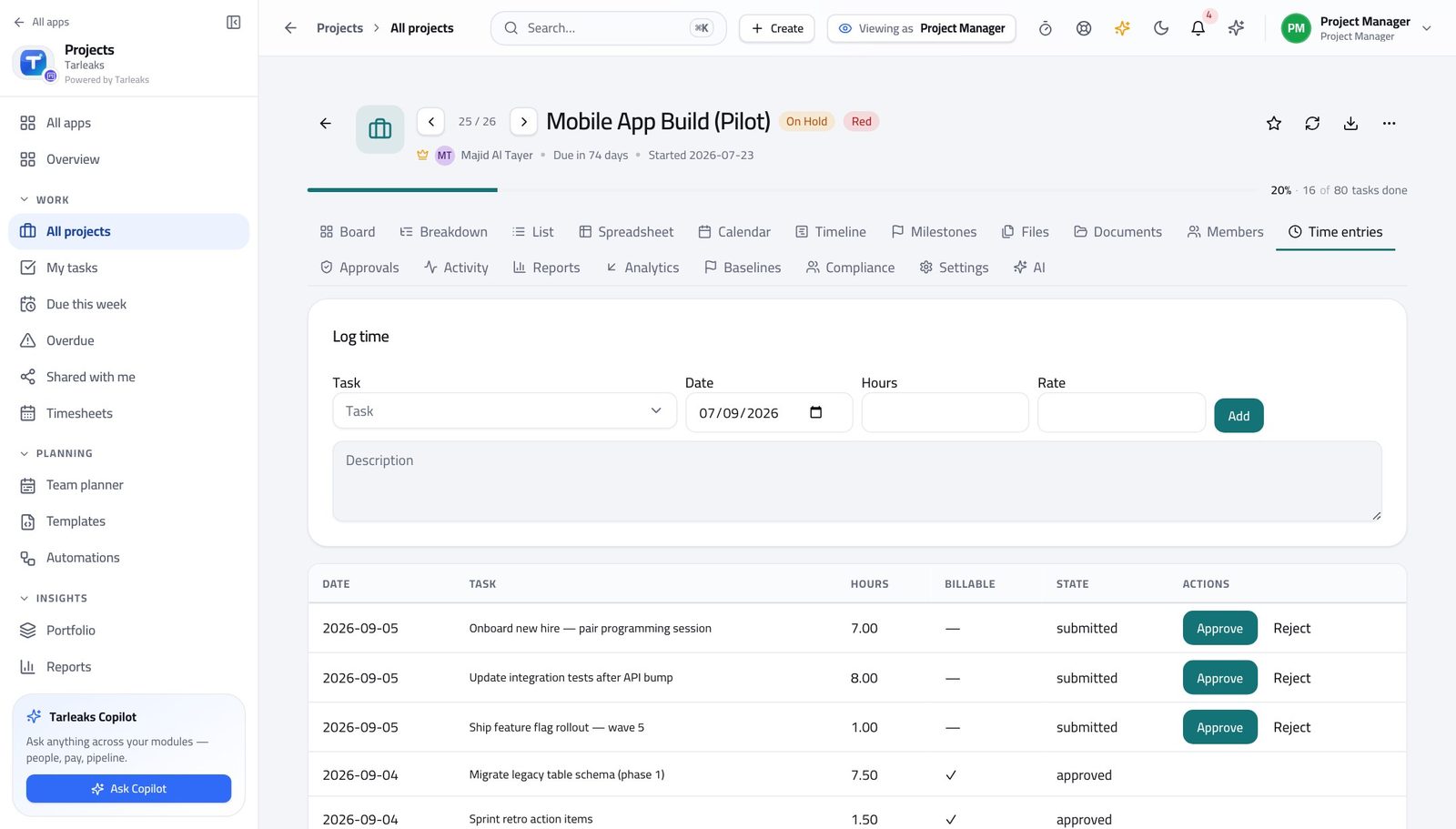
You should see Approved hours are what project cost, utilisation and any invoice are built from. Hours nobody approved are counted nowhere.
Watch out Approving hours you have not read is how a project's cost stops meaning anything — and it is your name on the approval.
Worth knowing Hours are approved on the project, not on the Timesheets page — Timesheets is where a person logs their own week.
See what lands this week #
Where Projects » Due this week
- Open Due this week.
- Press Everyone to widen it past your own work.
- Click a title to open the item without leaving the list.
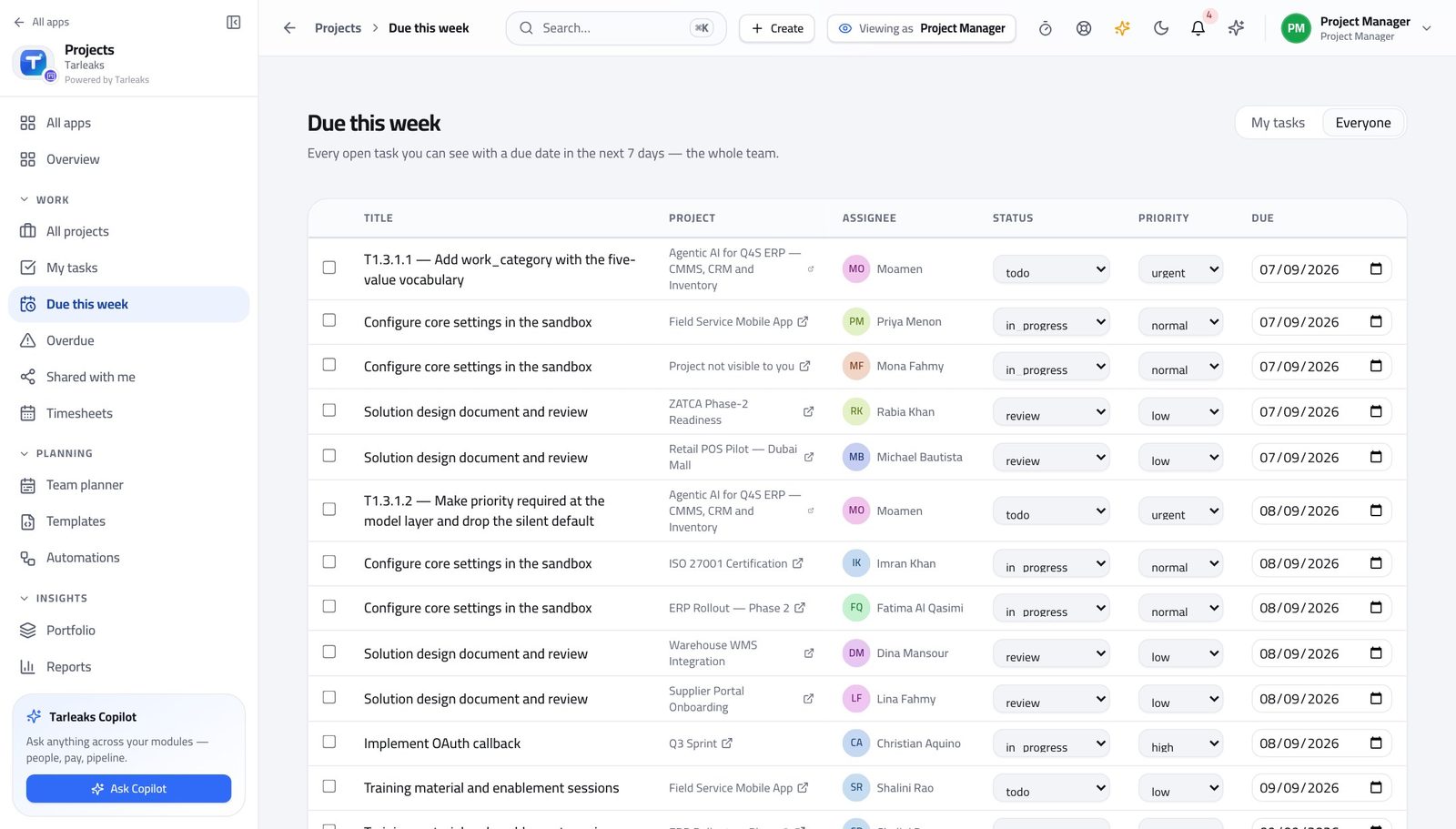
You should see The week ahead across every project you can see, without opening each one to look for it.
Work down what is already late #
Where Projects » Overdue
- Open Overdue.
- Press Everyone.
- Sort by days overdue and work from the top.
- Open a title, and either move it or change the date deliberately.
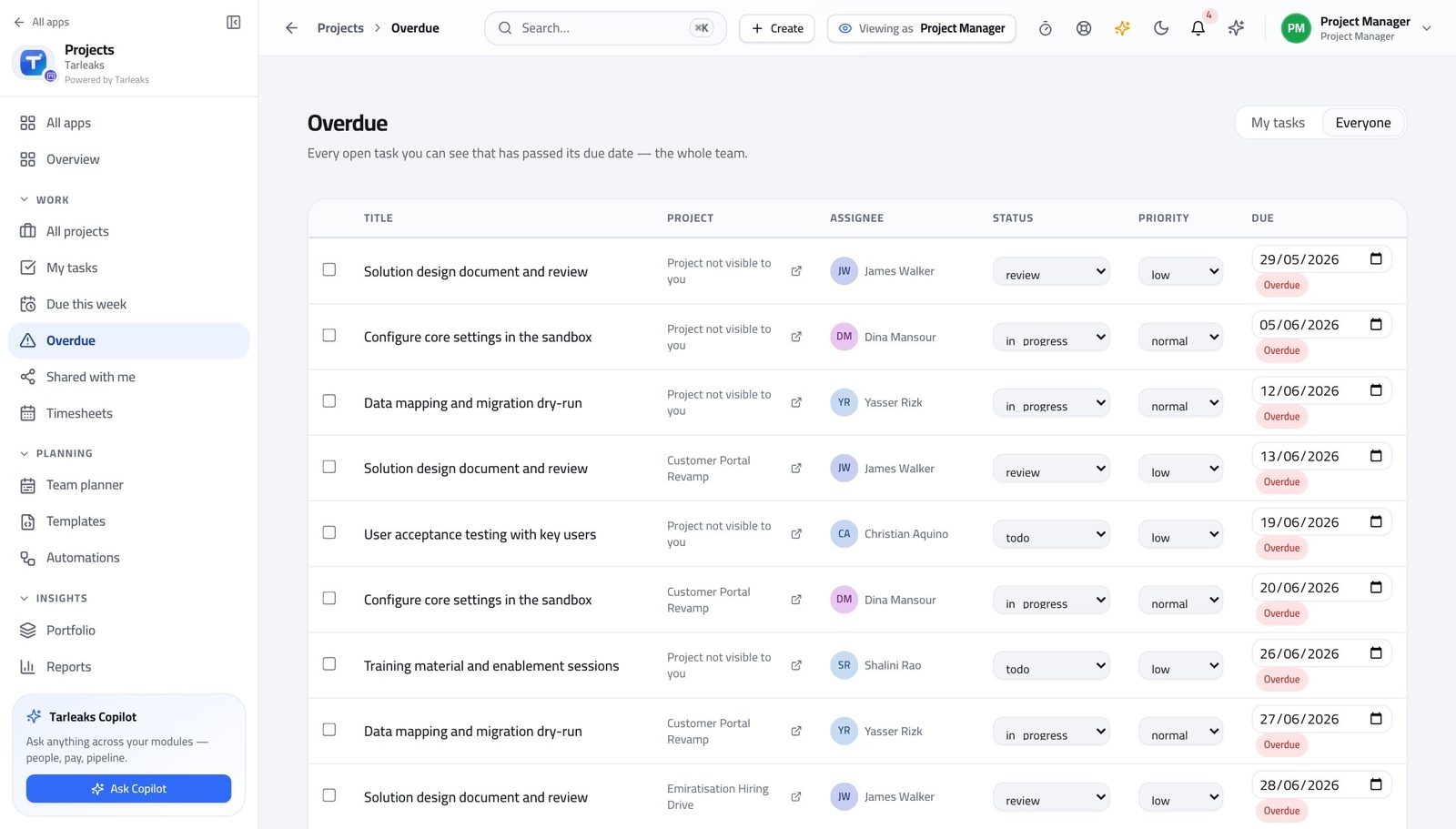
You should see Late work stops being a feeling and becomes a list you can finish.
Watch out Quietly moving a due date is not progress. If the date moves, somebody who was relying on it should hear it from you first.
Worth knowing If the same task is late every week, it is not late — it was never sized. Break it up rather than chasing it again.
Plan, start and close a sprint #
Where Projects » a Scrum project » Sprints
- Open a Scrum project.
- Go to the Sprints tab.
- Add sprint, then set the name and the dates.
- Press Start when it begins.
- Press Close when it ends and choose what happens to unfinished work: roll it over, or send it back to the backlog.
| Field | What to put in it |
|---|---|
| Sprint name | What the team calls it out loud. |
| Start date | The day the sprint actually begins. |
| End date | On or after the start date; the module refuses otherwise. |
| Capacity | How many points the team believes it can finish. Optional, and worth setting once you have two sprints of history. |
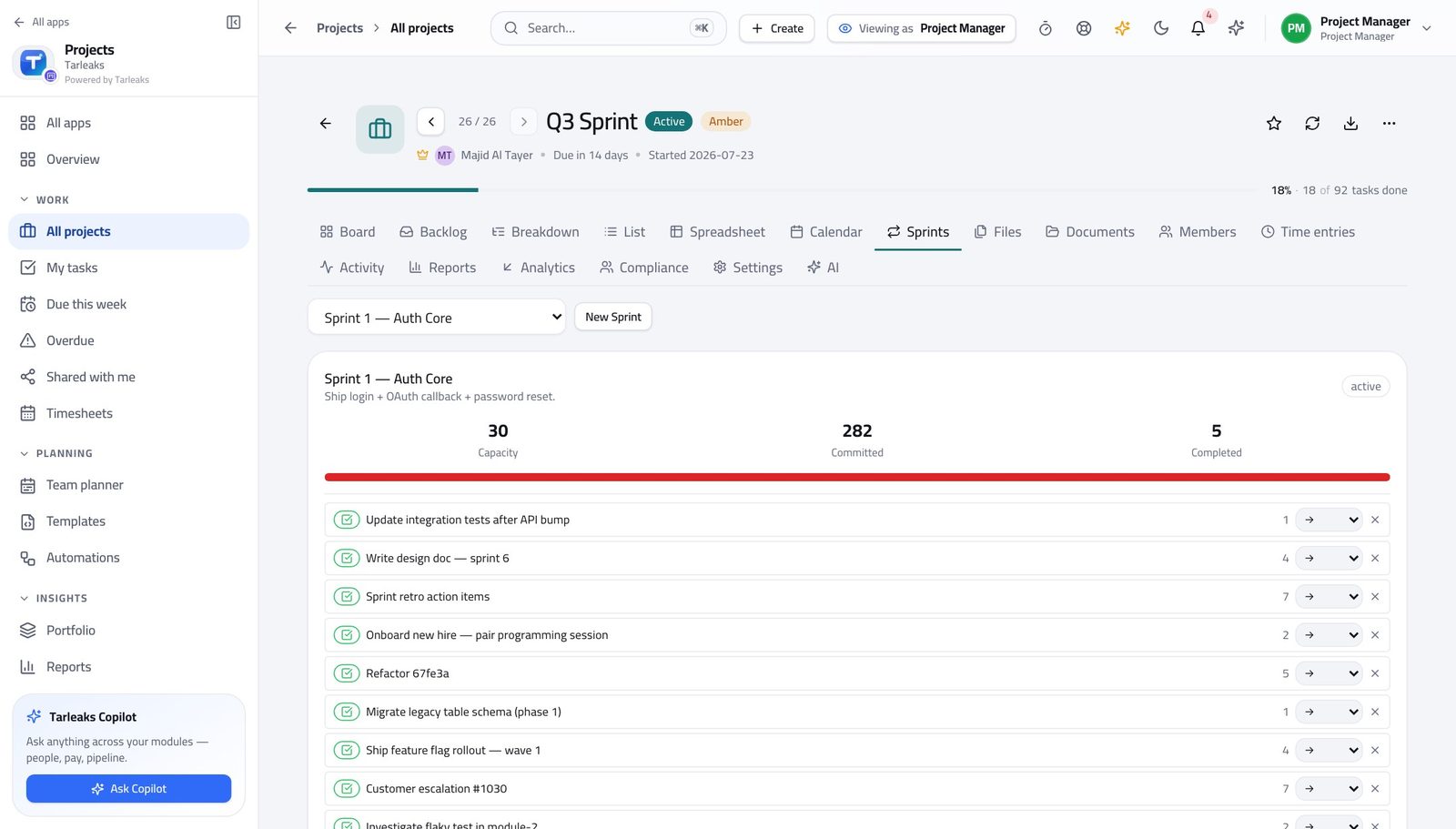
You should see A sprint has a start, an end and a commitment. What did not finish is rolled over deliberately rather than quietly carried.
Watch out Closing a sprint without deciding what happens to unfinished work is how a backlog quietly fills with things nobody chose to keep.
Worth knowing Only projects whose way of working is Scrum or SAFe have this tab. On a Simple project there is nothing to hide — sprints are simply not part of that method.
Give work items their real names #
Where Projects » a project » Settings » Work item types
- Open a project's Settings tab.
- Find the work-item types.
- Read the label, the colour and the level of each.
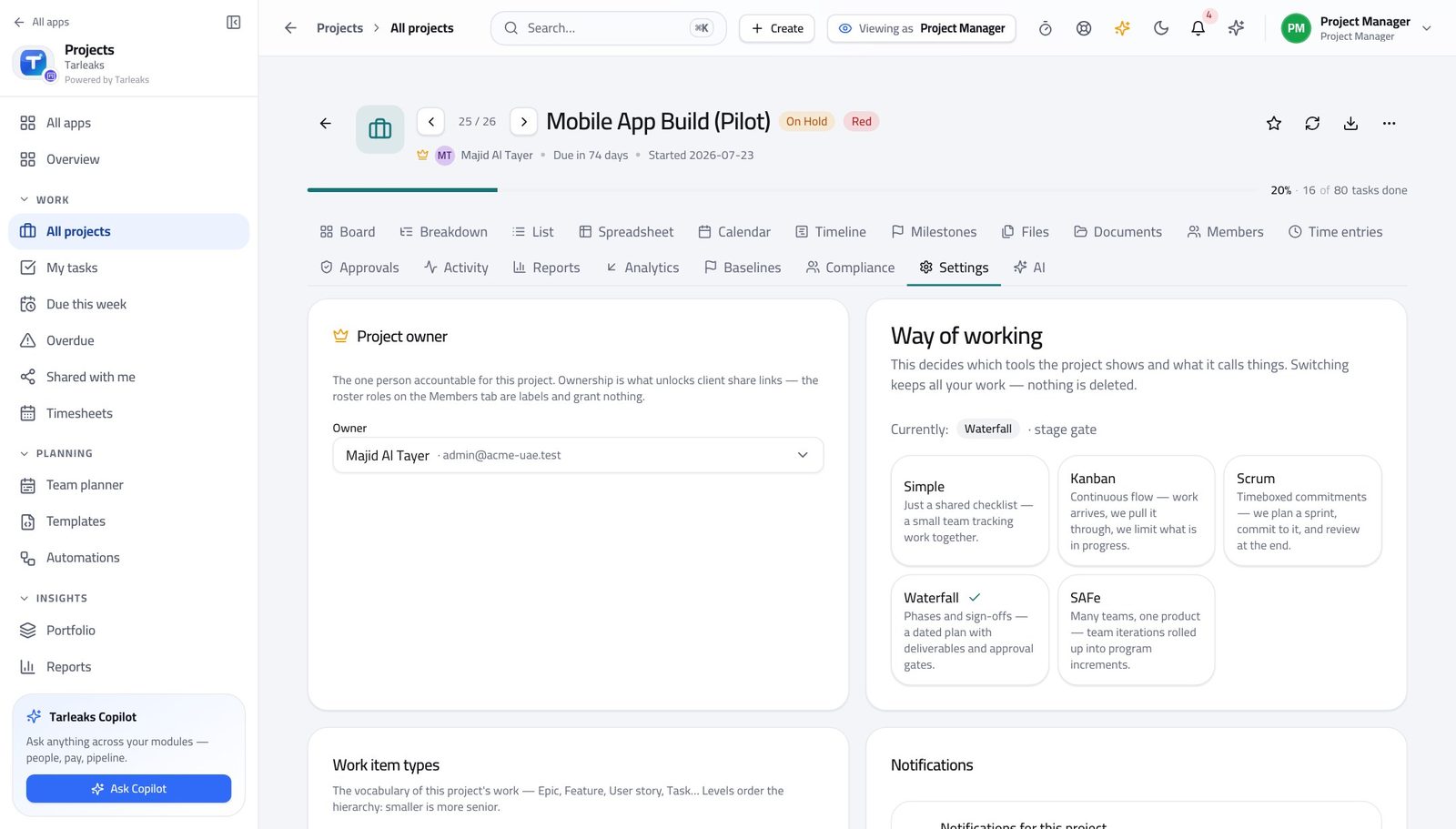
You should see The ladder is real, not a label. That is why a progress roll-up over an epic means something, and why a report can group by epic at all.
Watch out A work item carries two status-shaped things: the state the board moves it through, and the plain word the list shows. They are kept in step for you, but the board's state is the one the rules and the reports act on — so change it on the board, not by editing text.
Worth knowing Two columns on a work item look similar and are not: one is the state the board moves it through, the other is the plain word the list shows. The board's state is the one the rules act on.
See the plan, and what the plan depends on #
Where Projects » a project » Timeline
- Open the project's Timeline tab.
- Drag a bar's edge to change dates.
- Drag from one bar to another to link a dependency.
- Click a link to remove it.
- Use Zoom to move between days and months.
- Capture baseline freezes today's plan.
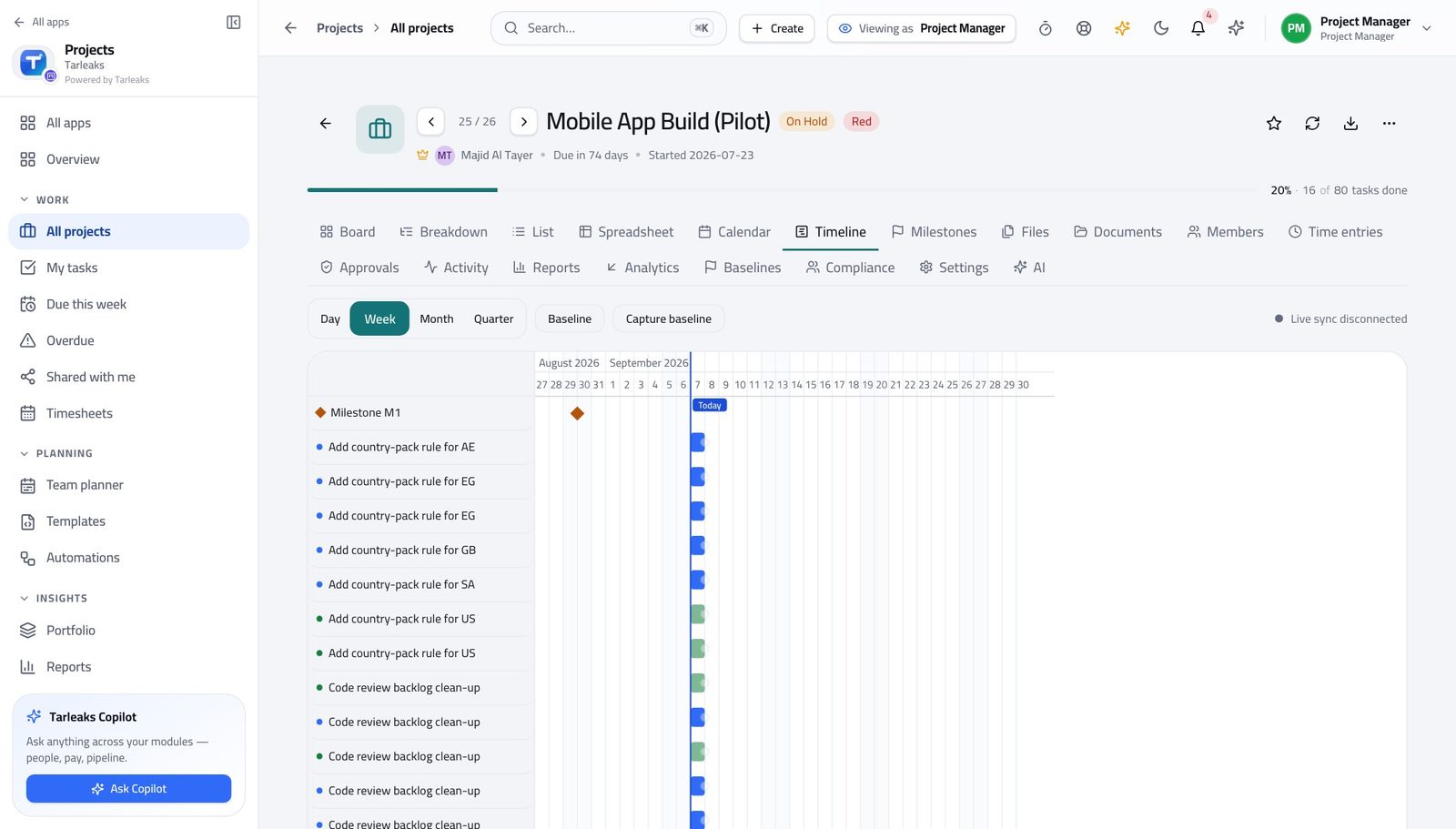
You should see Slack and the critical path are worked out from the links you drew, so a slipped task shows you what it takes with it.
Watch out Only Waterfall and SAFe projects have this tab. On Scrum, the sprint is the plan and the timeline would be a second, competing one.
Worth knowing Capture baseline on this screen freezes today's plan. Do it when the plan is agreed, not when it starts going wrong.
Compare today's plan against the plan you agreed #
Where Projects » a project » Baselines
- Open the Baselines tab.
- Pick a baseline and compare it against today.
- Read what moved, item by item.
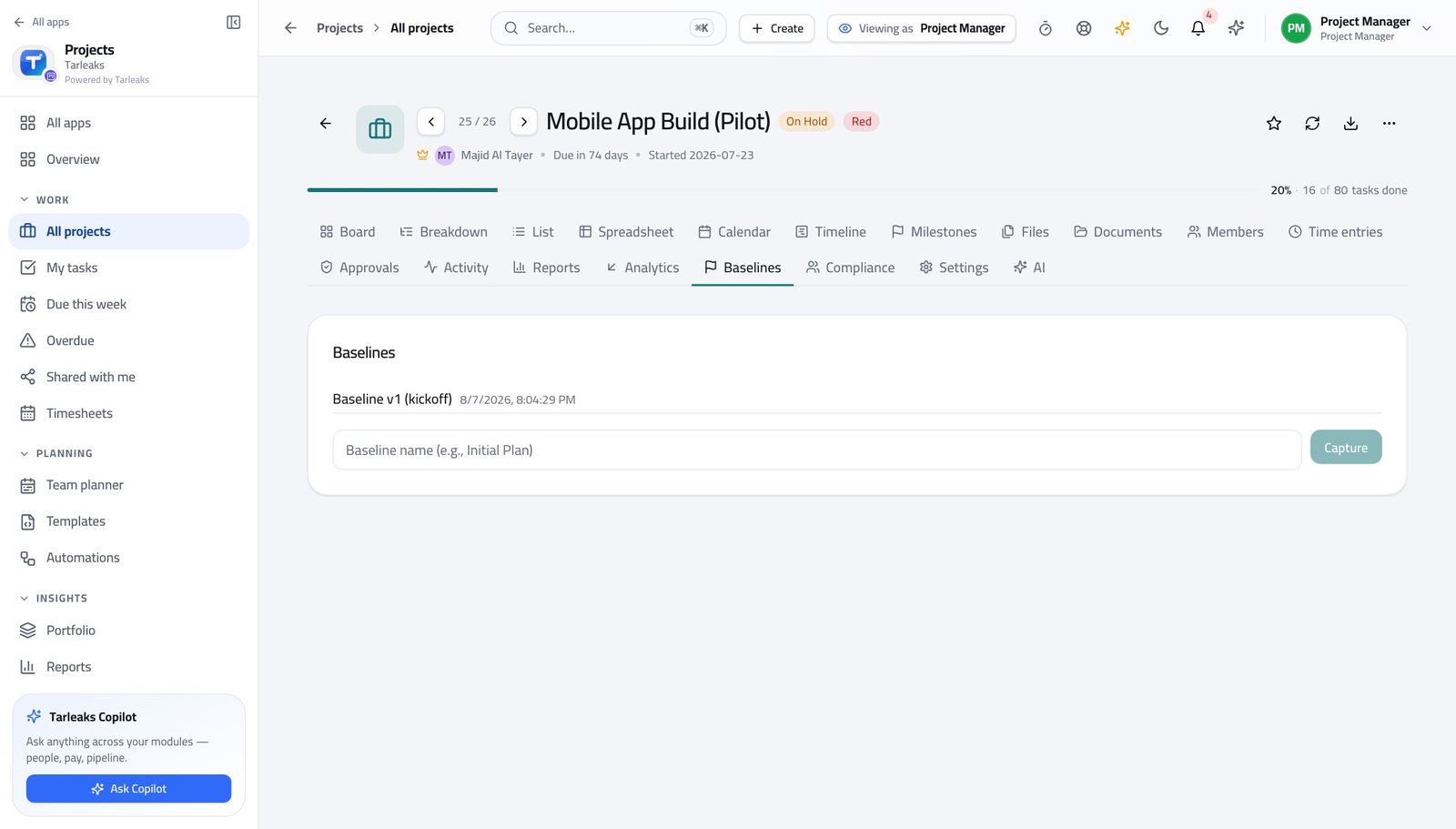
You should see A baseline is the difference between 'we are three weeks late' and 'we are three weeks later than the plan everyone signed'.
Watch out Capture the baseline when the plan is agreed. Capturing it after things slip records the slip as the plan.
Check whether progress matches the spend #
Where Projects » a project » Analytics
- Open the project's Analytics tab.
- Read what the plan said should be done by now, what actually is, and what it cost.
- Read the schedule and cost indexes beside them.
You should see Below one, the project is behind or over. It is arithmetic on the plan and the tasks, not an opinion collected in a meeting.
Watch out These need a budget and dated work to say anything. On a project with neither they are honest about it rather than inventing a number.
Worth knowing Earned value needs a budget and dated work. On a project with neither, the figures are honest about having nothing to say.
Give a date range instead of a promise #
Where Projects » a project » Analytics
- Stay on Analytics.
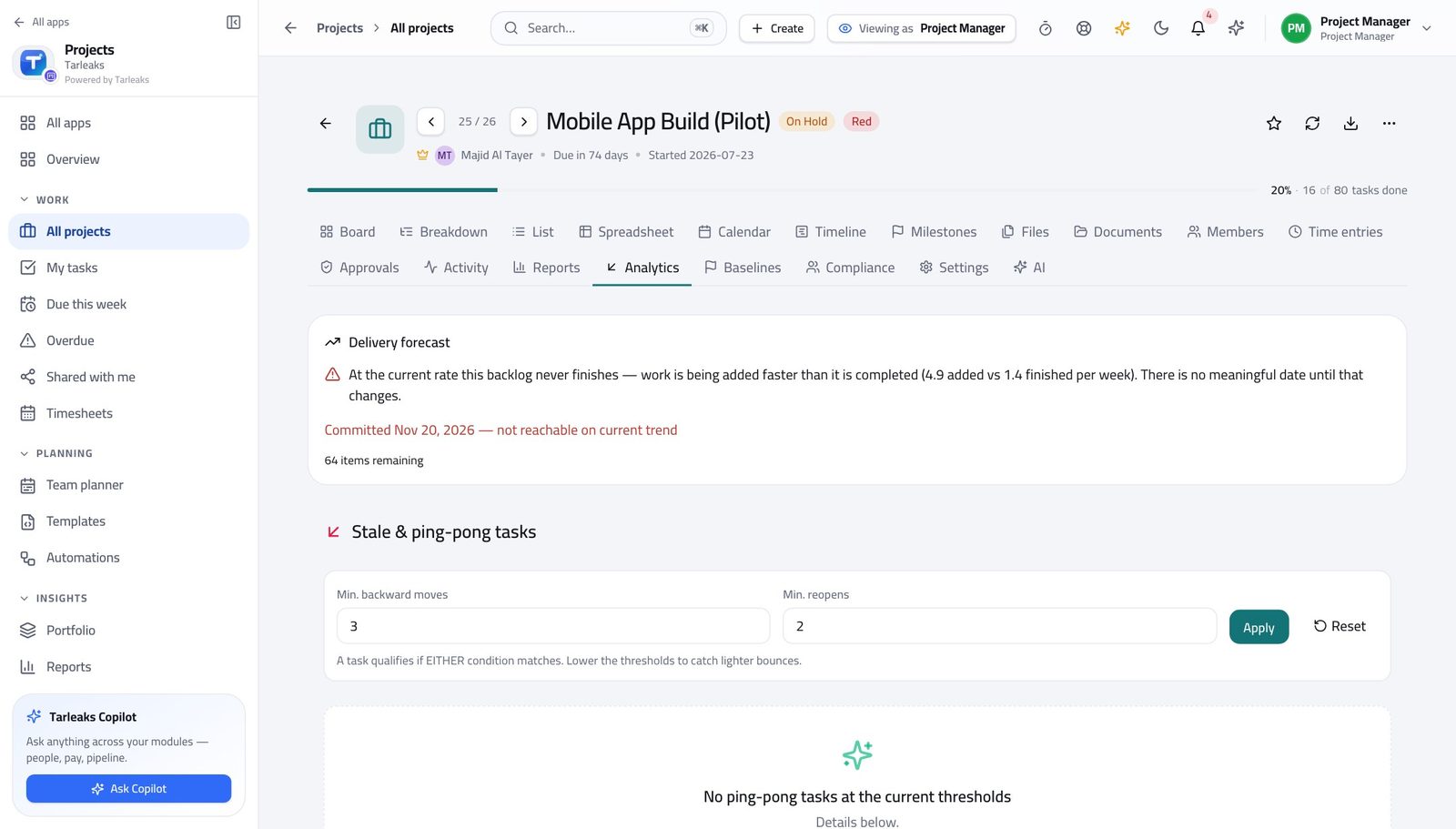
- Read the completion forecast and its confidence levels.
- Compare the earliest date with the safest one.
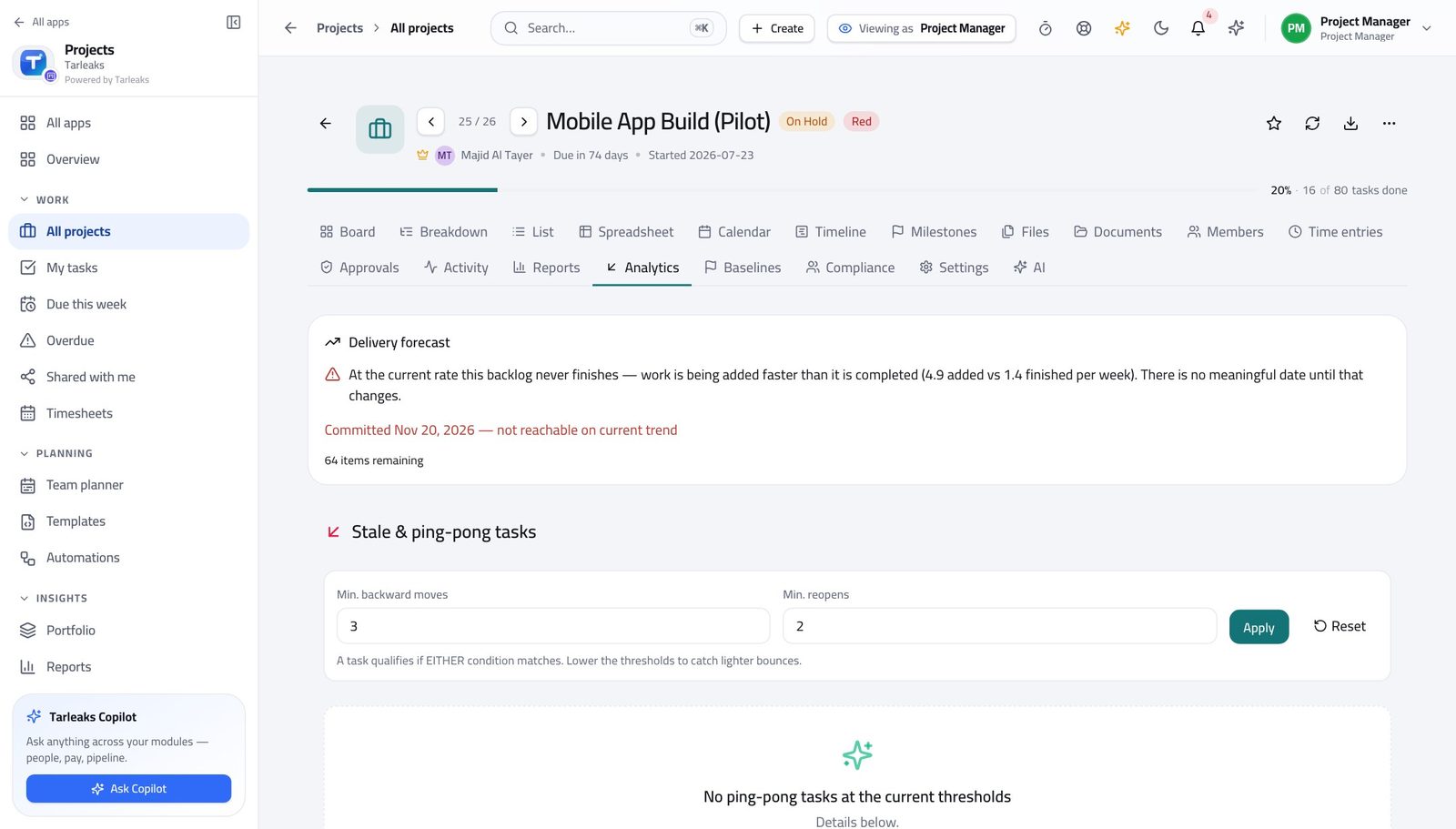
You should see A range you can defend beats a single date you cannot. This is the number to take into a steering meeting.
Watch out A forecast years out is not a broken chart — it is a project closing almost nothing per week. Fix the flow, then look again.
Worth knowing A forecast years away is not a broken forecast — it is a project closing almost nothing per week. Fix the flow, not the chart.
See who is over, before they tell you #
Where Projects » Team planner
- Open Team planner.
- People are rows, days are columns.
- Drag a task to another person to reassign it, or to another day to reschedule it.
- Then open Reports and read utilisation.
| Field | What to put in it |
|---|---|
| Basis | What the week is measured against — working days times hours per day, minus approved leave. |
| Task title | What the new task is called when you add one from here. |
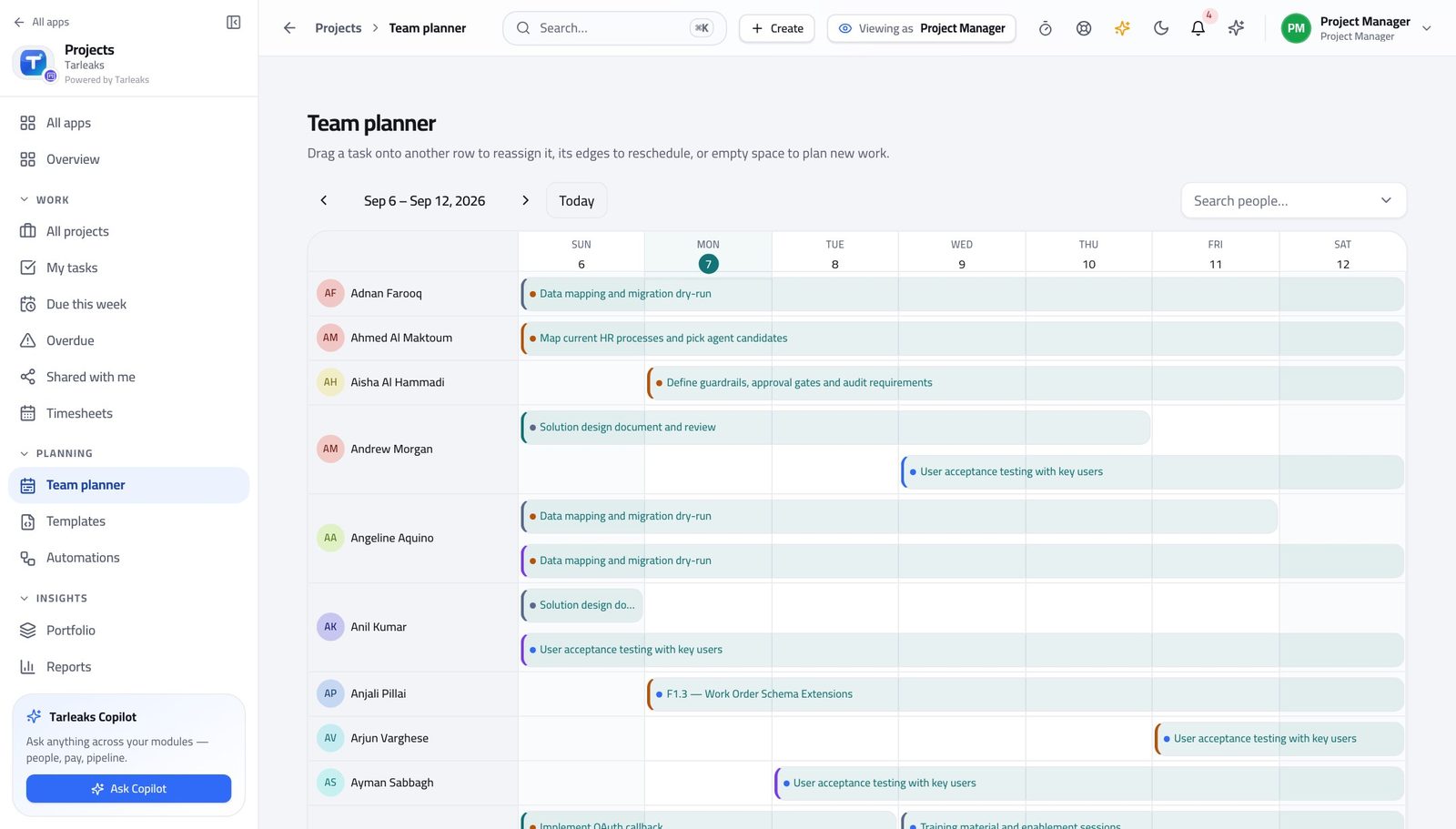
You should see Load becomes a number per person and per period, so 'everyone is busy' turns into something you can act on.
Watch out Dragging a task changes its dates. If somebody was relying on the old one, tell them rather than letting the board tell them.
Worth knowing The planner reschedules by dragging, which also moves the task's dates. If a date matters to somebody else, say so before you drag.
Read what is waiting on a decision #
Where Projects » a project » Approvals
- Open the project's Approvals tab.
- Read what is waiting: a milestone, a budget, a baseline or a contract.
- Approve or Reject, and put the reason in the notes.
| Field | What to put in it |
|---|---|
| Notes | Why you decided what you decided. This is the field an auditor reads, and the one you will want in six months. |
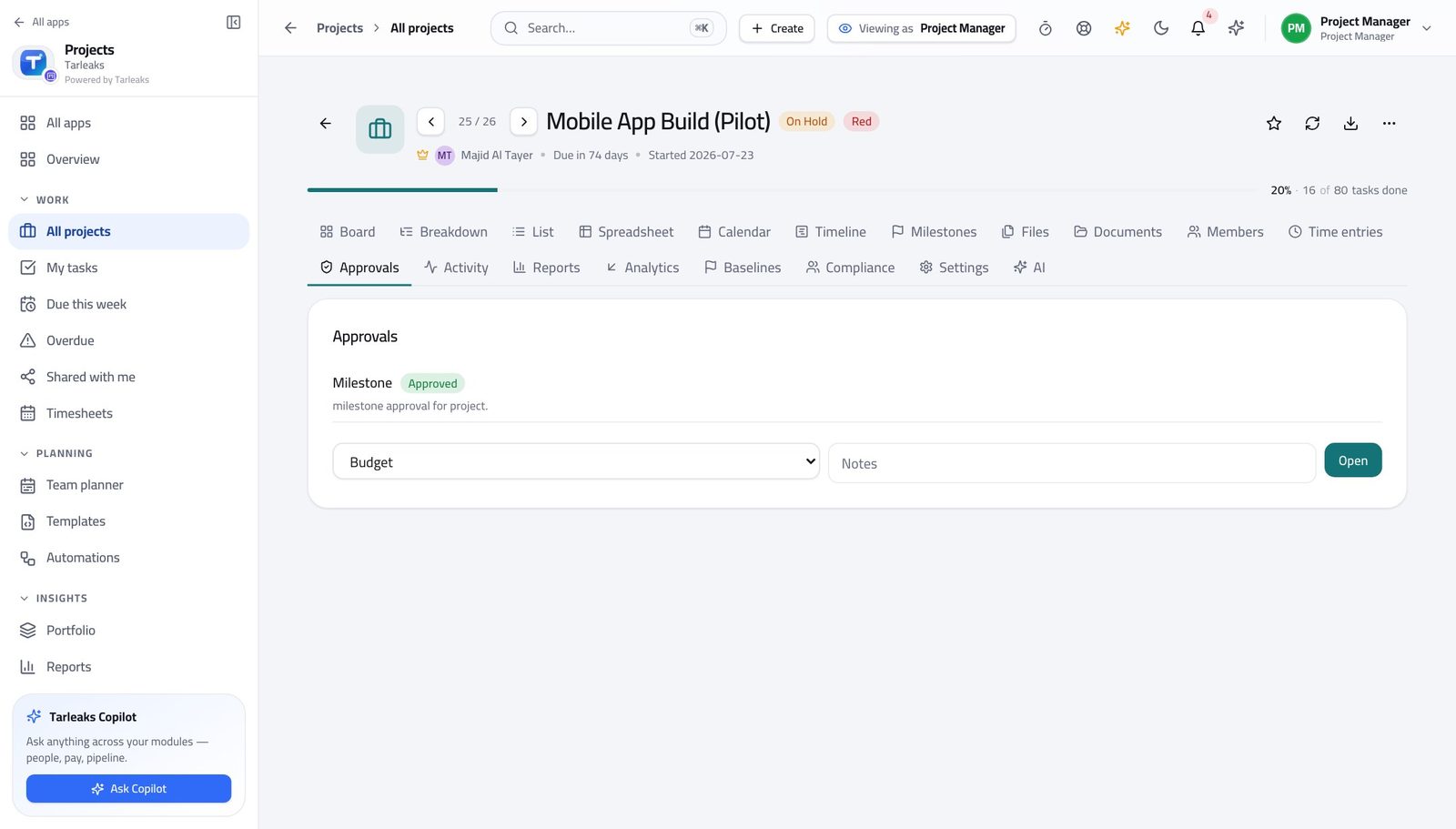
You should see A gate somebody has to pass is a record with a date and a name on it, not an e-mail somebody has to find later.
Watch out Rejecting without a note leaves the person guessing, and leaves you with no record of the reason.
The company-wide audit trail is not yours #
Where Settings » Audit log
- Ask for Settings, then the Audit log.
- Read the message.
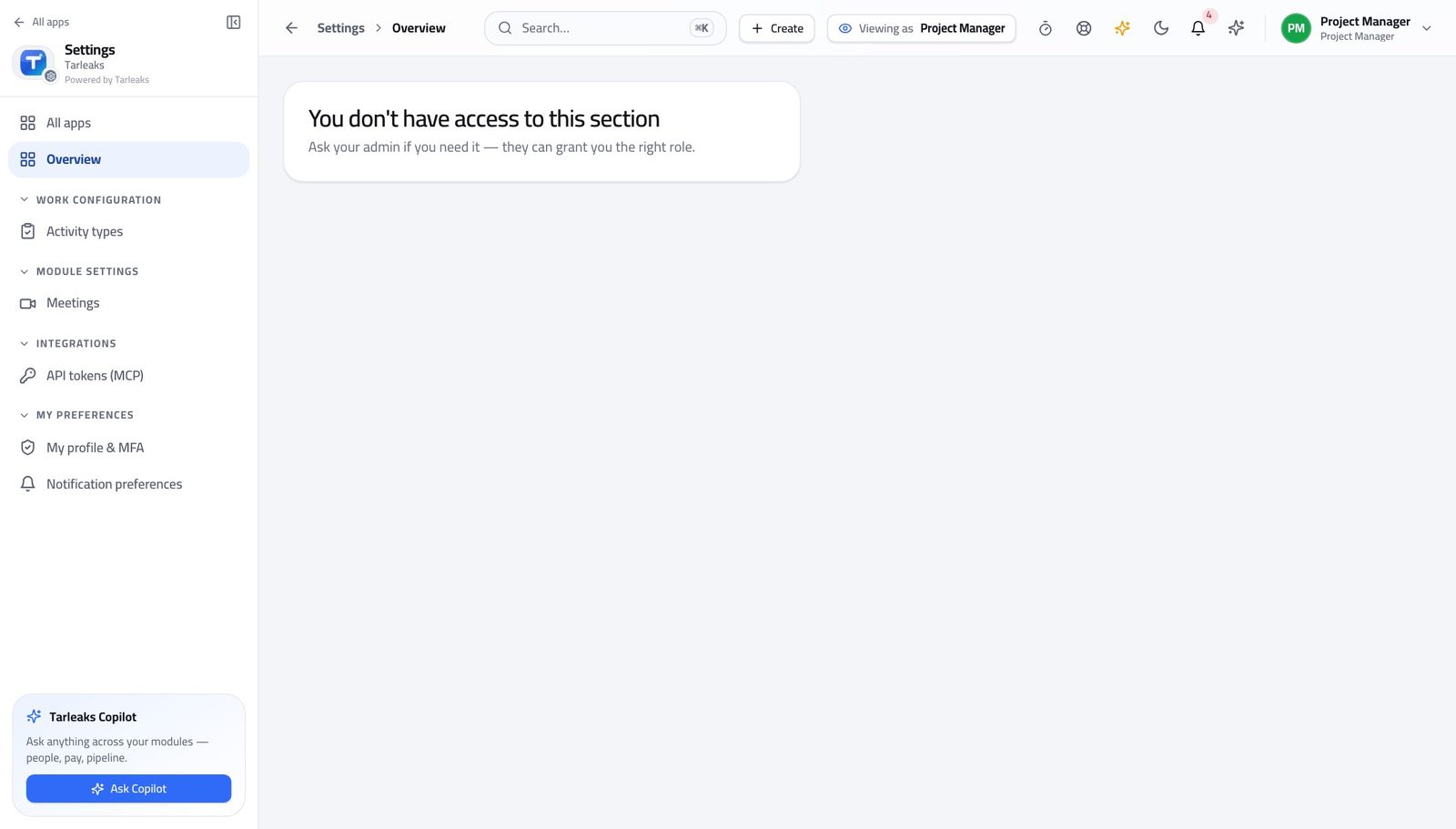
You should see Who-changed-what across the whole company belongs to your administrator. That boundary is what keeps a delivery role a delivery role — and it is the same boundary that makes your own approvals worth something.
Watch out This is not a bug to route around. The project's own Activity tab gives you everything that happened on YOUR project — it is the company-wide trail that is somebody else's.
Worth knowing You still see everything that happened on a project: its Activity tab is the project's own history, and it is open to you.
Use cases — the work, step by step
Each one is a sequence somebody actually performs, with the screen behind every step. Every screen here was opened in the product as this role before it was published.
weeklyRun the week: board, blockers, hours #
Four screens replace the status meeting — and they are the same data the team is working in, so nothing has to be assembled.
Open the project's board and look for a column that is filling up while the next one stays empty. That is the bottleneck, and it is the one thing a report will not tell you.
Projects » a project » Board — verified: the page says “Board”; no “Project not found” anywhere on the page Check what lands in the next seven days across every project you can see — press Everyone to widen it past your own work.
Projects » Due this week — verified: the page says “Due this week”; no “Nothing due this week” anywhere on the page Work down what is already late, oldest first. If a task is late every week it was never sized; break it up rather than chasing it again.
Projects » Overdue — verified: the page says “Overdue”; no “Nothing overdue” anywhere on the page Approve the team's submitted hours on the project, or reject them with a reason. These hours become the project's cost, and your name is on the approval.
Projects » a project » Time entries — verified: the page says “Hours”; the page says “Billable”
monthlyAnswer 'how are we doing' in two minutes #
Every figure is computed from the tasks, so the answer you give matches the board somebody else can open while you are still talking.
Open the portfolio and read progress, budget and health across projects rather than one at a time.
Projects » Portfolio — verified: the page says “Portfolio”; no “No projects are visible to you here” anywhere on the page Open Reports for the project that looks worst: delivery trend, status distribution, throughput by week.
Projects » Reports — verified: the page says “Throughput”; the page says “Cycle time” Check whether the progress matches the spend — the earned value figures say which of the two problems you have.
Projects » a project » Analytics — verified: the page says “Analytics” Generate the status report from the project itself, read the highlights, risks and asks it assembled, then share it. You are editing a draft, not writing a document.
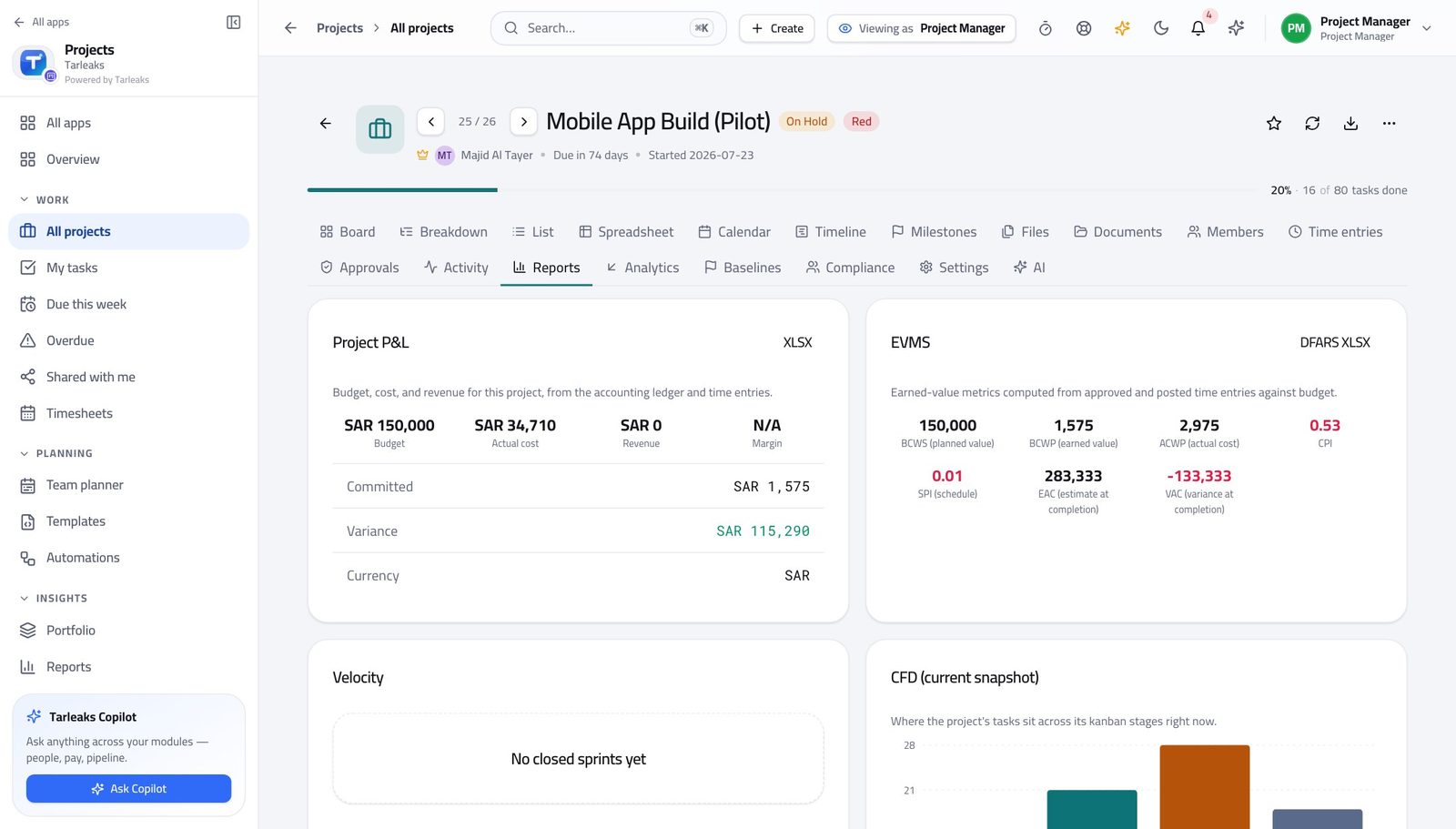
Projects » a project » Reports — verified: the page says “Status reports”; the page says “Generate report”
weeklyRun a sprint from planning to close #
A sprint is a commitment with a start and an end. What did not finish should be rolled over deliberately, not carried quietly into the next one.
Open the Scrum project's Sprints tab and add the next sprint with its dates. The end date must be on or after the start date; the module refuses otherwise.
Projects » a Scrum project » Sprints — verified: the page says “Sprints”; no “Project not found” anywhere on the page Check the work items have the right type before you commit them — a story that is really an epic will never finish inside one sprint.
Projects » a project » Settings » Work item types — verified: the page says “Work item types” Mid-sprint, read the board rather than asking for an update. Cards that have not moved in three days are the conversation.
Projects » a project » Board — verified: the page says “Board”; no “Project not found” anywhere on the page At the end, read throughput and cycle time for the period. Velocity that swings wildly is usually inconsistent sizing rather than an inconsistent team.
Projects » Reports — verified: the page says “Throughput”; the page says “Cycle time”
urgentA project is slipping and somebody wants a date #
You can answer with evidence in about five minutes: what the plan said, what actually happened, what it is costing, and the range you can honestly commit to.
Start on the timeline. The critical path is the chain with no slack in it — everything else can move a little, that chain cannot.
Projects » a project » Timeline — verified: the page says “Timeline”; no “No tasks yet to render” anywhere on the page Compare today's plan against the baseline you captured when the plan was agreed. 'Three weeks late' and 'three weeks later than what everyone signed' are different sentences.
Projects » a project » Baselines — verified: the page says “Baseline” Read the earned-value figures. Behind on schedule and over on cost are two different problems with two different answers.
Projects » a project » Analytics — verified: the page says “Analytics” Give the forecast as a range with its confidence levels, not as a single date. The width of the range is the risk, and it is the honest part of the answer.
Projects » a project » Analytics — verified: the page says “Analytics” Then look at who is over capacity. A slipping project with an overloaded team is a staffing decision, not a planning one.
Projects » Team planner — verified: the page says “Team planner”
The plan, the board and the report are the same data. That is why the report is never out of date and never needs assembling — and why moving a card is the whole status update. What you cannot do is change the company's settings or read the tenant-wide audit trail; those belong to your administrator.
Team Member
Your work and your hours, and nothing you do not need.
A deliberately small workspace: the tasks that are yours, the hours you logged against them, and the reports that show your work. The plan itself — projects, sprints, dependencies, budgets and everyone else's hours — is not yours to change.
What you will be able to do
- See only the tasks that are actually yours, sorted by when they land
- Move a task forward in one click, or run a timer while you work it
- Log the week's hours in a grid rather than an e-mail
- Keep the checklist, the questions and the files on the task itself
- Read the same delivery reports your project manager reads
What this role can and cannot do
| Can | Cannot |
|---|---|
|
|
14 steps, each one carried out in the product on .
Check what your sign-in can do #
Where Your name, top right » Profile
- Open your company's address in the browser — it looks like yourcompany.tarleaks.com.
- Type the e-mail address your administrator set up for you, then your password.
- You land on the app launcher: a grid of the apps your company uses.
- Click your name, top right.
- Choose Profile.
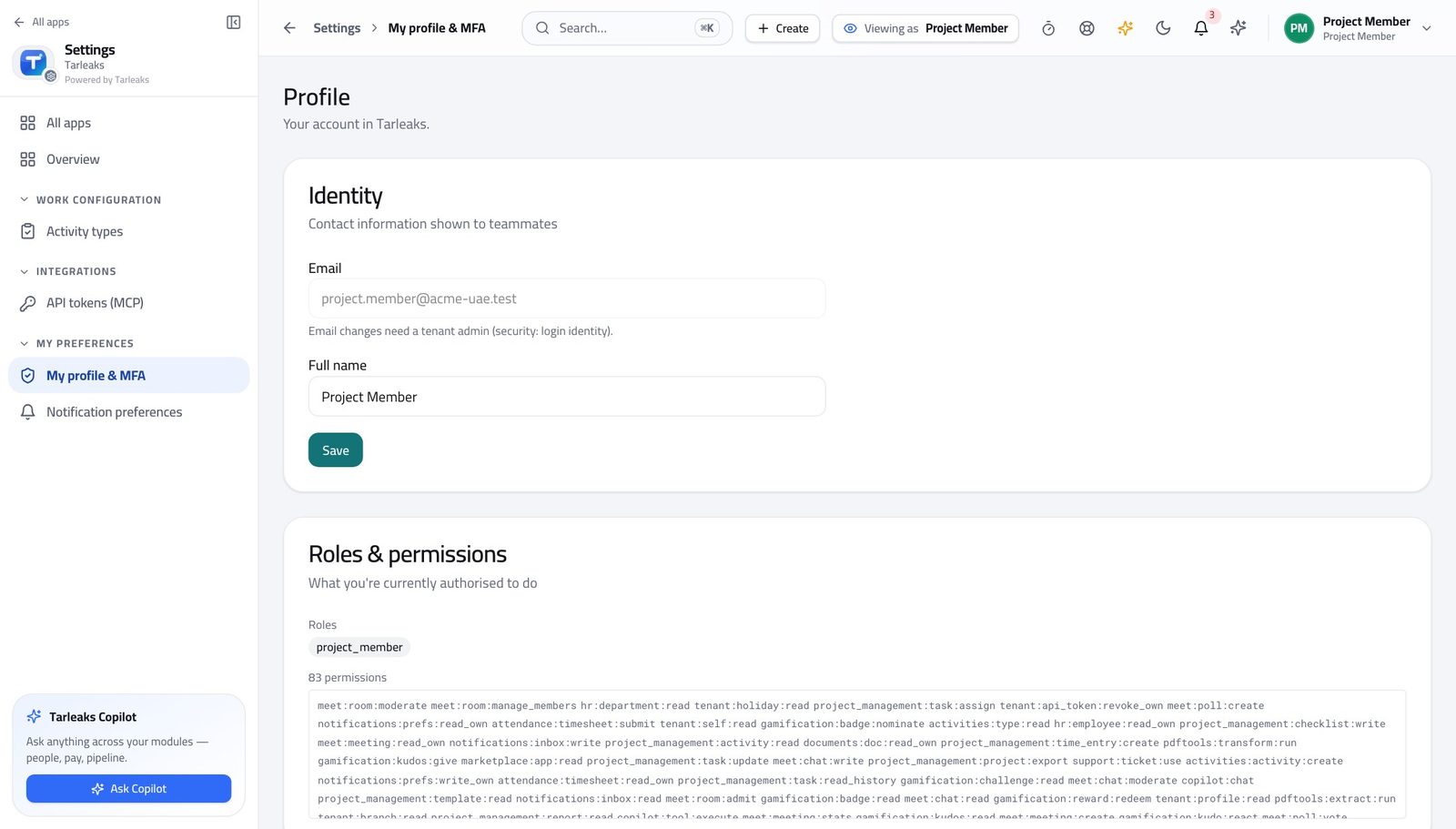
You should see It lists the team-member role. You can pick work up, move it, log hours against it and read the reports. The plan itself belongs to your project manager.
See only the work that is yours #
Where Projects » My tasks
- Open My tasks.
- Read the lanes: Overdue, Today, This week, Later.
- Click a tile at the top to jump to open, in-progress or overdue work.
- Filter by priority when the list gets long.
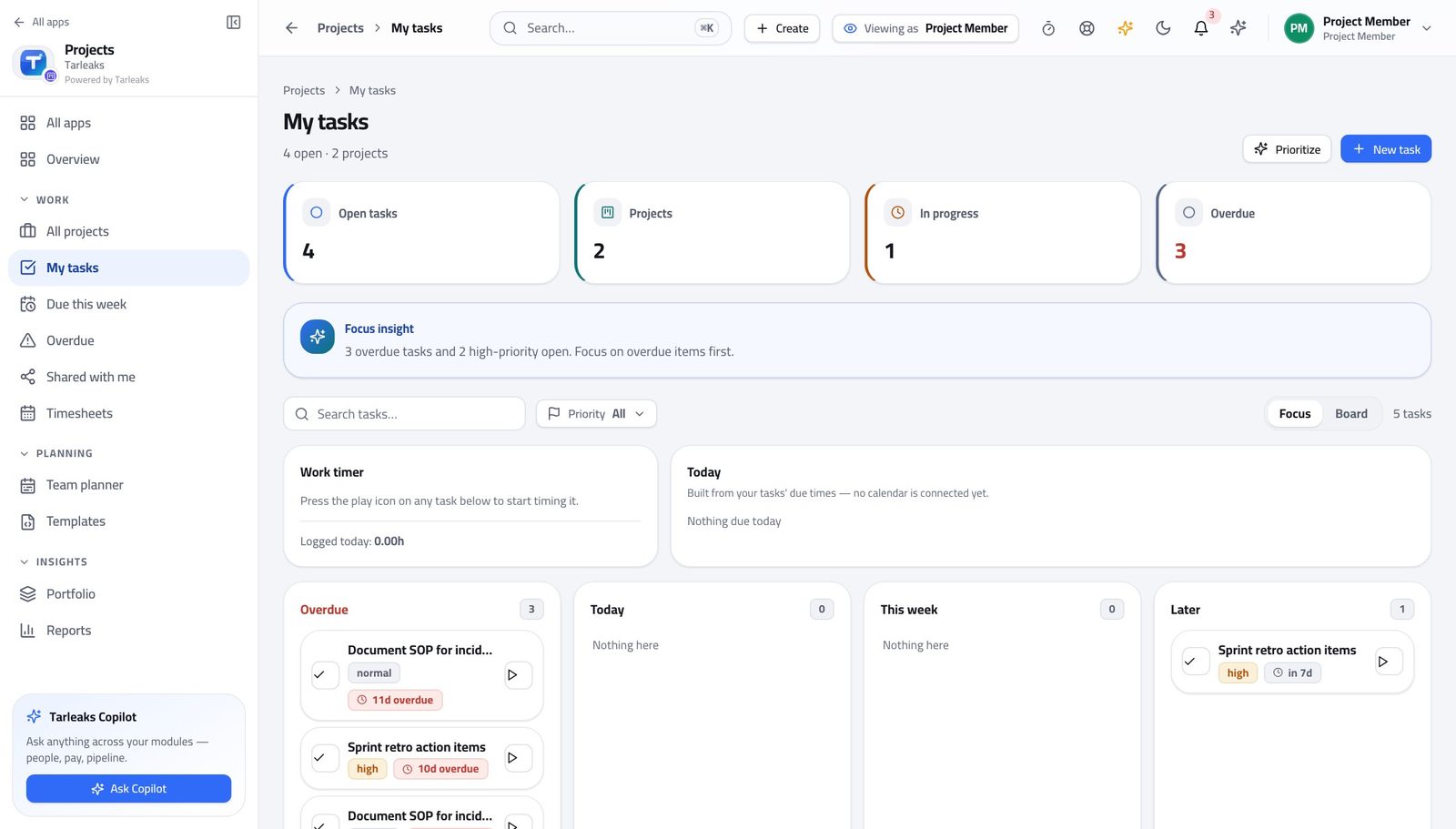
You should see Nobody else's work is on this screen, which is what makes it usable first thing in the morning.
Watch out A task you cannot start belongs in review or back with your project manager. Leaving it in To do hides the blockage from everybody.
Worth knowing Start here rather than on a project. The project list answers 'how is it going'; this answers 'what do I do next'.
Everything about a task, on the task #
Where Projects » Overdue » a task title
- Click a task's title in any list.
- It opens in place — your list and your position are kept.
- Tick the checklist as you go.
- Put questions in the comments.
- Drag a file onto the task rather than sending it.
- Open History when you need to know what changed.
| Field | What to put in it |
|---|---|
| Checklist | The steps inside the task. Tick them as you go, not at the end. |
| Comments | Questions and answers, kept where the next person will look. |
| Attachments | The file itself, on the task, rather than in a message thread. |
| Due date | Only change it if you have told whoever was relying on it. |
| Labels | How the task is grouped in reports. Use the ones your team already uses. |
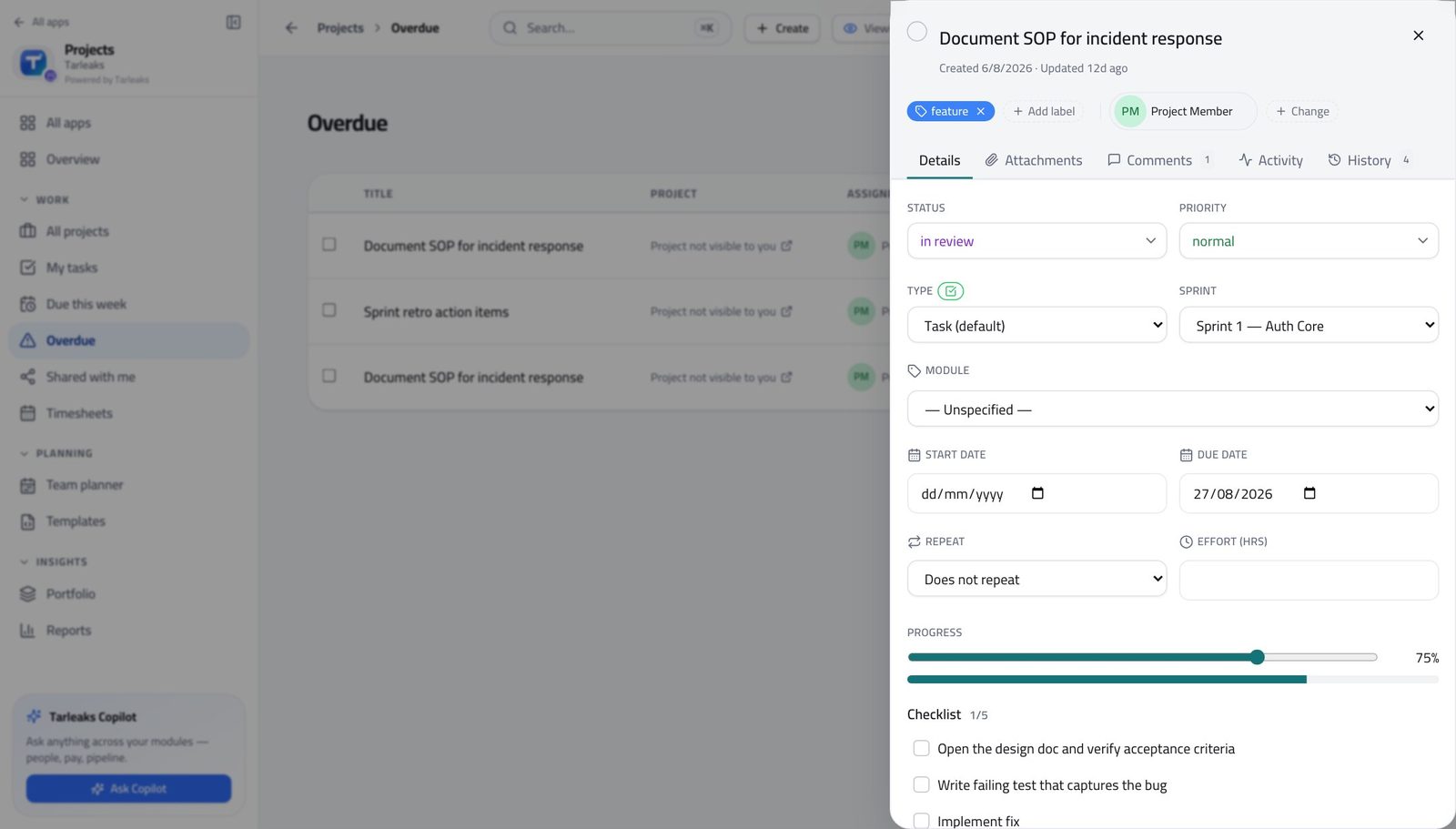
You should see The next person to pick it up reads the task, not your inbox.
Watch out An answer given in chat is lost to whoever picks the task up next.
Worth knowing An answer given in chat is lost to whoever picks the task up next. One sentence in the comments is worth ten minutes later.
The same work, as a board #
Where Projects » My tasks » Board
- Open My tasks.
- Switch from Focus to Board.
- Drag a card to the next column, or press Mark done on it.
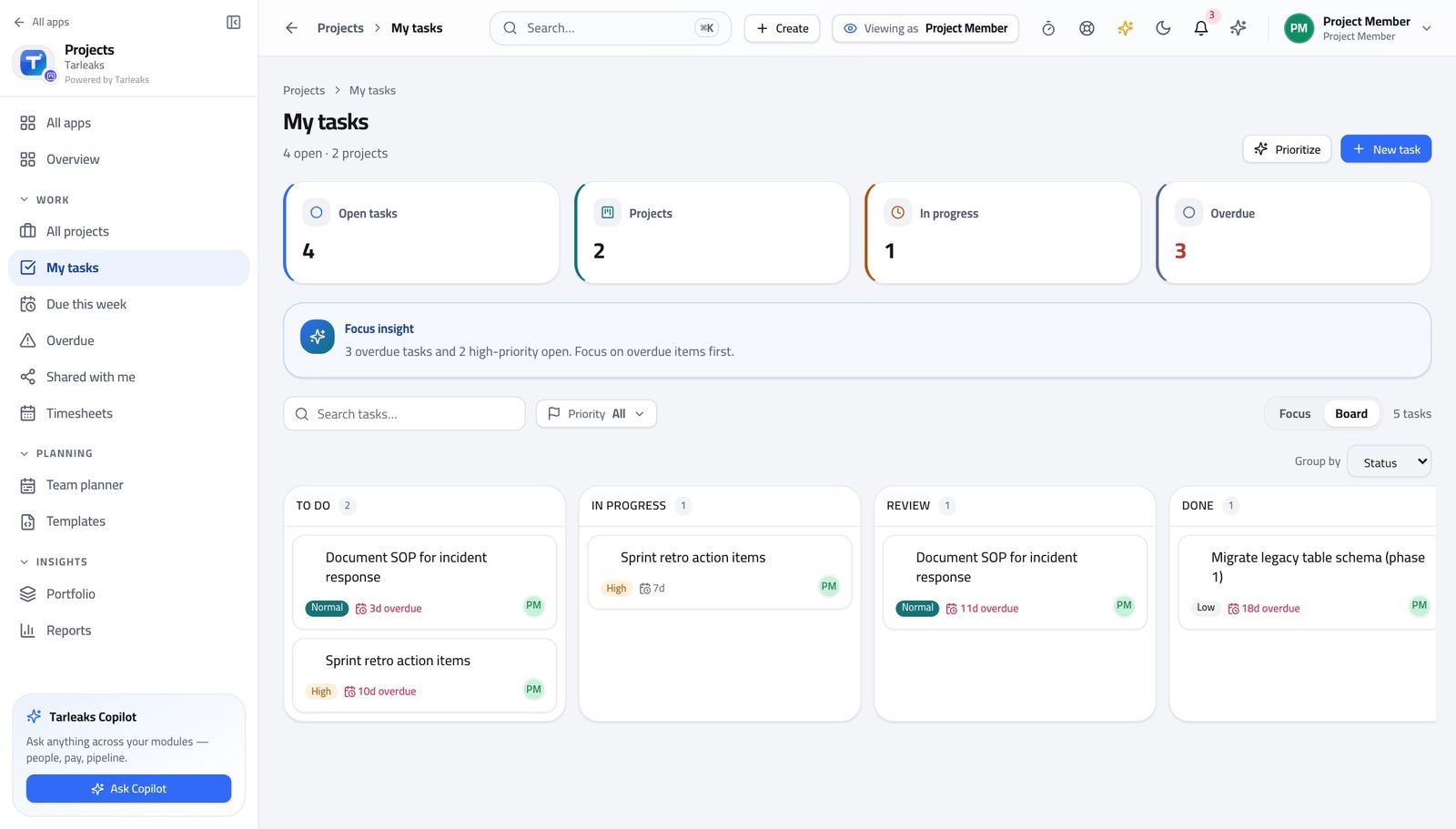
You should see Moving the card is the update. There is no separate status to write, and your project manager sees it immediately.
Worth knowing A task you cannot start belongs in review or back with your project manager. Leaving it in To do hides the blockage.
Log the week's hours in one grid #
Where Projects » Timesheets
- Open Timesheets.
- Click a cell where the project row meets the day column.
- Type the hours and press Enter.
- Set billable or non-billable on the row.
- Press Submit when the week is complete.
- Use Prev week and Next week to move between weeks.
| Field | What to put in it |
|---|---|
| Project | The project the hours belong to. The row is the project; the cell is the day. |
| Hours | What you actually spent, to the nearest half hour. |
| Billable | Whether the customer sees these hours. If you are not sure, ask before you submit rather than after. |
| Day | The day it happened, not the day you are filling the sheet in. |
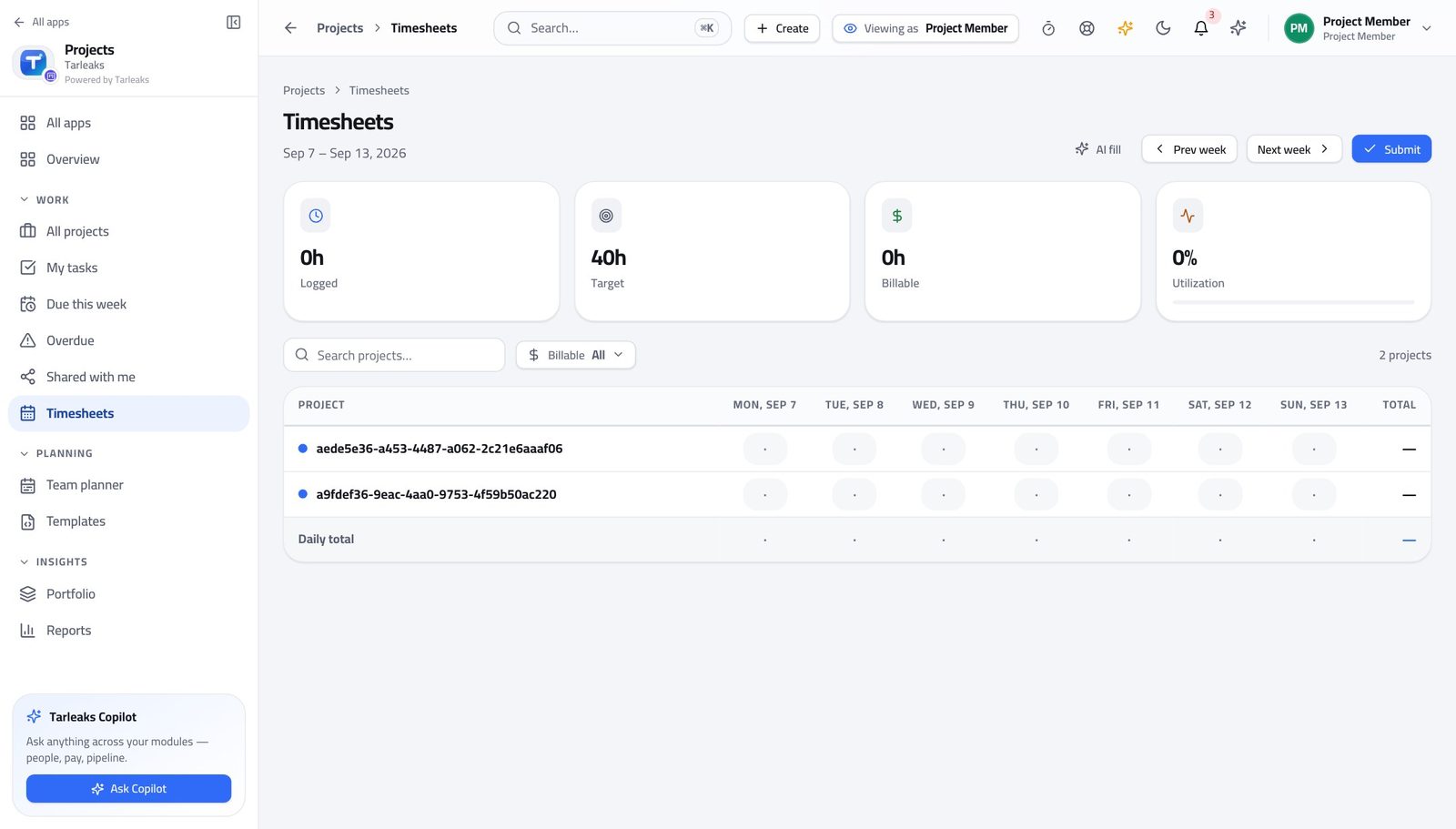
You should see Hours belong to a task, not to a description — which is what makes project cost real rather than an estimate of an estimate.
Watch out Filling the sheet on Friday from memory is how project cost becomes fiction. Two minutes a day is the whole trick.
Worth knowing Filling the sheet on Friday from memory is how project cost becomes fiction. Two minutes a day is the whole trick.
Let a timer do the remembering #
Where Projects » My tasks » Work timer
- Open My tasks.
- Press Start on the task you are on.
- Press Stop when you move to something else.
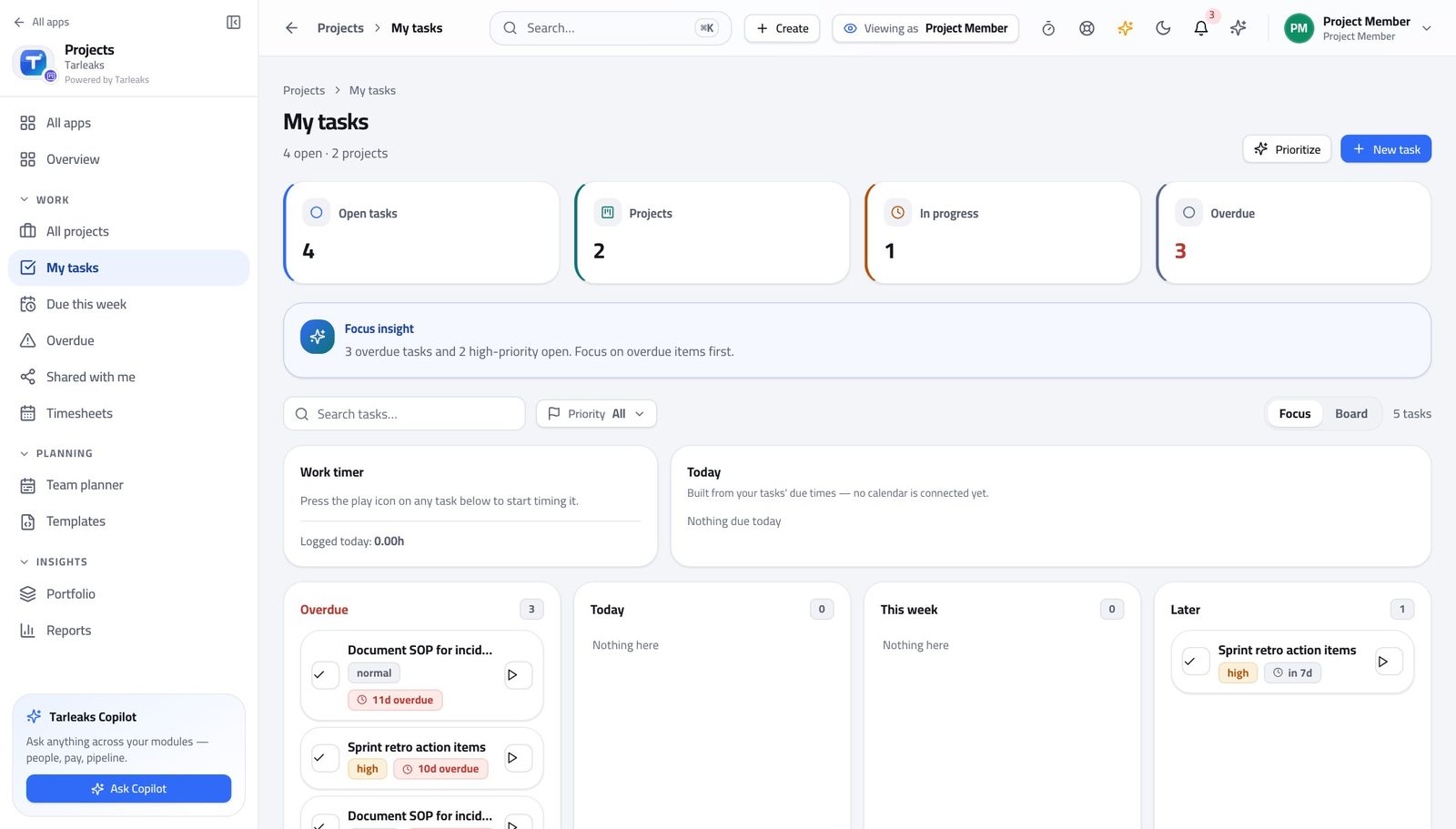
You should see Time captured while it happens beats time reconstructed afterwards, every single week.
Watch out A timer left running overnight is a bigger correction than a timer never started. Stop it when you stand up.
See what of yours is late #
Where Projects » Overdue
- Open Overdue.
- It opens on your own work.
- Sort by days overdue and start at the top.
- Press Everyone if you need the team's context.
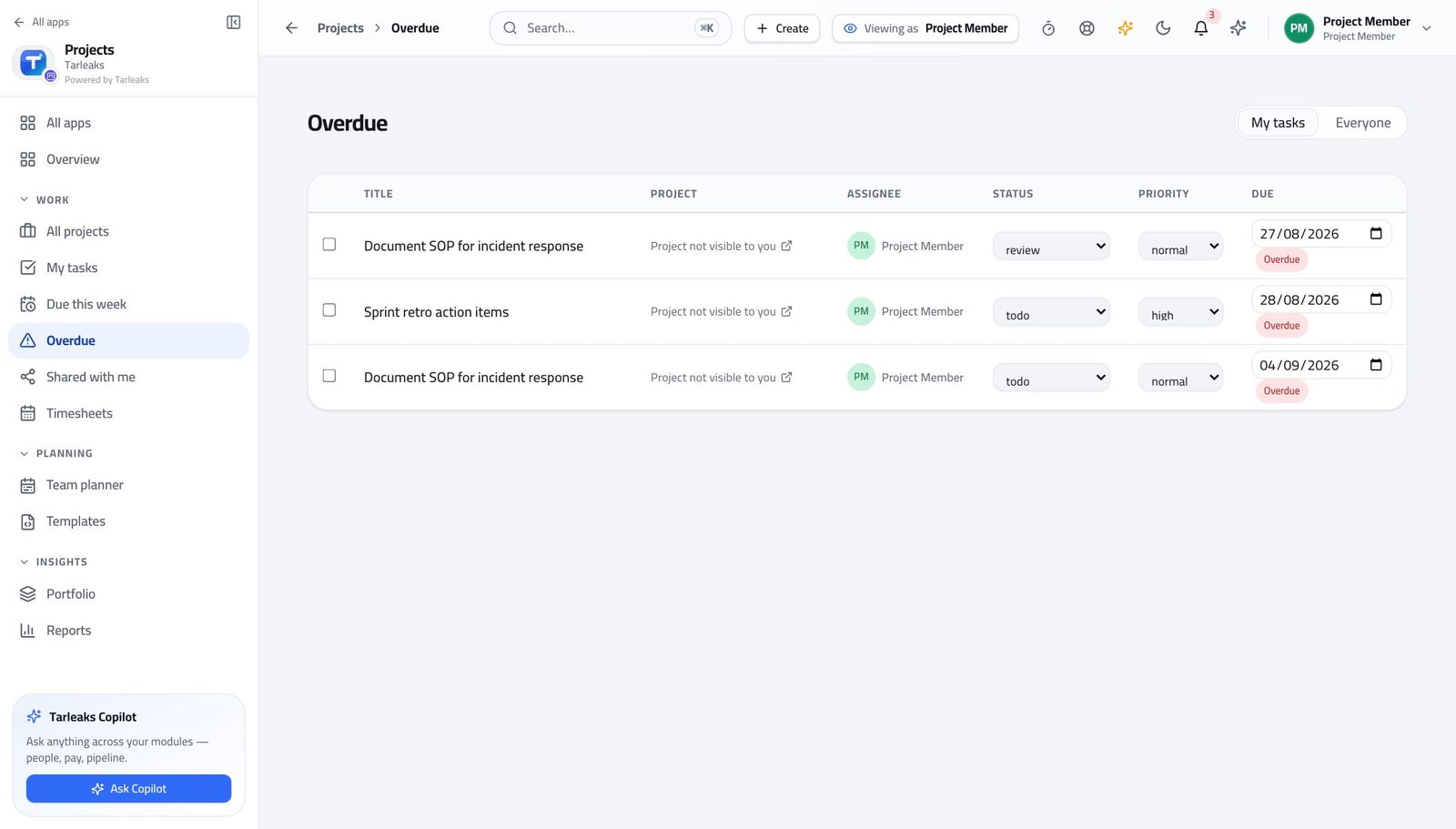
You should see Three late items you can act on this morning beats fifty you cannot.
Worth knowing Everyone widens this to the whole team when you need context — the choice is remembered on this browser.
See what you finished #
Where Projects » My tasks
- Open My tasks.
- Read what you have completed and when.
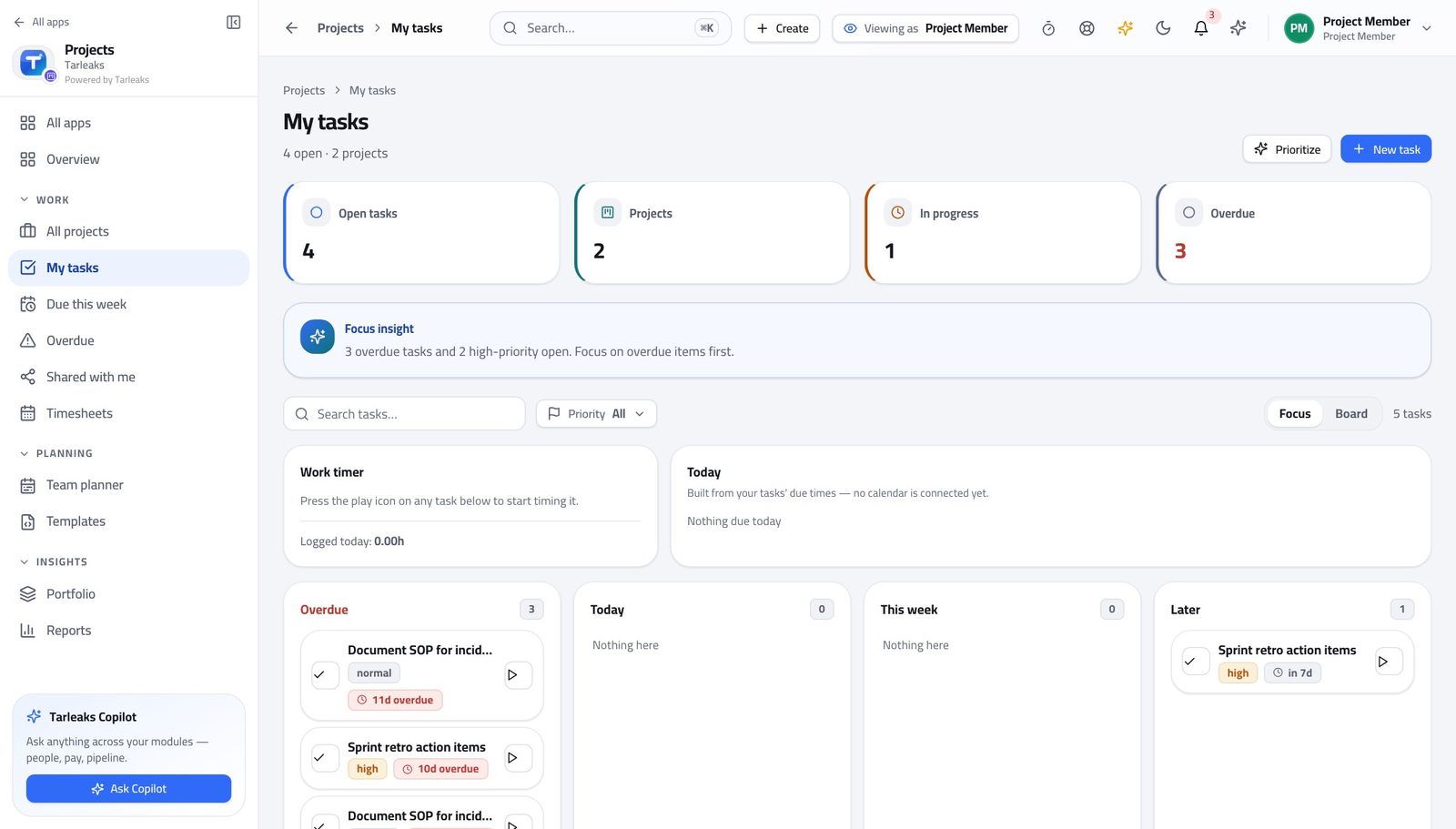
You should see Your own throughput is visible without asking anybody to pull it for you — useful the week before a review.
The delivery reports are open to you too #
Where Projects » Reports
- Open Reports.
- Read throughput by week and cycle time.
- Change the period at the top.
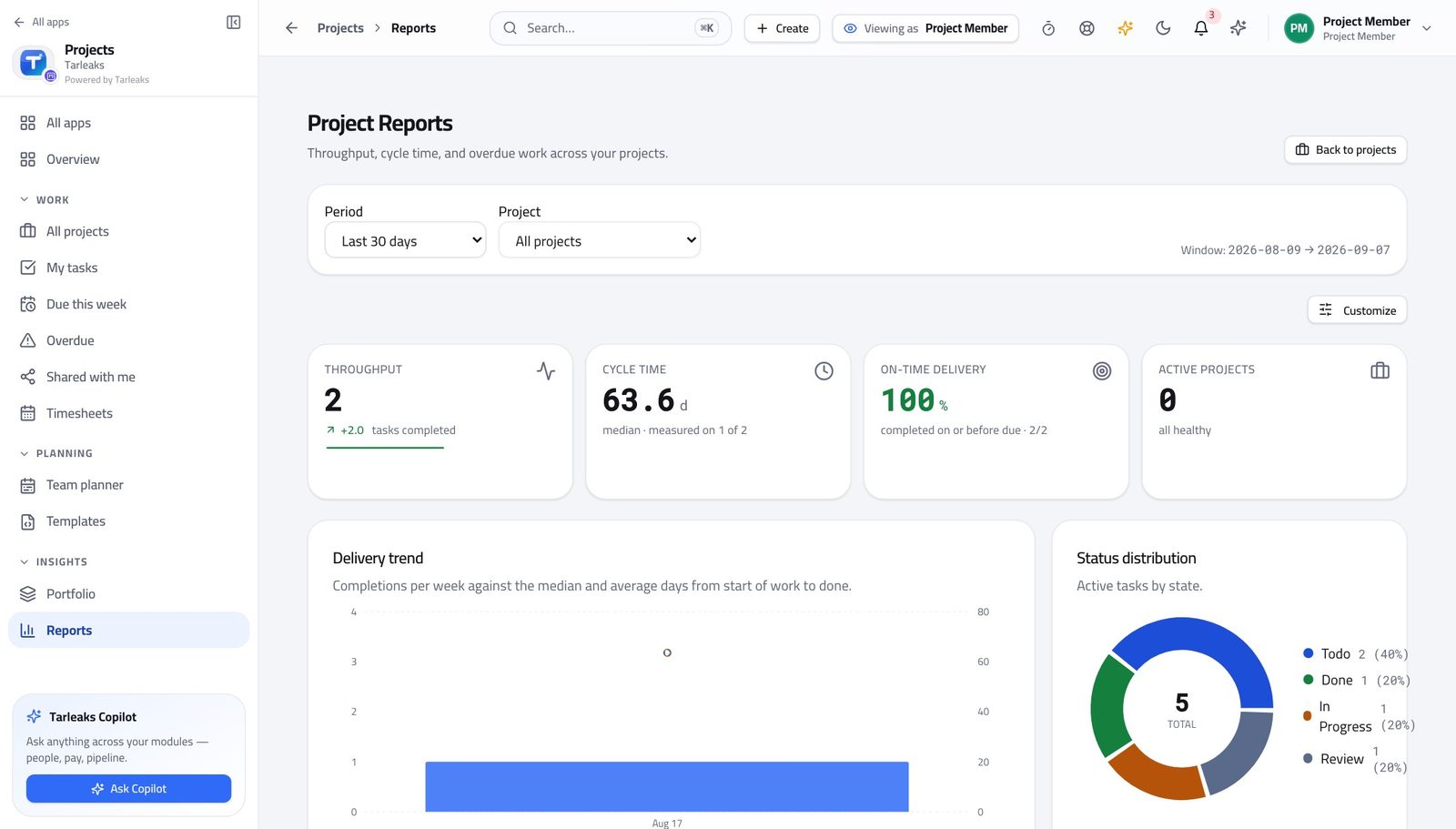
You should see You can see how the work is actually flowing instead of being told at a stand-up.
Read the blueprint a project starts from #
Where Projects » Templates
- Open Templates.
- Open one and read its stages and sample tasks.
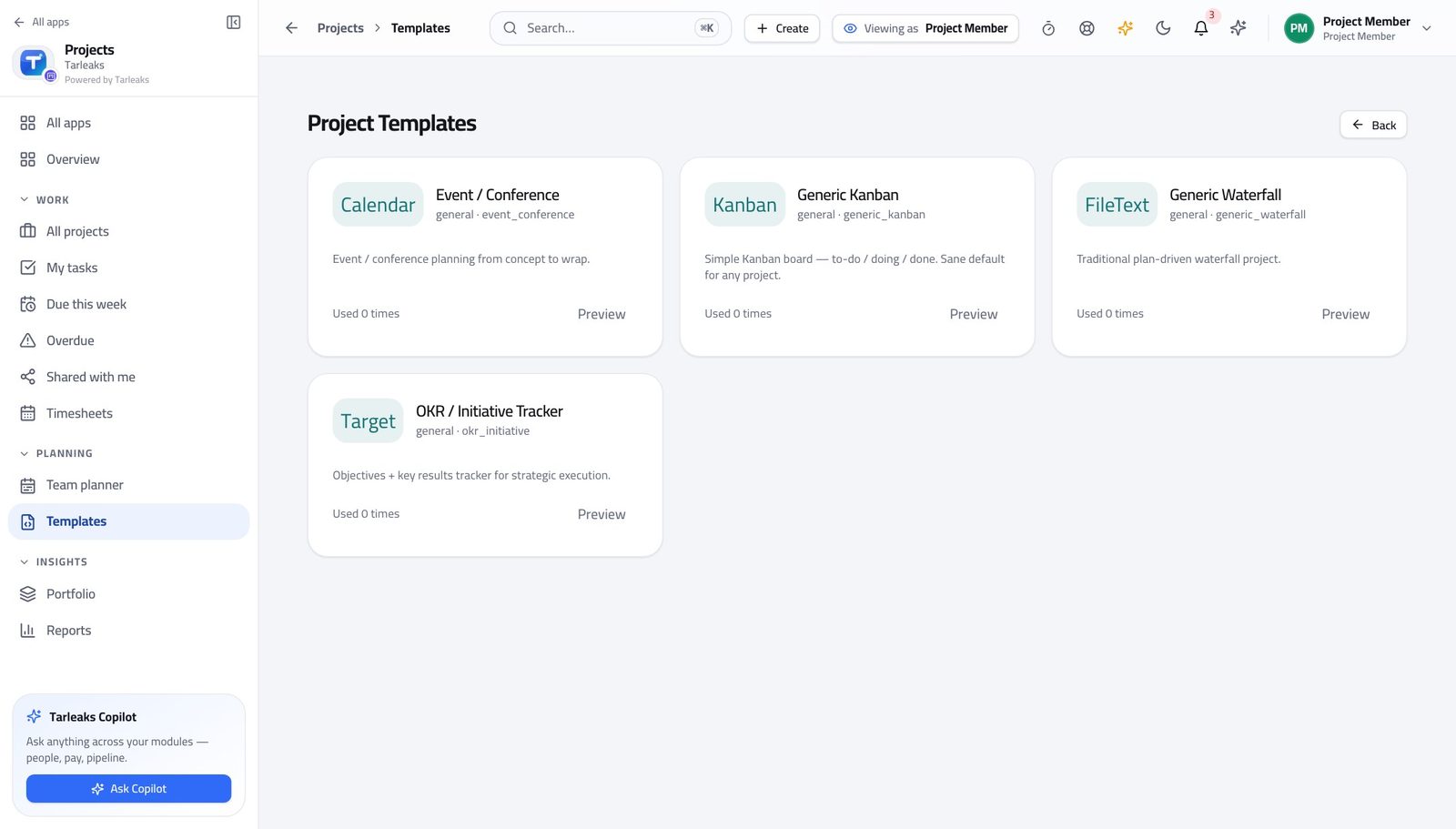
You should see You can see the shape a project of that kind takes before you join it, without being able to change the shape for everyone else.
Watch out If a template is wrong for the way your team actually works, say so — changing it is a five-minute job for whoever owns it, and it affects every project started afterwards.
Starting a project is refused #
Where Projects » New project
- Ask for a new project.
- Read the message.
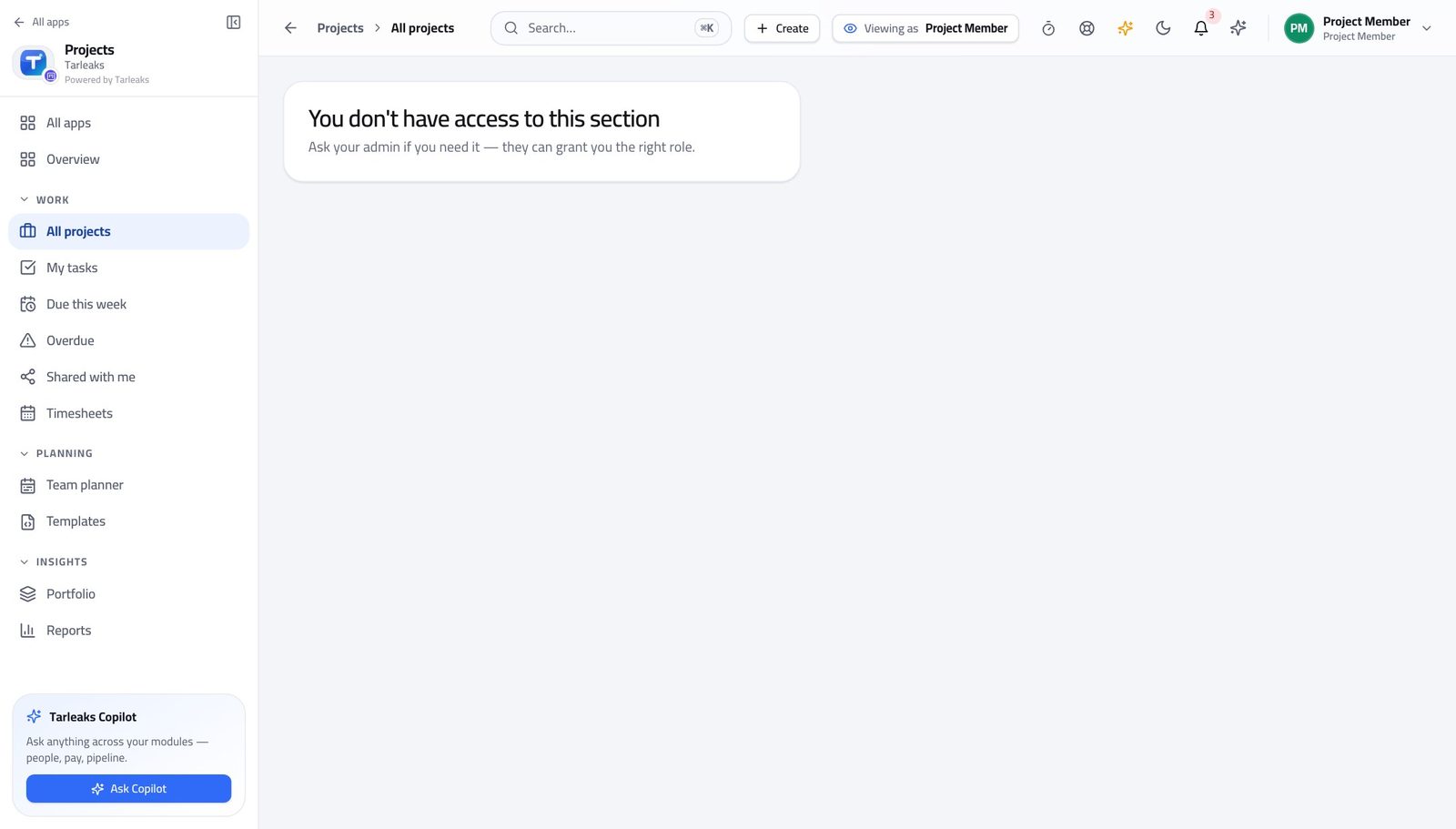
You should see Deciding that a piece of work becomes a project — with a budget, an owner and a place in the portfolio — is your project manager's call. That is what keeps a portfolio a portfolio rather than a pile.
Watch out This is not a gap to work around by creating a giant task instead. If the work is a project, ask for a project.
Automations and agents are refused #
Where Projects » Automations
- Ask for Automations.
- Read the message.
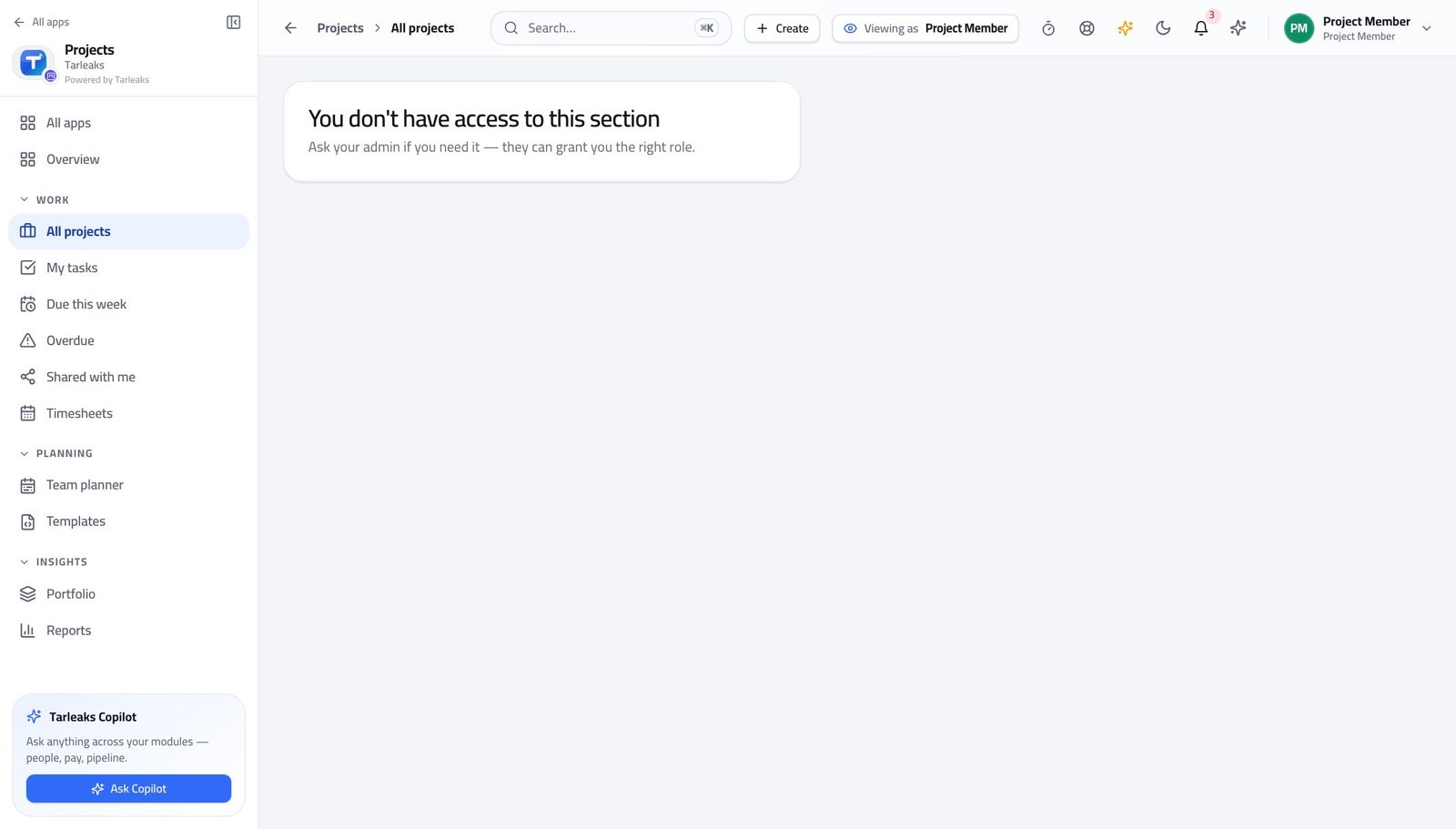
You should see A rule that moves other people's work, or an agent that writes on their behalf, is configuration rather than day work. It is set up once, by somebody accountable for it.
Approving hours is refused — including your own #
Where Projects » Timesheets
- Open Timesheets.
- Read the strip that counts your submitted entries.
- Look for an Approve button. There is not one.
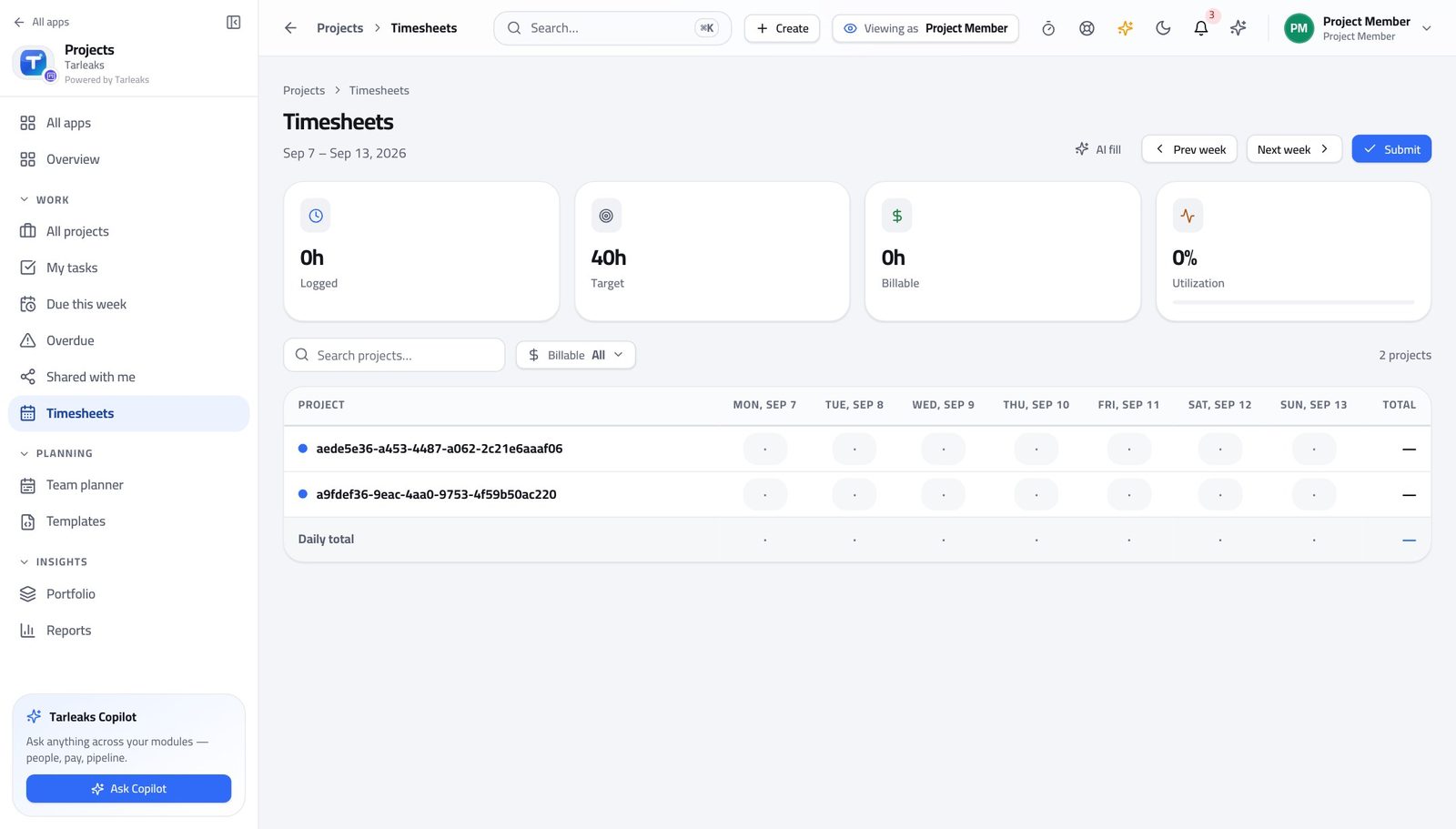
You should see You record what you worked; somebody else agrees it. That separation is exactly why an approved hour can be put on an invoice.
Watch out This is the reason an approved hour can go on an invoice. If your hours are sitting unapproved, chase your project manager rather than resubmitting them.
What the project bills and costs is refused #
Where Projects » Reports
- Open Reports.
- Read throughput, cycle time and the status distribution.
- Look for a budget or a cost figure. There is not one.
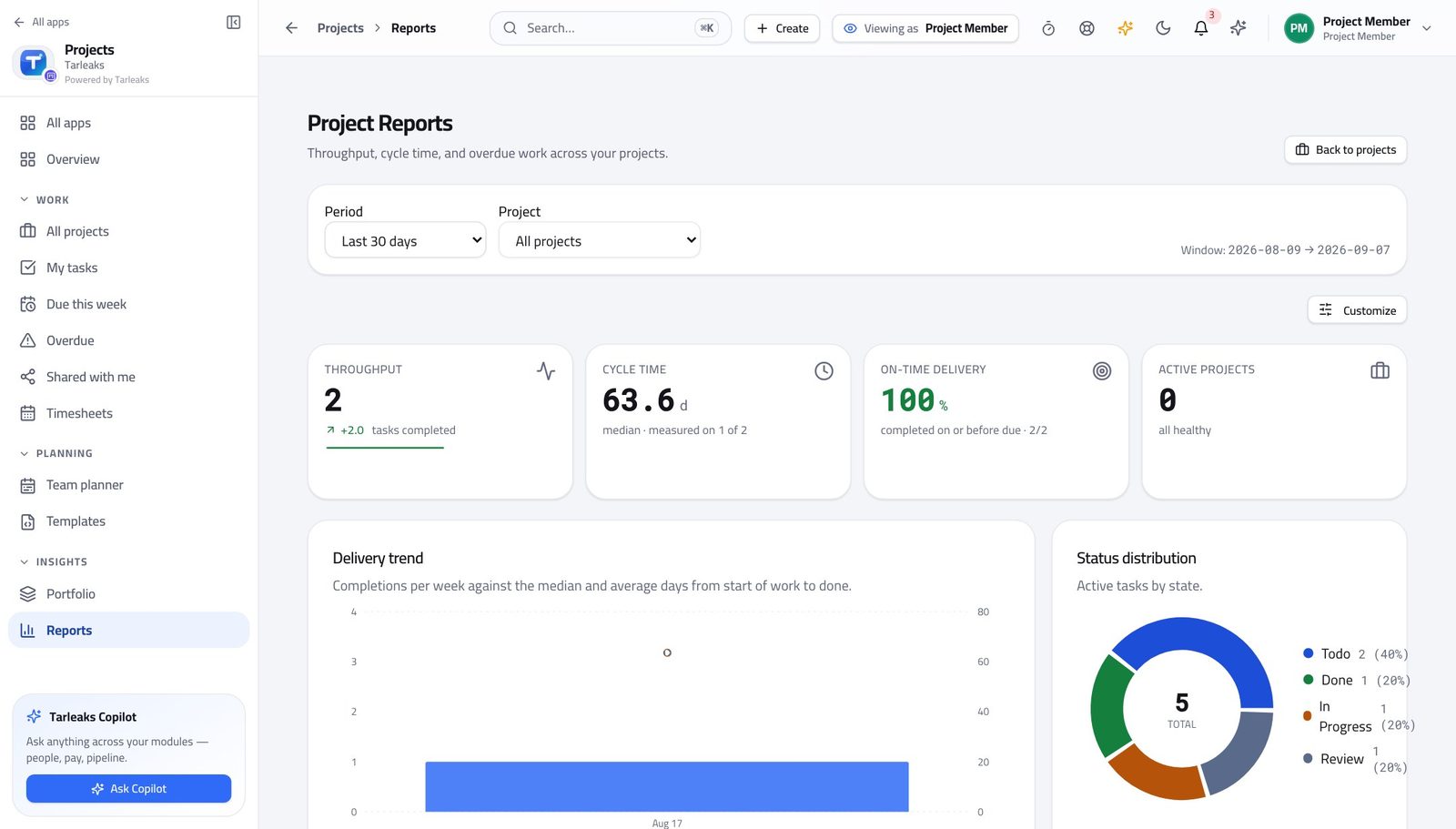
You should see You can see how the work is flowing. What the project charges and what it costs sits with the project manager — which is also why nobody can quietly change what your hours are worth.
Watch out If somebody asks you what the project is costing, send them to the project manager rather than working it out from your own hours — your hours are one person's, and unapproved hours are counted nowhere.
Use cases — the work, step by step
Each one is a sequence somebody actually performs, with the screen behind every step. Every screen here was opened in the product as this role before it was published.
dailyYour day: pick up, move on, write down #
Everything about a task lives on the task, so the next person does not have to find you to continue it.
Open My tasks and read the lanes: Overdue, Today, This week, Later. Pick the next thing from the top.
Projects » My tasks — verified: the page says “My tasks”; no “No open tasks” anywhere on the page Open it by clicking its title. Tick the checklist as you go, and put questions in the comments rather than in chat — chat is lost to whoever picks it up next.
Projects » Overdue » a task title — verified: the page says “Checklist”; the page says “Comments” Press Start on the work timer so the hours are captured while they happen, and Stop when you move to something else.
Projects » My tasks » Work timer — verified: the page says “Work timer” Move the card when the state actually changes. That is the whole status update — nobody needs an e-mail as well.
Projects » My tasks » Board — verified: the page says “Board”
weeklyClose the week: hours in, timesheet submitted #
Approved hours are what the project's cost and any invoice are built from. Hours nobody submitted are counted nowhere.
Open Timesheets and fill the grid: click the cell where the project row meets the day column and type the hours.
Projects » Timesheets — verified: the page says “Timesheets”; the page says “Submit” Check billable against non-billable before you submit. If you are not sure which a piece of work is, ask now rather than after it has been invoiced.
Projects » Timesheets — verified: the page says “Timesheets”; the page says “Submit” Press Submit. There is no Approve button on your screen — that is deliberate, and it is the reason an approved hour can go on an invoice at all.
Projects » Timesheets — verified: the page says “Timesheets”; no “Approve” anywhere on the page Read your own completed work for the week. It is a two-line answer the next time somebody asks what you have been doing.
Projects » My tasks — verified: the page says “My tasks”
urgentYou are handed somebody else's task #
If the task was worked properly you should not need a handover meeting. If you do need one, that is the finding.
Open the task from any list — the title opens it in place, so you keep your list and your position.
Projects » Overdue » a task title — verified: the page says “Checklist”; the page says “Comments” Read the history before the comments: it shows every change and who made it, which is usually faster than asking.
Projects » Overdue » a task title — verified: the page says “Checklist”; the page says “Comments” If the project is new to you, read the blueprint it started from — the stages and the sample tasks tell you the shape of the work.
Projects » Templates — verified: the page says “Templates”; no “Create template” anywhere on the page Check what else of yours is late before you commit to the new one. Taking work you cannot start is how two things slip instead of one.
Projects » Overdue — verified: the page says “Overdue”; 3 row(s) listed
Creating projects, moving sprints, changing the blueprint and approving anybody's hours — including your own — belong to the project manager. Your screen is smaller on purpose, and the buttons you do not have are the reason your hours can be trusted.
Tenant Administrator
Set delivery up once, so every project starts the same way.
Sets the rails: which way of working a project runs on, what a work item can be called, which templates start a project, which automations chase it — and reads the audit trail when somebody asks who changed what.
What you will be able to do
- Choose the way of working each project runs on, and what that turns on
- Name the work items in your business's own words
- Install templates so a project starts from a blueprint, not a blank page
- Automate the chasing nobody enjoys, and let an agent do the writing
- Answer 'who changed that, and when' from the audit trail
What this role can and cannot do
| Can | Cannot |
|---|---|
|
|
12 steps, each one carried out in the product on .
Check what your sign-in can do #
Where Your name, top right » Profile
- Open your company's address in the browser — it looks like yourcompany.tarleaks.com.
- Type the e-mail address your administrator set up for you, then your password.
- You land on the app launcher: a grid of the apps your company uses.
- Click your name, top right.
- Choose Profile.
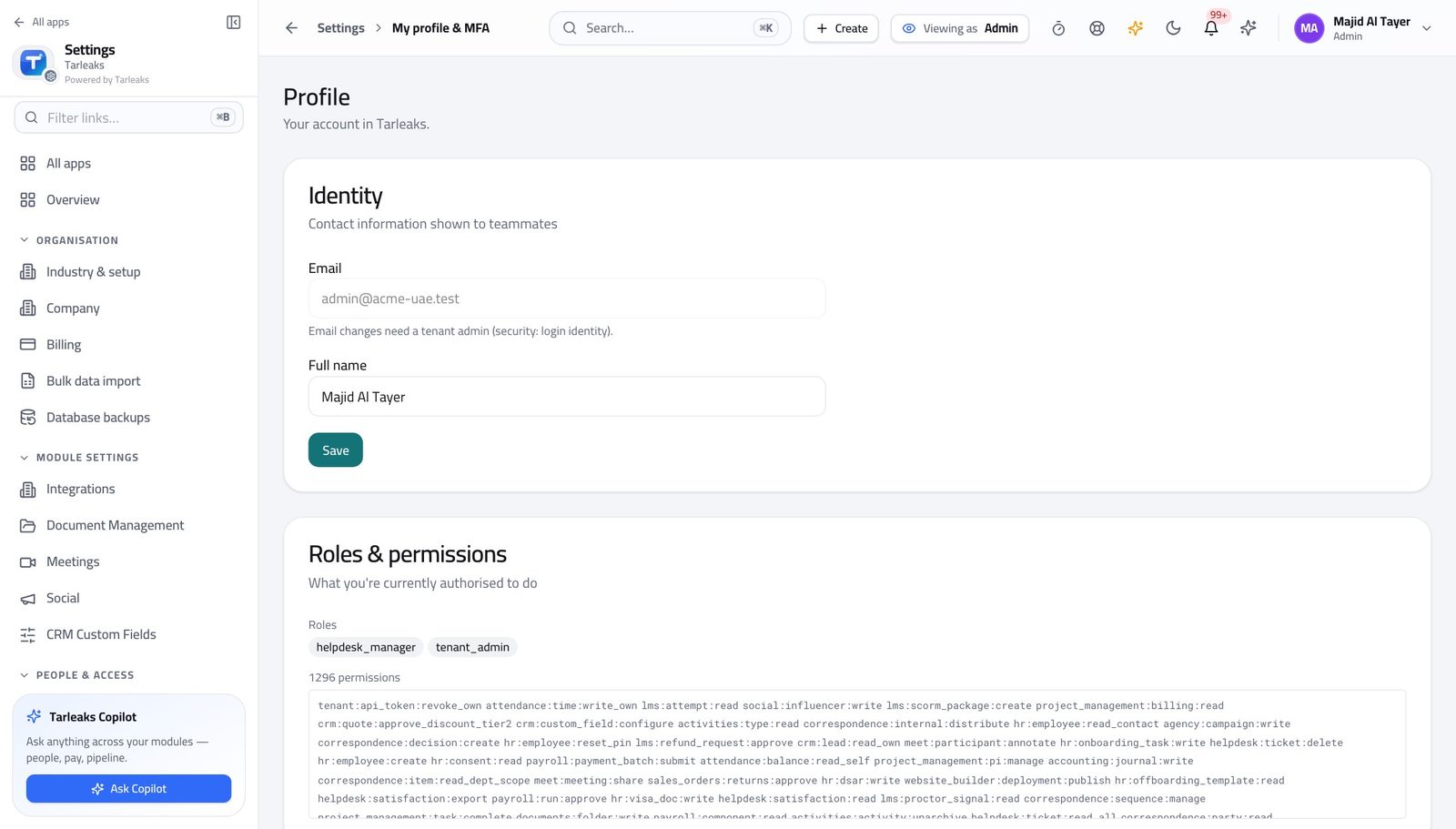
You should see It lists the tenant-administrator role. Templates, automations, work-item types, ways of working and the audit trail are yours.
See every project in the business #
Where Projects » All projects
- Open Projects.
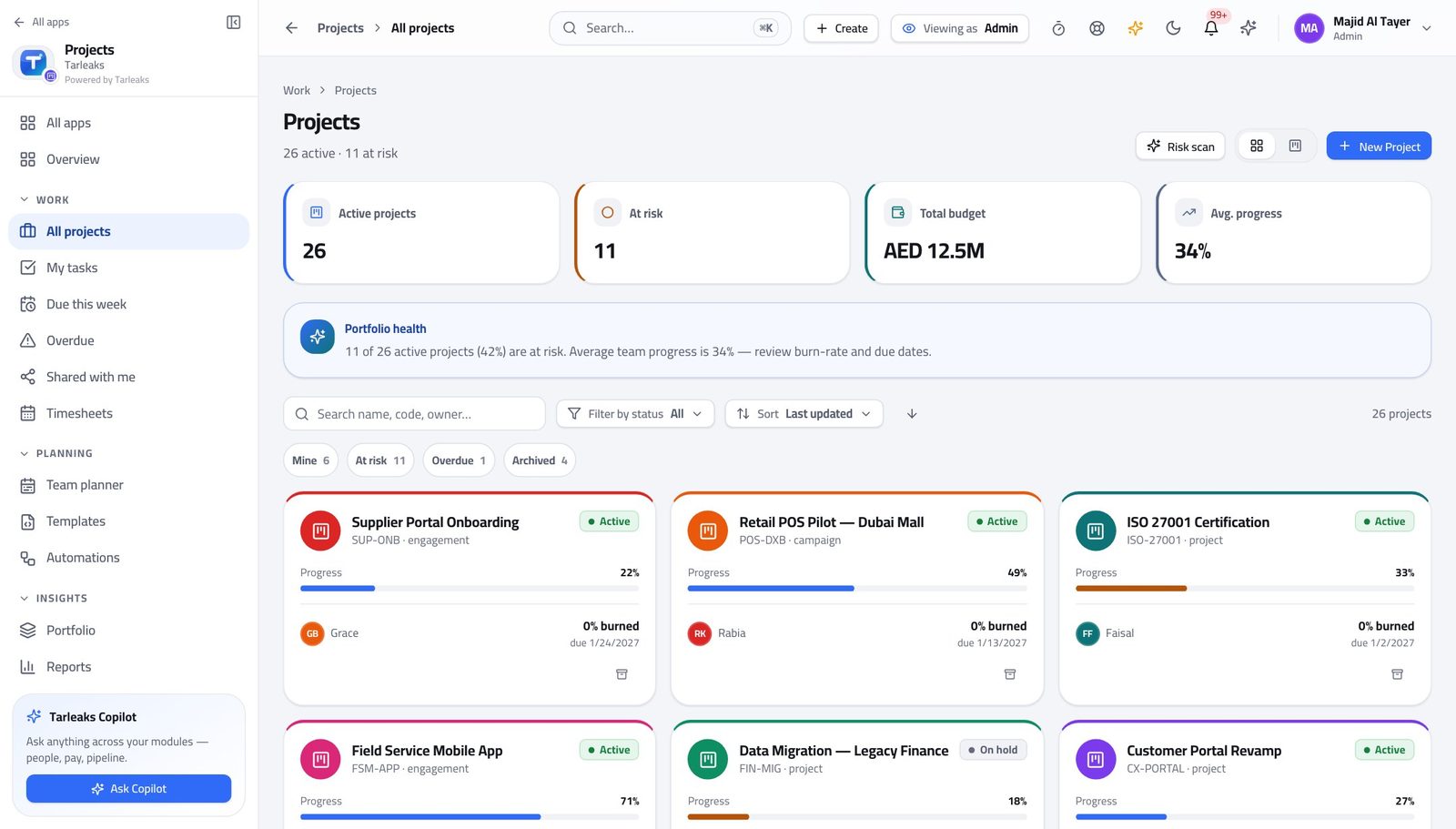
You should see You can answer a governance question without asking a project manager to export anything.
Watch out Seeing everything is not the same as running anything. Resist re-planning somebody else's project from here.
Worth knowing Seeing every project is not the same as running one. Creating and planning day to day is the project manager's job; you make sure the rails exist.
Start projects from a blueprint #
Where Projects » Templates
- Open Templates.
- Open one and read what it creates.
- Create template for a new blueprint, or Edit an existing one.
- Add stage, then name it, to change the board a new project starts with.
| Field | What to put in it |
|---|---|
| Name | What a project manager will pick from a list. |
| Code | The short key the template is referred to by. Keep it stable. |
| Industry | Which businesses this blueprint is meant for. |
| Stages | The board columns every project from this template starts with. |
| Sample tasks | The first work items, so a new project is never a blank page. |
| Labels | The grouping vocabulary the project inherits. |
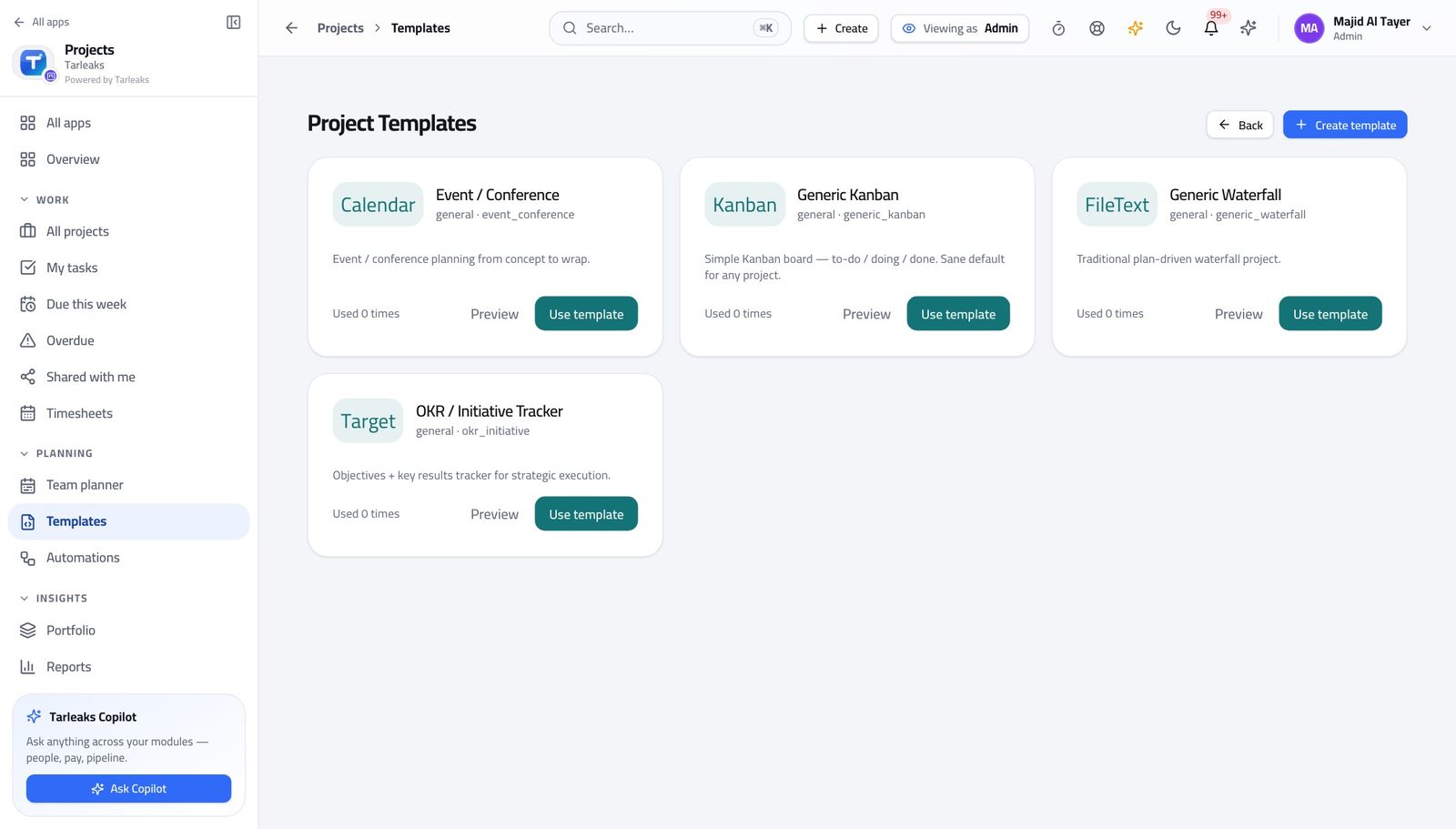
You should see A template means every project of that kind starts the same way — which is what makes reporting across them mean anything at all.
Watch out Editing a template does not change projects already created from it. That is deliberate; do not expect a fix to propagate.
Worth knowing Changing a template does not reach into projects already created from it. That is deliberate: a plan somebody is working to should not move under them.
Automate the chasing #
Where Projects » Automations
- Open Automations & Agents.
- Read each rule's trigger and action.
- Use Enable or Disable rather than Delete while you are testing.
- Open History to see what a rule has actually done.
| Field | What to put in it |
|---|---|
| Name | What the rule is for, in words somebody else will understand. |
| Trigger | What has to happen for the rule to run. |
| Action | What it then does — move, assign, notify, or write. |
| Days before due date | For the reminder-shaped rules; how much warning to give. |
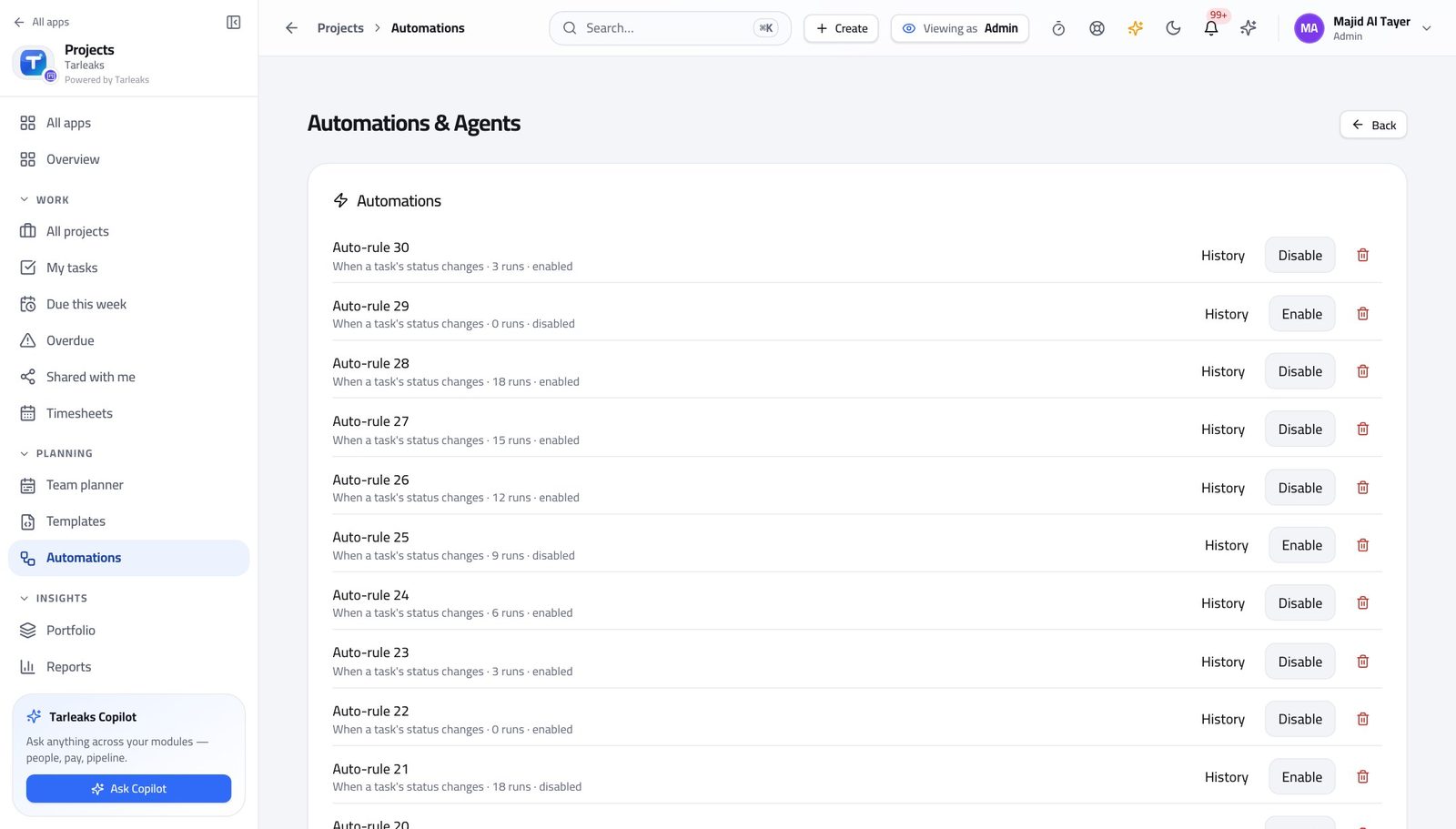
You should see A blocked task that flags itself is a rule, not a person remembering.
Watch out An automation that notifies everybody is one nobody reads. Aim it at the person who can act, then check History a week later to see whether it fired at all.
Worth knowing An automation that notifies everybody is one nobody reads. Aim it at the person who can act, and check History a week later to see whether it fired at all.
Let an agent do the writing #
Where Projects » Automations » AI Agents
- Scroll to AI Agents on the same page.
- Read each agent's prompt and where it runs.
- Use Invoke to try one.
- Read what it produced before you rely on it.
| Field | What to put in it |
|---|---|
| Name | What the agent is for. |
| Prompt for the model | The instruction it follows. Write it the way you would brief a new starter. |
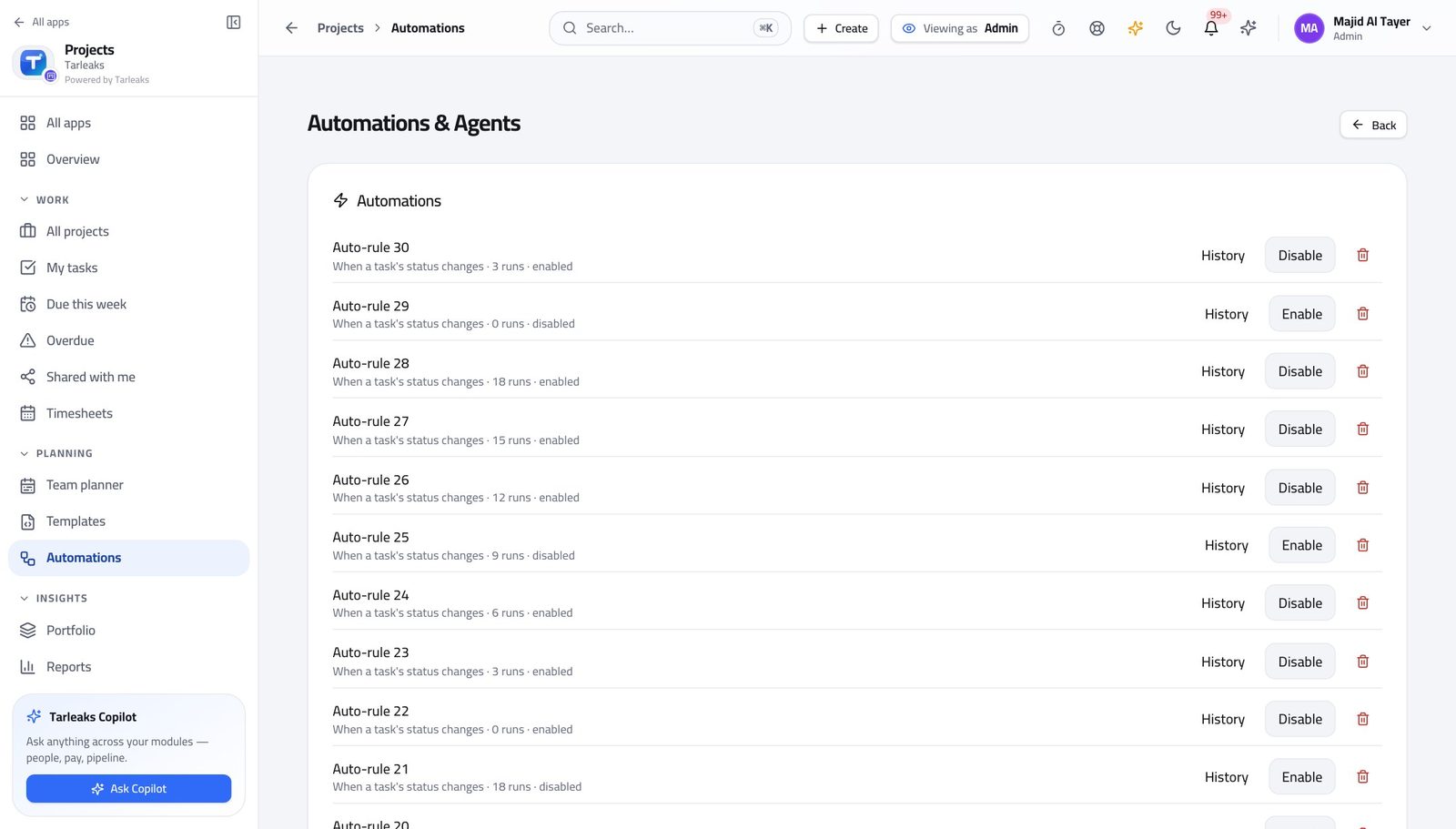
You should see An agent is an automation whose action is a piece of writing — same list, same switch, same history you can audit afterwards.
Watch out If agents are turned off for this workspace, the page says so plainly rather than pretending the section does not exist.
Name the work in your business's own words #
Where Projects » a project » Settings » Work item types
- Open a project's Settings tab.
- Find the work-item types.
- Rename one, add one, or archive one you never use.
| Field | What to put in it |
|---|---|
| Label | What people will call this kind of work item. |
| Level | Where it sits in the ladder. This is what makes a roll-up over an epic mean something. |
| Colour | How it reads at a glance on a board. |
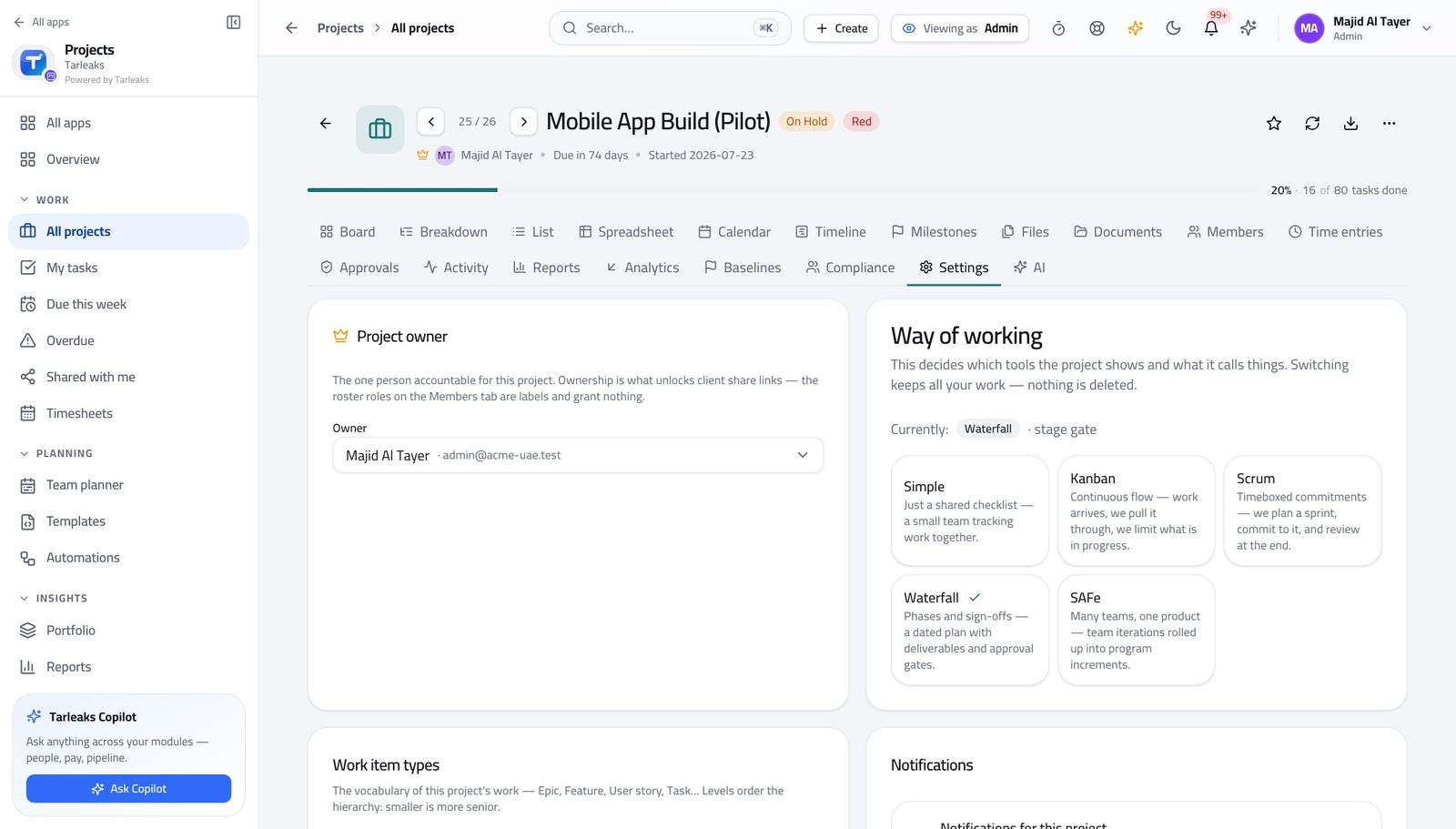
You should see Epic, Feature, User story and Task are rows in a table. A construction business calls them something else, and should.
Apply a whole vocabulary in one go #
Where Projects » a project » Settings » Work item types
- On the same card, read the schemes.
- Apply the one that matches the business.
You should see You choose the ladder once per project instead of inventing type names project by project and then failing to report across them.
Watch out Applying a scheme changes the vocabulary for that project. Agree it with the project manager before you do it mid-flight.
Choose how a project is run #
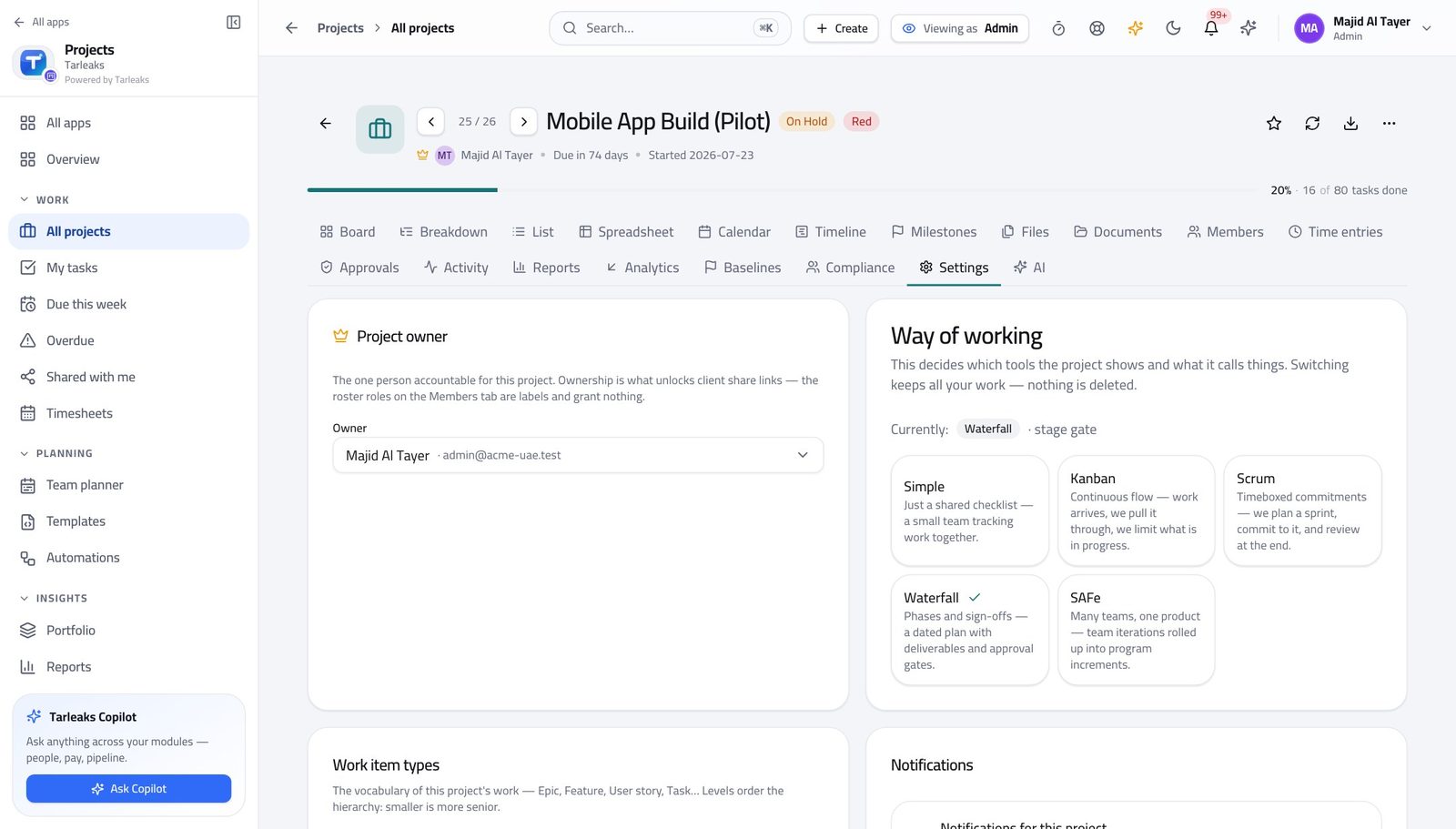
Where Projects » a project » Settings » Way of working
- On the Settings tab, read the way of working.
- Read what each method turns on before you switch.
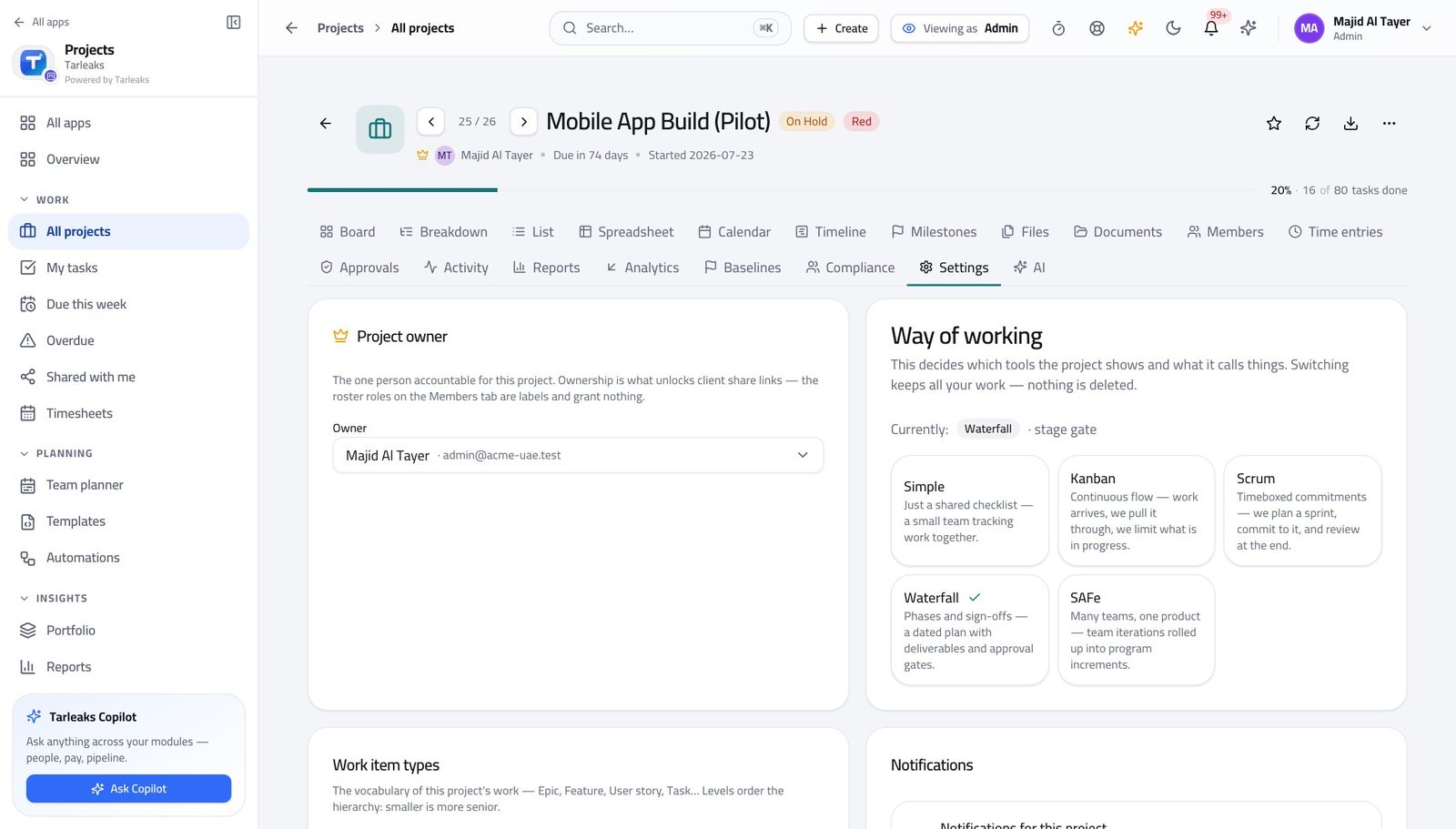
You should see The method decides which tabs a project has. A Simple project having no Sprints tab is the method working, not a feature missing.
Watch out Switching method changes which tabs exist. Nothing is deleted, but somebody will open the project tomorrow and find a tab gone — tell them first.
Worth knowing Switch a project's method and the tabs change immediately. Nothing already created is deleted — it just stops being shown where the new method has no place for it.
Carry what the product does not ship #
Where Projects » a project » Settings » Custom fields
- On the Settings tab, read the custom fields.
- Add one for the thing your business tracks that nobody else does.
| Field | What to put in it |
|---|---|
| Label | What the field is called on the work item. |
| Key | The stable name reports refer to. Do not change it later. |
| Type | Text, number, date or a list of choices. |
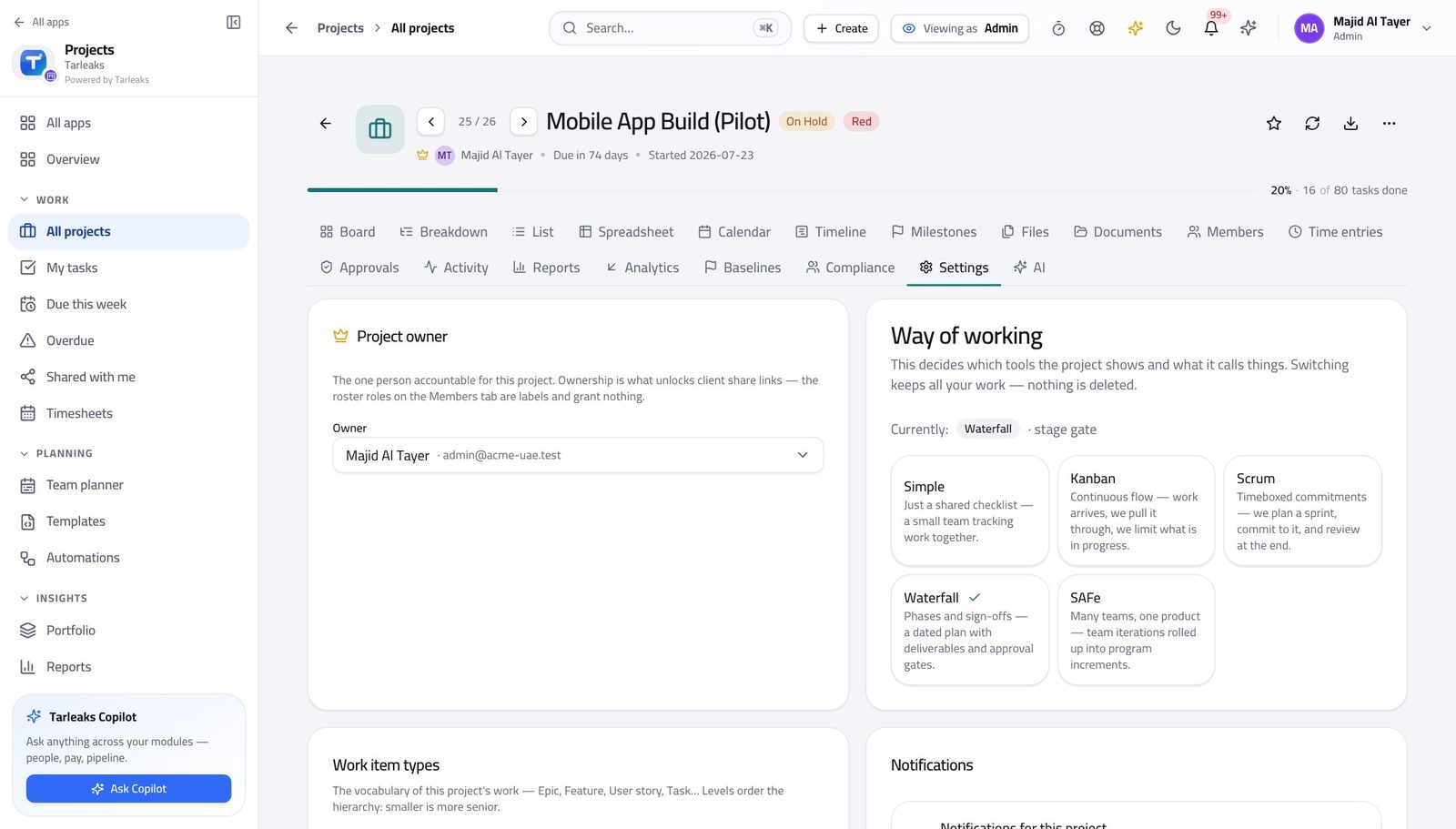
You should see A field is better than a convention in a task title, because a field can be filtered, reported and required.
Watch out A field nobody fills in is worse than no field, because reports then look empty rather than absent.
Decide how projects are ranked against each other #
Where Projects » Portfolio » Ranking model
- Open Portfolio.
- Choose a programme.
- Open the ranking model and read the formula.
- Test with sample numbers, then Save model.
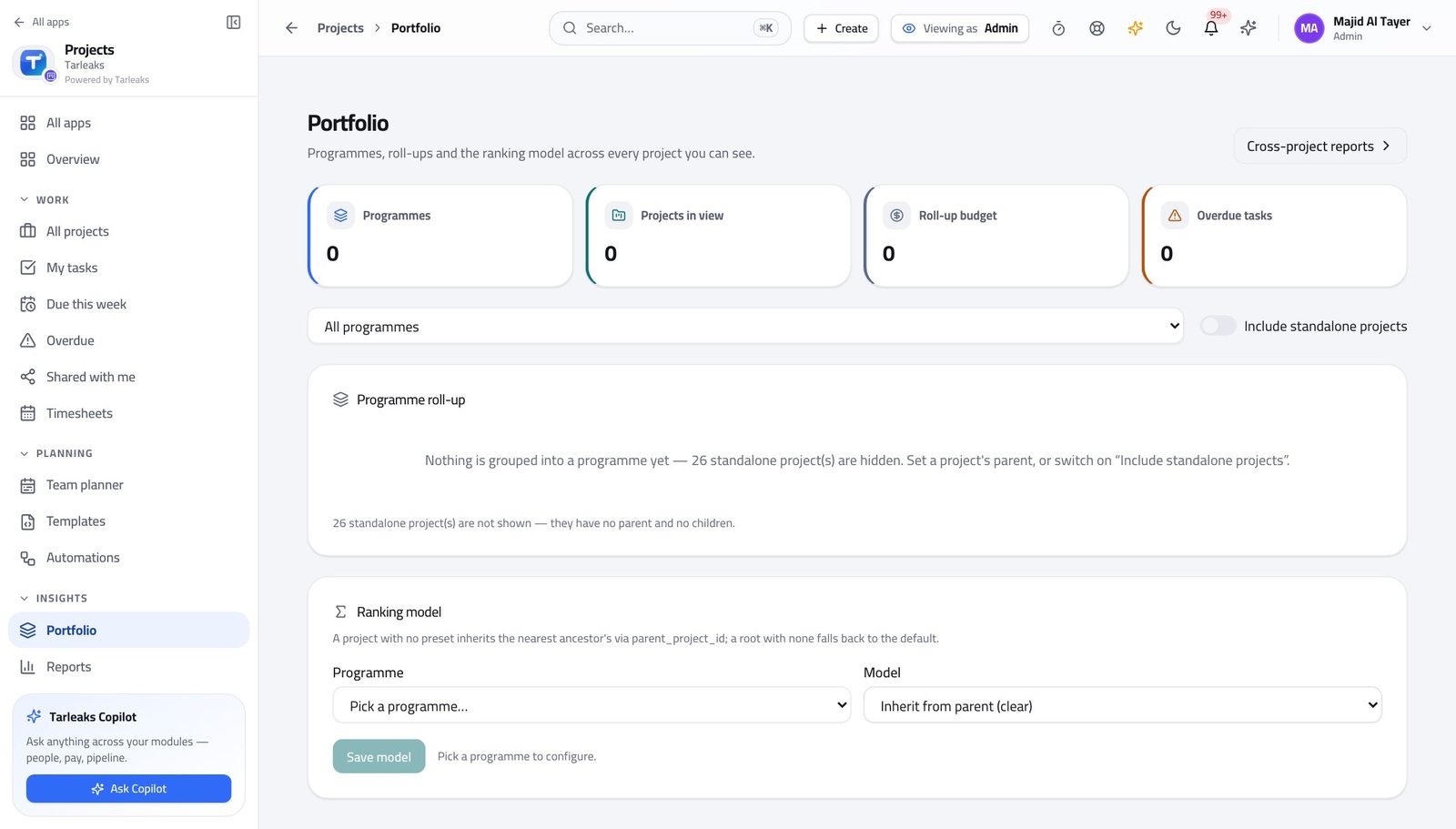
You should see How projects are ranked becomes a decision you recorded, not an opinion somebody defends in a meeting.
Watch out Test before you save. A ranking model that reorders the portfolio without anybody understanding why is worse than no model.
Answer 'who changed that, and when' #
Where Settings » Audit log
- Open Settings, then the Audit log.
- Filter to the period you care about.
- Read the person, the action, what it touched and the time.
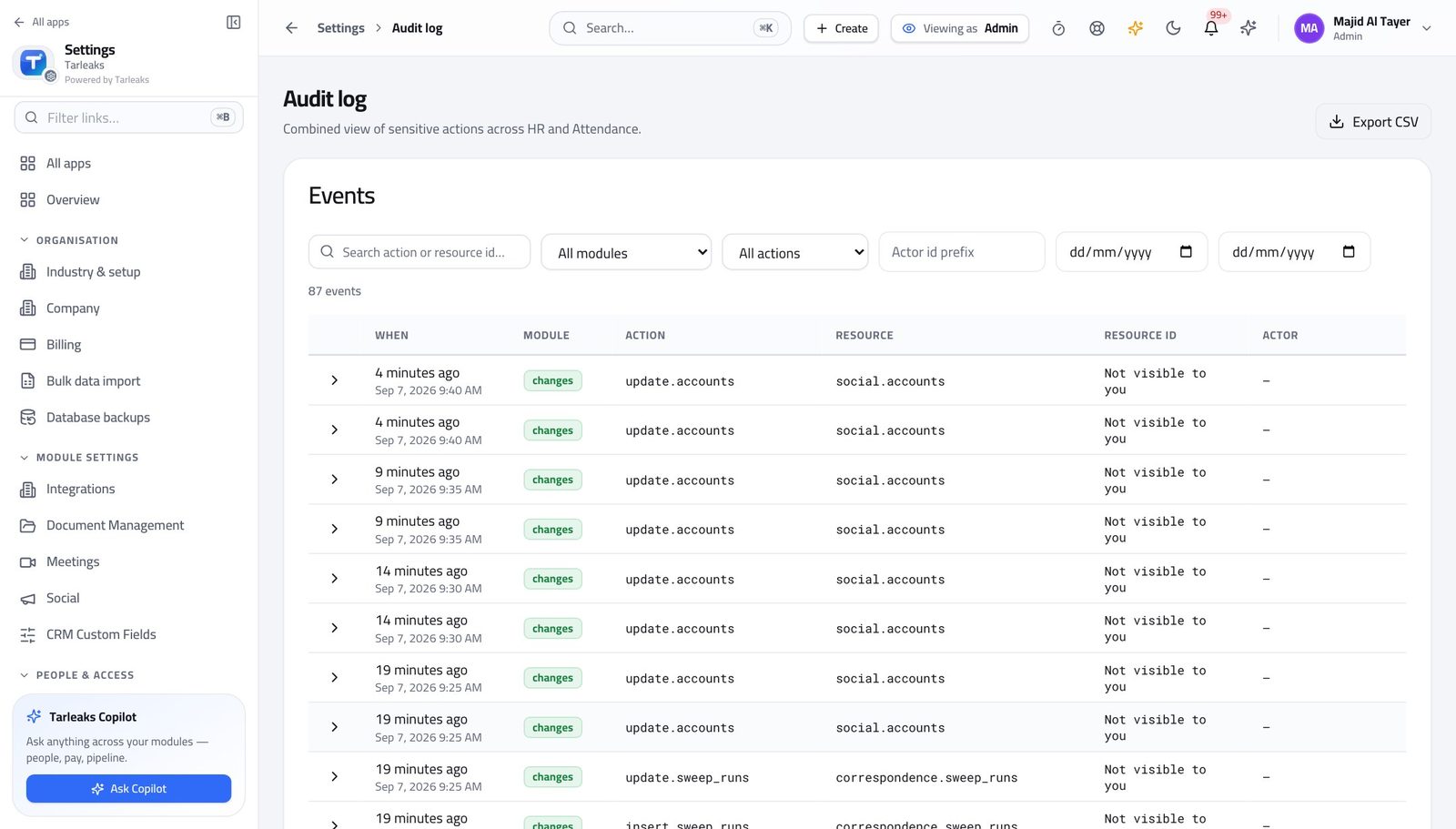
You should see Every action the module writes is on the trail. This is the screen an auditor asks for, and the one that ends an argument.
A client link belongs to the project's owner, not to you #
Where Projects » a project » Settings » Client share links
- Open a project you do not own.
- Go to its Settings tab and find Client share links.
- Read the refusal.
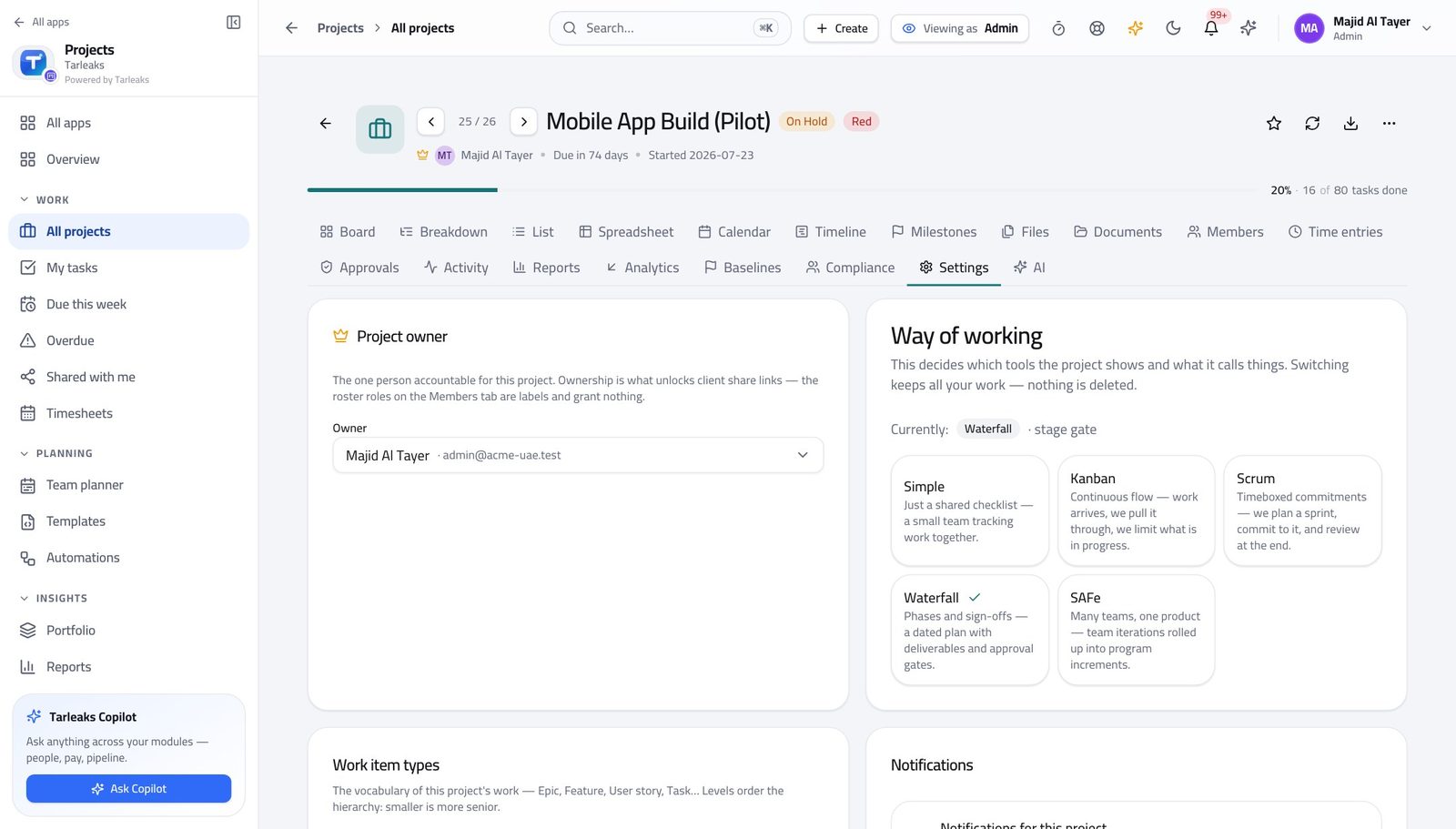
You should see A link that shows a customer their own project is a commitment, so the person accountable for that project issues it. Configuring the module does not make you its owner — which is exactly the guarantee a project manager needs from an administrator.
Watch out If a customer genuinely needs a link, change the project's owner or ask the owner to create it. Working around the refusal defeats the reason it exists.
Worth knowing If a link genuinely needs to exist, change the project's owner or ask them to create it. Do not work around it — the refusal is the feature.
Use cases — the work, step by step
Each one is a sequence somebody actually performs, with the screen behind every step. Every screen here was opened in the product as this role before it was published.
yearlyMake every project start the same way #
Reporting across projects only means something when the projects were built the same way.
Open Templates and read what one creates: stages, sample tasks and labels. Fix the blueprint rather than fixing every project made from it.
Projects » Templates — verified: the page says “Templates”; the page says “Create template” Set the work-item types to your business's own words — the level each type sits at is what makes a roll-up over an epic mean anything.
Projects » a project » Settings » Work item types — verified: the page says “Work item types” Apply a whole scheme where a project needs a different vocabulary: construction, consulting, marketing, agile software, or the general one.
Projects » a project » Settings » Work item types — verified: the page says “Work item types” Check the result across the whole business rather than in one project.
Projects » All projects — verified: the page says “Projects”; no “No projects yet” anywhere on the page
quarterlyA team's way of working has changed #
The method decides which tabs a project has. Switching it is one setting, but somebody opens that project tomorrow and finds a tab gone — so tell them first.
Open the project's Settings tab and read the way of working and what each method turns on.
Projects » a project » Settings » Way of working — verified: the page says “Settings” Check the work-item types still make sense under the new method — Scrum wants stories and points, Waterfall wants deliverables and dates.
Projects » a project » Settings » Work item types — verified: the page says “Work item types” Add any custom field the new way of working needs, rather than letting a convention grow inside task titles.
Projects » a project » Settings » Custom fields — verified: the page says “Custom fields” Then look at the rules: an automation written for the old method usually fires on a stage that no longer exists. History tells you whether it has run at all.
Projects » Automations — verified: the page says “Automations”; the page says “Trigger”
urgentSomebody asks who changed the plan #
The answer is one screen, and it is the same screen whichever module the change came from.
Open the audit log and filter to the period. Each row names the person, the action, what it touched and the time.
Settings » Audit log — verified: the page says “Audit”; 87 row(s) listed If a rule made the change rather than a person, open Automations and read that rule's history.
Projects » Automations — verified: the page says “Automations”; the page says “Trigger” If an agent wrote it, read the agent's prompt and its runs. An agent you cannot audit is one that should not have been switched on.
Projects » Automations » AI Agents — verified: the page says “Agents” Note what you cannot do: issue a client link on a project you do not own. If a customer needs one, the project's owner creates it.
Projects » a project » Settings » Client share links — verified: the page says “Client share links”
You set the rails; project managers run the trains. The one thing configuring the module does NOT give you is ownership of somebody else's project — a client link is issued by the project's owner, and the module says so.