Sales Manager — Social guide
Know where every lead came from before you call it.
Answers for what the sales team does with a lead. Reads the leads Social captured — without changing how they are captured — and opens each one in CRM to see exactly where it came from.
What you will be able to do
- Read the leads Social captured and who owns each one
- Open a captured lead in CRM
- See the form, rule, campaign and ad that brought it in
What this role can and cannot do
| Can | Cannot |
|---|---|
|
|
2 steps, each one carried out in the product on .
Read the leads Social captured #
Where Social » Leads
- Open your company's address in the browser — it looks like yourcompany.tarleaks.com.
- Type the e-mail address your administrator set up for you, then your password.
- You land on the app launcher: a grid of the apps your company uses.
- Click the Social Media tile.
- In the left menu, under Engage, click Leads.
- Read Where it is, CRM lead and Owner on each row.
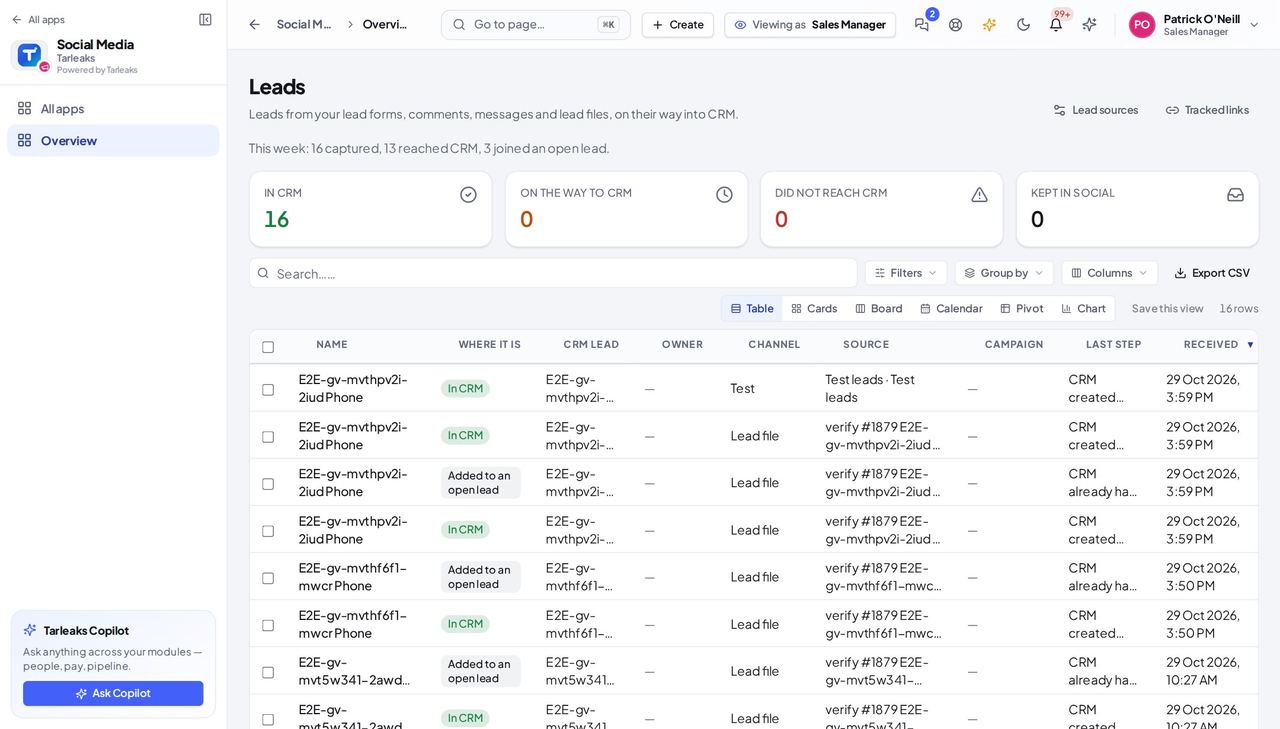
You should see The same list the social team works from. There is no Send a test lead and no Import a lead file for you: how leads are captured is the social team's to change.
Watch out If a source keeps sending the wrong people, tell the social team which source and why. Changing a source is theirs to do.
Open the lead in CRM and see where it came from #
Where Social » Leads » a lead » Open in CRM
- On Leads, click the In CRM tile.
- Open a lead.
- Press Open in CRM.
- On the CRM lead, read Where this lead came from.
- Press Show how it arrived, step by step if you want the whole journey.
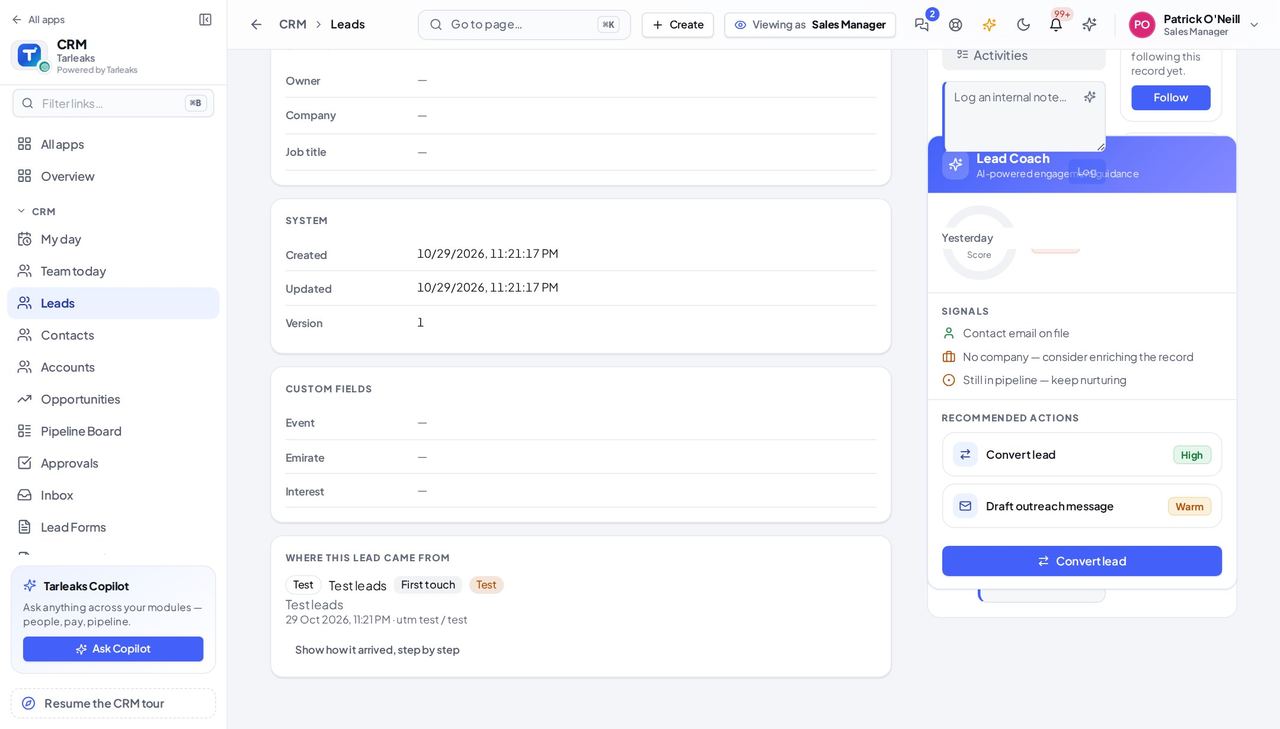
You should see Every capture that reached this lead is listed, so a person who got in touch twice shows both times — and nobody has to ask marketing where a lead came from.
Watch out A lead somebody typed into CRM by hand has no such panel — only captured leads do.
Worth knowing The same panel is on the lead when you open it straight from CRM » Leads.
You read the captured leads; you do not change how they are captured. A source that sends the wrong people, or a form that asks the wrong questions, is a conversation with the social team, not a setting on your side.