Social role guides — what each role can do, step by step
Step-by-step guides for the leads your social channels bring in — the social media manager who sends a test lead and follows it into CRM, the sales manager who sees where each lead came from, and what stays closed to everybody else. 20 steps across 3 roles, every one of them carried out in the product before it was published here.
Last updated
Nothing matches that. Try a shorter word, or pick All roles to search every guide.
Every lead your channels bring in reaches the sales team — and you can prove it.
Runs the company's social channels and the leads they bring in: where leads come from, how each one reaches the sales team in CRM, the short links that count who clicked, and which Pages and numbers the company has connected.
What you will be able to do
See where leads come from, and how many each source brought this week
Send a test lead and watch it arrive in CRM
Import a file of leads downloaded from an ad platform
Read where every lead is, and send a stuck one again
Make short links that count the people who click
What this role can and cannot do
Can
Cannot
See where leads come from, every captured lead and its journey
Add and change lead sources, send test leads, import lead files and send a lead to CRM again
See tracked links and their clicks
Make and change tracked links
Connect and disconnect the company's Facebook Pages, Instagram accounts and WhatsApp numbers
Open the leads in CRM
16 steps, each one carried out in the product on .
Open your company's address in the browser — it looks like yourcompany.tarleaks.com.
Type the e-mail address your administrator set up for you, then your password.
You land on the app launcher: a grid of the apps your company uses.
Click the Social Media tile.
In the left menu, under Engage, click Leads.
Press Lead sources at the top of the page.
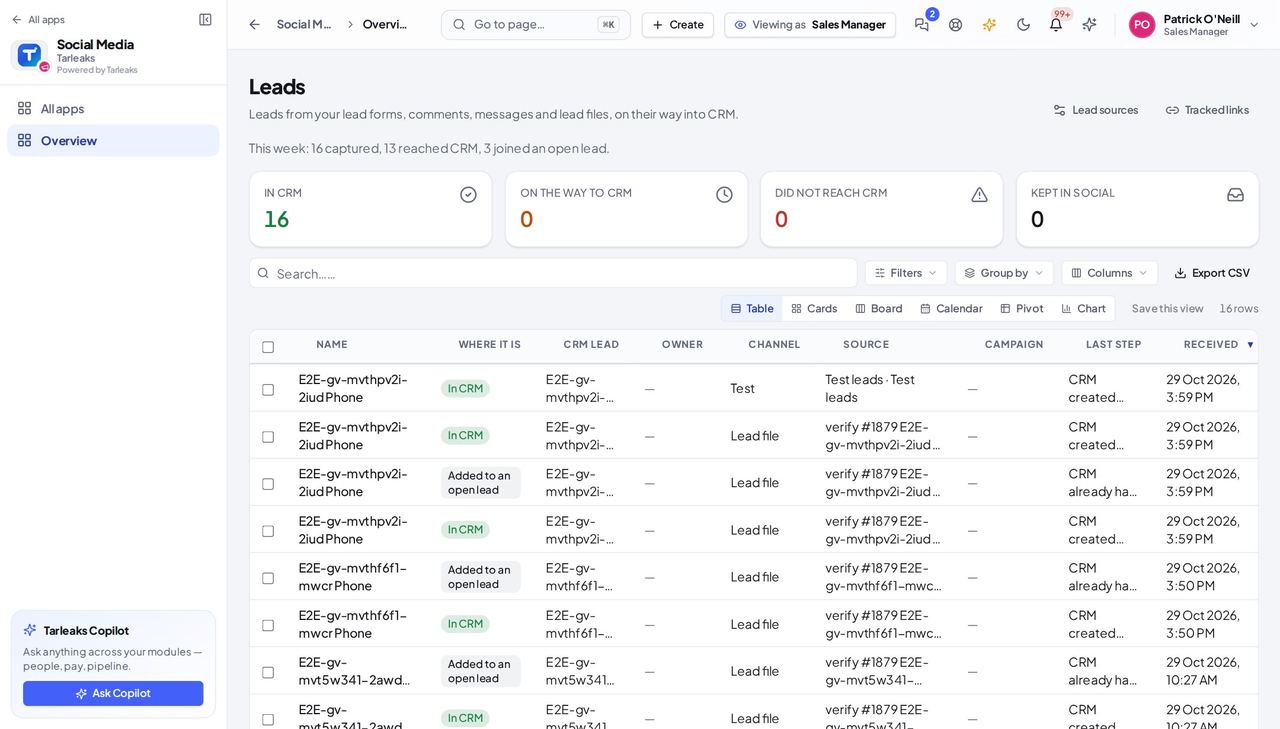
Read each row from left to right.
Kind says what the source is — Lead form, Comment rule or Message rule. Captures names the form, or the words a comment or message must contain. State reads On or Paused, and Last problem is empty when all is well.
You should see Every source the company listens to — a Facebook or Instagram lead form, a rule for comments, a rule for messages — with the number of leads it brought in this week.
Watch out Test on a source's row sends a test lead through that source straight away — there is no form to confirm first. A source that has already captured leads cannot be deleted: use Pause, so its leads keep their history.
Worth knowing When Leads go to reads CRM routing, the lead waits in CRM for the routing rules, or for somebody to assign it.
Fill in Full name and E-mail, or leave both empty.
Press Send.
The new lead opens on its own; read where it got to.
What each field wants
Field
What to put in it
Full name
A name nobody will mistake for a customer — Spring open day — test. Empty gives Test lead and a short code.
E-mail
An address at example.com. Empty uses one for you.
The sentence at the top of the box says what will happen: the lead goes the whole way into CRM, marked as a test.
You should see The test lead opens straight away, marked Test, so you can follow it all the way into CRM.
Watch out Do not type a real customer's details to make the test look real. It still never joins their lead in CRM — but it does land in CRM as a lead of its own, marked Test, and somebody will see it.
Worth knowing A test lead never joins a lead that already exists in CRM. That is on purpose: a tester may type a real person's details, and that person's real lead must not collect a test.
On Leads, type the name you gave the test lead in the search box (Test lead, if you left the name empty).
Click the name of the newest one.
Read the badges: where it is, the channel and Test.
Read In CRM as … · owner ….
Scroll to Journey and read the steps in order.
The panel opens beside the list. The Journey lists each step Social took, with how long it took, ending when CRM answered; the note under it says CRM's own steps are shown to people who can open the lead in CRM.
You should see In CRM as, followed by the owner's name, means the sales team has the lead. If a step failed, the journey says which one and what to do about it. The steps CRM took itself are shown to people who can open the lead in CRM.
Watch out Opening the lead in CRM is the sales team's: Open in CRM appears only for someone who can open CRM leads. Without it, the lead is still there — ask sales.
In the ad platform, download the leads as a CSV file — in Meta, from Leads Center.
On Leads, press Import a lead file.
Choose the file.
Read the line that says how many leads were found in it.
Type a Name of this import, then press Import.
Read the answer: new, already taken, skipped.
What each field wants
Field
What to put in it
The file
A CSV file, or any sheet saved with a header row. Name, e-mail, phone and company columns are recognised by their header; every other column is kept as an answer on the lead.
Name of this import
What the leads will say they came from — Spring open day — walk-ins. Empty reads Imported leads.
The count appears under the file as soon as it is chosen, before anything is sent.
You should see The answer reads as new, already taken and skipped, and names the row of each lead it skipped with the reason.
Watch out A file bigger than 500 rows is cut at 500 — the box says so. Split it rather than importing the same file twice and hoping for the rest.
Worth knowing Only the first 500 rows of a file are taken — split a bigger file. A lead the platform already gave (the same lead id) is never taken twice, so importing while the form is still connected is safe.
Click a tile — In CRM, On the way to CRM, Did not reach CRM or Kept in Social — to see only those.
Where it is is the status. CRM lead and Owner say who has it now; Last step says what happened most recently.
You should see In CRM: CRM created a lead. Added to an open lead: CRM already had this person, so it added the new answers to their lead instead of making a second one. Did not reach CRM: the lead says why, and you can send it again.
Watch out The In CRM tile counts both In CRM and Added to an open lead — both reached the sales team. Kept in Social means sending leads to CRM is switched off, or your company does not use CRM.
Worth knowing Phone numbers are matched in international form. For a company in the Emirates, +971 50 123 4567 and 050 123 4567 are the same person; +966 50 123 4567 is somebody else.
Click a row to open its clicks per day and where people came from.
Short link is the address you share. Opens is the page it sends people to.
You should see Clicks leaves out the robots that build link previews in chat apps, and one visitor clicking again within 10 seconds counts once.
Watch out People counts a visitor once a day, so the same person coming back tomorrow is counted again. Compare links with Clicks and People side by side, not one alone.
Filled for you; change them only if your website team asks.
Campaign
The campaign this link is part of. You can make a new one from the list.
The UTM tags are the labels your website's analytics read. Picking where you will use the link fills them consistently, so links are comparable.
You should see The short link is your company's address followed by /go/ and a code. The code never changes, so a link already printed or posted keeps working.
Watch out Make one link per place you use it. A single link in the bio, the story and the ad cannot tell you which of the three brought the visitors.
Connect the Facebook Page, Instagram account or WhatsApp number.
If you come back with the message Nothing was connected, read the name it gives.
Ask that company's administrator to disconnect it, then connect it again here.
The message appears at the top of the page and names every account another company already holds.
You should see A Page, an Instagram account or a WhatsApp number belongs to one company, so its comments, messages and leads always go to exactly one place.
Watch out If only some of the accounts you chose are another company's, the rest are connected and the message names the ones that were not added.
Where Social » Performance analytics » When to post
Open Performance analytics and scroll to When to post.
Read the grid: each cell is an hour of a weekday, darker where your posts did better.
Best windows lists the strongest hours first.
The hours are in your company's time zone (Asia/Dubai here) and the week starts on Monday, so 18:00 means 18:00 in the office, not in a server's clock.
You should see The hours are in your company's time zone (Asia/Dubai here) and the week starts on Monday, so 18:00 means 18:00 in the office, not in a server's clock.
Worth knowing Clicking a window opens the composer at that time — a quick way to schedule into it.
Write a reason if you want, then Reject post — or close the dialog to leave it waiting.
What each field wants
Field
What to put in it
What should the author know? (optional)
If you write it, it travels with the rejection
Cancelling a rejection rejects nothing; a reason you write travels with the rejection for the author to read.
You should see Cancelling a rejection rejects nothing; a reason you write travels with the rejection for the author to read.
Watch out Your own posts also show Take back to edit, which withdraws the post from review. Whether you may decide your own post depends on the company's self-approval setting.
Worth knowing Request changes works the same way: it opens a dialog for what the author should change.
Every conversation past the response time is listed together with a Breached badge; open one and its header says how long it has waited.
You should see Every conversation past the response time is listed together with a Breached badge; open one and its header says how long it has waited.
Read the Brand safety panel below it. The media checklist is a reminder for you: its ticks are not saved.
Blocked words are marked and a paid campaign's disclosure tag is asked for before the post can be scheduled, sent for review or published; a clean caption says it passes the company's rules.
You should see Blocked words are marked and a paid campaign's disclosure tag is asked for before the post can be scheduled, sent for review or published; a clean caption says it passes the company's rules.
Worth knowing The rules — blocked words, the disclosure tag and the checklist — are set by an administrator in Social settings.
Open Influencers (search the menu for it if it is not in your sidebar).
Read the Advertiser permit column.
Click Add permit (Edit permit once one is recorded) to record the UAE Media Council permit: number, kind, dates and the file.
What each field wants
Field
What to put in it
Permit number
As printed on the UAE Media Council permit
Kind
Resident, or Visitor (at most six months)
Issued on / Expires on
The permit's dates; the chip turns to Permit ends soon before it lapses
Permit file
A copy of the permit itself
While the company's permit check is on (the default for UAE companies), an influencer without a valid permit cannot be set live on a campaign; the permit's expiry is reminded before it lapses.
You should see While the company's permit check is on (the default for UAE companies), an influencer without a valid permit cannot be set live on a campaign; the permit's expiry is reminded before it lapses.
Name the policy, then add its approval steps and who decides each one.
A post that matches a policy waits for its steps, one after another or all at once as you choose; a post that matches no policy follows the company's usual approval setting.
You should see A post that matches a policy waits for its steps, one after another or all at once as you choose; a post that matches no policy follows the company's usual approval setting.
Use cases — the work, step by step
Each one is a sequence somebody actually performs, with the screen behind every step. Every screen here was opened in the product as this role before it was published.
edgeBefore a campaign goes live: prove the path into CRM #
A form nobody tested is found broken by the first real customer. Ten minutes with a test lead finds it first, while the ad is not yet spending.
Open Lead sources and check the campaign's source is there, On, with the campaign and the person the leads go to filled in.
Social » Leads » Lead sources — verified: the page says “Lead sources”; the page says “Leads this week”; 5 row(s) listed
Send a test lead with a name that is plainly a test. Leave the e-mail empty and an example.com address is used.
Social » Leads » Send a test lead — verified: the control is offered; the page says “marked as a test”
Follow it: it should read In CRM as … with an owner, and every step of the Journey should be done. A test lead never joins an existing lead, so it always arrives as a lead of its own.
Social » Leads » the test lead — verified: the control is offered; the page says “Journey”; the page says “In CRM as”; the page says “steps are shown to people who can open this lead”; no “Open in CRM” anywhere on the page
Back on Leads, the test lead is marked Test and counted in this week's line. Tell the sales team a test lead is coming, so nobody calls it.
Social » Leads — verified: the page says “Where it is”; the page says “Did not reach CRM”; 16 row(s) listed
Leads that sat in a download folder are leads nobody followed up. Importing them puts them on the same path as a live lead — owner, journey and all.
Download the leads as a CSV — in Meta, from Leads Center — and import the file. Check the count of leads found before you press Import.
Social » Leads » Import a lead file — verified: the control is offered; the page says “lead(s) found in”
Read the answer: new, already taken, skipped. Already taken means the platform had given that lead before, so it was not taken twice.
Social » Leads » Import a lead file — verified: the control is offered; the page says “lead(s) found in”
On Leads, read Where it is for the imported rows. Added to an open lead means CRM already had that person and added the answers to their lead — a phone typed as 050 … and as +971 50 … is the same person.
Social » Leads — verified: the page says “Where it is”; the page says “Did not reach CRM”; 16 row(s) listed
dailyPut a counted link in a post, a bio or an ad #
One link per place is the only way to know which place brought the people. The link is made in a minute; the answer lasts the whole campaign.
Make a tracked link: the name, the page it opens, and where you will use it, which fills the UTM tags.
Social » Leads » Tracked links » Make a tracked link — verified: the control is offered; the page says “Where you will use it”
Copy it from its row and paste it into the post, the bio or the ad.
Social » Leads » Tracked links — verified: the page says “Tracked links”; the page says “People”; 6 row(s) listed
A few days later, read Clicks and People. Preview robots are already left out, and a visitor clicking twice within 10 seconds counts once.
Social » Leads » Tracked links — verified: the page says “Tracked links”; the page says “People”; 6 row(s) listed
urgentConnecting a Page another company already has #
Comments, messages and leads can only go to one company. The message names the account, so the fix is one conversation rather than a support ticket.
Connect the Page, Instagram account or WhatsApp number. If the message says nothing was connected, read the name it gives.
Social » Connected accounts — verified: the page says “Connected accounts”; the page says “Nothing was connected”; the page says “another company”
Ask the administrator of the company that holds it to disconnect it, then connect it again here.
Social » Connected accounts — verified: the page says “Connected accounts”; the page says “Nothing was connected”; the page says “another company”
Once it is connected, check its lead form or rule in Lead sources points at it, and send a test lead.
Social » Leads » Lead sources — verified: the page says “Lead sources”; the page says “Leads this week”; 5 row(s) listed
You decide how leads are captured; the sales team decides what happens to them. That is why you see each lead's CRM name and owner here, but opening the lead in CRM is theirs.
Sales Manager
Know where every lead came from before you call it.
Answers for what the sales team does with a lead. Reads the leads Social captured — without changing how they are captured — and opens each one in CRM to see exactly where it came from.
What you will be able to do
Read the leads Social captured and who owns each one
Open a captured lead in CRM
See the form, rule, campaign and ad that brought it in
What this role can and cannot do
Can
Cannot
See where leads come from, every captured lead and its journey
See tracked links and their clicks
Open the leads in CRM
Add and change lead sources, send test leads, import lead files and send a lead to CRM again
Open your company's address in the browser — it looks like yourcompany.tarleaks.com.
Type the e-mail address your administrator set up for you, then your password.
You land on the app launcher: a grid of the apps your company uses.
Click the Social Media tile.
In the left menu, under Engage, click Leads.
Read Where it is, CRM lead and Owner on each row.
The tiles across the top split the leads the same way the social team sees them.
You should see The same list the social team works from. There is no Send a test lead and no Import a lead file for you: how leads are captured is the social team's to change.
Watch out If a source keeps sending the wrong people, tell the social team which source and why. Changing a source is theirs to do.
2Open the lead in CRM and see where it came from #
Where Social » Leads » a lead » Open in CRM
On Leads, click the In CRM tile.
Open a lead.
Press Open in CRM.
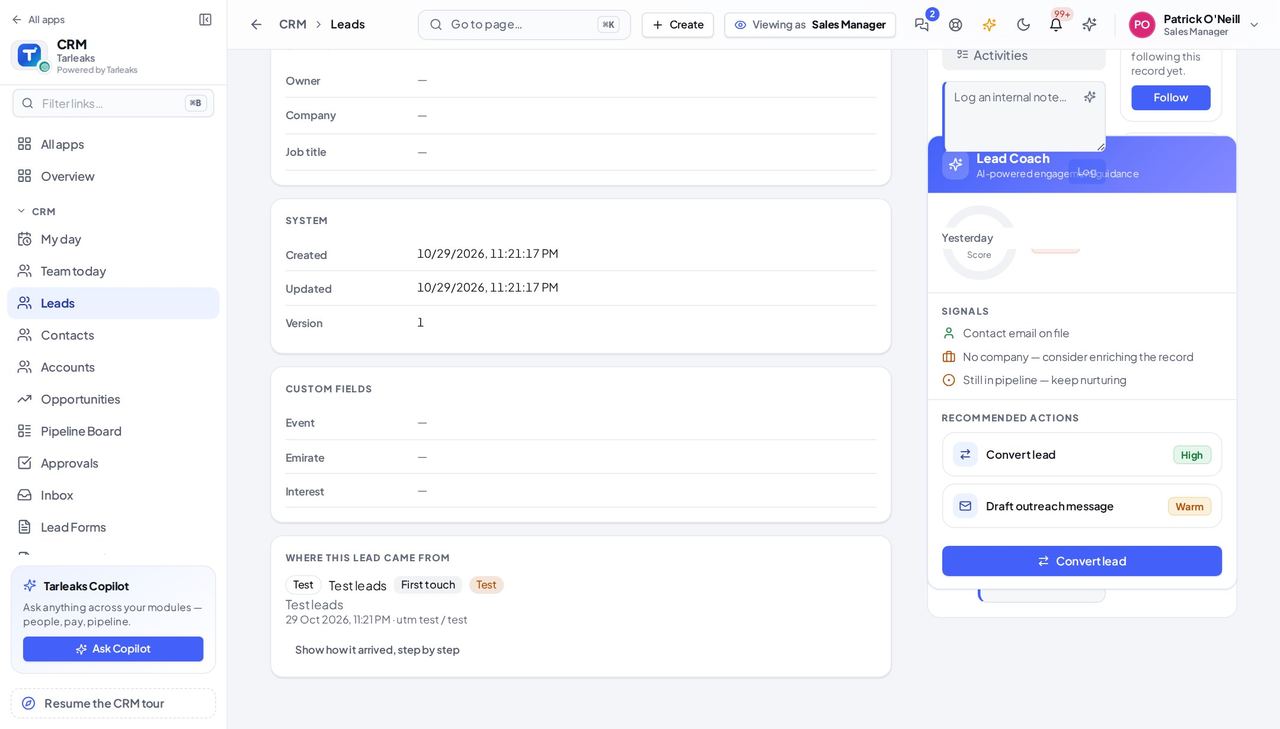
On the CRM lead, read Where this lead came from.
Press Show how it arrived, step by step if you want the whole journey.
Each line is one time the person reached you: the channel, the form or rule, the campaign and the ad, with First touch and Latest touch marked.
You should see Every capture that reached this lead is listed, so a person who got in touch twice shows both times — and nobody has to ask marketing where a lead came from.
Watch out A lead somebody typed into CRM by hand has no such panel — only captured leads do.
Worth knowing The same panel is on the lead when you open it straight from CRM » Leads.
You read the captured leads; you do not change how they are captured. A source that sends the wrong people, or a form that asks the wrong questions, is a conversation with the social team, not a setting on your side.
Employee
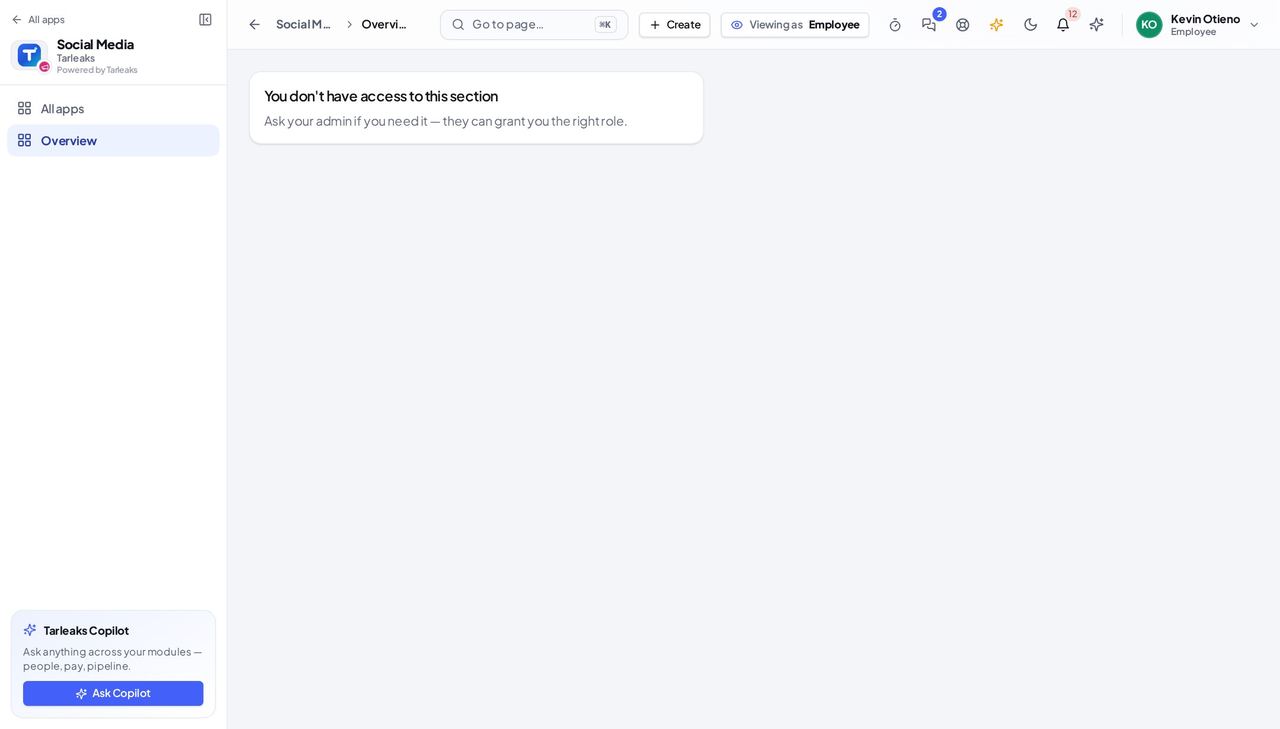
Lead capture is not part of your job, so it is not in your way.
Everybody else in the company. Capturing leads is not part of this job, so the leads, their sources and the tracked links are not in this person's menu, and the pages refuse when opened by their address.
What you will be able to do
Know why Leads and Tracked links are not in your menu
What this role can and cannot do
Can
Cannot
See where leads come from, every captured lead and its journey
Add and change lead sources, send test leads, import lead files and send a lead to CRM again
Look down the Social menu: there is no Leads page to open Tracked links from.
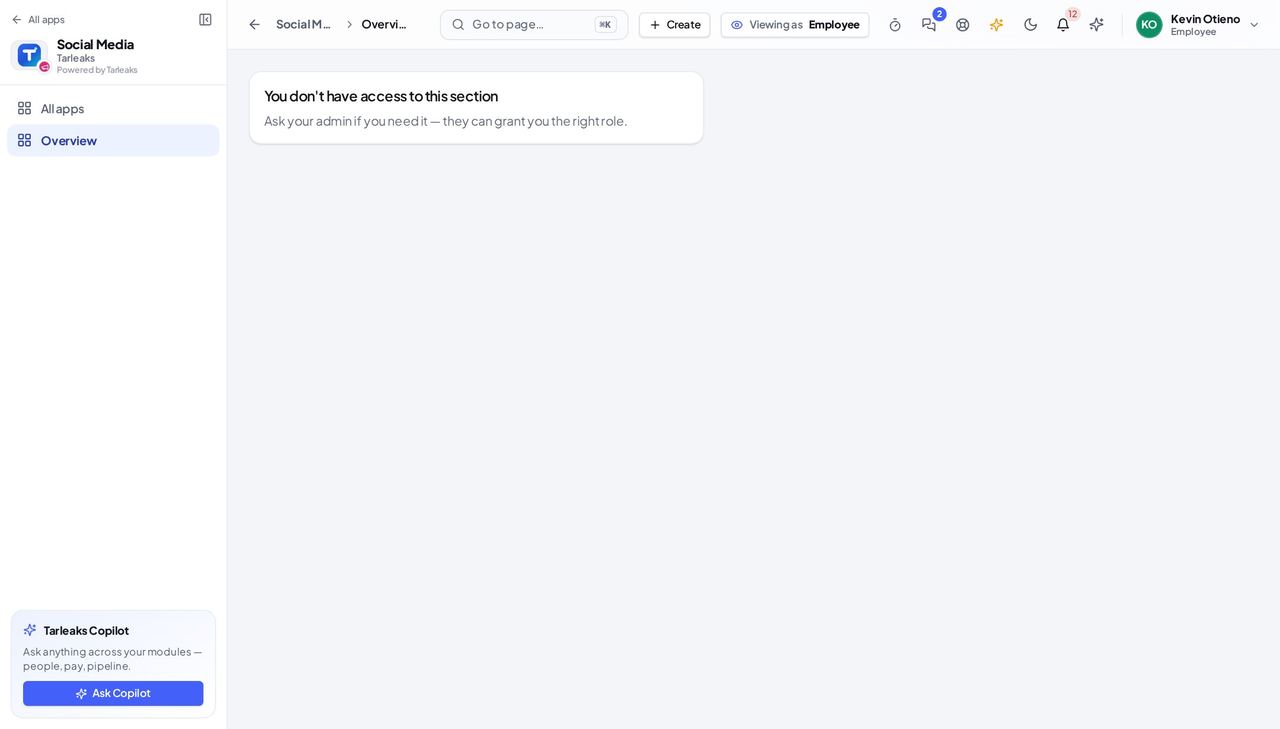
Opening it by its address answers that this sign-in does not have access to it.
Same answer as Leads.
You should see A link's clicks are marketing's measurement. If you were given a short link to share, share it — every click still counts.
Watch out Sharing a short link you were given is fine — every click is still counted.
Captured leads carry people's names, phone numbers and what they wrote. They are shown to the people who work them and to nobody else — which is what makes it safe for a customer to fill in a form.
Social Media Manager
Every lead your channels bring in reaches the sales team — and you can prove it.
Runs the company's social channels and the leads they bring in: where leads come from, how each one reaches the sales team in CRM, the short links that count who clicked, and which Pages and numbers the company has connected.
What you will be able to do
What this role can and cannot do
16 steps, each one carried out in the product on .
1See where your leads come from #
Where Social » Leads » Lead sources
You should see Every source the company listens to — a Facebook or Instagram lead form, a rule for comments, a rule for messages — with the number of leads it brought in this week.
Watch out Test on a source's row sends a test lead through that source straight away — there is no form to confirm first. A source that has already captured leads cannot be deleted: use Pause, so its leads keep their history.
Worth knowing When Leads go to reads CRM routing, the lead waits in CRM for the routing rules, or for somebody to assign it.
2Send a test lead #
Where Social » Leads » Send a test lead
You should see The test lead opens straight away, marked Test, so you can follow it all the way into CRM.
Watch out Do not type a real customer's details to make the test look real. It still never joins their lead in CRM — but it does land in CRM as a lead of its own, marked Test, and somebody will see it.
Worth knowing A test lead never joins a lead that already exists in CRM. That is on purpose: a tester may type a real person's details, and that person's real lead must not collect a test.
3Follow the test lead into CRM #
Where Social » Leads » the test lead
You should see In CRM as, followed by the owner's name, means the sales team has the lead. If a step failed, the journey says which one and what to do about it. The steps CRM took itself are shown to people who can open the lead in CRM.
Watch out Opening the lead in CRM is the sales team's: Open in CRM appears only for someone who can open CRM leads. Without it, the lead is still there — ask sales.
4Import a file of leads from an ad platform #
Where Social » Leads » Import a lead file
You should see The answer reads as new, already taken and skipped, and names the row of each lead it skipped with the reason.
Watch out A file bigger than 500 rows is cut at 500 — the box says so. Split it rather than importing the same file twice and hoping for the rest.
Worth knowing Only the first 500 rows of a file are taken — split a bigger file. A lead the platform already gave (the same lead id) is never taken twice, so importing while the form is still connected is safe.
5Read where every lead is #
Where Social » Leads
You should see In CRM: CRM created a lead. Added to an open lead: CRM already had this person, so it added the new answers to their lead instead of making a second one. Did not reach CRM: the lead says why, and you can send it again.
Watch out The In CRM tile counts both In CRM and Added to an open lead — both reached the sales team. Kept in Social means sending leads to CRM is switched off, or your company does not use CRM.
Worth knowing Phone numbers are matched in international form. For a company in the Emirates, +971 50 123 4567 and 050 123 4567 are the same person; +966 50 123 4567 is somebody else.
6Send a lead that did not reach CRM again #
Where Social » Leads » Did not reach CRM
You should see The lead goes the same way again, and moves to In CRM once CRM takes it.
Watch out Pressing Send to CRM again without fixing the cause gets the same answer. Read the reason first.
7Read your tracked links and their clicks #
Where Social » Leads » Tracked links
You should see Clicks leaves out the robots that build link previews in chat apps, and one visitor clicking again within 10 seconds counts once.
Watch out People counts a visitor once a day, so the same person coming back tomorrow is counted again. Compare links with Clicks and People side by side, not one alone.
8Make a tracked link #
Where Social » Leads » Tracked links » Make a tracked link
You should see The short link is your company's address followed by /go/ and a code. The code never changes, so a link already printed or posted keeps working.
Watch out Make one link per place you use it. A single link in the bio, the story and the ad cannot tell you which of the three brought the visitors.
9When a Page already belongs to another company #
Where Social » Connected accounts
You should see A Page, an Instagram account or a WhatsApp number belongs to one company, so its comments, messages and leads always go to exactly one place.
Watch out If only some of the accounts you chose are another company's, the rest are connected and the message names the ones that were not added.
10See when your audience is listening #
Where Social » Performance analytics » When to post
You should see The hours are in your company's time zone (Asia/Dubai here) and the week starts on Monday, so 18:00 means 18:00 in the office, not in a server's clock.
Worth knowing Clicking a window opens the composer at that time — a quick way to schedule into it.
11Reject a post — or change your mind #
Where Social » Post approvals
You should see Cancelling a rejection rejects nothing; a reason you write travels with the rejection for the author to read.
Watch out Your own posts also show Take back to edit, which withdraws the post from review. Whether you may decide your own post depends on the company's self-approval setting.
Worth knowing Request changes works the same way: it opens a dialog for what the author should change.
12Find the conversations that waited too long #
Where Social » Inbox & DMs » Breached
You should see Every conversation past the response time is listed together with a Breached badge; open one and its header says how long it has waited.
13Give a conversation to a teammate #
Where Social » Inbox & DMs » a conversation
You should see The teammate is told the conversation is theirs, and the hand-off shows on the conversation.
14Check a caption before it goes out #
Where Social » Post composer » Brand safety
You should see Blocked words are marked and a paid campaign's disclosure tag is asked for before the post can be scheduled, sent for review or published; a clean caption says it passes the company's rules.
Worth knowing The rules — blocked words, the disclosure tag and the checklist — are set by an administrator in Social settings.
15Keep track of influencers' advertiser permits #
Where Social » Influencers
You should see While the company's permit check is on (the default for UAE companies), an influencer without a valid permit cannot be set live on a campaign; the permit's expiry is reminded before it lapses.
16Route posts through the right approvers #
Where Social » Approval policies
You should see A post that matches a policy waits for its steps, one after another or all at once as you choose; a post that matches no policy follows the company's usual approval setting.
Use cases — the work, step by step
Each one is a sequence somebody actually performs, with the screen behind every step. Every screen here was opened in the product as this role before it was published.
edgeBefore a campaign goes live: prove the path into CRM #
A form nobody tested is found broken by the first real customer. Ten minutes with a test lead finds it first, while the ad is not yet spending.
Open Lead sources and check the campaign's source is there, On, with the campaign and the person the leads go to filled in.
Send a test lead with a name that is plainly a test. Leave the e-mail empty and an example.com address is used.
Follow it: it should read In CRM as … with an owner, and every step of the Journey should be done. A test lead never joins an existing lead, so it always arrives as a lead of its own.
Back on Leads, the test lead is marked Test and counted in this week's line. Tell the sales team a test lead is coming, so nobody calls it.
weeklyMonday: what came in, and what got stuck #
A lead that did not reach CRM is a customer nobody is calling. Clear those first; everything else is reading.
Open Leads and read the line under the title: captured this week, reached CRM, joined an open lead.
Click Did not reach CRM. Open each lead, read the reason, fix what it names and press Send to CRM again.
Open Lead sources and read Last problem and Leads this week. A source that brought nothing all week is a form or a rule worth looking at.
edgeThe ad platform gave you a file of leads #
Leads that sat in a download folder are leads nobody followed up. Importing them puts them on the same path as a live lead — owner, journey and all.
Download the leads as a CSV — in Meta, from Leads Center — and import the file. Check the count of leads found before you press Import.
Read the answer: new, already taken, skipped. Already taken means the platform had given that lead before, so it was not taken twice.
On Leads, read Where it is for the imported rows. Added to an open lead means CRM already had that person and added the answers to their lead — a phone typed as 050 … and as +971 50 … is the same person.
dailyPut a counted link in a post, a bio or an ad #
One link per place is the only way to know which place brought the people. The link is made in a minute; the answer lasts the whole campaign.
Make a tracked link: the name, the page it opens, and where you will use it, which fills the UTM tags.
Copy it from its row and paste it into the post, the bio or the ad.
A few days later, read Clicks and People. Preview robots are already left out, and a visitor clicking twice within 10 seconds counts once.
urgentConnecting a Page another company already has #
Comments, messages and leads can only go to one company. The message names the account, so the fix is one conversation rather than a support ticket.
Connect the Page, Instagram account or WhatsApp number. If the message says nothing was connected, read the name it gives.
Ask the administrator of the company that holds it to disconnect it, then connect it again here.
Once it is connected, check its lead form or rule in Lead sources points at it, and send a test lead.
You decide how leads are captured; the sales team decides what happens to them. That is why you see each lead's CRM name and owner here, but opening the lead in CRM is theirs.