Partner finance — Partners guide
See what your company has earned, why, and when it is paid, and keep the bank account right.
Looks after the partner's money: what has been earned and why, the monthly statements, the payouts and their documents, and the bank account they are paid to.
What you will be able to do
- Read each commission line and why it is that amount
- Know why a line is Pending, and when it becomes Payable
- Follow each payout with its VAT, and download its tax invoice and payment advice
- Get the monthly statement as a PDF
- Check the bank account payouts go to, shown masked
What this role can and cannot do
| Can | Cannot |
|---|---|
|
|
6 steps, each one carried out in the product on .
What finance sees #
Where Partner portal » Dashboard
- Open partner.tarleaks.com and sign in with your e-mail address and password.
- The Dashboard opens.
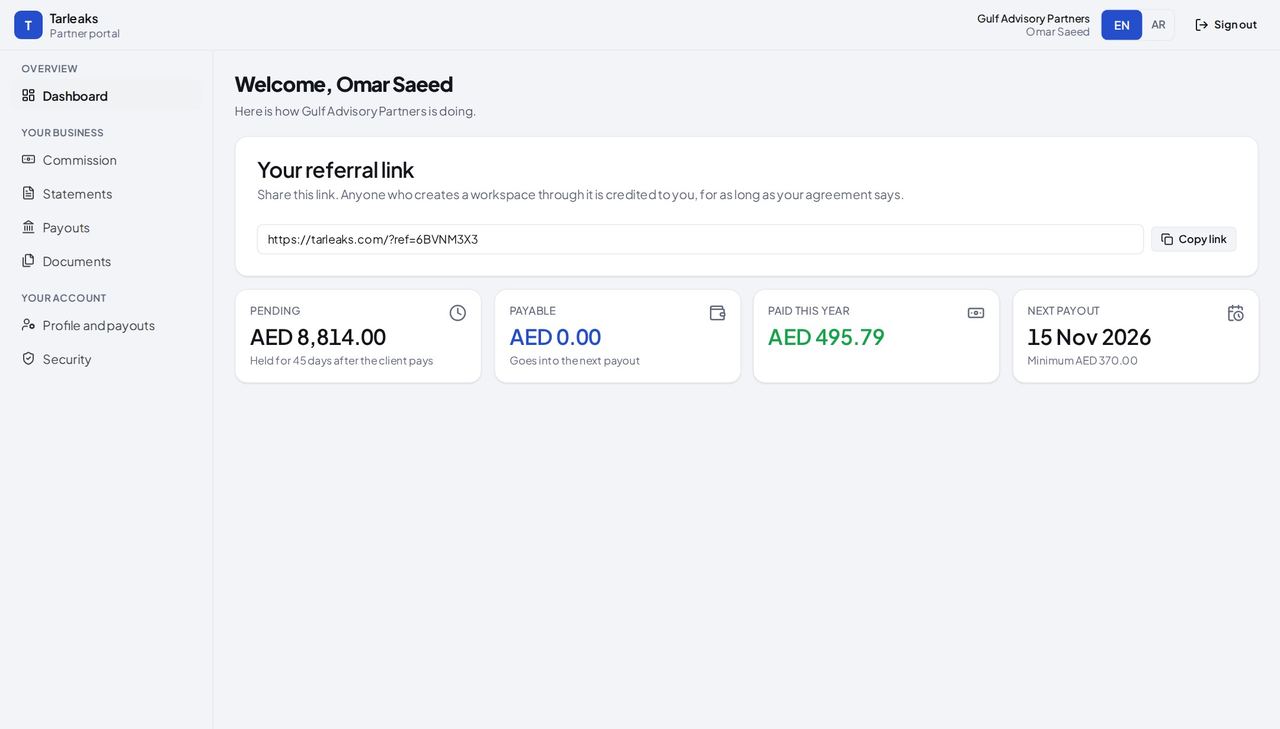
You should see The referral link and the money: Pending, Payable, Paid this year and Next payout. Clients, Leads and deals and Team are not in your menu.
Watch out Clients, deals and the team are the owner's and sales' pages. Opening their address says This is not available right now.
Commission and why #
Where Partner portal » Commission
- Open Commission.
- Press the Pending chip.
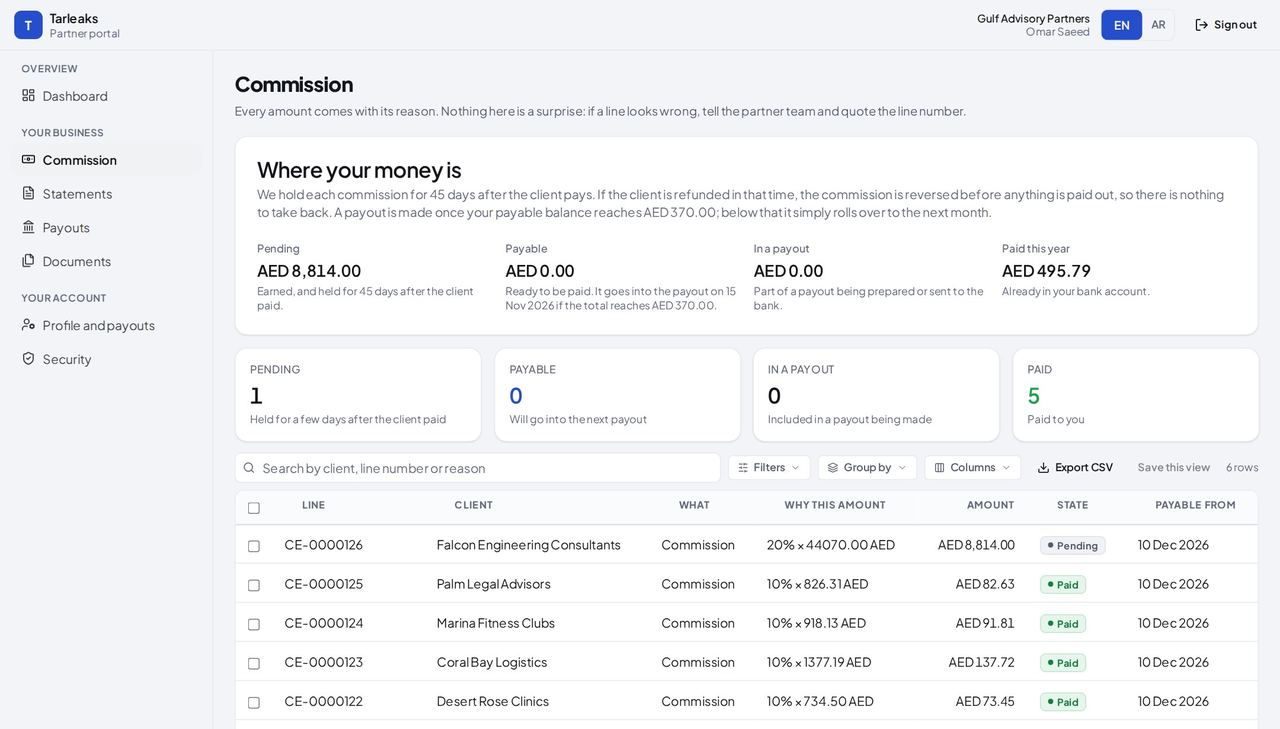
You should see Every amount has its reason. A line in its holding period is Pending and shows the day it becomes payable; Where your money is explains why it waits.
Watch out A line is held after the client pays so that a refund in that time reverses it before anything is paid out.
Payouts #
Where Partner portal » Payouts
- Open Payouts.
- Press PDF beside Tax invoice and Payment advice on the paid payout.
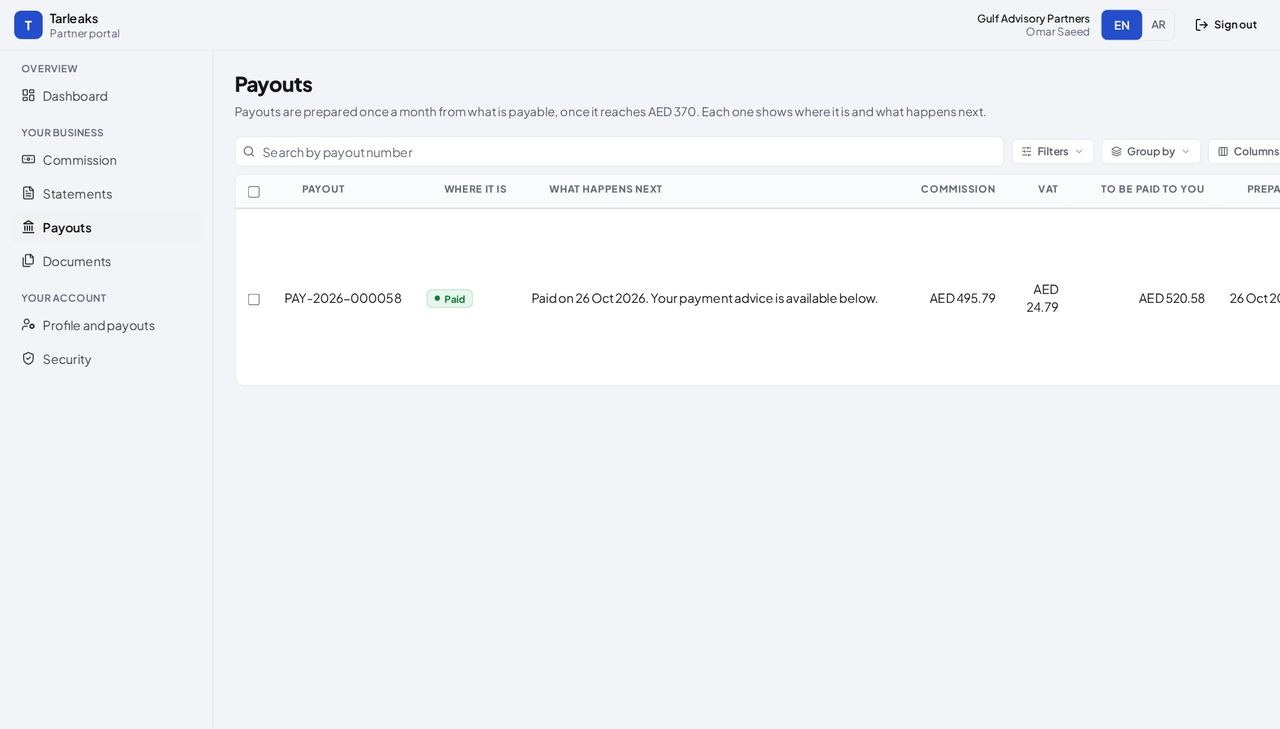
You should see The payout, its commission, its VAT and what is paid to you; a paid one says Paid on its date.
Watch out With self-billing on, the tax invoice is written for you. If self-billing were off, the payout would wait for your own invoice (Send your invoice).
Statements #
Where Partner portal » Statements
- Open Statements.
- Press PDF on a row, or choose a Month and press Get this statement.
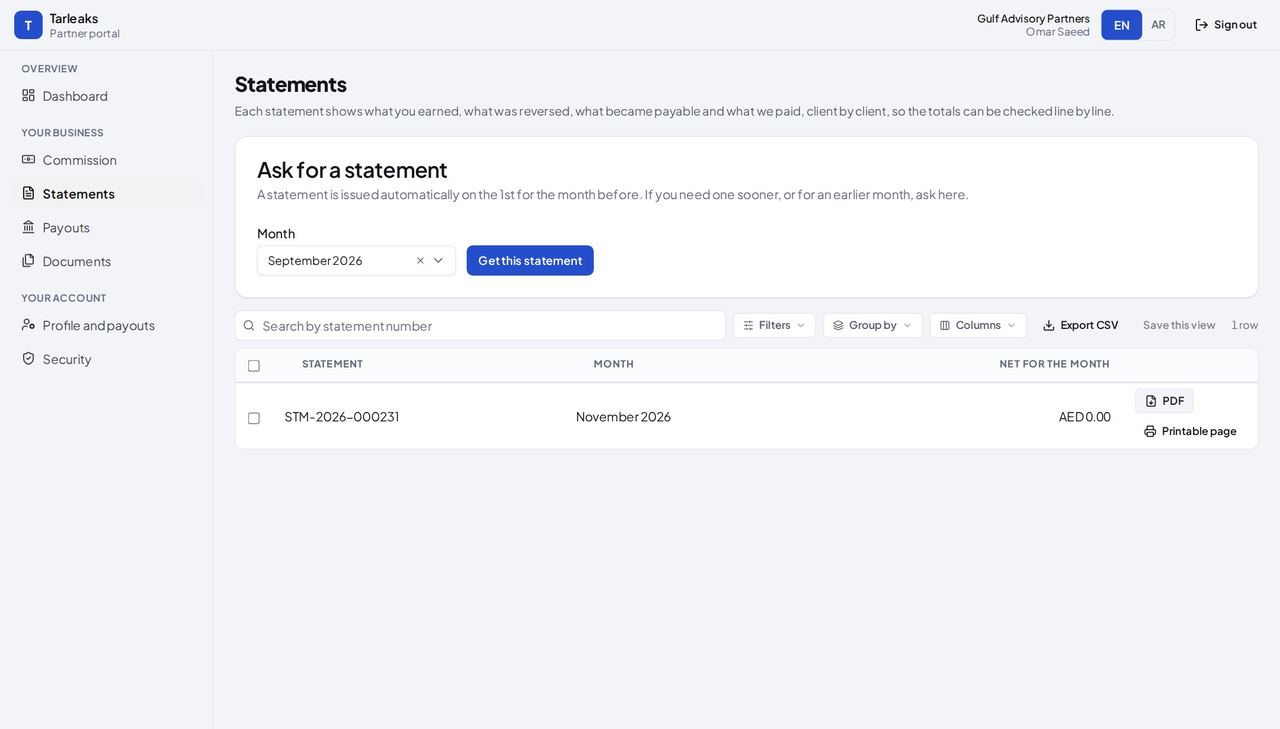
You should see Each month's statement as a PDF or a printable page. The current month is not final, so it is not offered.
Watch out A month with no commission activity has nothing to put on a statement, and the page says so.
Documents #
Where Partner portal » Documents
- Open Documents.
- Press PDF on a row.
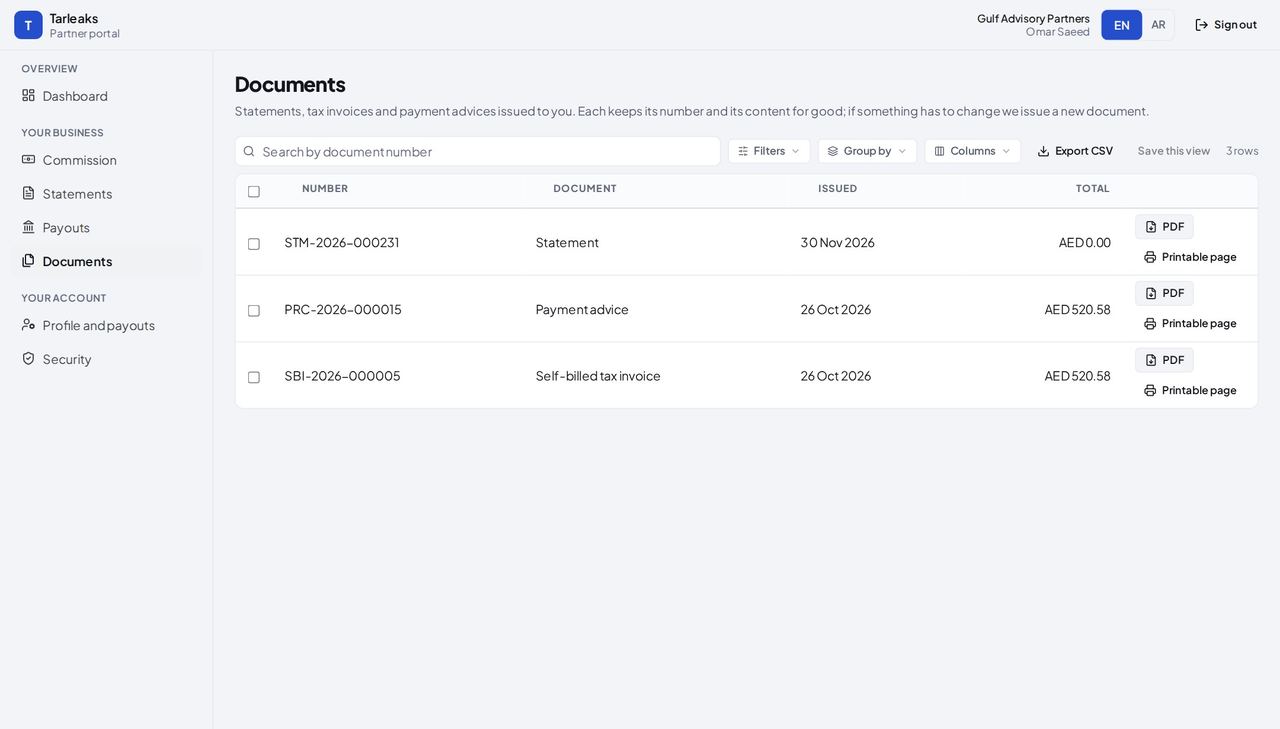
You should see Every document issued to your company, each with its number, date, total and a PDF.
Watch out Keep the self-billed tax invoices for your VAT return.
The bank account #
Where Partner portal » Profile and payouts » Payout details
- Open Profile and payouts.
- Scroll to Payout details.
- Press Change bank details.
- Fill in the new account and the check at the end.
- Press Save bank details.
| Field | What to put in it |
|---|---|
| Account holder | The name on the account, as the bank has it. |
| Bank | The bank's name. |
| IBAN | A UAE IBAN has 23 characters and starts with AE. |
| SWIFT / BIC | The bank's code. |
| Bank country | Where the bank is. |
| Your password (or Code from your authenticator app) | Asked once more before changing where money goes. |
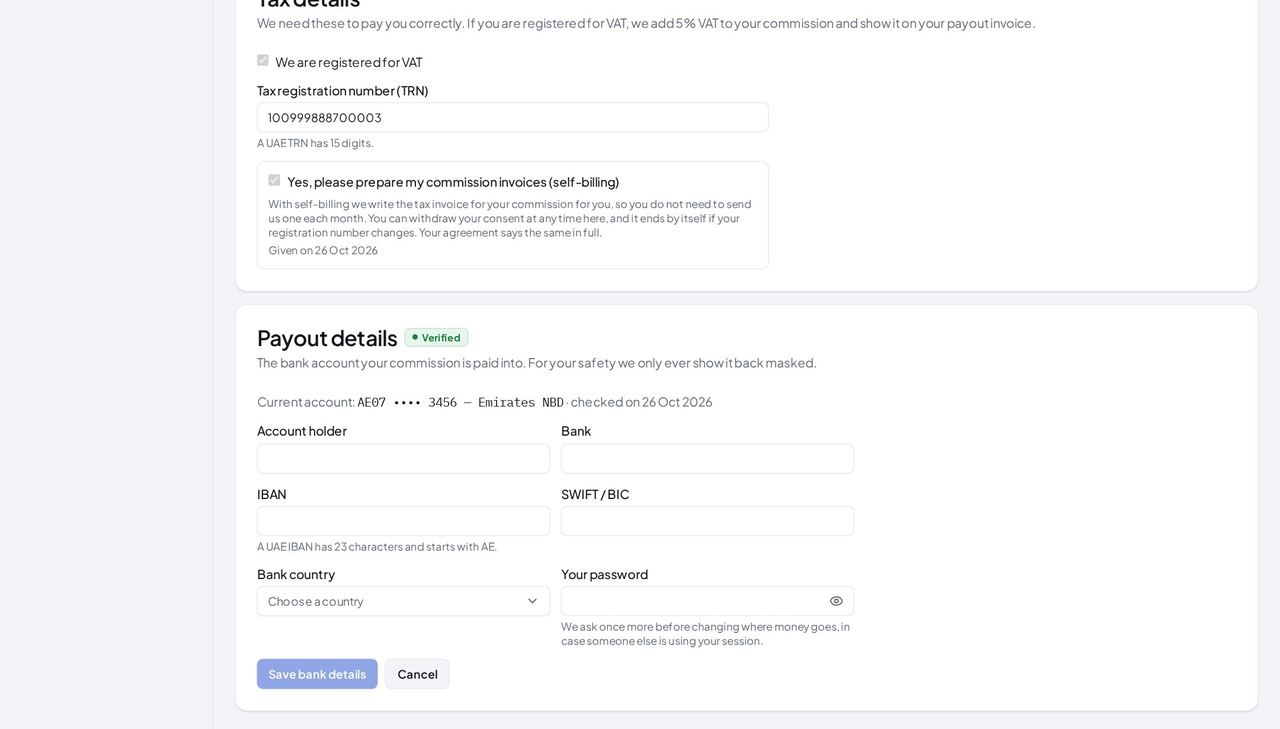
You should see The current account is only ever shown masked. Changing it asks once more who you are, and the partner team checks the new account before the next payout.
Watch out New bank details show Waiting to be checked until the partner team verifies them.
Use cases — the work, step by step
Each one is a sequence somebody actually performs, with the screen behind every step. Every screen here was opened in the product as this role before it was published.
around the 15thCheck a payout before it reaches the bank #
The payout adds up the lines whose hold has ended. Reading the lines first means a question is asked before the money moves, not after.
Read each line's reason on Commission.
Partner portal » Commission — verified: the page says “Why this amount”; the page says “Pending”; the control is offered; 6 row(s) listed; the action is not offered to this role; the action is not offered to this role; the action is not offered to this role Open the payout on Payouts and compare its total and VAT.
Partner portal » Payouts — verified: the page says “To be paid to you”; the page says “Paid on”; the page says “Payment advice”; 1 row(s) listed; the action is not offered to this role; the action is not offered to this role; the action is not offered to this role Keep the self-billed invoice and the payment advice from Documents for your books.
Partner portal » Documents — verified: the page says “Self-billed tax invoice”; the page says “Payment advice”; 3 row(s) listed; the action is not offered to this role; the action is not offered to this role; the action is not offered to this role
when the account changesKeep the bank account right #
A payout goes only to an account the platform has checked; a change is held until it is checked again, so a wrong number never receives money.
Open Profile and payouts and read the masked account.
Partner portal » Profile and payouts » Payout details — verified: the control is offered; the control is offered; the page says “We ask once more before changing where money goes”; the page says “A UAE IBAN has 23 characters”; the action is not offered to this role; the action is not offered to this role; the action is not offered to this role
Clients, deals and the team belong to the owner and the sales colleague: they are not in your menu, and the server refuses them for your sign-in too.