Partner owner — Partners guide
Run the whole partnership from one portal: the link, the clients, the money and the people.
Runs the partnership for the partner's company: shares the link, registers deals, follows every client and every amount, keeps the team, the bank details and the agreement in order.
What you will be able to do
- Copy your referral link and share it
- Follow every client credited to you, hosted or self-hosted, with what it earned you
- Register a deal before the company signs up, so it is credited to you
- Read every commission line, statement, payout and document
- Invite a finance and a sales colleague, each with only what they need
- Keep the company's tax details, the bank account and two-step sign-in in order
What this role can and cannot do
| Can | Cannot |
|---|---|
|
|
14 steps, each one carried out in the product on .
Your dashboard #
Where Partner portal » Dashboard
- Open partner.tarleaks.com and sign in with your e-mail address and password.
- Type the 6-digit code from your authenticator app.
- The Dashboard opens. Open it again any time from Dashboard at the top of the menu.
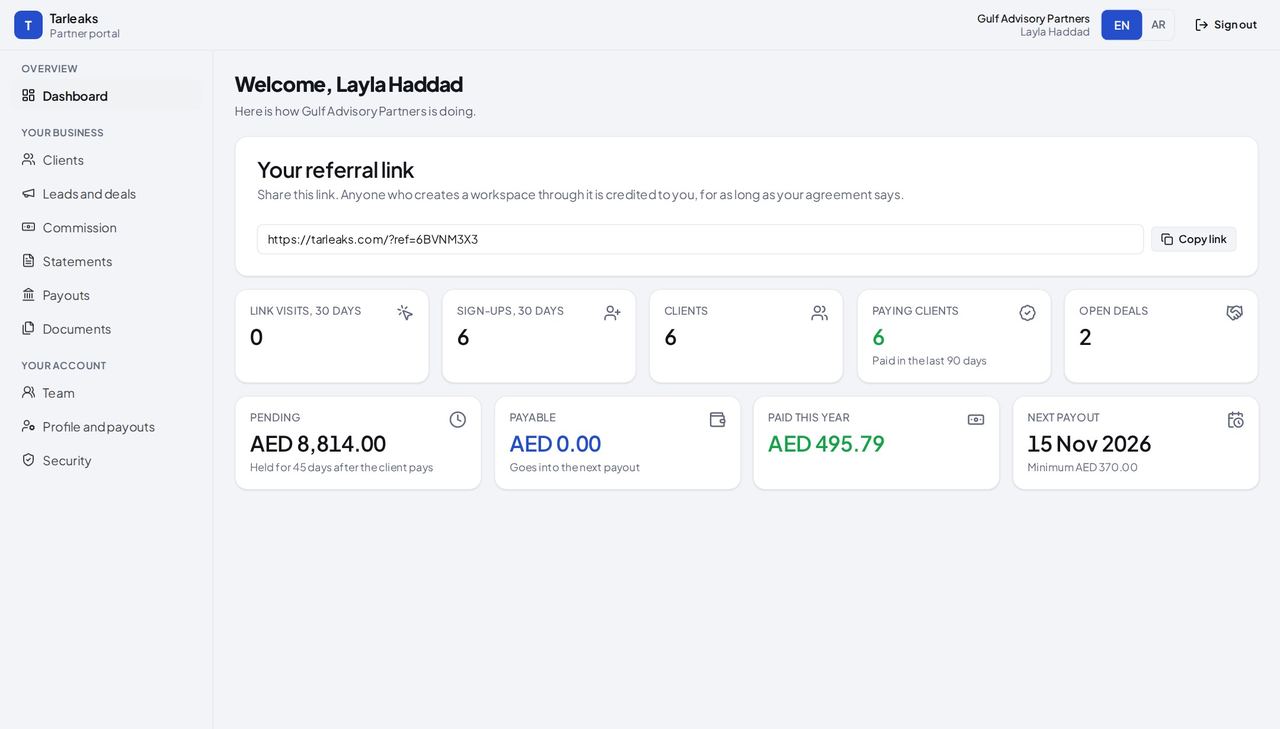
You should see The page greets you by name and says how Gulf Advisory Partners is doing: your referral link, link visits and sign-ups in the last 30 days, clients, paying clients and open deals, then Pending, Payable, Paid this year and Next payout.
Watch out Pending is commission still held after the client paid; only Payable goes into the next payout.
Worth knowing Every tile opens the list behind it: press Pending to see the lines still held.
Copy your referral link #
Where Partner portal » Dashboard » Your referral link
- On the Dashboard, press Copy link beside Your referral link.
- Paste it wherever you share it.
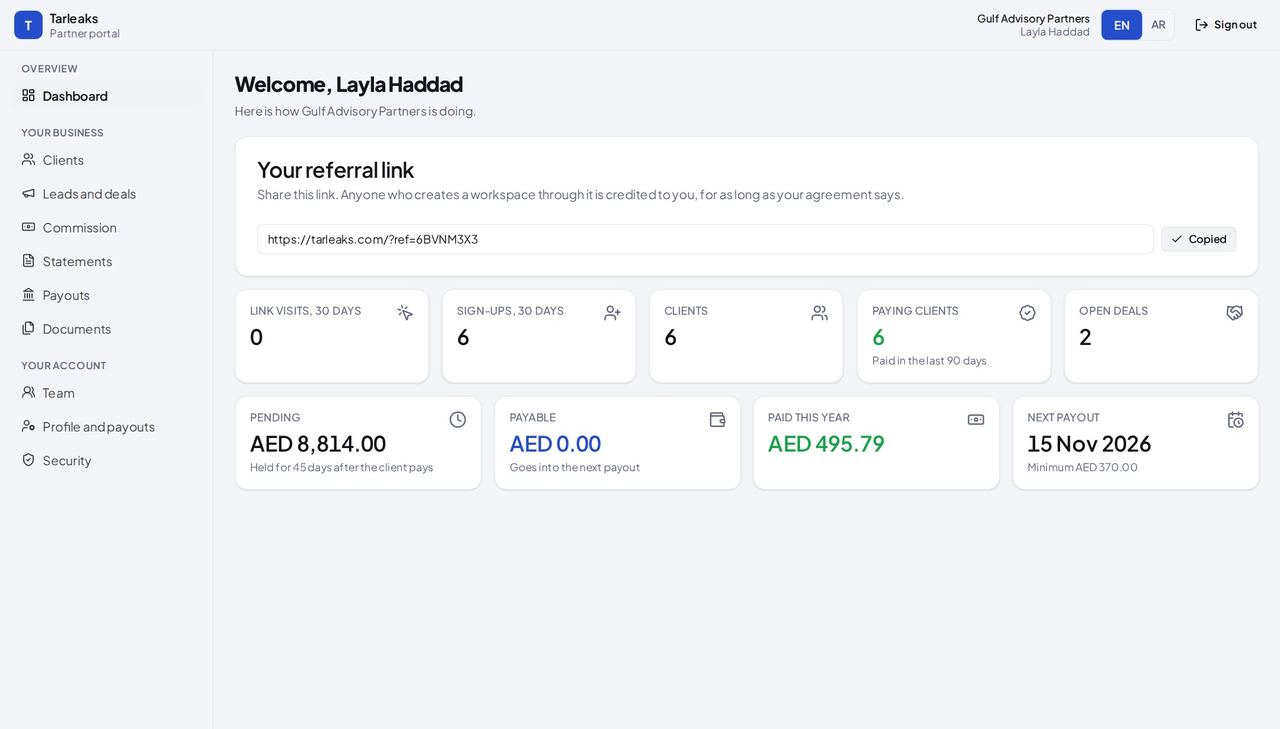
You should see The button says Copied for a moment. A company that creates its workspace through the link is credited to you, for as long as your agreement says.
Watch out Share this exact link. A company that signs up without it, and without a deal you registered, is not credited to you.
Your clients #
Where Partner portal » Clients
- Open Clients in the menu, under Your business.
- Type in the search box to find a client by name or country.
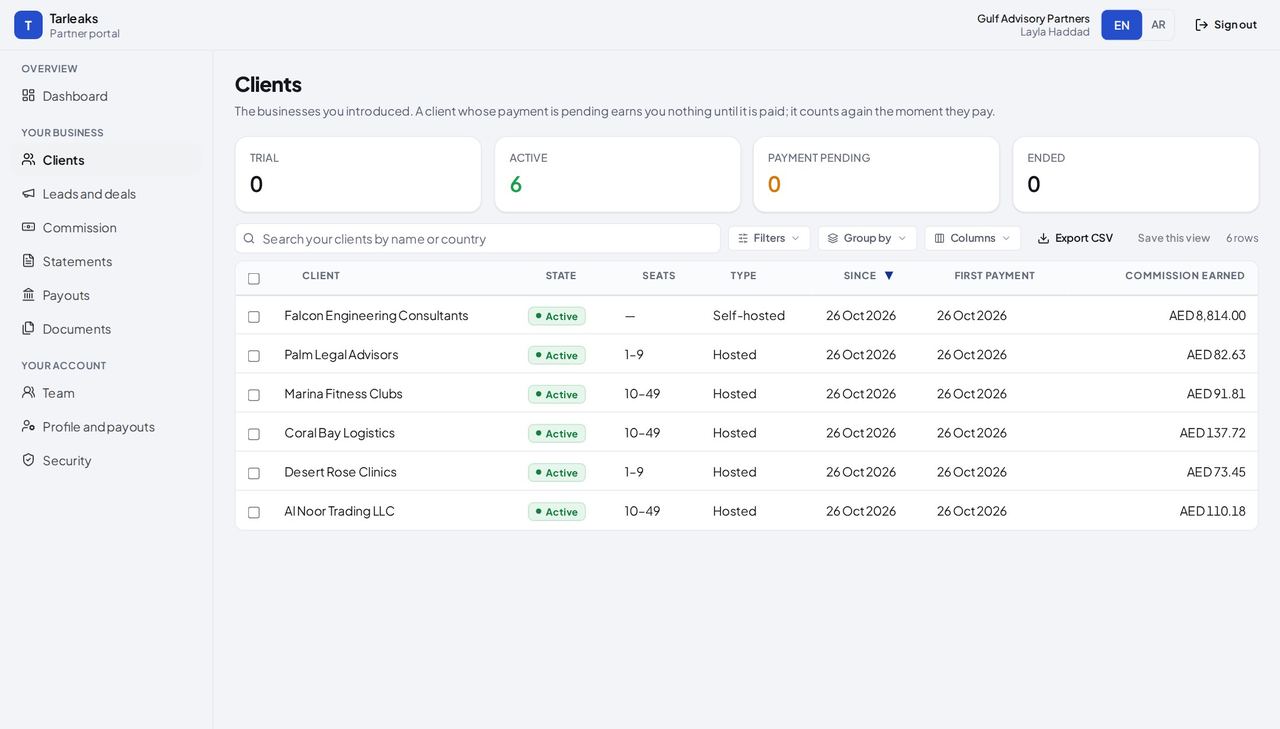
You should see Each company credited to you, by name: its state, its size in seats, Hosted or Self-hosted, since when, its first payment and the commission it has earned you.
Watch out A client whose payment is pending earns you nothing until it pays; it counts again the moment it does.
Leads and deals #
Where Partner portal » Leads and deals
- Open Leads and deals in the menu.
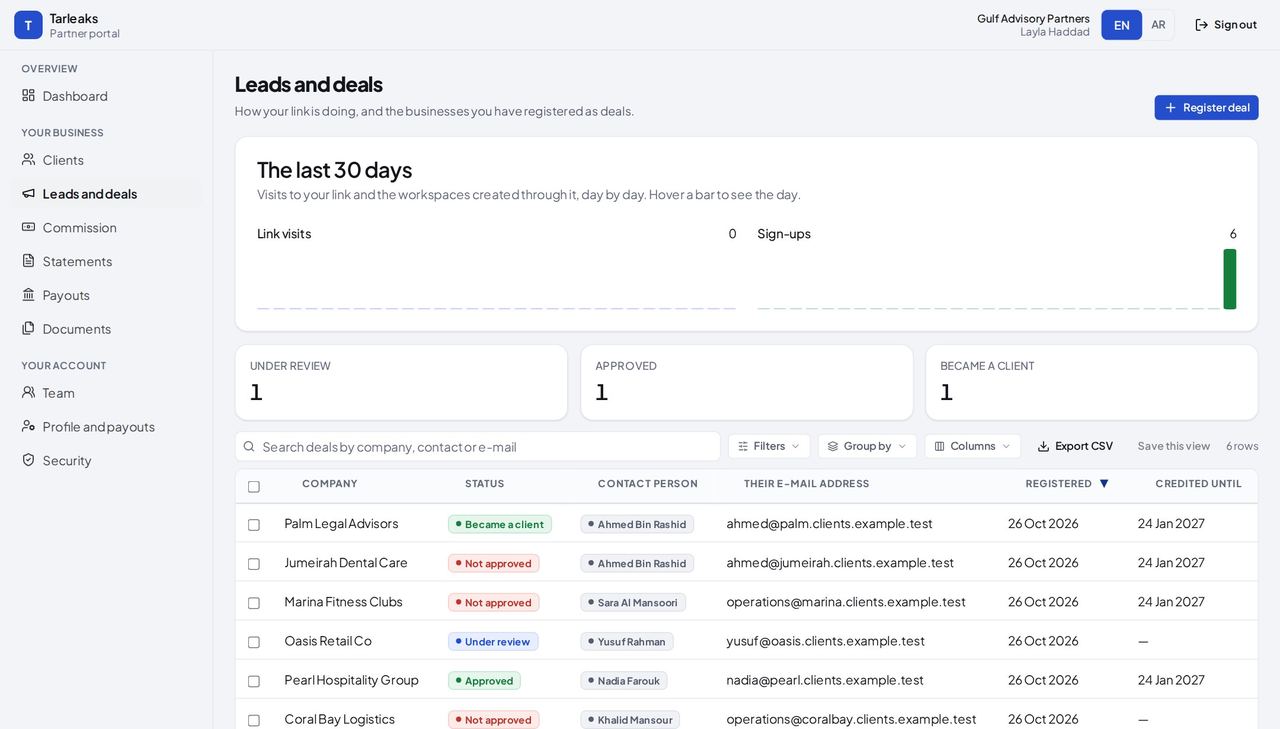
You should see Link visits and sign-ups day by day, then each registered deal with its status, its contact, when it was registered and until when it is credited to you.
Watch out Under review means the partner team has not decided yet; Became a client means the company signed up and is credited to you.
Register a deal #
Where Partner portal » Leads and deals » Register deal
- Open Leads and deals.
- Press Register deal at the top right.
- Fill in the form.
- Press Register deal at the bottom of the window.
| Field | What to put in it |
|---|---|
| Company | The business you are talking to. Required. |
| Contact person | The person you deal with there. |
| Their e-mail address | Their work address at the company's own domain. Required: it is how their sign-up is matched to your deal. |
| Country | Where the company is. |
| Expected number of users | About how many people will use it. |
| Anything we should know | A sentence for the partner team, for example where you met. |
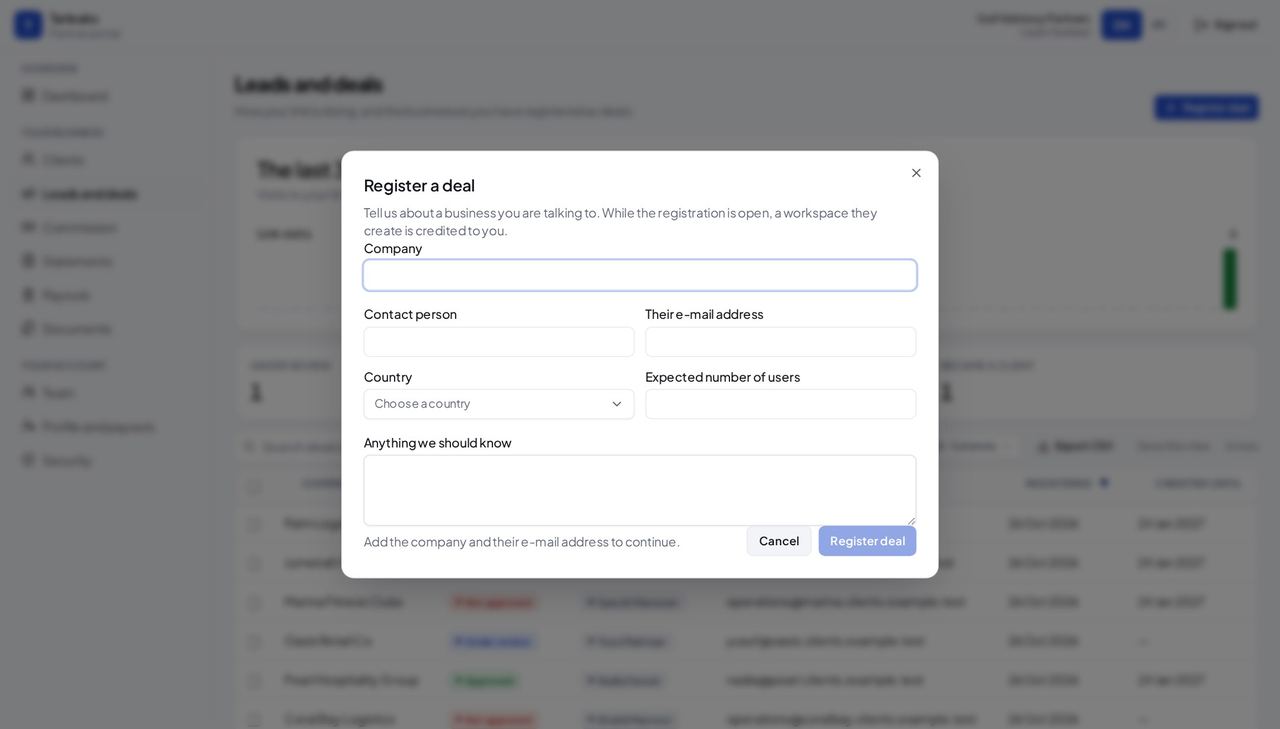
You should see The deal appears in the list as Under review, and the partner team's decision shows there. Once the partner team approves it, a workspace that company creates is credited to you.
Watch out If another partner already registered the same company, the partner team decides; you see the decision in the deal's status.
Worth knowing Register before the company signs up: a deal registered afterwards cannot credit a workspace that already exists.
Commission, line by line #
Where Partner portal » Commission
- Open Commission in the menu.
- Press a chip (Pending, Payable, In a payout, Paid) to narrow the list.
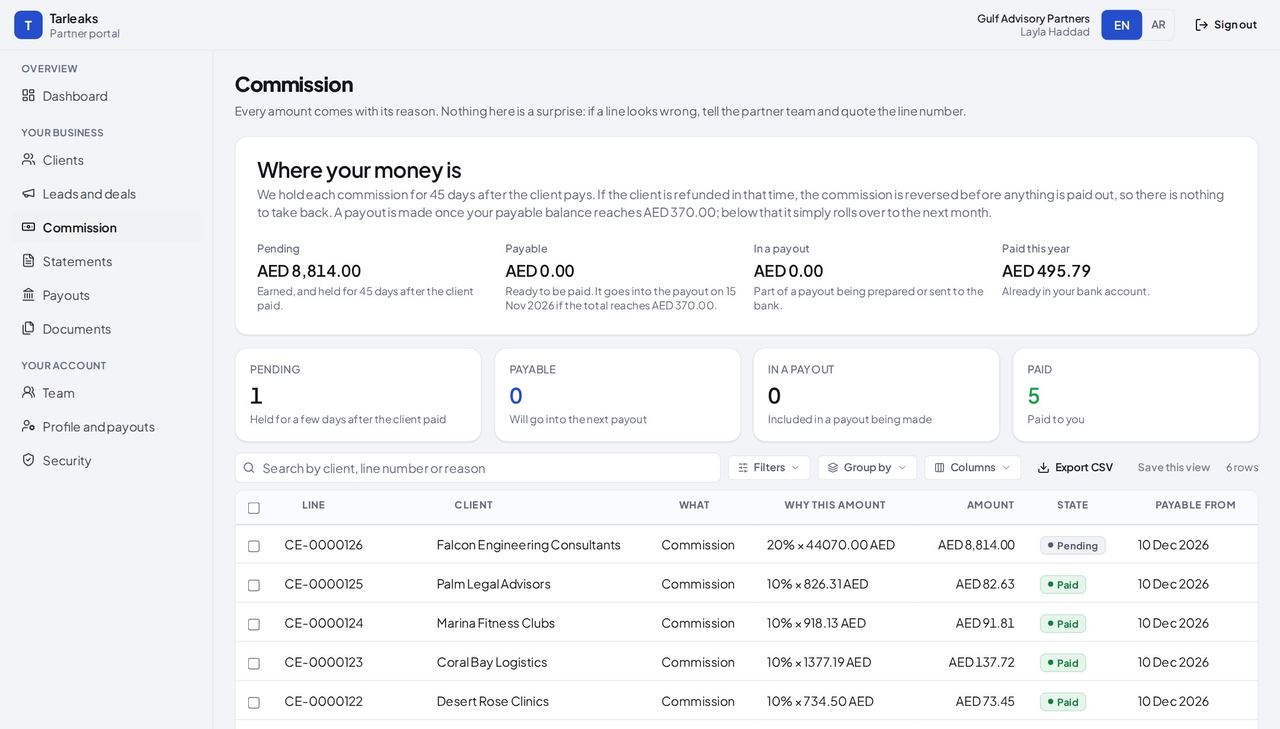
You should see Every line has its client, its reason (Why this amount), its amount, its state and the day it can be paid. A line still in its holding period is Pending.
Watch out If a line looks wrong, tell the partner team and quote its line number.
Statements #
Where Partner portal » Statements
- Open Statements in the menu.
- Press PDF or Printable page on a row.
- For another closed month, choose it under Month and press Get this statement.
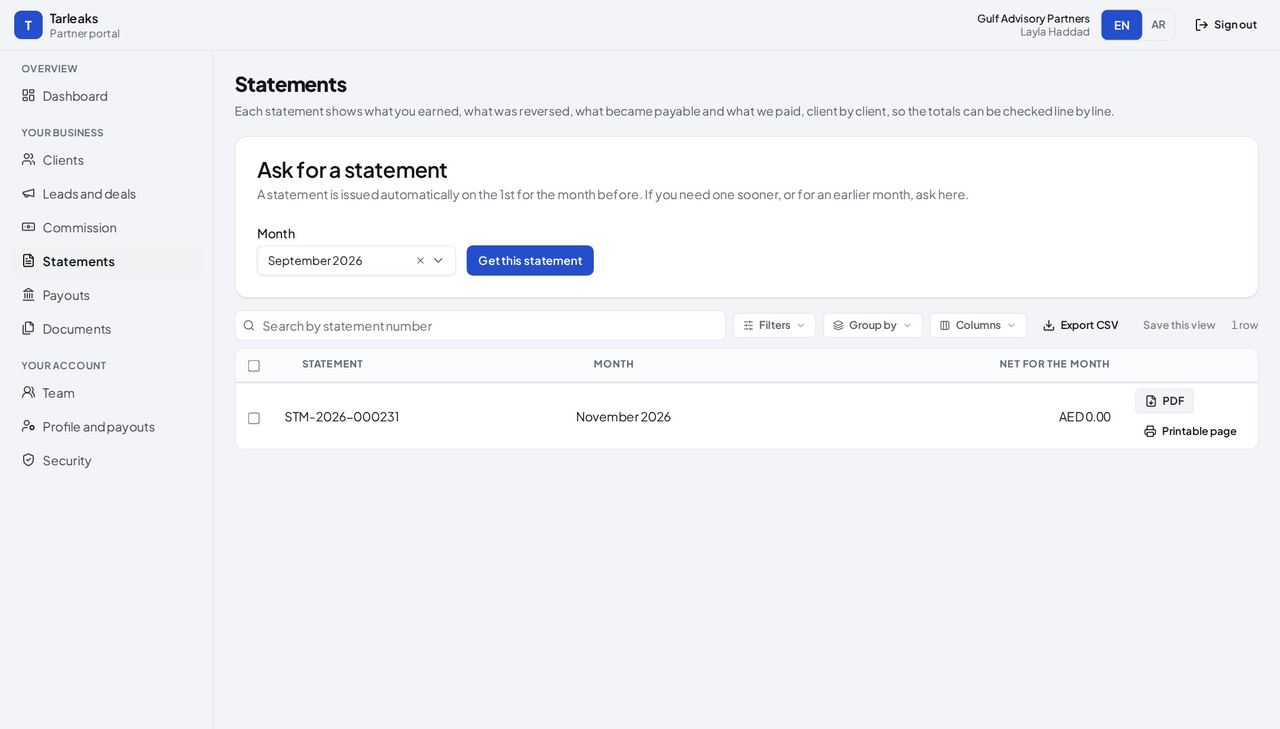
You should see One statement for each closed month with activity: what you earned, what was reversed, what became payable and what was paid, client by client.
Watch out The current month is not final, so it is not in the Month list.
Worth knowing A statement is issued by itself on the 1st for the month before.
Payouts #
Where Partner portal » Payouts
- Open Payouts in the menu.
- On a paid payout, press PDF beside Tax invoice or Payment advice.
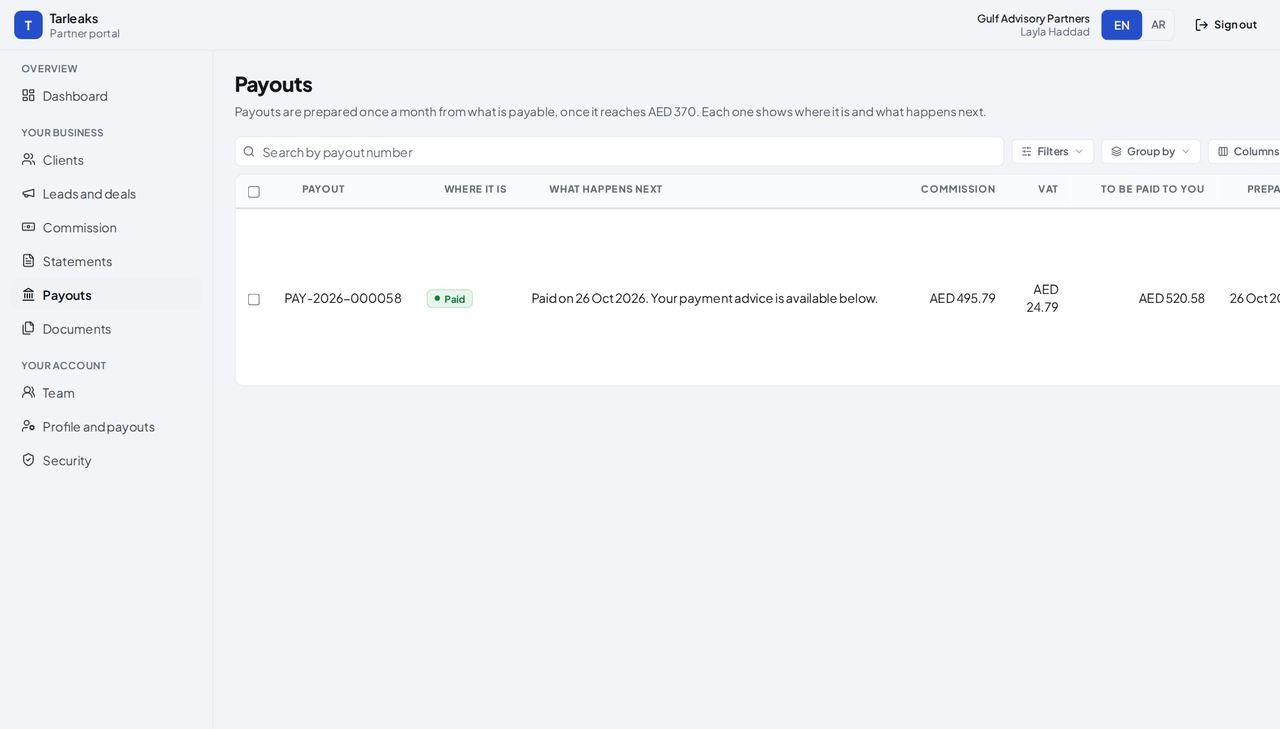
You should see Each payout with its commission, its VAT and what is paid to you. A paid one says Paid, with its Tax invoice and Payment advice ready to download.
Watch out Ask about this payout appears only during the review period, and each payout can be questioned once.
Documents #
Where Partner portal » Documents
- Open Documents in the menu.
- Press PDF or Printable page on a row.
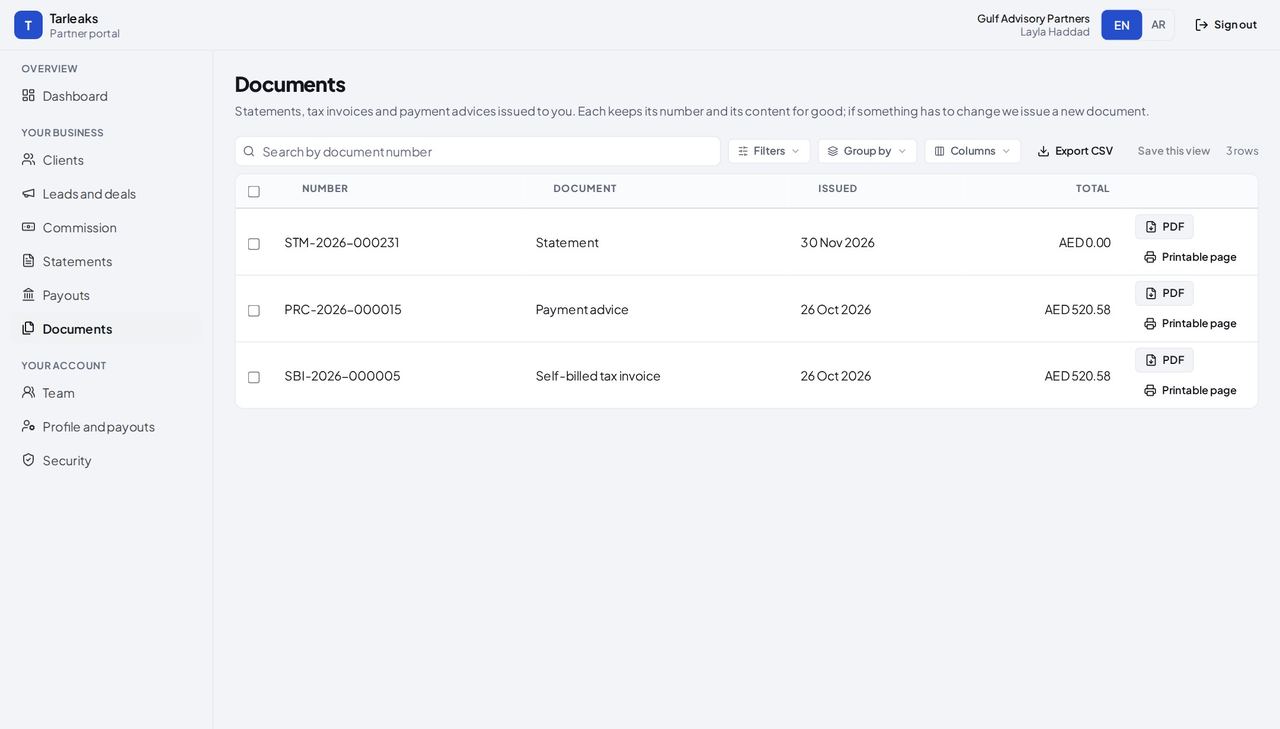
You should see Every document issued to you: statements, self-billed tax invoices, payment advices and credit notes, each with its number, date and total.
Watch out A correction is a new document (a credit note), never an edit of an old one.
Worth knowing A document never changes after it is issued; a correction is a new document.
Your team #
Where Partner portal » Team
- Open Team in the menu, under Your account.
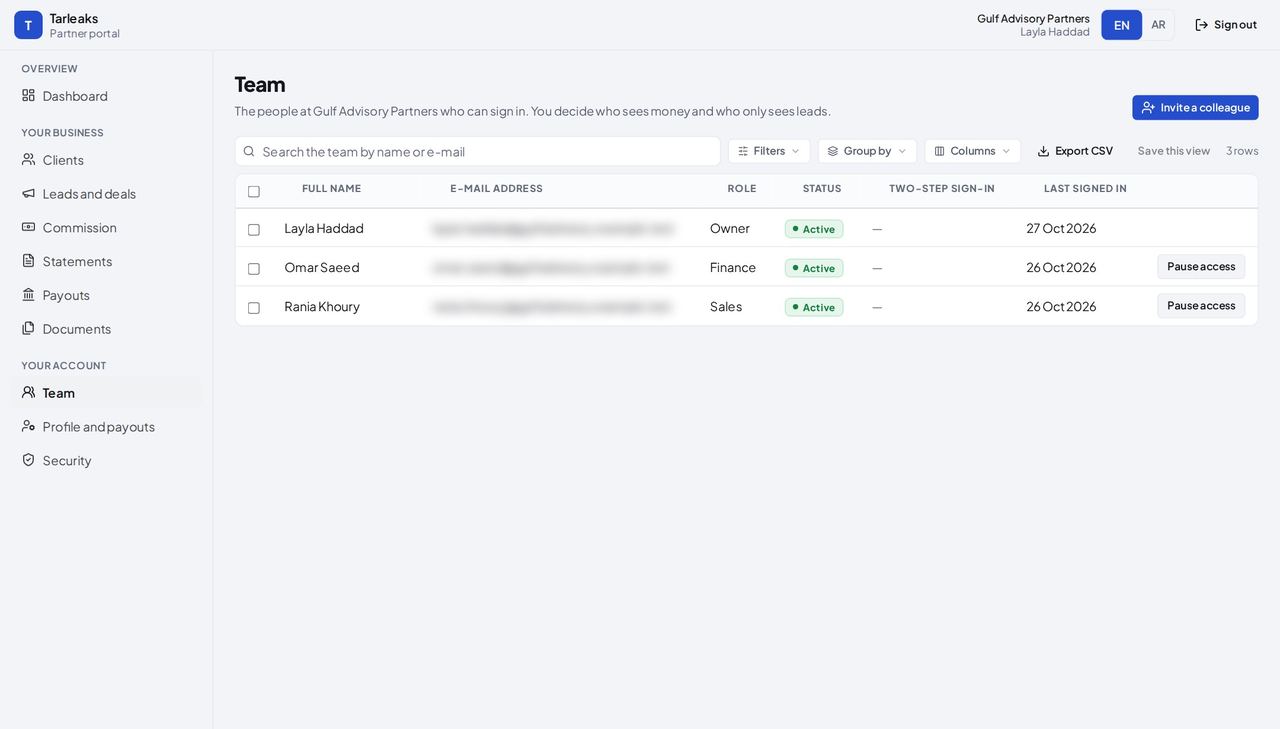
You should see Everyone who can sign in for your company, with their role (Owner, Finance or Sales), their status, whether two-step sign-in is on and when they last signed in.
Watch out You cannot pause your own access. A paused colleague is signed out at once; nothing they did is deleted.
Invite a colleague #
Where Partner portal » Team » Invite a colleague
- Open Team.
- Press Invite a colleague.
- Fill in the three fields.
- Press Send invitation.
| Field | What to put in it |
|---|---|
| Full name | Their name as it should appear in the portal. |
| E-mail address | Their work address. The invitation goes there. |
| Role | Finance (commission, payouts, documents and the bank details) or Sales (leads, deals and clients, no money). |
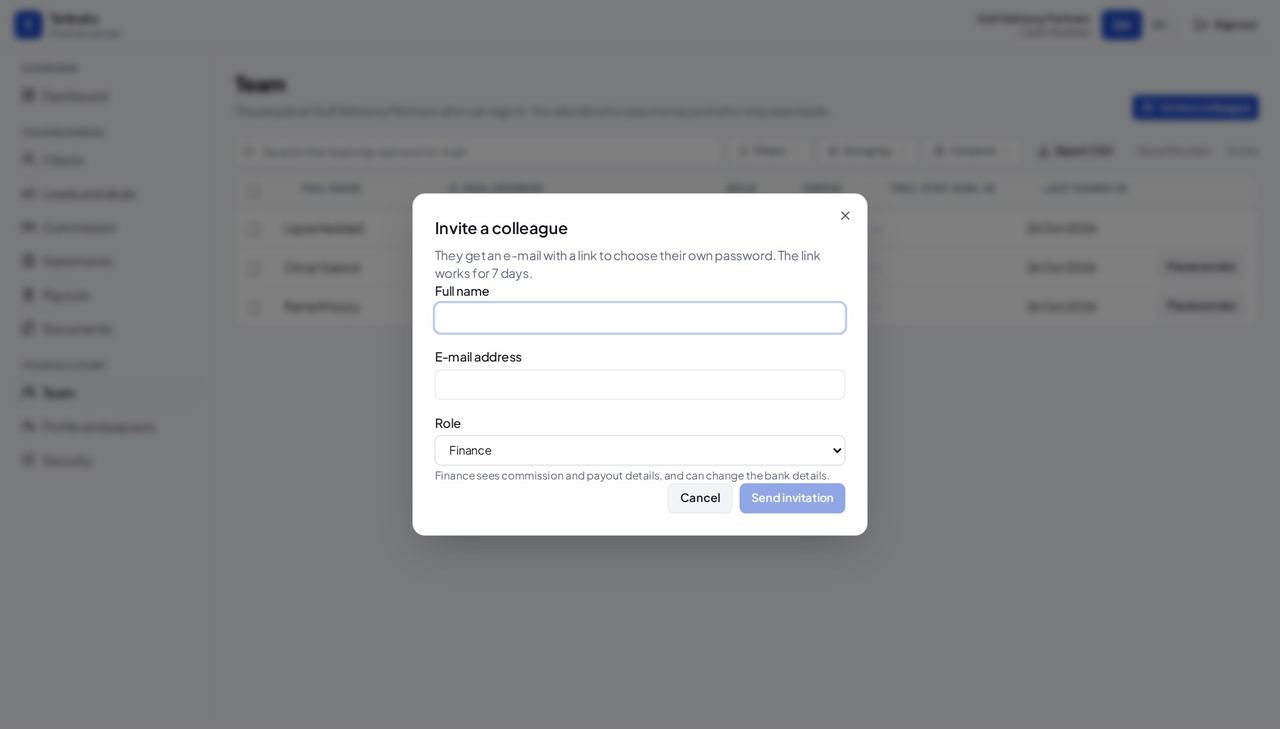
You should see They get an e-mail with a link to choose their own password; the link works for 7 days. They appear in the list as Invited until they do.
Watch out The link in the invitation works for 7 days. If it runs out, invite them again.
Worth knowing Finance sees the money and keeps the bank details. Sales brings clients and sees no amount.
Profile and payouts #
Where Partner portal » Profile and payouts
- Open Profile and payouts in the menu.
- Scroll down to Payout details.
| Field | What to put in it |
|---|---|
| Display name | How your company appears to your clients. |
| Phone / Website / Country | How we reach you. |
| Tax registration number (TRN) | A UAE TRN has 15 digits. |
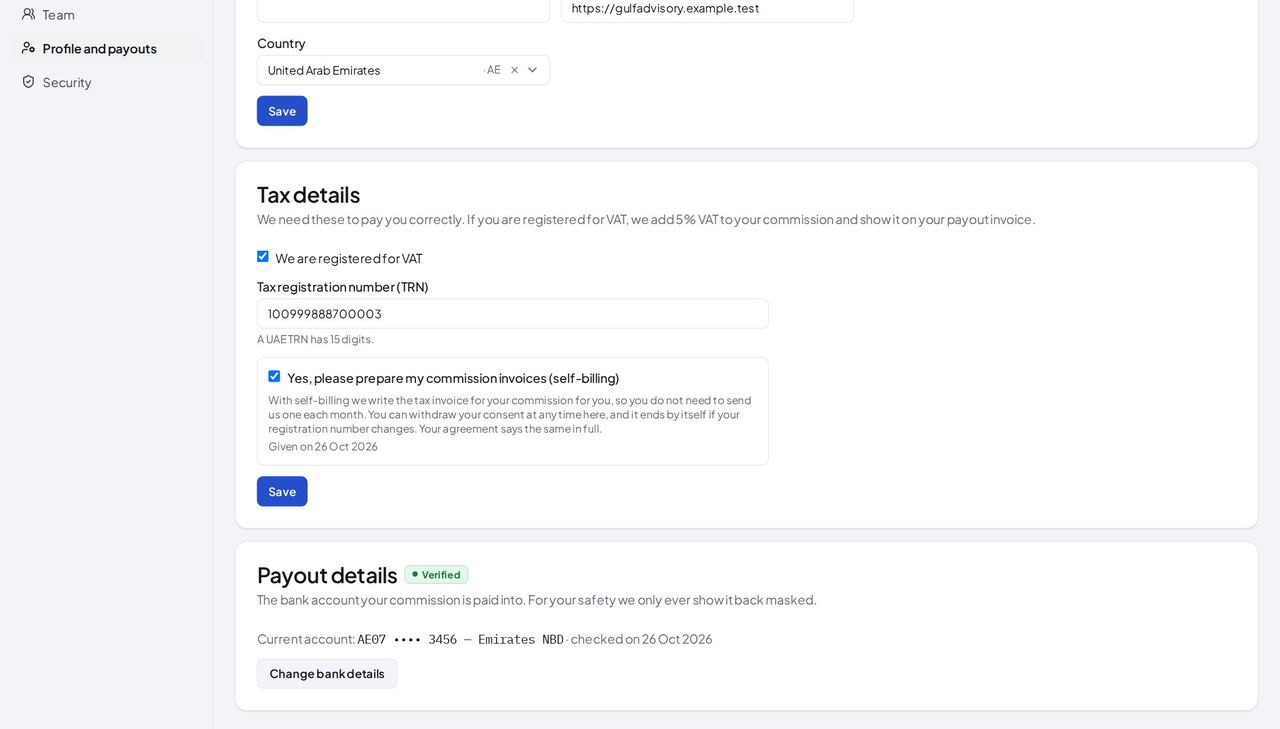
You should see The account is shown masked, with Verified once the partner team has checked it. With self-billing on, we write the tax invoice for your commission for you.
Watch out Your legal name and e-mail change only through the partner team. The full account number is never shown back, to anyone.
Security #
Where Partner portal » Security
- Open Security in the menu.
| Field | What to put in it |
|---|---|
| Current password | The one you sign in with today. |
| New password | At least the length the hint says; a short sentence is easy to remember. |
| Repeat the password | The same again. |
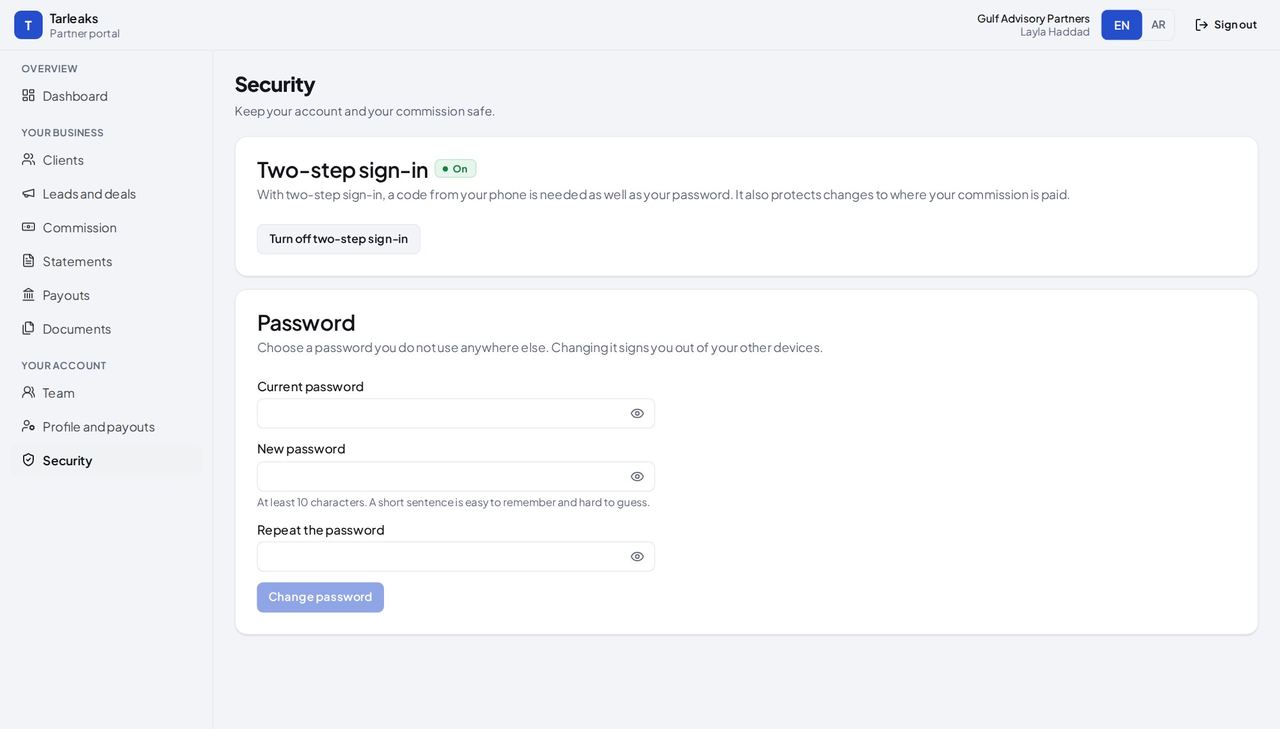
You should see Two-step sign-in is On: a code from your phone is needed as well as your password, and it also protects changes to where your commission is paid.
Watch out Changing the password signs you out of your other devices. Keep two-step sign-in on: it also protects changes to the bank account.
The agreement #
Where Partner portal » Partner agreement (by its address)
- Type partner.tarleaks.com/admin/partner/agreement in the address bar.
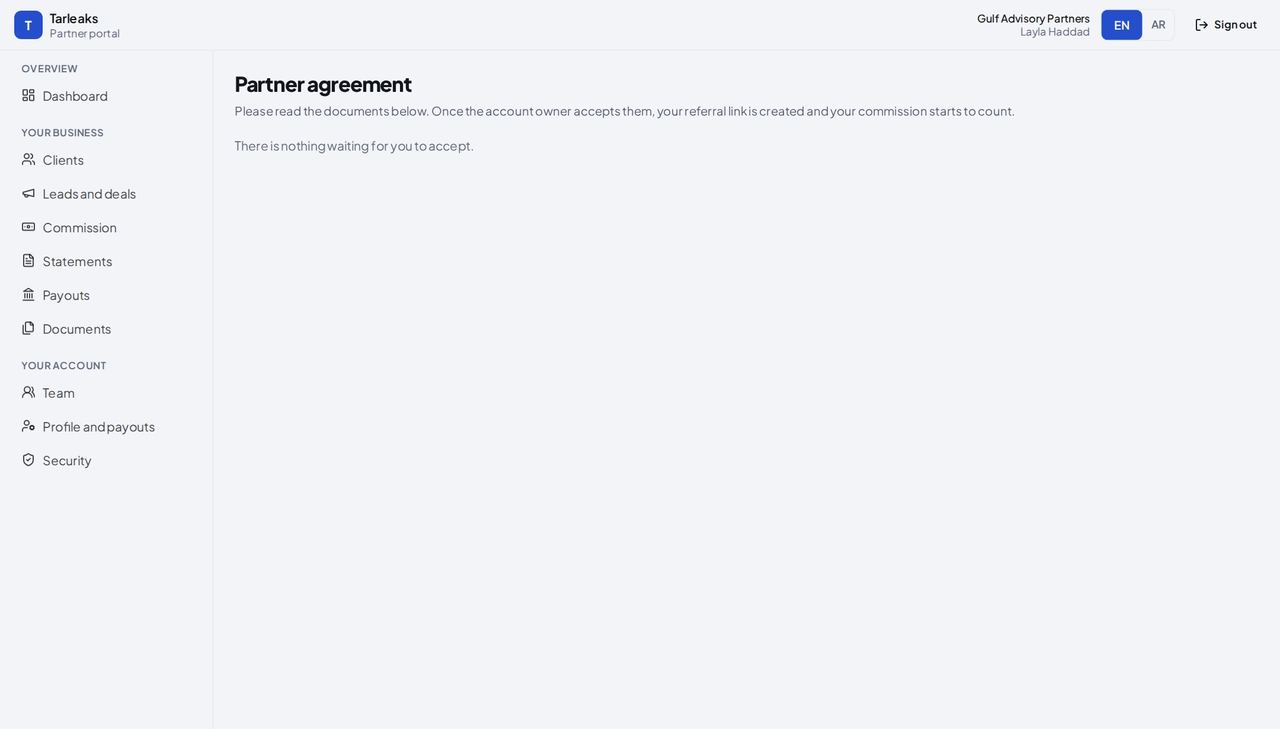
You should see The Partner agreement page shows only documents still waiting for you to accept; with everything accepted it says There is nothing waiting for you to accept. When a new version is published it opens over every page until you accept it or sign out.
Watch out There is no menu entry for the agreement. When a new version is published, a window opens over every page: read What changed, tick the box, type your full name and accept, or sign out and come back later.
Worth knowing Only the owner can accept for the company. A colleague is asked to wait for you.
Use cases — the work, step by step
Each one is a sequence somebody actually performs, with the screen behind every step. Every screen here was opened in the product as this role before it was published.
every new clientBring in a client and get credited for it #
A client is credited to you either because it signed up through your link, or because you registered the deal and the partner team approved it before it signed up. Registering first is the safer way: an approved deal holds the company for 90 days, even if it signs up from another device.
Register the deal as soon as the company is interested: its name, the contact and the contact's work address.
Partner portal » Leads and deals » Register deal — verified: the control is offered; the page says “Register a deal” Send your link with the demo invitation, so the sign-up carries it too.
Partner portal » Dashboard » Your referral link — verified: the page says “Your referral link”; the page says “Copied” Follow the deal on Leads and deals: Under review, then Approved, then Became a client when the company signs up.
Partner portal » Leads and deals — verified: the page says “The last 30 days”; the page says “Pearl Hospitality Group”; the page says “Oasis Retail Co”; the page says “Credited until”; 6 row(s) listed The company appears on Clients, credited to you.
Partner portal » Clients — verified: the page says “Al Noor Trading LLC”; the page says “Desert Rose Clinics”; the page says “Coral Bay Logistics”; the page says “Falcon Engineering Consultants”; the page says “Self-hosted”; the control is offered; 6 row(s) listed
every monthFrom a client's payment to money in your bank #
Commission is earned when the client pays, held for 45 days in case the client is refunded, then paid out on the 15th once your payable balance reaches the minimum.
Read the new line on Commission: the amount, the reason and the day it can be paid.
Partner portal » Commission — verified: the control is offered; the control is offered; the page says “Where your money is”; the page says “Why this amount”; the page says “Payable from”; 6 row(s) listed On the 15th the payout is prepared; read it on Payouts with its VAT.
Partner portal » Payouts — verified: the page says “Where it is”; the page says “To be paid to you”; the page says “Paid on”; the page says “Payment advice”; the page says “Tax invoice”; 1 row(s) listed When it is paid, the self-billed invoice and the payment advice are on Documents.
Partner portal » Documents — verified: the page says “Self-billed tax invoice”; the page says “Payment advice”; the page says “Printable page”; 3 row(s) listed At the month's end, the statement shows everything that moved.
Partner portal » Statements — verified: the control is offered; the page says “Ask for a statement”; the page says “Get this statement”
when someone joinsGive a colleague the access their job needs #
Finance needs the money and the bank details but not your clients; sales needs the link and the deals but no amounts. Each role sees exactly that.
Open Team and press Invite; choose Finance or Sales.
Partner portal » Team » Invite a colleague — verified: the control is offered; the control is offered; the control is offered; the page says “They get an e-mail with a link to choose their own password”; the page says “Finance sees commission and payout details” Check who can sign in, and their roles.
Partner portal » Team — verified: the page says “Owner”; the page says “Finance”; the page says “Sales”; the page says “Two-step sign-in”; the page says “Last signed in”; 3 row(s) listed
Every amount on the portal comes with its reason. If a line looks wrong, tell the partner team and quote its line number: nothing is changed behind your back.