Platform partner team — Partners guide
Run the partner program from one console: who joins, what they earn, and what they are paid.
Runs the partner program for Tarleaks: approves partners and their terms, settles deal conflicts, watches every commission line, runs and pays the monthly payouts, invoices self-hosted licences and keeps the legal documents current.
What you will be able to do
- Review an application and approve it with the right commission terms
- Open a partner and read its terms, its people and every change made
- See every deal, every credited client and every commission line
- Run the monthly payouts, approve them and send them
- Find any statement, invoice or payment advice the program issued
- Invoice a self-hosted licence and follow what is still owed
- Keep the program's settings and legal documents current, and prove who accepted what
What this role can and cannot do
| Can | Cannot |
|---|---|
|
|
19 steps, each one carried out in the product on .
The partner program at a glance #
Where Platform » Partners
- Open tarleaks.com (the main address, not a company's) and choose Sign in.
- Type your e-mail and password. Leave Company empty if it is shown: empty means the platform.
- Type the 6-digit code from your authenticator app.
- In the Platform menu, choose Partners.
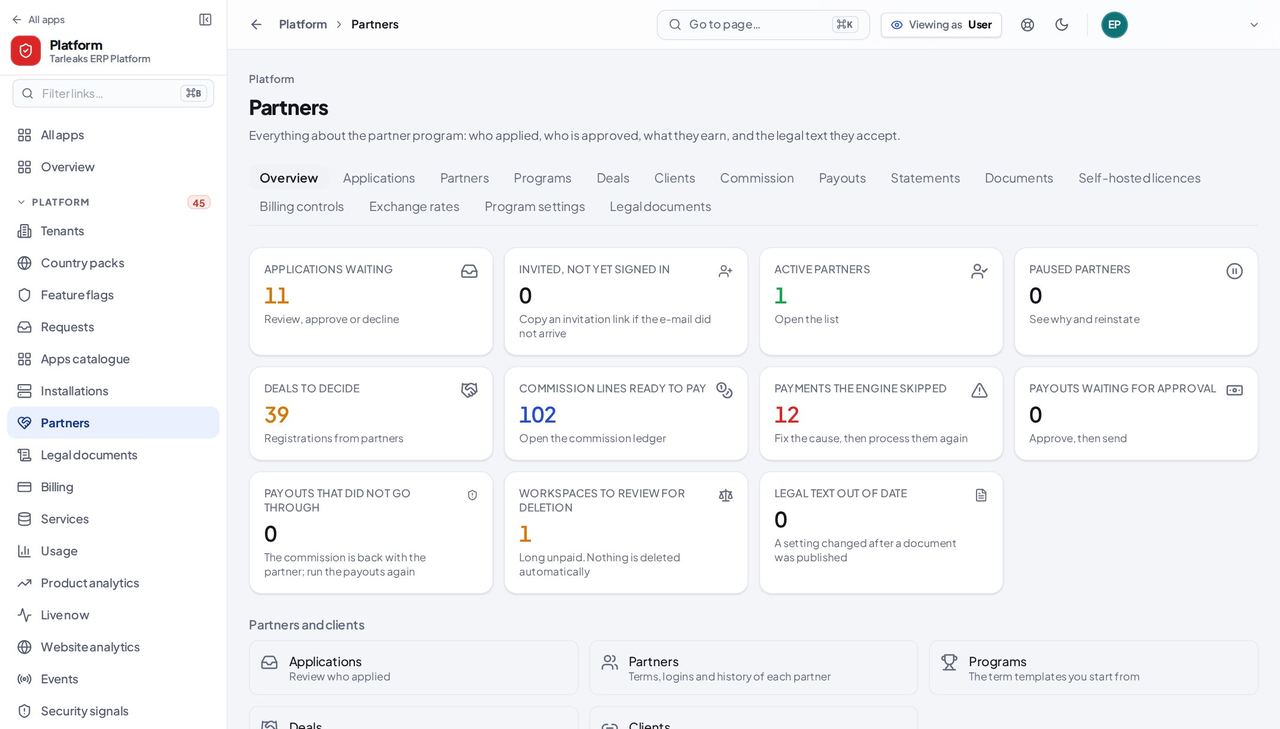
You should see Tiles for what is waiting (applications, deals to decide, payouts waiting for approval, payouts that did not go through, legal text out of date) and below them a link to every page of the program, grouped by Partners and clients, Commission and payouts, Invoicing and collection, and Rules and wording.
Watch out If the page says the partner numbers could not be loaded, check that two-factor sign-in is switched on for your account.
Worth knowing Only a super-administrator who signs in with an authenticator reaches these pages.
Applications #
Where Platform » Partners » Applications
- In the Platform menu, choose Partners.
- Choose Applications.
- Type the organisation, the contact or the e-mail in the search box.
- Click the organisation's name. The application opens on the right.
- Press Approve, Decline or Mark as duplicate.
| Field | What to put in it |
|---|---|
| Name shown to clients | Filled from the application. What clients and the partner's people read. |
| Legal name | The registered name, for documents. |
| Owner's name | The person who runs the partnership for them. |
| Owner's e-mail | The invitation goes here. It is the owner's sign-in name. |
| Track | Referral, Reseller, Implementation or Technology. |
| Start from the program | A program is a template. You can change any term below for this partner only. |
| Level | Registered or Certified. |
| Founding partner badge | Shown beside the partner's name. |
| Require two-factor sign-in | On by default: the partner's people sign in with an authenticator. |
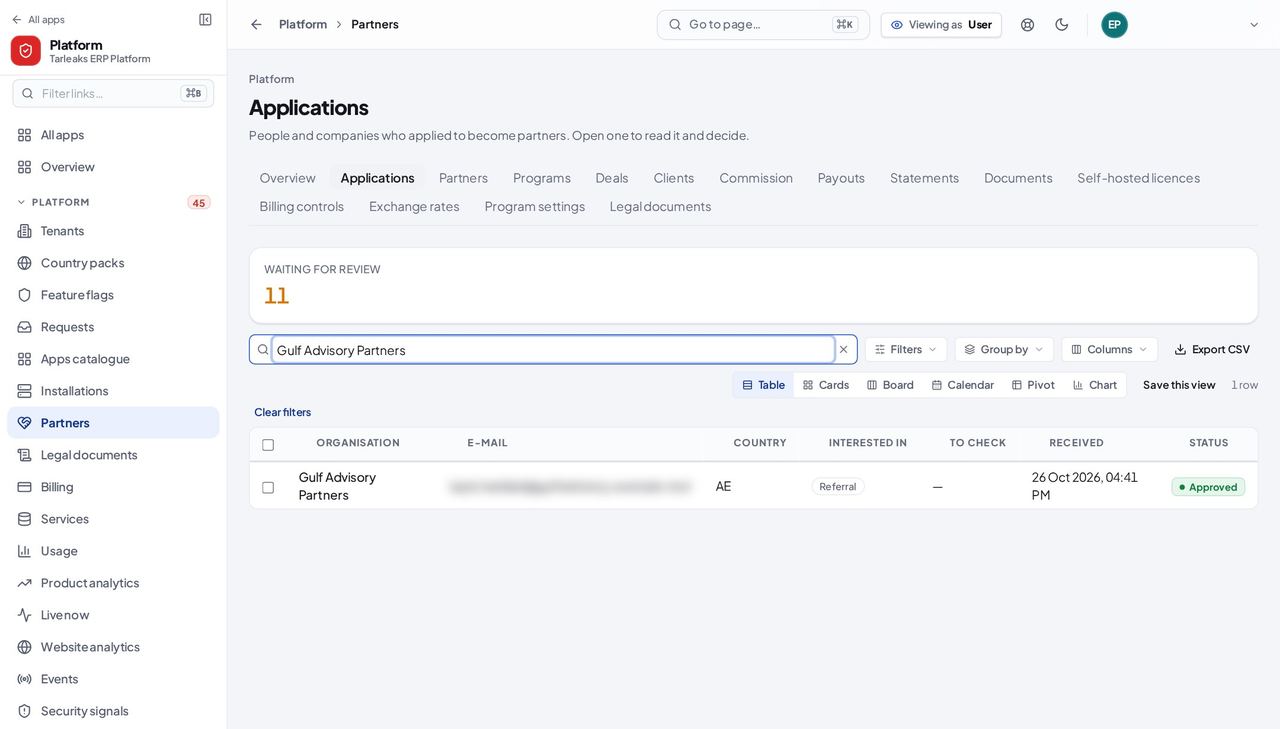
You should see One row per application: the organisation and its contact, the country, what they are interested in, anything To check, when it was received and its status. Applications still waiting for review come first.
Watch out Approve and send invitation creates the partner and e-mails the owner straight away. The terms in the form become the partner's first Schedule A, which the owner accepts at the first sign-in, so read them before you press it.
Partners #
Where Platform » Partners » Partners
- In the Platform menu, choose Partners.
- Choose Partners in the strip of sections.
- Type part of the name, the e-mail, the partner number or the referral code.
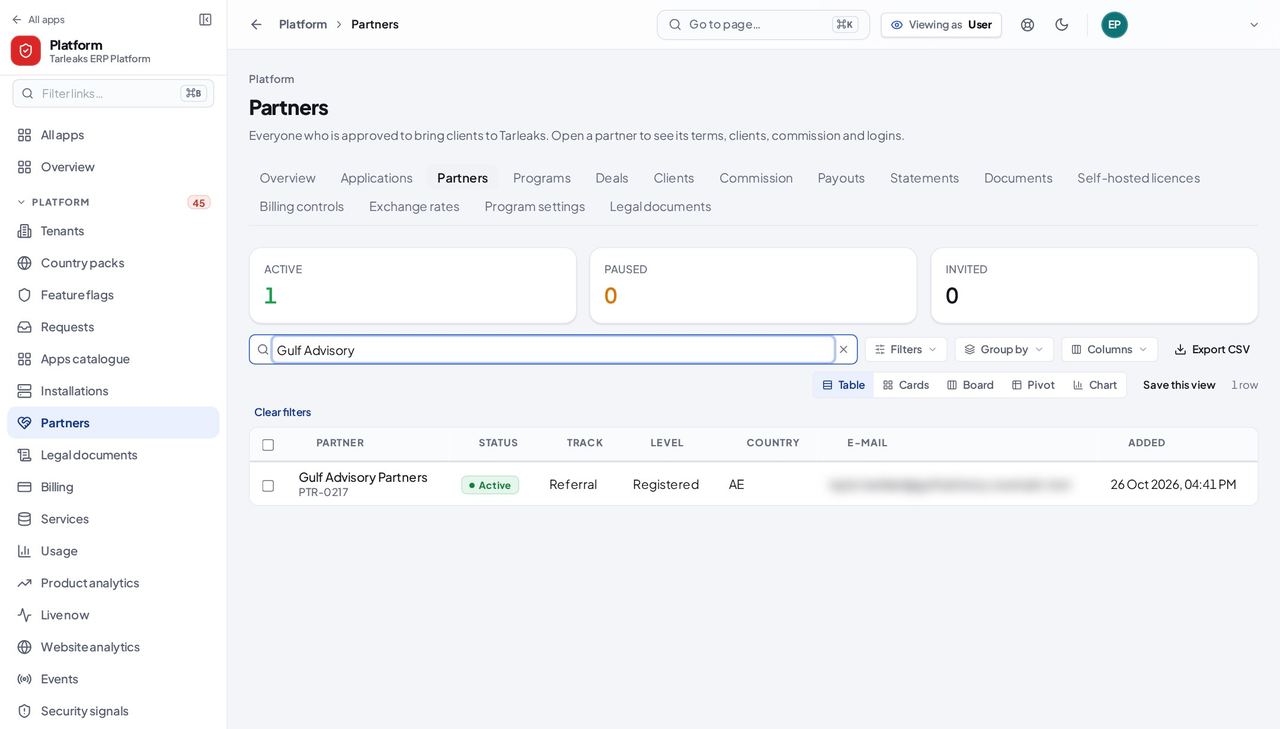
You should see Each partner with its number, status, track, level and country. A partner whose payouts are held shows Payouts on hold beside its status.
Watch out Invited means approved but nobody has signed in yet. If the invitation never arrived, open the partner and copy a fresh invitation link from Logins.
Worth knowing A partner is never created on this page: it appears when you approve an application.
One partner #
Where Platform » Partners » Partners » a partner
- In the Platform menu, choose Partners.
- In the strip of sections under the title, choose Partners.
- Type part of the partner's name in the search box and click the partner's name.
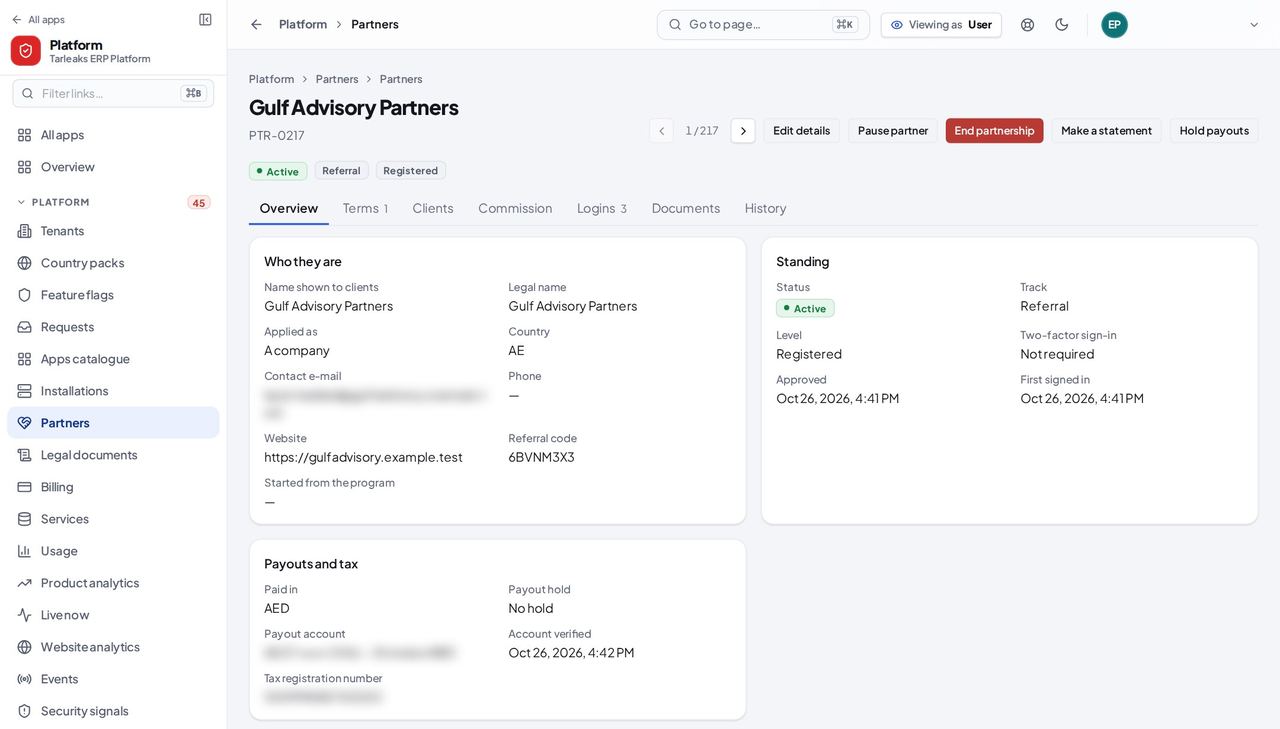
You should see The header shows the status, track and level. Across the top are the actions you may take: Edit details, Pause partner, End partnership, Make a statement and Hold payouts. The Overview ends with the terms that apply now.
Watch out Hold payouts stops payouts for this partner only; its commission keeps adding up until you release the hold. Pause partner also stops its people signing in. Both ask for a reason, and the partner's owners are told.
Commission terms #
Where Platform » Partners » Partners » a partner » Terms
- In the Platform menu, choose Partners.
- In the strip of sections under the title, choose Partners.
- Type part of the partner's name in the search box and click the partner's name.
- Click the Terms tab.
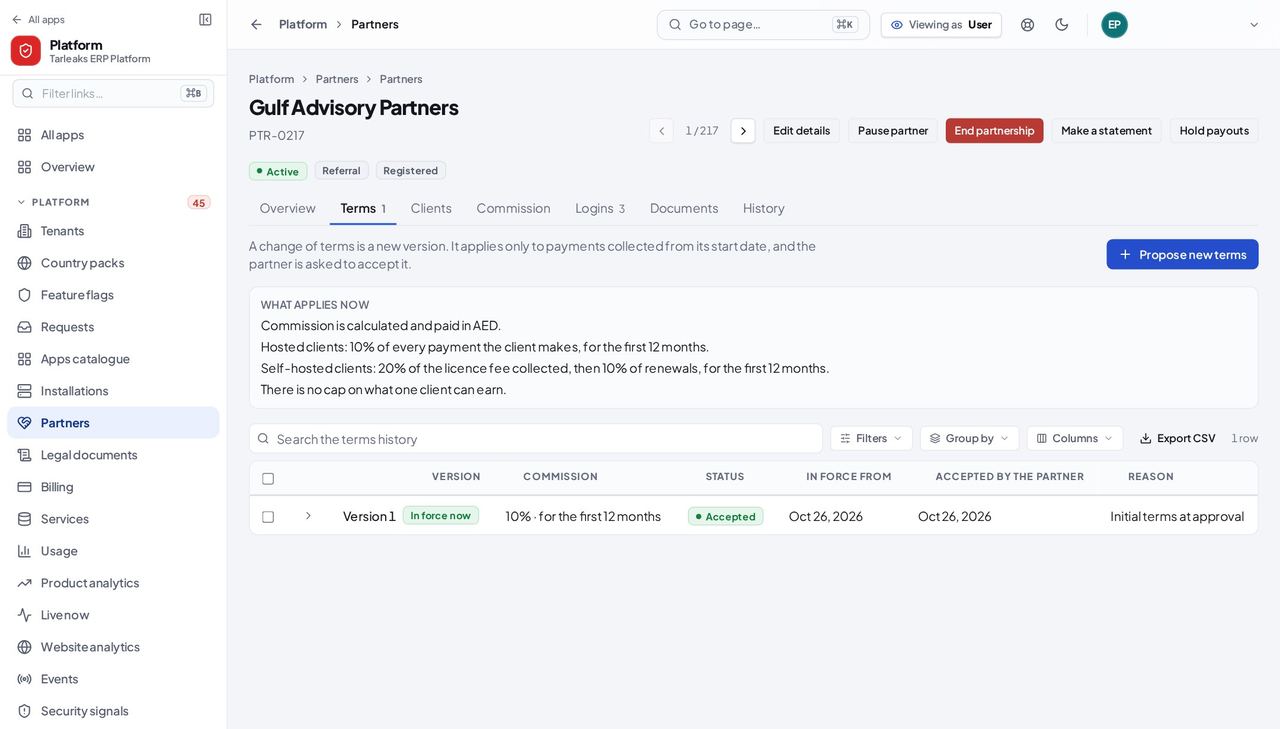
You should see The partner's Schedule A in plain words: the currency, what it earns on hosted clients, what it earns on self-hosted clients, and any cap. Each version shows its status, the day it is in force from and when the partner accepted it.
Watch out A change is never made in place: Propose new terms makes a new version that starts after the notice period (Notice for changed terms in Program settings), unless the partner agreed in writing to start earlier. Only one proposal can wait for the partner at a time.
Worth knowing To change the terms, press Propose new terms. The partner is asked to accept the new version, and it applies only to payments collected from its start date.
People and sign-ins #
Where Platform » Partners » Partners » a partner » Logins
- In the Platform menu, choose Partners.
- In the strip of sections under the title, choose Partners.
- Type part of the partner's name in the search box and click the partner's name.
- Click the Logins tab.
- Click ⋯ at the end of a person's row for the actions.
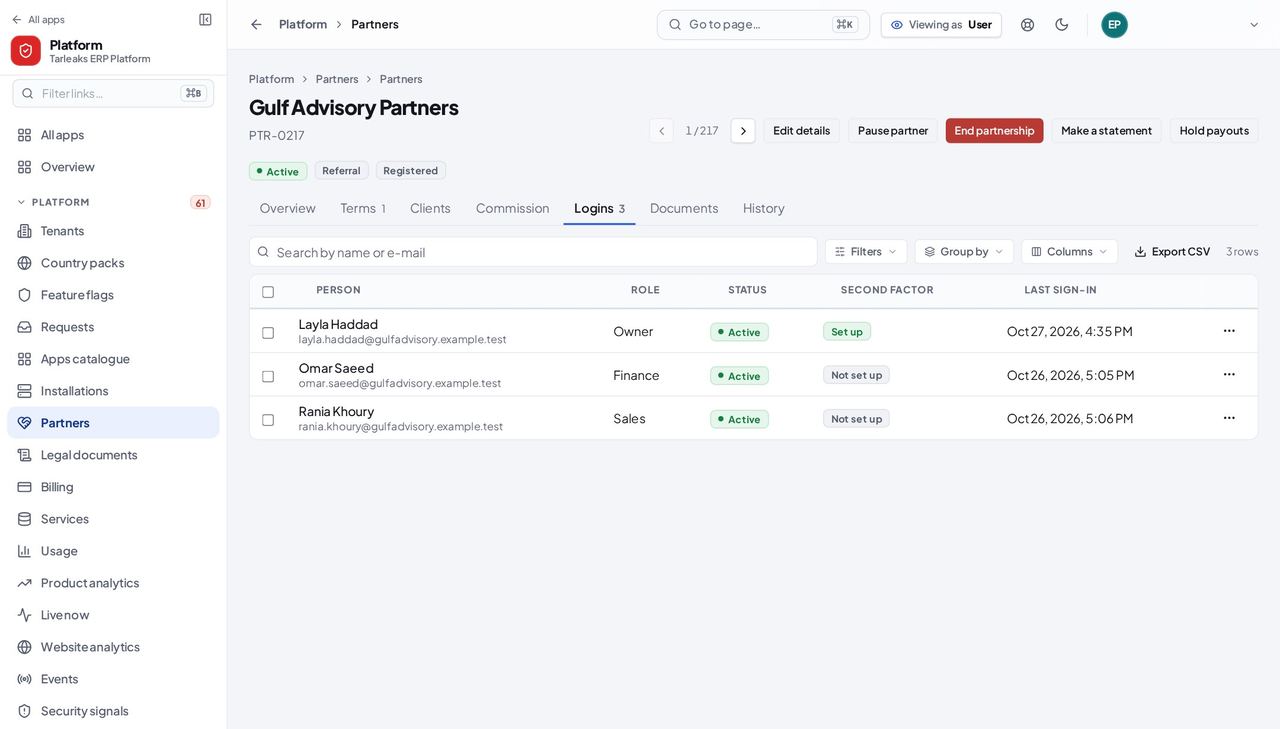
You should see Everyone who signs in for the partner, with their role (Owner, Finance or Sales), whether their login is active, whether a second factor is set up, and their last sign-in. The ⋯ menu offers Copy invitation link, Disable this login, Reset the second factor and Sign out everywhere.
Watch out Copy invitation link makes a new one-time link and the earlier link stops working: send it to the person yourself. Reset the second factor only after you have checked who is asking.
History #
Where Platform » Partners » Partners » a partner » History
- In the Platform menu, choose Partners.
- In the strip of sections under the title, choose Partners.
- Type part of the partner's name in the search box and click the partner's name.
- Click the History tab.
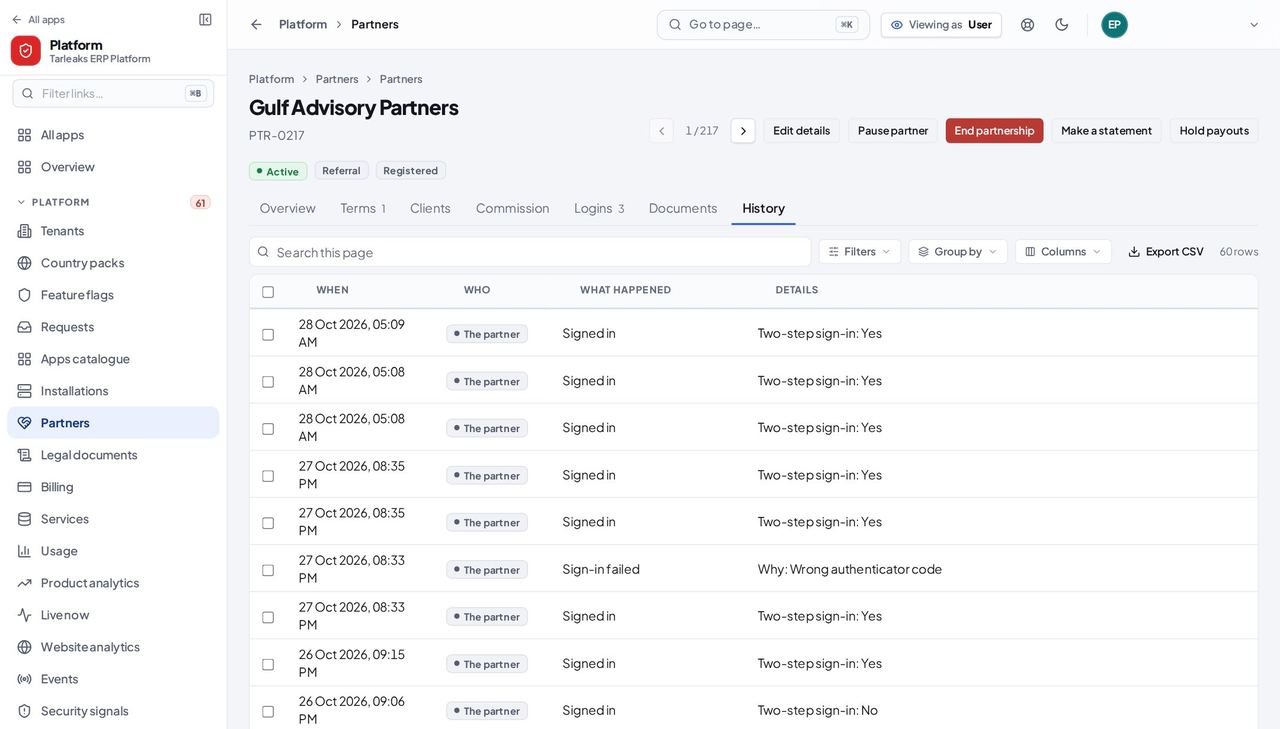
You should see Every change to the partner, newest first: when, who (the Tarleaks team, the partner or the system), what happened in words, and the details, the reason first.
Watch out The history cannot be edited or deleted. It names the kind of actor, not the person: to see which of your colleagues made a change, use the platform's audit log.
Programs #
Where Platform » Partners » Programs
- In the Platform menu, choose Partners.
- Choose Programs in the strip of sections.
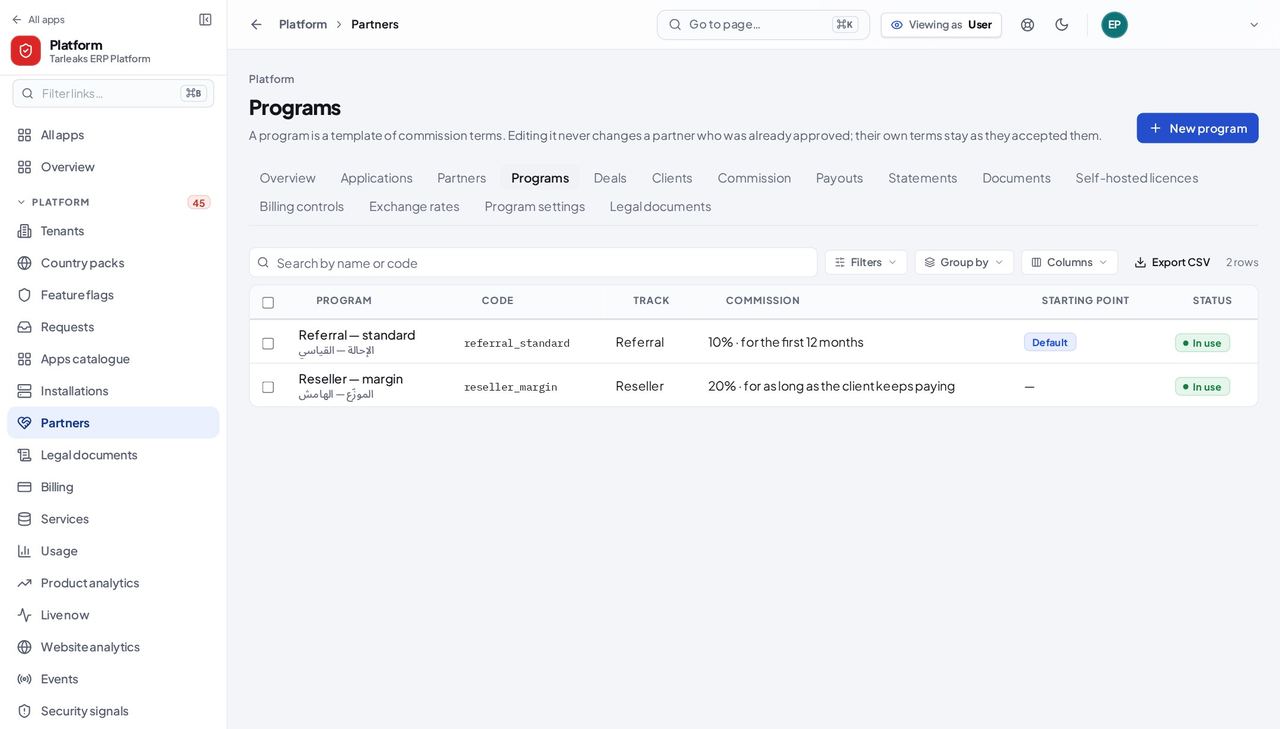
You should see The templates of commission terms you start from when you approve a partner: each program's name in English and Arabic, its code, track, commission, and whether it is the starting point for its track.
Watch out Changing a program only changes partners approved from it afterwards. To change an existing partner's commission, propose new terms on that partner's Terms tab.
Worth knowing Editing a program never changes a partner already approved: their own terms stay as they accepted them.
Deals #
Where Platform » Partners » Deals
- In the Platform menu, choose Partners.
- Choose Deals in the strip of sections.
- Type the prospect's or the partner's name in the search box.
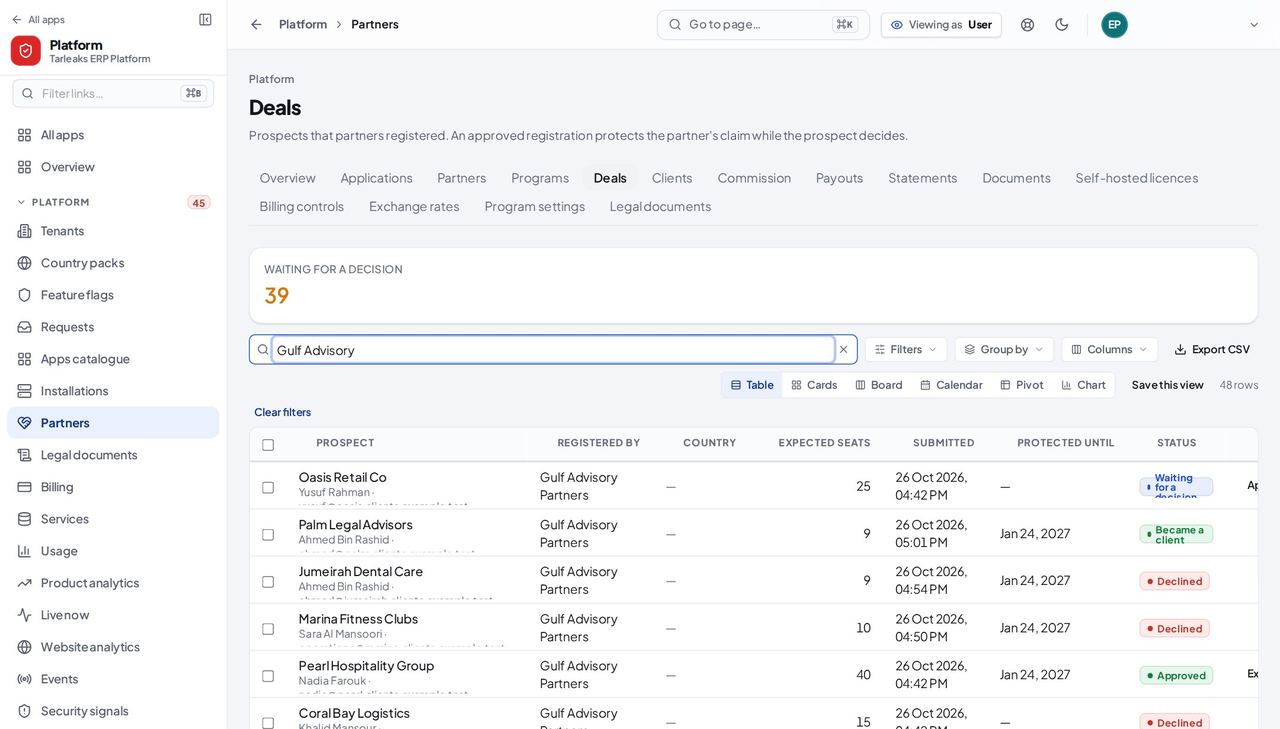
You should see Each prospect a partner registered: who registered it, the country, the expected seats, when it was submitted, how long the partner is protected and its status. Registrations waiting for a decision come first.
Watch out The search looks only at the page of deals already loaded. An approved registration protects the partner's claim for the Deal registration validity in Program settings, and the partner reads your reason when you decline.
Clients and who they are credited to #
Where Platform » Partners » Clients
- In the Platform menu, choose Partners.
- Choose Clients in the strip of sections.
- Type the client's or the partner's name in the search box.
- To credit a client, press Credit a client to a partner; to move one, press Change partner on its row.
| Field | What to put in it |
|---|---|
| Partner | The partner to credit. Left empty when changing, it ends the credit without naming another partner. |
| Kind of client | A hosted workspace or a self-hosted installation. |
| Client | Choose it by name. |
| Effective from | Commission on payments from this day on goes to the new partner. |
| Reason | For example: the client's written nomination of this partner. It stays on the record. |
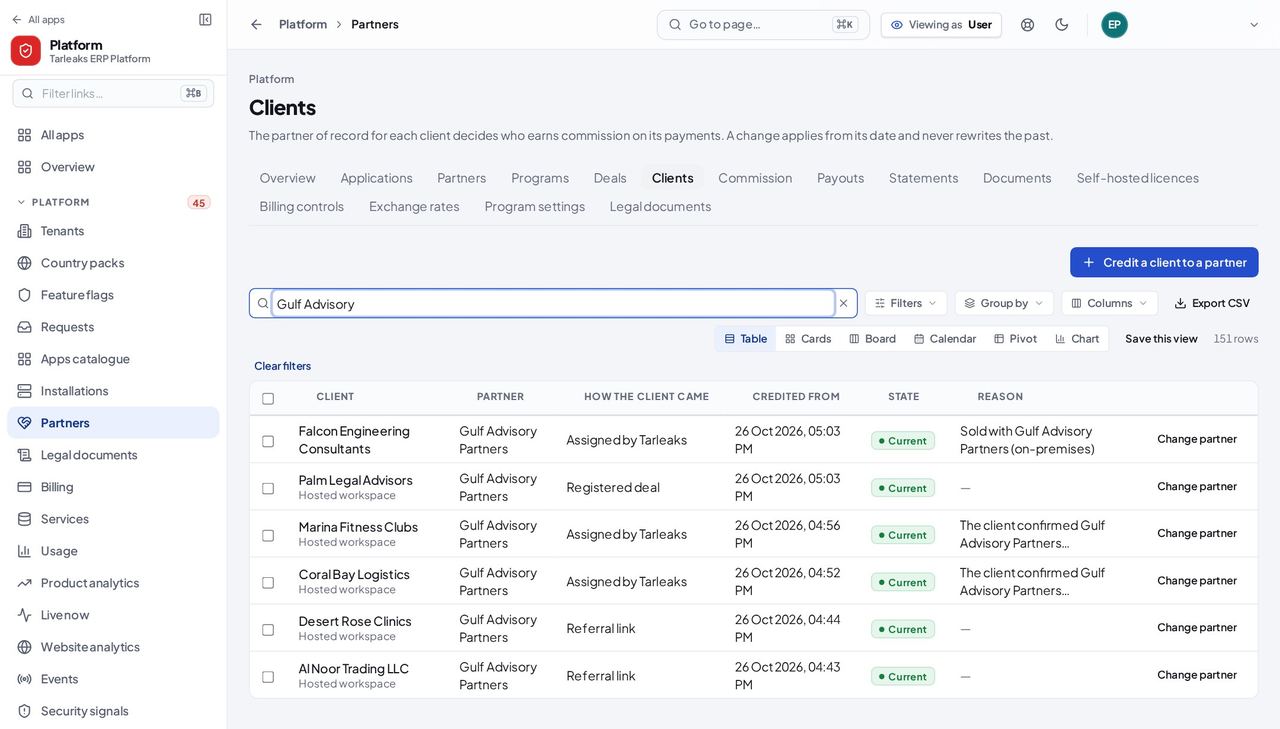
You should see Each client, whether it is a hosted workspace or a self-hosted installation, the partner it is credited to, how the client came (Referral link, Registered deal or Assigned by Tarleaks), the day the credit starts and whether it is current.
Watch out A change applies from its date and never rewrites the past: commission already earned stays with the partner who earned it.
The commission ledger #
Where Platform » Partners » Commission
- In the Platform menu, choose Partners.
- Choose Commission in the strip of sections.
- Type the partner's or the client's name in the search box.
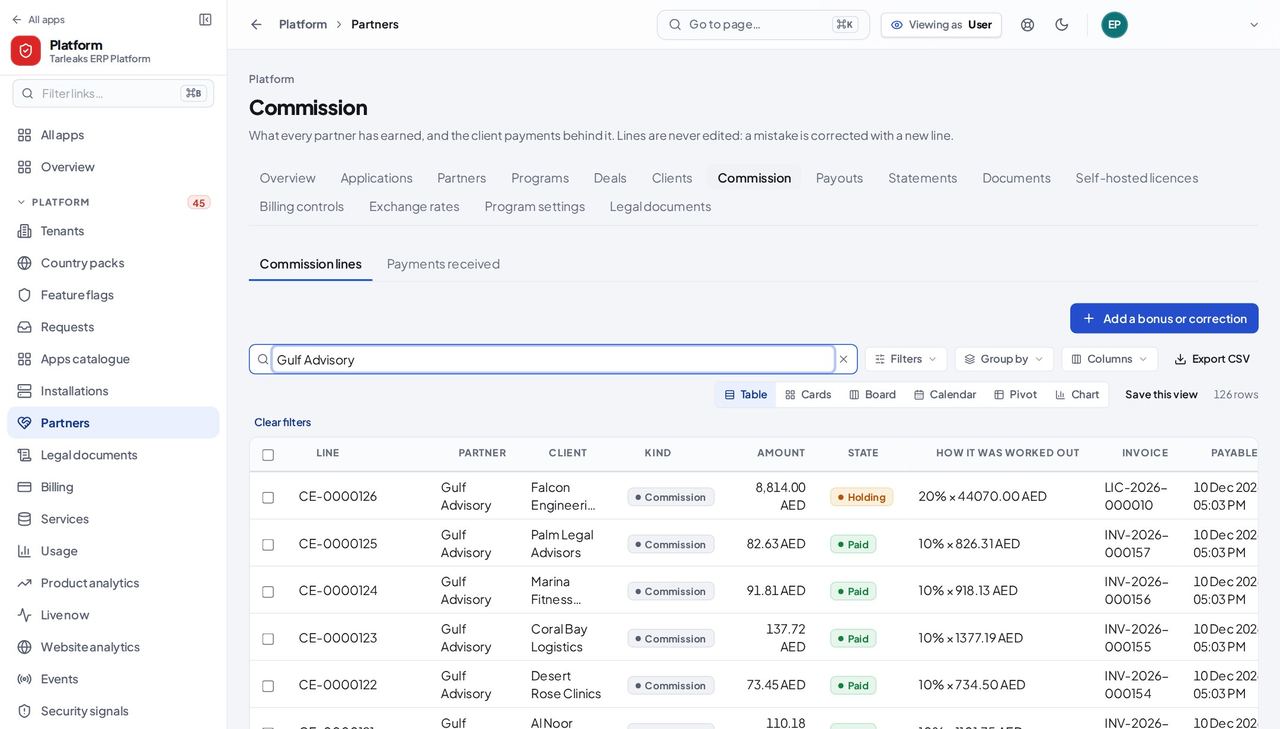
You should see Every commission line: the partner, the line number, the client, the kind, the amount, its state (Holding, Ready to pay, In a payout, Paid) and how it was worked out.
Watch out Lines are never edited. A new line is Holding until the holding period after the client's payment ends, then Ready to pay. A mistake is corrected with a new line: press Add a bonus or correction and give the reason.
Worth knowing The Payments received tab lists the client payments behind the lines, including any the engine skipped.
The payout desk #
Where Platform » Partners » Payouts
- In the Platform menu, choose Partners.
- Choose Payouts in the strip of sections.
- Type the partner's name in the search box, or choose the partner in Any partner.
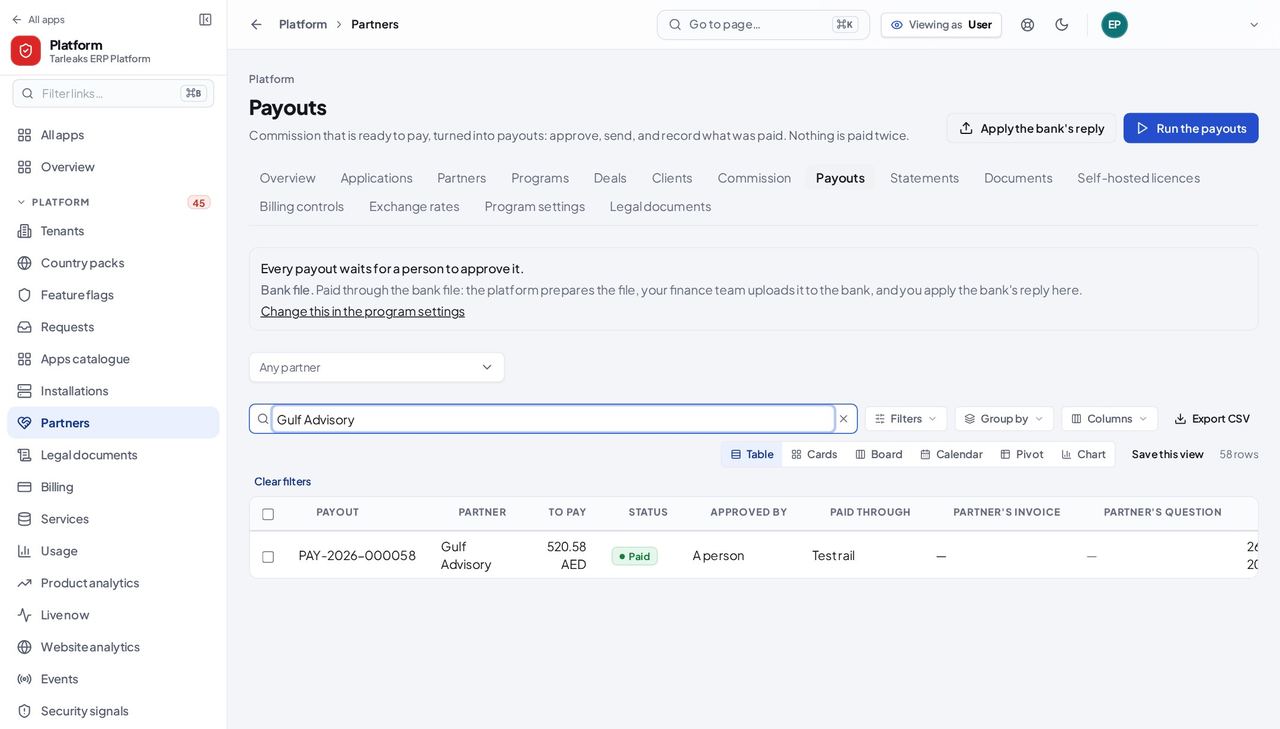
You should see Each payout with the partner, the amount to pay, its status, who approved it and what it was paid through. A payout that is waiting shows its next step on its row: Approve, then Send.
Watch out The Test rail (sandbox) moves no money: it is for testing only. A payout waits for the partner's own invoice when the partner has no self-billing consent; with consent, the platform issues the self-billed invoice and the payout waits for approval. Nothing is paid twice.
Statements #
Where Platform » Partners » Statements
- In the Platform menu, choose Partners.
- Choose Statements in the strip of sections.
- Type the partner's name or the statement's number in the search box.
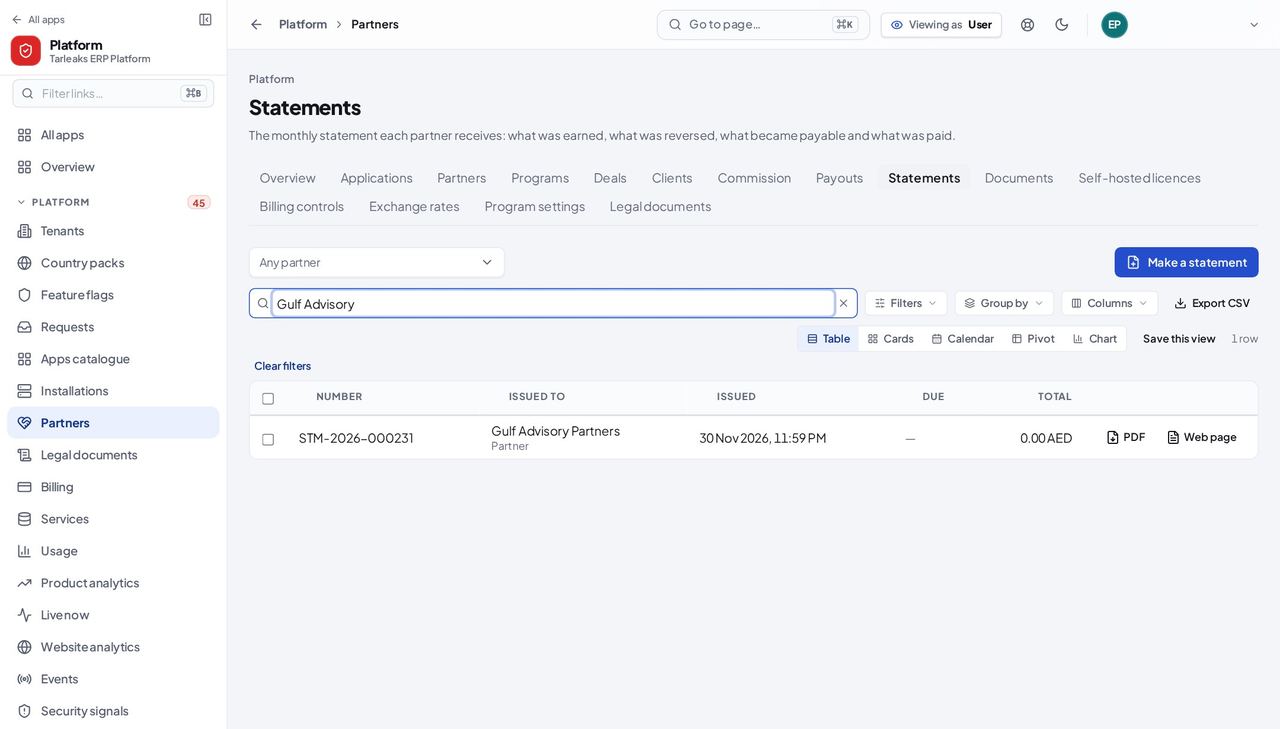
You should see Each partner's monthly statements, with their numbers, the partner they were issued to and the day they were issued.
Watch out A statement is never changed once made. The partner has the Time to question a statement in Program settings to raise a question about it.
Worth knowing Statements are made automatically on the 1st of each month for the month before. Make a statement makes one now; asking twice for the same month gives the same statement.
Documents #
Where Platform » Partners » Documents
- In the Platform menu, choose Partners.
- Choose Documents in the strip of sections.
- Type a number or a name in the search box, or choose a partner in Any partner.
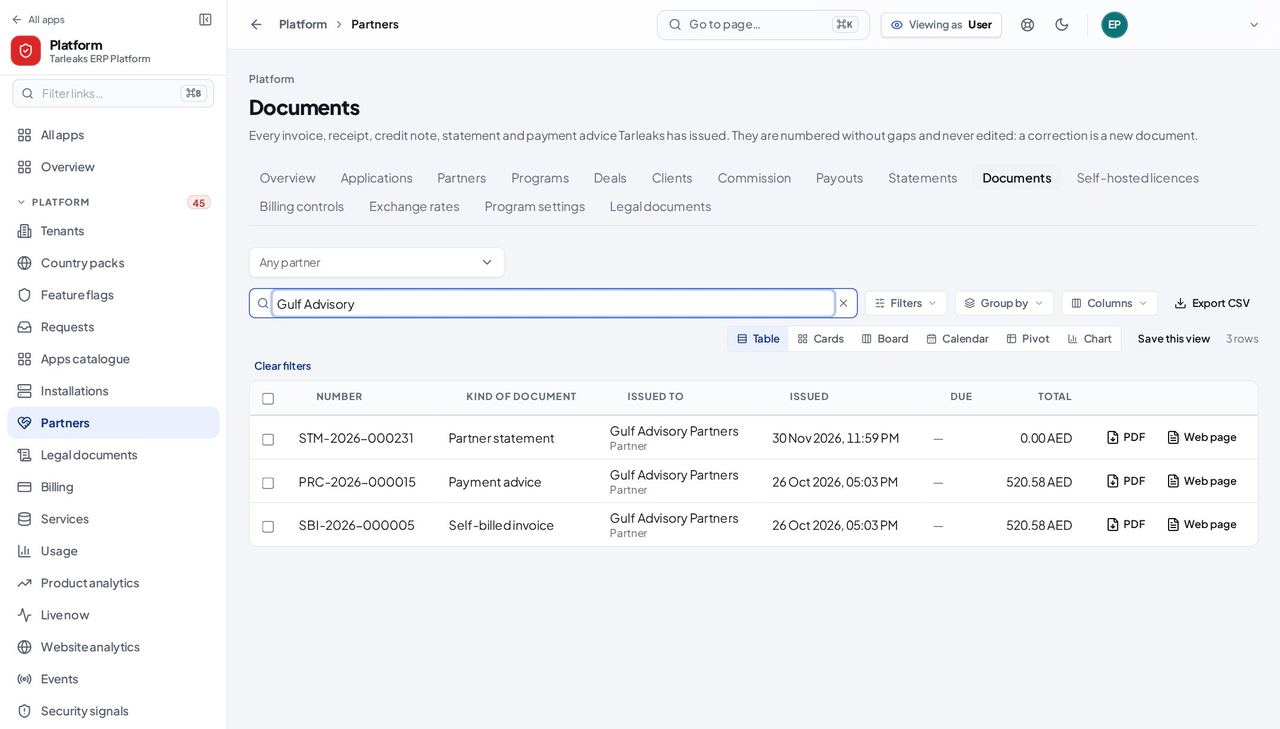
You should see Every invoice, receipt, credit note, statement, self-billed invoice and payment advice the program issued: its number, the kind of document, who it was issued to, the dates and the amounts before and after VAT.
Watch out Documents are numbered without gaps and never edited: a correction is a new document, such as a credit note.
Self-hosted licences #
Where Platform » Partners » Self-hosted licences
- In the Platform menu, choose Partners.
- Choose Self-hosted licences in the strip of sections.
- Type the customer's name in the search box.
- Press Issue a licence invoice for a new invoice.
| Field | What to put in it |
|---|---|
| Customer | The self-hosted customer, chosen by name. |
| What is it for? | New licence, Renewal, Maintenance, Extra seats or Upgrade. |
| Description | Optional. It is printed on the invoice. |
| Covers from / Covers until | The licence period. The end must be on or after the start. |
| Amount before VAT | Above zero, at most two decimals. |
| Currency | Optional, for example USD. Left empty, the platform's usual currency is used. |
| VAT rate (%) | Optional. 5 means five percent; empty follows the customer's country. |
| Payment due on | Optional. The platform's usual payment term applies if empty. |
| Customer's tax number / Customer's address | Optional. Printed on the invoice. |
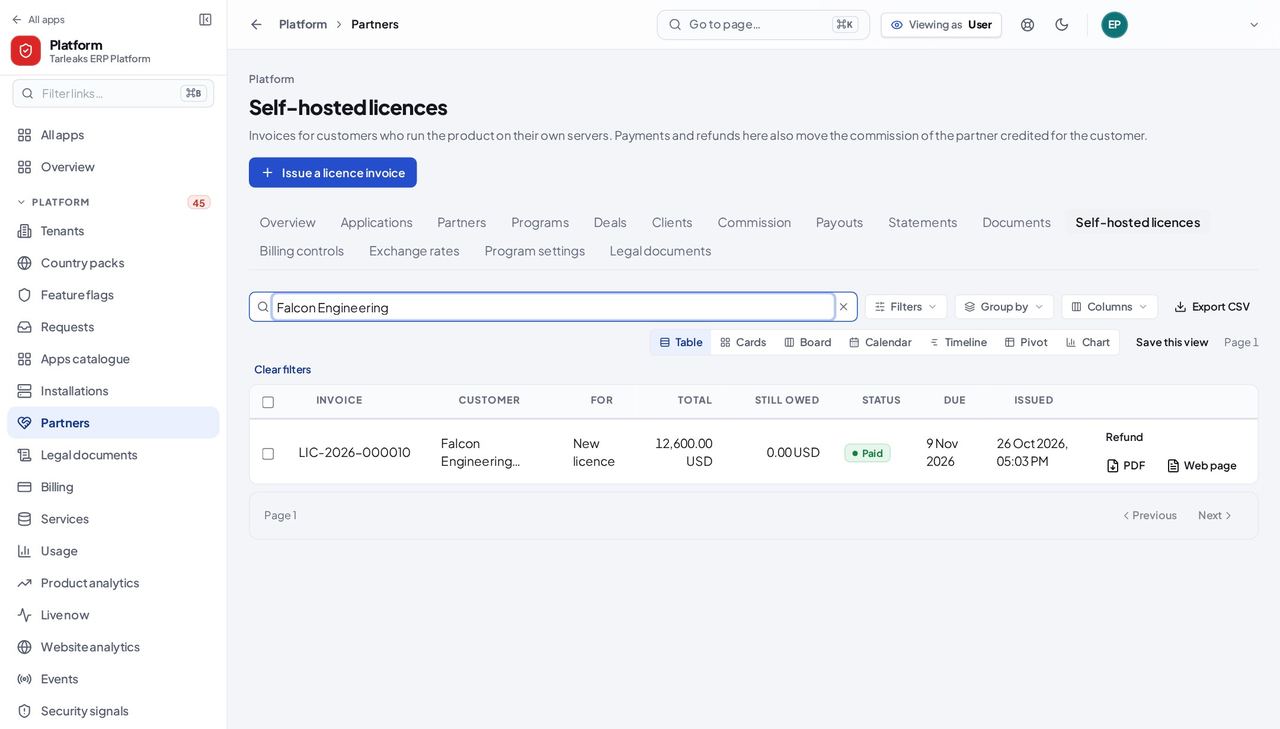
You should see Licence invoices for customers who run the product on their own servers: the invoice, the customer, what it is for, the total, what is still owed, its status and the receipts for its payments.
Watch out The invoice is numbered and its document made the moment you press Issue the invoice. If a partner is credited for the customer, it earns commission once the invoice is paid, and a refund reverses it.
Worth knowing A payment recorded here also moves the commission of the partner credited for the customer.
Exchange rates #
Where Platform » Partners » Exchange rates
- In the Platform menu, choose Partners.
- Choose Exchange rates in the strip of sections.
| Field | What to put in it |
|---|---|
| From currency / To currency | Three letters each, for example USD and AED. |
| How many units of the second currency for one of the first | The rate. |
| In force from | The first day the rate applies. |
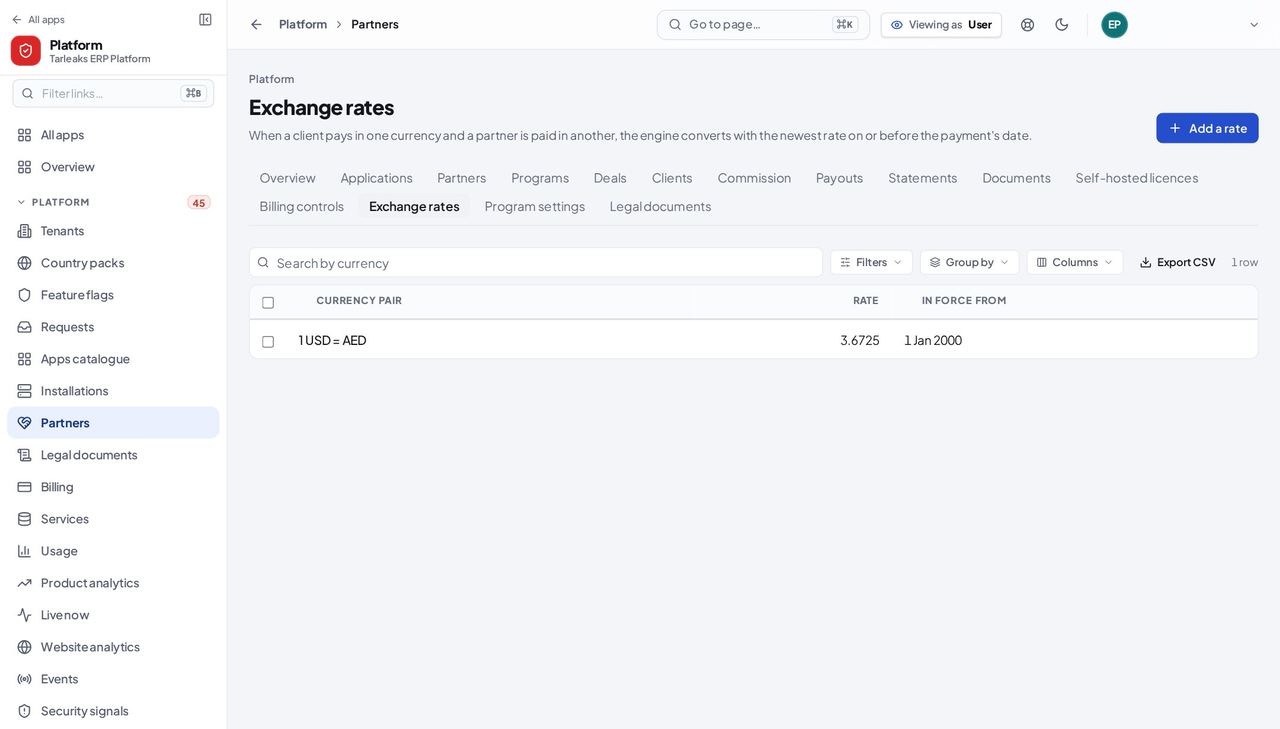
You should see Each currency pair, its rate and the day it is in force from. When a client pays in one currency and the partner is paid in another, the newest rate on or before the payment's date is used.
Watch out A rate is used for payments on or after its day. A commission that needs a missing rate is skipped and appears under Payments received on the Commission page until the rate is added.
Program settings #
Where Platform » Partners » Program settings
- In the Platform menu, choose Partners.
- Choose Program settings in the strip of sections.
- Type part of a setting's name in Find a setting.
| Field | What to put in it |
|---|---|
| Holding period (days) | Commission becomes payable this many days after the client's payment. 45 by default. |
| Clawback window (days) | A refund inside this window reverses the related commission. 120 by default. |
| Minimum payout | Smaller balances roll over to the next payout, in the payout currency. |
| Payout mode | approval: a person approves each payout. auto: payouts under the cap are approved by the platform. |
| Payout provider | bank_batch: a bank file. manual: paid elsewhere and recorded here. sandbox: tests only, no money. |
| Auto-approval cap (per payout) | In auto mode, larger payouts wait for a person. |
| Allow self-billing | Tarleaks may issue the partner's tax invoice when the partner consents and is VAT-registered. |
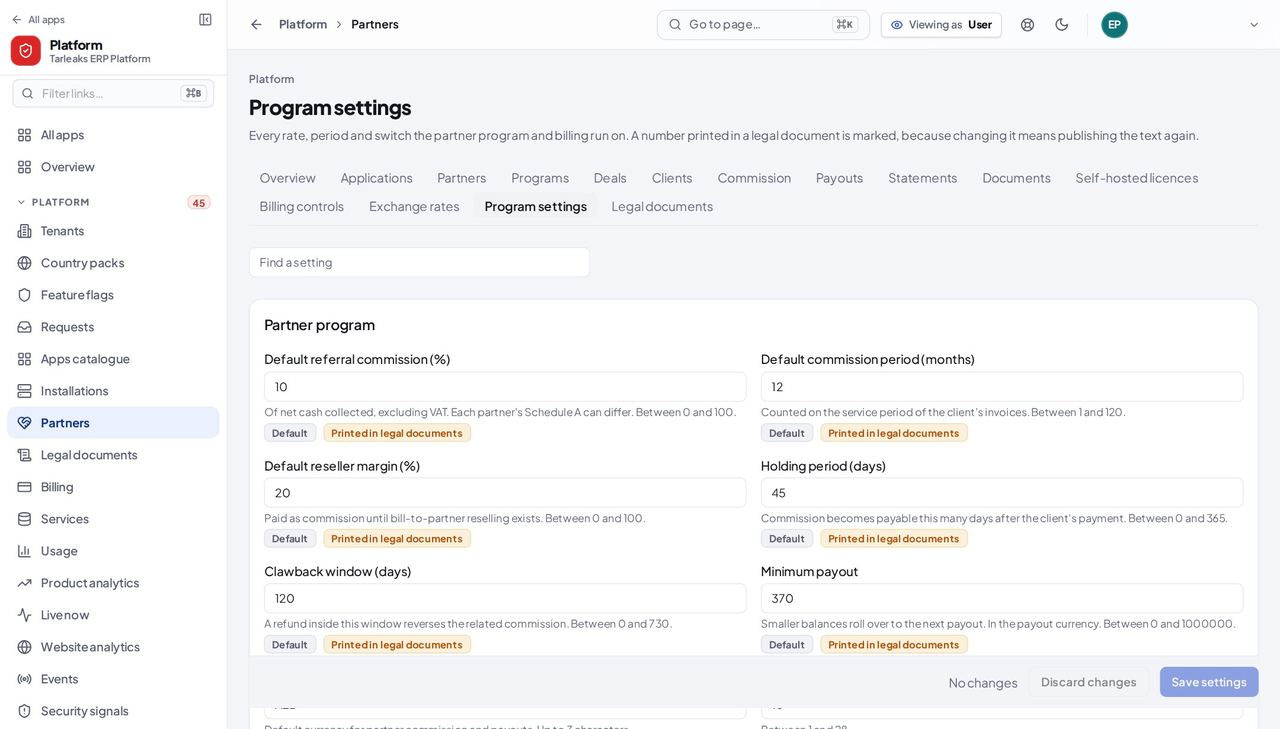
You should see Every rate, period and switch the program runs on, in groups: Partner program, Payouts, Billing and the grace period, Legal documents and sign-up, and Company details on documents. Each setting says what it does and its allowed range, and shows Default or Changed from the default.
Watch out Changes wait at the bottom until you press Save settings. A setting marked Printed in legal documents is quoted in a published text; after changing it, publish that text again.
Worth knowing A setting marked Printed in legal documents appears in a published text: changing it means publishing that text again.
Legal documents #
Where Platform » Legal documents
- In the Platform menu, choose Legal documents.
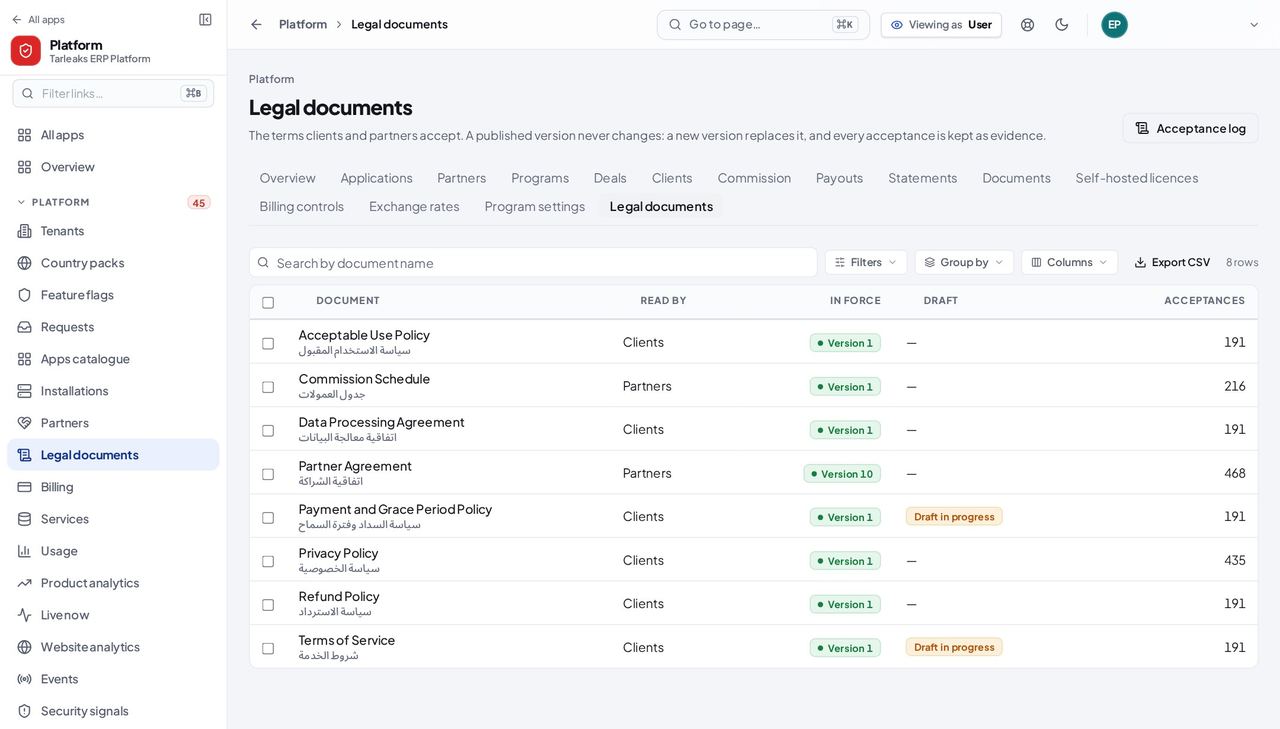
You should see The agreement and the policies clients and partners accept: who reads each one, the version in force, whether a draft is in progress, and how many acceptances it has.
Watch out A published version is never edited: start a new draft, then publish it as the next version. Whether people must accept it again is decided when you publish.
Worth knowing A published version never changes. A new version replaces it, and every acceptance of the old one is kept.
Who accepted what #
Where Platform » Legal documents » Acceptance log
- In the Platform menu, choose Legal documents.
- Press Acceptance log at the top right.
- Narrow the log with Any document, E-mail contains…, Any partner or Any workspace.
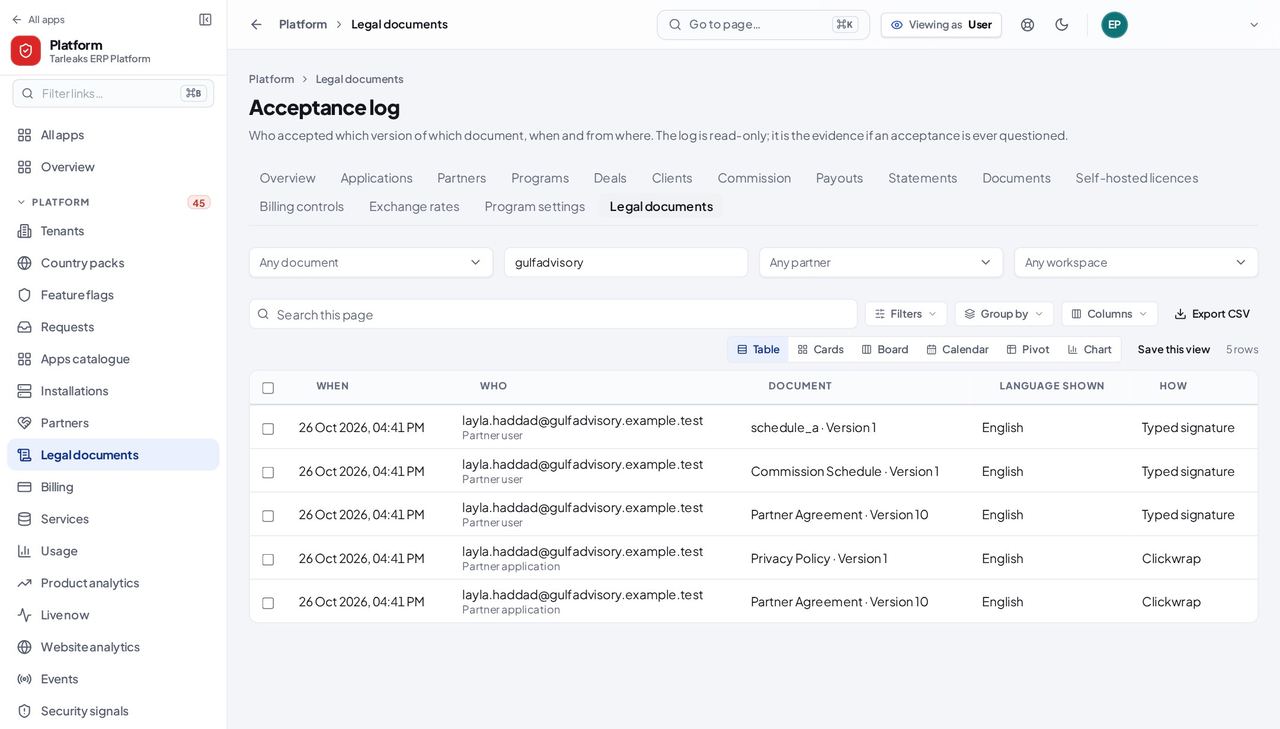
You should see Every acceptance: when, who, which document and version, the language it was shown in and how it was accepted. The log is read-only; it is the evidence if an acceptance is ever questioned.
Watch out The log is read-only. The text fingerprint proves which exact text was accepted, even after a newer version is published.
Use cases — the work, step by step
Each one is a sequence somebody actually performs, with the screen behind every step. Every screen here was opened in the product as this role before it was published.
on the 15thPay the month's commission #
The payout run collects every partner's payable lines. In approval mode nothing is sent until you approve it; a partner without self-billing consent first sends its own invoice.
Open the payout desk: read the rail, the mode and the month's payouts.
Platform » Partners » Payouts — verified: the control is offered; the control is offered; the page says “Gulf Advisory Partners”; the page says “Paid through”; the page says “Test rail”; the control is offered; the action is not offered to this role Check a partner's lines on the ledger before approving.
Platform » Partners » Commission — verified: the control is offered; the control is offered; the page says “Gulf Advisory Partners”; the page says “Al Noor Trading LLC”; the page says “How it was worked out”; the action is not offered to this role After sending, the documents are issued for each payout.
Platform » Partners » Documents — verified: the control is offered; the page says “Gulf Advisory Partners”; the page says “Kind of document”; the page says “Self-billed invoice”; the action is not offered to this role
for each applicationApprove a new partner #
The terms you choose at approval become the partner's Schedule A; the partner accepts them with the agreement before it can earn.
Read the application.
Platform » Partners » Applications — verified: the control is offered; the page says “Gulf Advisory Partners”; the page says “Interested in”; the page says “To check”; the action is not offered to this role After approval, the partner's terms are on its record.
Platform » Partners » Partners » a partner » Terms — verified: the control is offered; the control is offered; the page says “What applies now”; the page says “Hosted clients:”; the page says “Self-hosted clients:”; the control is offered; the page says “Accepted by the partner” Its people and their sign-ins are on the Logins tab.
Platform » Partners » Partners » a partner » Logins — verified: the control is offered; the page says “Owner”; the page says “Finance”; the page says “Sales”; 3 row(s) listed; the page says “Second factor”; the page says “Last sign-in”; the action is not offered to this role
Nothing here is edited in place. A change of terms is a new version, a mistake in commission is corrected with a new line, a published legal text is replaced by a new version, and every change is kept with a reason.